
REQUIREMENT All Elation EHR users are required to use multi-factor authentication for security and compliance purposes.
Overview
What is multi-factor authentication (MFA)?
Multi-factor authentication (MFA) is a security process that requires two or more verification methods to access an application or online account. Elation’s multi-factor authentication feature requires all users to enter their login email address and password as the first authentication method and at least one additional authentication factor in order to access their Elation EHR account.FOR PRACTICE ADMINS You are the first line of support for MFA and login issues at your organization. From Settings → Manage Accounts , you can unlock accounts and reset multi-factor authentication for your users. Contact Elation Support only if your practice has no active admin or an admin cannot access Manage Accounts .
What are the benefits of using multi-factor authentication with Elation?
Multi-factor authentication significantly lowers the risk of unauthorized accessto sensitive patient data, supporting ongoing HIPAA compliance. Multi-factor authentication helps prevent cyber attackers from accessing your account by requiring both your login credentials and a verification factor—something they are unlikely to have, even during phishing attempts.Which authentication factors are available for Elation?
There are currently 4 authentication factors you can use. Choose the authentication factor that is most suitable for your workflows. You are only required to set-up one of these, but we recommend setting up additional factors. This way you have a back up in case one becomes compromised or you run into issues using one of your authentication factors.
SMS or phone calls are not supported by Elation due to known vulnerabilities (e.g. SIM Swapping & phishing).
For guidance on shared logins and protecting your devices, see Best practices for keeping your Elation account secure.
Set-up
Enabling multi-factor authentication for the practice
Multi-factor authentication is automatically enabled for every practice.Setting up authentication factors
Click here for instructions on how to set up authentication factors.Workflow Instructions
You cannot share accounts while using multi-factor authentication. Shared, or generic, user accounts or passwords are strictly prohibited by Elation’s Terms of Use and security policies. Individuals who use the EHR must log in using their own, unique account.
Signing in with multi-factor authentication
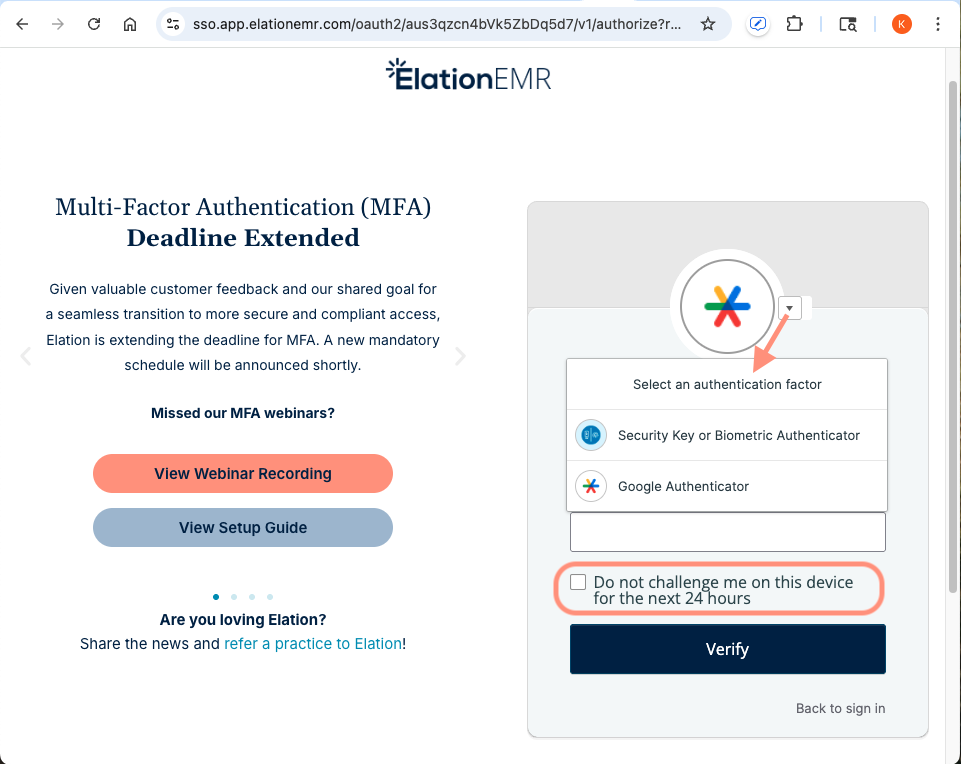
With multi-factor authentication, each time you log in to your Elation EHR account, you will be prompted to enter your login email address, password, and your authentication factor before you are granted access to your account.
- If you have multiple authentication factors, click the ⏷ button to select the authentication factor you want to use.
- Check off the Do not challenge me on this device for the next 24 hours box on the authentication screen if you want to bypass multi-factor authentication while logging in and out of Elation for the next 24 hours in that browser and device.
Updating authentication factors
Click here for instructions on updating authentication factors.Resetting authentication factors (if locked out)
Click here for instructions on resetting authentication factors if you are locked out of Elation.Frequently Asked Questions (FAQ)
Click here for answers to common MFA questions—including troubleshooting login issues, choosing authentication factors, and more—see our dedicated.Related Articles
- Multi-Factor Authentication Guide - Frequently Asked Questions
- Multi-Factor Authentication Guide - Setting up authentication factors
- Multi-Factor Authentication Guide - Updating authentication factors
- Multi-Factor Authentication Guide - Resetting authentication factors
- Multi-Factor Authentication - Quick Start Guide
- User Accounts Guide – Managing Elation accounts for providers and staff
- User Accounts Guide – Using Single Sign-On to access your Elation EHR account