
Click here for a breakdown of the different chapters in this video.
- 00:06 - Who needs MFA?
- 00:25 - MFA Overview
- 01:05 - Login Workflow
- 02:47 - Roles & Responsibilities
- 03:55 - Comparison of Authentication Factors
- 05:06 - Setup from Settings
- 05:46 - Setup From Login Screen
What is Elation’s multi-factor authentication (MFA) feature?
Elation’s multi-factor authentication feature requires all users to enter their login email address and password as the first authentication method and at least one additional authentication factor in order to access their Elation EHR account. To comply with proposed cybersecurity guidelines from the U.S. Department of Health and Human Services, follow security best practices, address the growing threat of cyber attacks and protect your patient’s data, Elation requires all users to use either multi-factor authentication or single sign-on.What are the benefits of using multi-factor authentication with Elation?
Multi-factor authentication significantly lowers the risk of unauthorized access to sensitive patient data, supporting ongoing HIPAA compliance. Multi-factor authentication helps prevent cyber attackers from accessing your account by requiring both your login credentials and a verification factor—something they are unlikely to have, even during phishing attempts.Who does what for multi-factor authentication?
Here’s how responsibilities are shared when it comes to multi-factor authentication at your practice:Comparing authentication factors
Choose from four types of authentication factors for multi-factor authentication. While only one is required, we recommend setting up multiple options so you have a backup if one becomes unavailable.Setting up your own authentication factors
Each user in the practice should set up their own authentication factors. Click here for step by step instructions.Signing in with multi-factor authentication
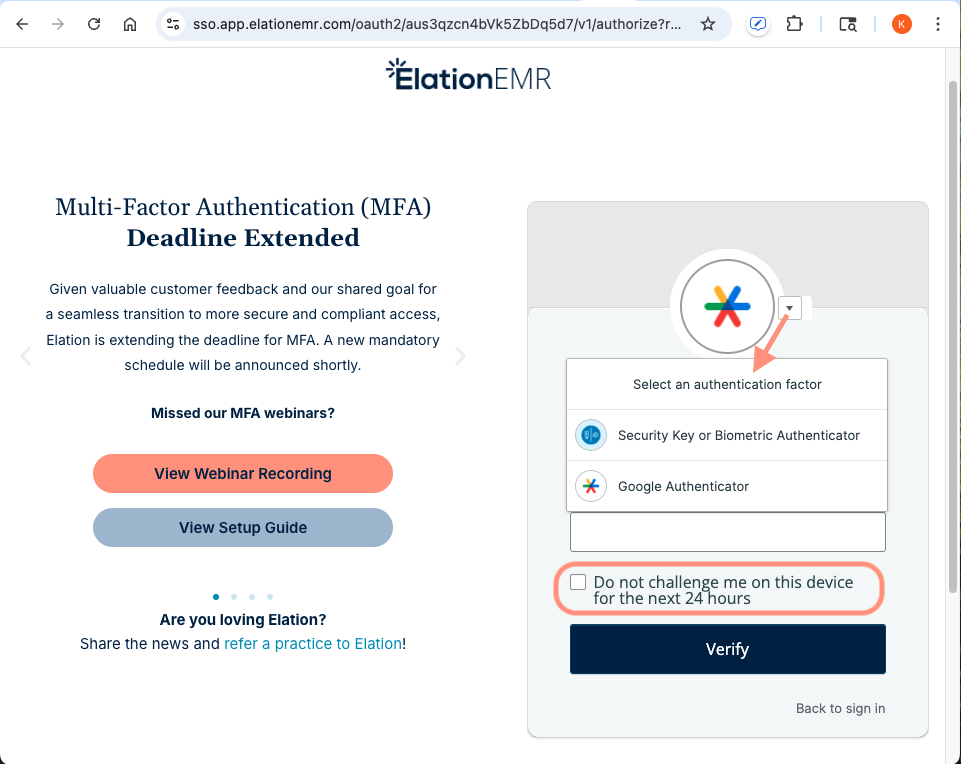
With multi-factor authentication, each time you log in to your Elation EHR account, you will be prompted to enter your login email address, password, and your authentication factor before you are granted access to your account.- If you have multiple authentication factors, click the ⏷ button to select the authentication factor you want to use.
- Check off the Do not challenge me on this device for the next 24 hours box on the authentication screen if you want to bypass multi-factor authentication while logging in and out of Elation for the next 24 hours for that browser and device.
Resetting authentication factors (if locked out)
If you find yourself locked out, ask an Admin Level User in your practice to reset your authentication factors for you by clicking Reset Multi-factor next to your name in the Manage Accounts settings page. If you are the sole administrator of an Elation practice, click here to contact the Support Team. We will send you an email to verify your identity and reset your authentication factor(s) on your behalf.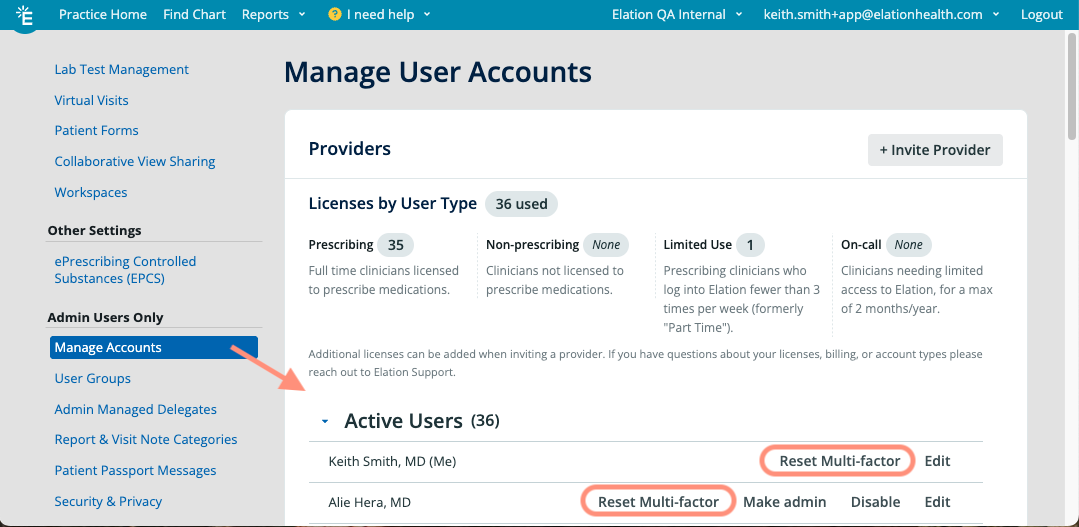
Related Articles
- Multi-Factor Authentication Introduction
- Multi-Factor Authentication Guide - Setting up authentication factors
- Multi-Factor Authentication Guide - Updating authentication factors
- Multi-Factor Authentication Guide - Resetting authentication factors
- Multi-Factor Authentication Guide - Frequently Asked Questions
- User Accounts Guide- Managing Elation accounts for providers and staff
- User Accounts Guide- Using Single-Sign On to access your Elation EHR account