Overview
What is the Insurance Card Image Upload feature?
The Insurance Card Image Upload feature is a function- in the Patient Demographics Insurance, Payment & Membership section that allows you to upload up 2 (two) insurance card images into each of the Primary Insurance and Secondary Insurance sections.
- in Patient Forms that allows you to collect up 2 (two) insurance card images each, from patients, regarding their Primary Insurance and Secondary Insurance sections.
Why is the Insurance Card Image Upload feature valuable?
Having the most up to date and accurate insurance information for your patient allows you to streamline the medical billing process and improve healthcare quality. The Insurance Card Image Upload feature will allow you to store the front and back images of the patient’s insurance card directly in their demographics to allow you to:- easily reference the data that is displayed on insurance cards such as the patient’s group and policy numbers as well as copay, coinsurance, deductible, claims mailing address, phone numbers for billing or authorizations and insurance electronic Payer ID
- reconcile new insurance cards with existing cards on file during the check-in process.
How do I get started?
The Insurance Card Image Upload features will gradually be made available to Elation customers beginning January 2022. Keep an eye out for this updated experience in your EHR.Workflow Instructions
Patient Demographics
How to upload an insurance card image
| 1 | Open the patient’s chart and click on their name to open the Demographics window. |
|---|---|
| 2 | Go to the Insurance, Payment & Membership section and click Insurance Card Side 1 or Insurance Card Side 2 depending on which one you want to upload. 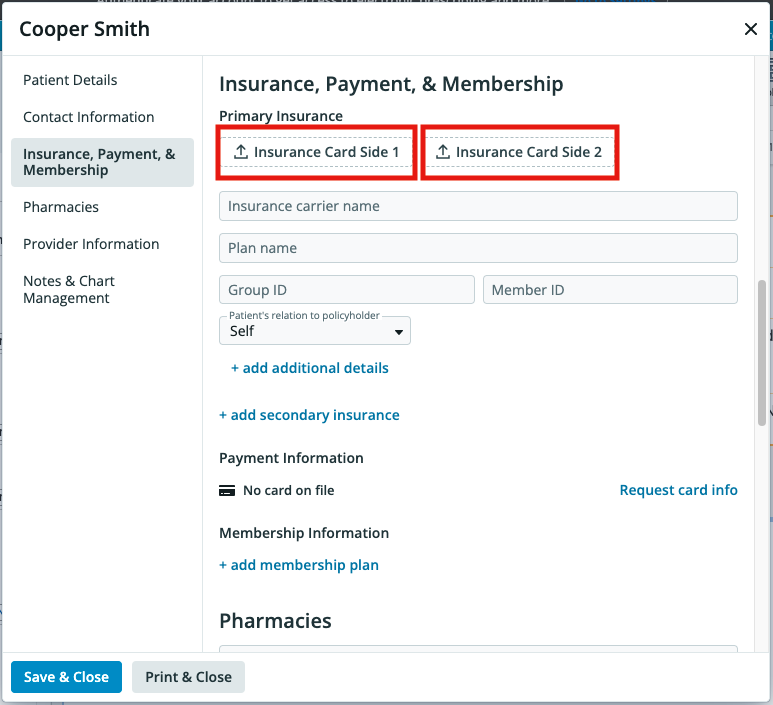 |
| 3 | Select the JPEG (JPG/JPE), PNG, or PDF file from your computer and click Open . |
| 4 | The Edit Photo window will allow you to crop or rotate the image you uploaded to adjust the image. When you are ready, click Confirm . |
| 5 | Once the images are uploaded, they will be visible in the Demographics Window. Click Save & Close to save the images to the patient’s chart. 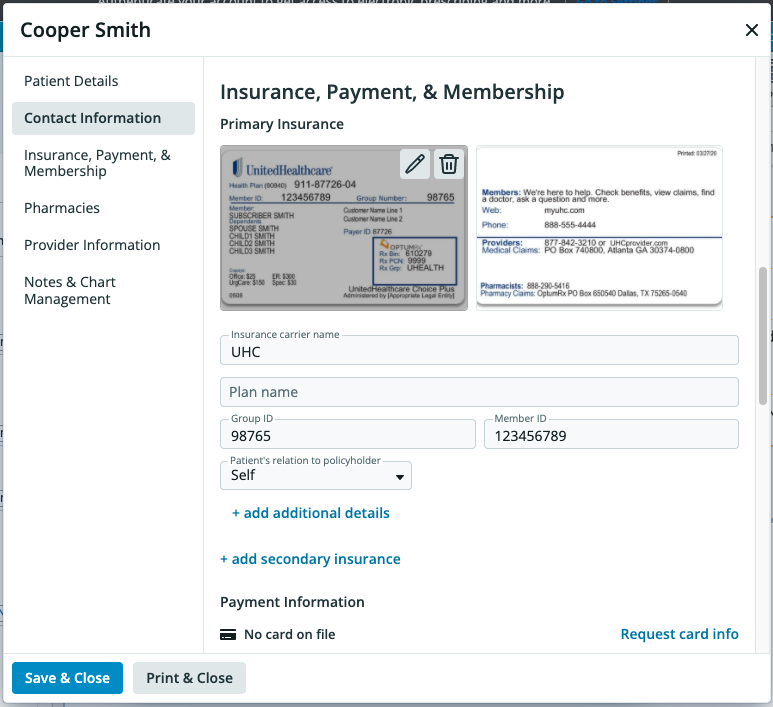 |
How to manage uploaded insurance card images
Once an insurance card image is saved to the Demographics box, you can: 1 Click on the card to view a larger image. 2 Click the pencil icon to crop or rotate the image. 3 Click the trash can icon to delete the image, or move the image file to the Reports section of the patient’s chart.Troubleshooting insurance card upload errors
If you encounter an error while uploading an insurance card image, use the guidance below to identify and resolve the issue.Identifying the type of error
Validation errors display a clear message describing the problem (for example, unsupported file type). These errors indicate an issue with the file you are trying to upload. System errors display a long alphanumeric code without a clear explanation. These errors indicate a temporary technical issue.Resolving validation errors
If you see a clear error message:Resolving system errors
If you see a long alphanumeric code without a clear explanation:How to print uploaded insurance cards
To print the images of the insurance cards uploaded to the patient’s demographics, click the Print & Close button at the bottom of the demographics window. The insurance card images will print at the end of the demographics as displayed below: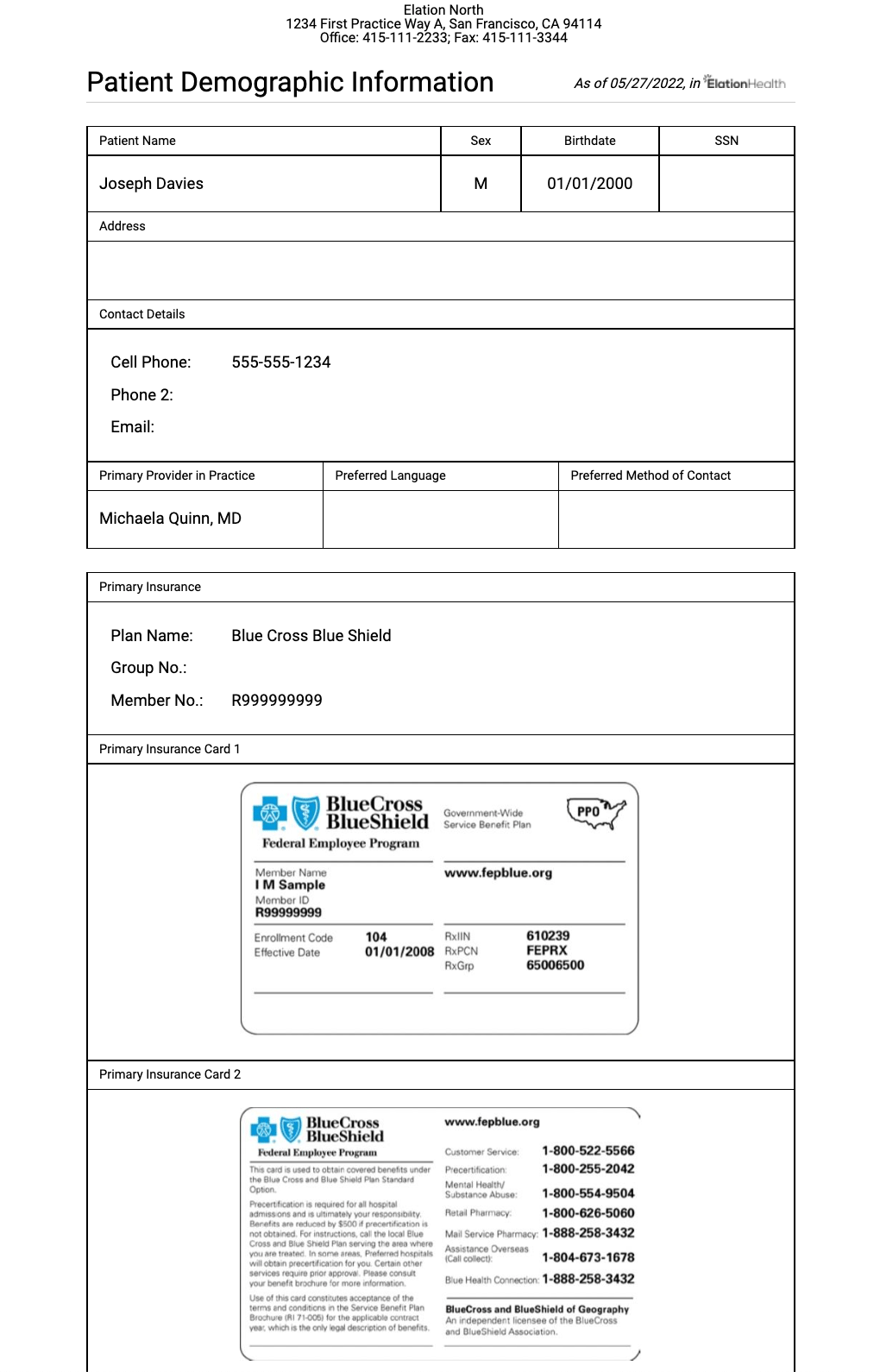
Patient Forms
How to add insurance card questions to Patient Forms
| 1 | Go to Settings >> Patient Forms and edit the Patient Form you would like. |
|---|---|
| 2 | Click Add question to find the Insurance Card Images - Primary and Insurance Card Images - Secondary questions and click to add. Default Question Text is included with the questions to help guide patients on how to update good quality images. Feel free to adjust this text as needed. • Each question can only be added once. 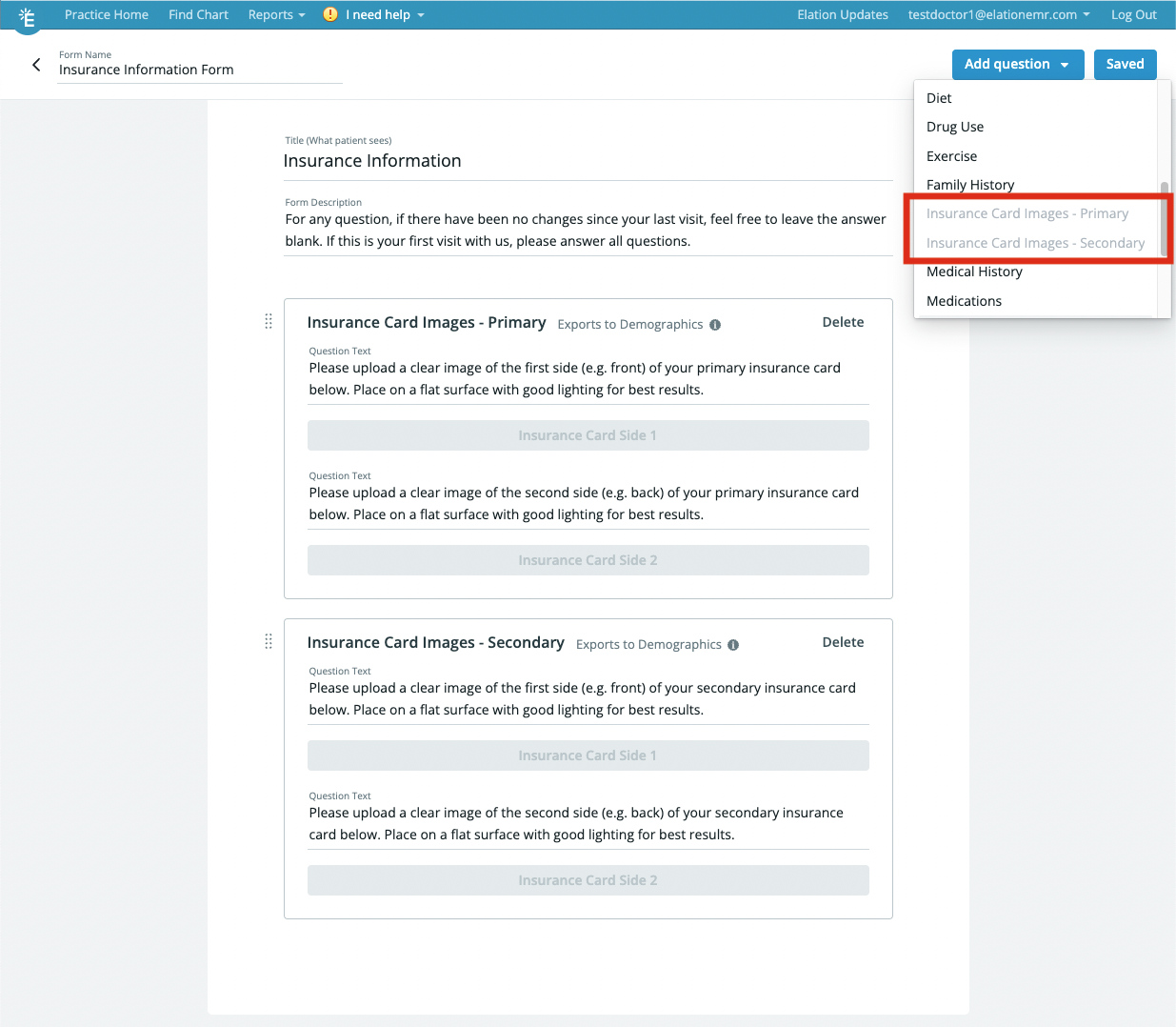 |
| 3 | Click Save Changes to save the new questions to your Patient Form. |
How patients upload insurance card images when completing Patient Forms
Once patients receive forms with the insurance card questions, they can use a file selector on the computer or mobile device to select and submit images of their insurance card. Patients will be able to see what the images look like and attach better images if the quality is not ideal.- If the patient is using a mobile device with a camera, they can take pictures of their insurance cards from the form to attach them.
How to manage insurance card images from submitted Patient Forms
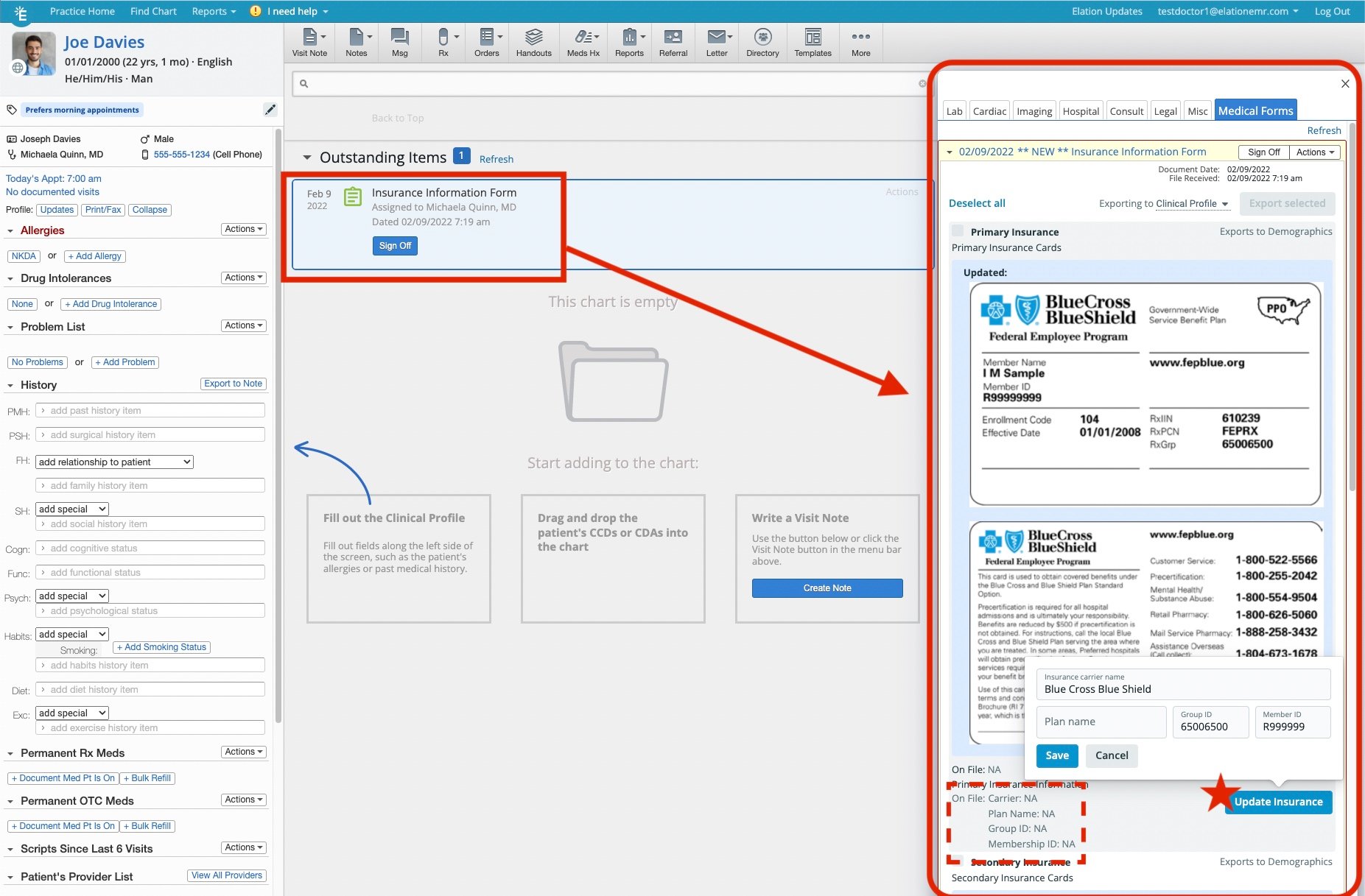
Submitted forms will appear in the Outstanding Items section of the patient’s chart as usual. When you open a form with insurance card images, you will be able to: 1 Compare the information in the images to what you already have on file for the patient. 2 Click Update Insurance to update the information in your patient’s chart with the information on the new card(s).- You can click Edit again if you need to make any changes after updating.
You must update the Insurance Carrier Name, Plan Name, Group ID or Member ID information on file before you can export the images to the patient’s demographics. This is to make sure your patients always have the correct insurance data stored in their chart.Historical insurance card images will be filed into the Reports section of the patient’s chart for record keeping if new images replace historical images.Images can only be exported to the Demographics section; regardless if you select Clinical Profile or Visit Note during export.