
Overview
What is the patient self-enrollment feature?
Patients can submit enrollment requests for your membership plans through a secure public enrollment page. Their form submission creates a patient chart (if one doesn’t already exist), captures payment information, and sends the request to your practice for review. You can stay in control by approving or denying the request before any charges begin.Why should I use patient self-enrollment?
- Reduces administrative work by letting patients submit enrollment requests to your practice on their own.
- Helps your practice grow more efficiently by collecting key patient details and payment upfront.
- Ensures charges won’t begin until your team activates the membership.
Setup
Pre-requisite Configurations
1
In the top right corner of Elation, click your email address and go to Settings, then click Membership Management.
2
Locate the plan for which you’d like to enable self-enrollment. Click the toggle for Enable self enrollment until it turns green. If you haven’t created any membership plans yet, follow these instructions to create one first.
3
Select a default physician that will be associated with any brand new charts that are created. The patient’s first name, last name, date of birth, and sex at birth will be used to determine if there’s a match with one of your existing charts. If no match is found, a new chart will be created.
4
Optionally click the Customize button to customize the Enrollment URL.
5
Copy the URL so that you can share it with your patient.
Workflow Instructions
Self-enrollment involves two steps. First, your patient must complete the online request form for the plan. Next, someone from your practice must approve or deny the request.Submitting the online request form (performed by the patient)
1
Open the enrollment URL for the membership plan. On this page, the patient will see the plan name, description, and cost.
2
Fill out the fields within the following sections: Patient Information, Contact Information, and Payment Information.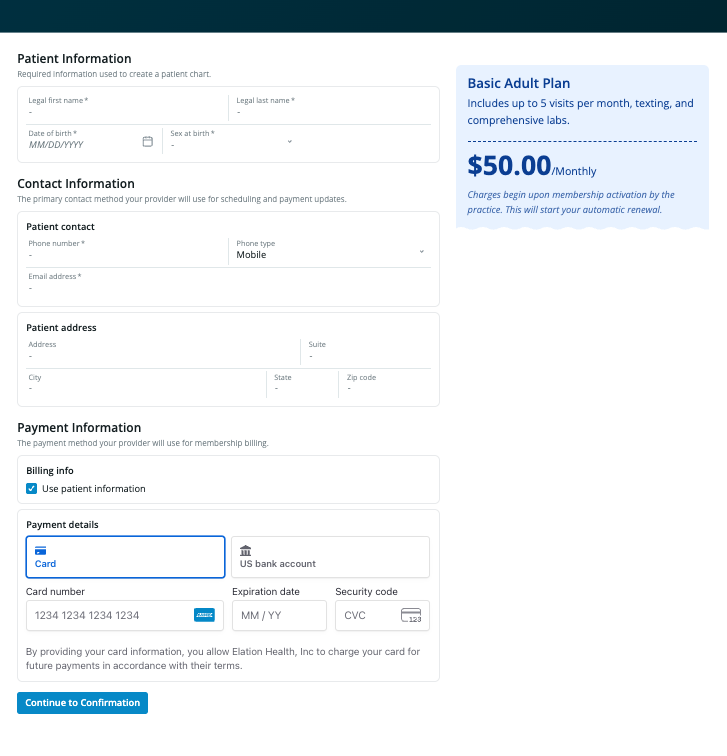
3
Click Continue to Confirmation.
4
Review the enrollment details on the confirmation page. If any changes need to be made, click Back. Otherwise, click Confirm Membership.
Reviewing a self-enrollment request (performed by the practice)
1
In the top blue bar of your Elation account, click Reports → Memberships Report.
2
Locate the patient’s enrollment request. Requests that require your attention show up as Pending under the Status column. For convenience, you can use the Status dropdown menu to filter for Pending or search for the patient’s name.
3
Click the … button that corresponds with the patient’s request and take the appropriate next step:
- Edit: Allows you to modify the start date and/or payment method of the plan.
- Activate: Activates the plan and charges the patient’s payment method on file.
- Unenroll: Denies the patient enrollment request.
4
Confirm activation
Once activated, the status in the Membership Report will change to Active.