
Documentation Index
Fetch the complete documentation index at: https://help.elationhealth.com/llms.txt
Use this file to discover all available pages before exploring further.
Overview
What is One-Login to Patient Passport?
One-Login is when a patient can use a single email and password to sign in to multiple Patient Passport accounts. The multiple accounts can be for one patient to have access to various family members’ records or they can be accounts for the same patient who is seeing different Elation EHR Providers.Why is One-Login Useful?
One Login allows patients to gain access to multiple charts using a single Passport login. This allows patients to easily manage clinical information for various people or from various providers. Here are some common use cases:- Patients can access their own chart and the chart of a dependent
- Ex. a parent can now manage both their own account and their child’s account through a single Passport Login
- Caregivers can manage multiple patients’ charts
- Patients will be able to access charts for different Elation EHR providers
- Ex. if a patient sees two different Elation EHR providers from two different clinics, they will now be able to use the same login to Patient Passport to their chart in both clinics
Workflow Instructions
Link a brand new account to an existing email login
Practices can invite a patient to Passport using an email address that is already in use for another Passport account. When this happens, the patient will automatically receive an email that asks them to claim an account instead of receiving the usual Passport registration email. Once the brand new account is claimed, the patient will be able to switch between the new account and existing account. Follow the steps below to have the patient tie a new account to their existing account:| 1 | Send an invitation to the patient using the same email they use for their existing Passport account. |
|---|---|
| 2 | Have the patient look for an email from elationpassport.com and click the Click here to claim your chart button in the email. |
| 3 | The Passport login screen will then open up — here is where the patient will sign in to their existing Passport account using the email and password for their existing account. |
| 4 | After they sign in, they will see a box that asks them to enter the Date of Birth of the chart tied to the new account. If they are the legal representative for the new chart, they may also check off I am the legal representative of this patient. |
| 5 | After entering the Date of Birth, a Congrats page will appear — click Check it Out to proceed. |
| 6 | The second, brand new account is now linked to the first, existing account! |
Link two different existing email logins together
Patients who have already set up multiple Passport accounts with different email addresses (or by using email aliases) can link these established Passport accounts together by taking the following steps:| 1 | Patient logs into account #1 (this will be the Primary login once this process is completed) and clicks their name from the right-hand corner of the Passport application.  |
|---|---|
| 2 | From the dropdown menu under your name, click Claim Account.  |
| 3 | Enter the email address of the Passport account the patient wishes to claim (account #2). This can be another account the patient owns, or the account of a family member or someone the patient is caring for.  |
| 4 | Click Send and a message will appear to confirm that a claim request was sent.  |
| 5 | Patient logs out of account #1 and the owner of account #2 logs in. This can be the patient themselves, a family member, or someone the patient is caring for.  |
| 6 | From account #2, click on the profile menu dropdown. |
| 7 | Click on Access Requests.  |
| 8 | Choose to grant access by checking the box next to the name of account #1 and click Share Chart when ready. If the person requesting access is a delegate such as a caregiver or parent (anyone that is not yourself) check the I’m sharing this with… box.  |
| 9 | Log out of Passport account #2 and log into Passport account #1 again.  |
| 10 | Click the dropdown menu under your name and you will see the name of account #2 listed. You can now use this to switch between accounts.  |
How a patient switches between multiple Passport Account charts
This feature is only available when logging into Passport on a web browser.

When a patient’s Passport appears to route to the wrong practice
Patients who previously had Passport access with another practice may still see that practice’s records when they log in, even if they now see you as their current provider. Ask the patient to:| 1 | Log into their Elation Passport account via a web browser (rather than the iOS app). Click on their profile picture to check the dropdown menu for different views, specifically looking for the correct practice. 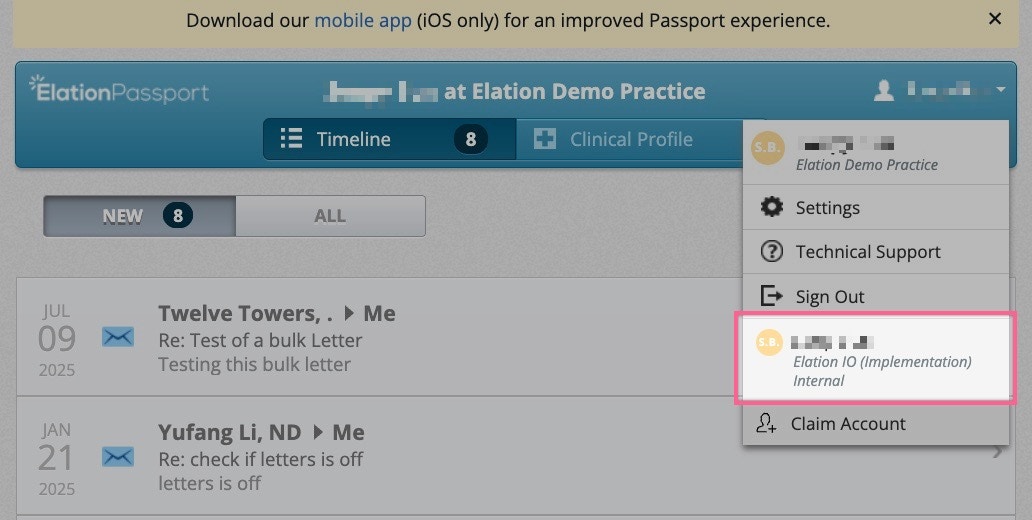 |
|---|---|
| 2 | Confirm the email address they are using to log in (in case they have multiple accounts). |
If the patient is unable to view or switch to your practice, even after logging in via a web browser, ask them to contact Elation Passport Support and provide: their Passport email address, the name of your practice, and the name of any other practice shown in Passport. Patients can reach Elation Passport Support at: https://app.elationpassport.com/support/?persona=passport_user
Related Articles
- Elation Passport for Patients Guide
- Elation Passport for Patients — Patient’s Point of View
- Elation Passport for Patients — Help Patients Troubleshoot Account Issues
- Elation Patient Passport Guide — Frequently Asked Questions (for Patients)
- Letters & Referrals Guide — Sending messages to patients & corresponding with third party professionals