> ## Documentation Index
> Fetch the complete documentation index at: https://help.elationhealth.com/llms.txt
> Use this file to discover all available pages before exploring further.
# Visit Note Categories Guide
> Visit Note categories controls the title or “heading" of your visit note, as well as whether or not that note will be counted in the denominator of eligible patient visits in Meaningful Use calculations.
## What are visit note categories?
The Visit Note Categories control the title or **heading** of your note, as well as whether or not that note will be counted in the denominator of eligible patient visits in Meaningful Use calculations.
For example, if you create a visit note category called **Procedure Note,** when you print that note it will read Procedure Note at the top to indicate to other providers what kind of note it is.
 ## How to create a new visit note category
**For Admins Only** To view the **Report & Visit Note Categories** Settings page and add/edit Visit Note Categories, you must have Admin level privileges. To become an Admin, you must ask an existing Admin level user in your practice (most likely a primary provider level account holder) to grant you privileges via the [Manage Accounts](/articles/managing-user-accounts) Settings page.
Go to **Settings** >> **Report & Visit Note Categories**
Click
Enter the desired name for your visit note category
Select either **yes** or **no** under **Count for MIPS?**
* If you select **yes,** visit notes with this category will be counted as office visits for Promoting Interoperability measures
* If you select **no,** visit notes with this category will be excluded from Promoting Interoperability calculations
Click **Save**
## Managing visit note categories
### To edit an existing visit note categories:
Go to **Settings** >> **Report & Visit Note Categories**
Click **edit** on the visit note category you wish to edit
Change the name or MIPS toggle
Click **Save**
If you change a visit note category to start counting towards MIPS or vice versa, it will not affect historical calculations. The change will only go into affect from the point that you change it moving forward.
### To remove an existing visit note categories:
Click **remove** on the visit note category you wish to remove.
*
When you remove a visit note category and there are old notes of that category, those notes will continue to keep that visit note category. Removing a visit note category means that you will no longer be able to create new visit notes with that category.
### To sort visit note categories:
Click on the handle
## How to create a new visit note category
**For Admins Only** To view the **Report & Visit Note Categories** Settings page and add/edit Visit Note Categories, you must have Admin level privileges. To become an Admin, you must ask an existing Admin level user in your practice (most likely a primary provider level account holder) to grant you privileges via the [Manage Accounts](/articles/managing-user-accounts) Settings page.
Go to **Settings** >> **Report & Visit Note Categories**
Click
Enter the desired name for your visit note category
Select either **yes** or **no** under **Count for MIPS?**
* If you select **yes,** visit notes with this category will be counted as office visits for Promoting Interoperability measures
* If you select **no,** visit notes with this category will be excluded from Promoting Interoperability calculations
Click **Save**
## Managing visit note categories
### To edit an existing visit note categories:
Go to **Settings** >> **Report & Visit Note Categories**
Click **edit** on the visit note category you wish to edit
Change the name or MIPS toggle
Click **Save**
If you change a visit note category to start counting towards MIPS or vice versa, it will not affect historical calculations. The change will only go into affect from the point that you change it moving forward.
### To remove an existing visit note categories:
Click **remove** on the visit note category you wish to remove.
*
When you remove a visit note category and there are old notes of that category, those notes will continue to keep that visit note category. Removing a visit note category means that you will no longer be able to create new visit notes with that category.
### To sort visit note categories:
Click on the handle
 button for the visit note category you want to reorder and drag it up or down to change the order of your visit note categories.
## Default visit note category
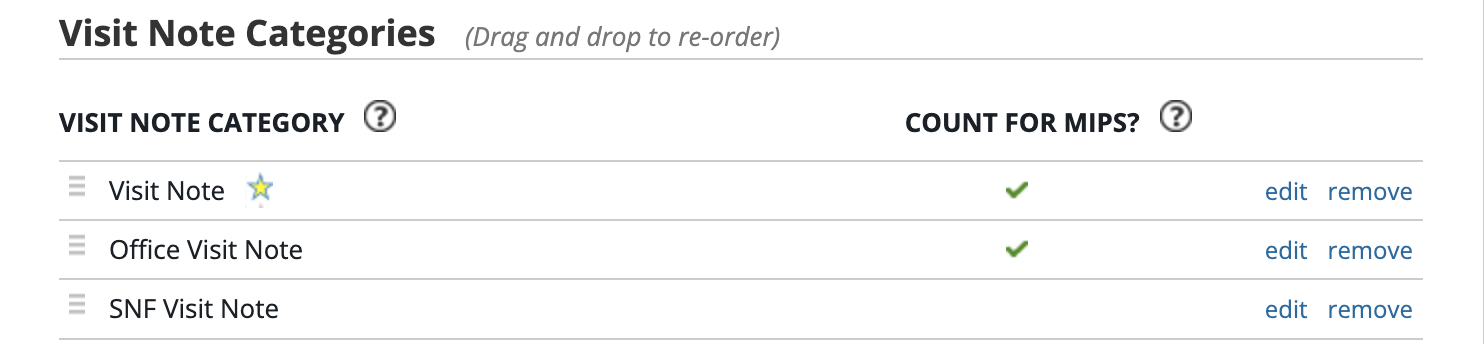
The visit note category that you sort to the first in the list is your practice's default visit note category and will appear with a star next to it. Unless otherwise specified via the Appointment Type, whenever anyone in your practice creates a visit note, it will have this default category.
button for the visit note category you want to reorder and drag it up or down to change the order of your visit note categories.
## Default visit note category
The visit note category that you sort to the first in the list is your practice's default visit note category and will appear with a star next to it. Unless otherwise specified via the Appointment Type, whenever anyone in your practice creates a visit note, it will have this default category.
 **Next StepReview your Visit Note Categories and build your desired list today!**
## Related Articles
* [Visit Note Documentation Guide- Visit Note Formats](/articles/Visit-Note-Documentation-Guide-Visit-Note-Formats)
* [Managing User Accounts](/articles/managing-user-accounts)
* [How to set up your Elation Calendar](/articles/calendar-and-booking-settings)
* [Patient Booking Site Guide](/articles/Patient-Booking-Site)
**Next StepReview your Visit Note Categories and build your desired list today!**
## Related Articles
* [Visit Note Documentation Guide- Visit Note Formats](/articles/Visit-Note-Documentation-Guide-Visit-Note-Formats)
* [Managing User Accounts](/articles/managing-user-accounts)
* [How to set up your Elation Calendar](/articles/calendar-and-booking-settings)
* [Patient Booking Site Guide](/articles/Patient-Booking-Site)