> ## Documentation Index
> Fetch the complete documentation index at: https://help.elationhealth.com/llms.txt
> Use this file to discover all available pages before exploring further.
# Visit Note Documentation Guide- Assessments
> Directly from the visit note, you can choose the appropriate ICD-10 code for the particular assessment you are making during your clinical encounter.
## Documenting Assessments
Every
[Visit Note Format](/articles/Visit-Note-Documentation-Guide-Visit-Note-Formats)
in Elation contains an
**Assessment**
field except for the Simple Note. There are two ways to document clinical assessments during a patient encounter.
1. You can type out a text [narrative](#Narrative) in any of the assessments fields in Elation
2. You can use the ICD database to enter [coded assessments](#Coded) in any of the H\&P and Pre-Op Visit Note formats.
### Narrative Assessments
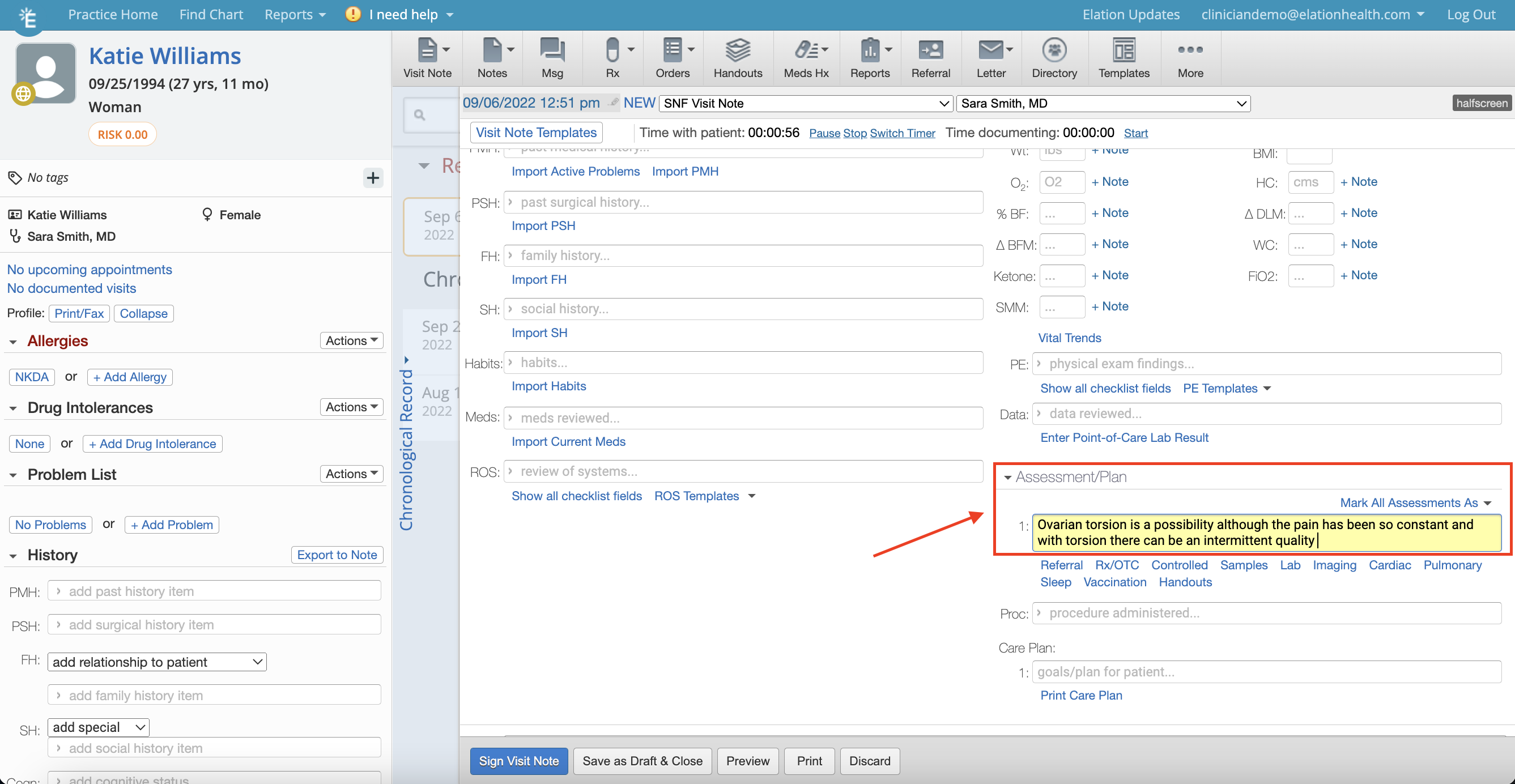
Write out a narrative assessment in any of the assessment text fields in any of the visit note formats available. If a drop down appears with diagnosis codes you can bypass the drop down and keep typing if desired. The text box will continue to expand to allow you to type as much text as needed. If you choose to use
[coded assessments, see below](#Coded)
.
 ### Coded Assessments
By default, the
\*\* Coded Visit Note Assessments\*\*
feature is turned on for providers in the
*Preferences*
section of their Elation Settings upon account creation. The following workflow applies to any of the
\*\* H\&P\*\*
and
**Pre-Op**
Visit Note formats only.
1. Click into the **Assessment** field
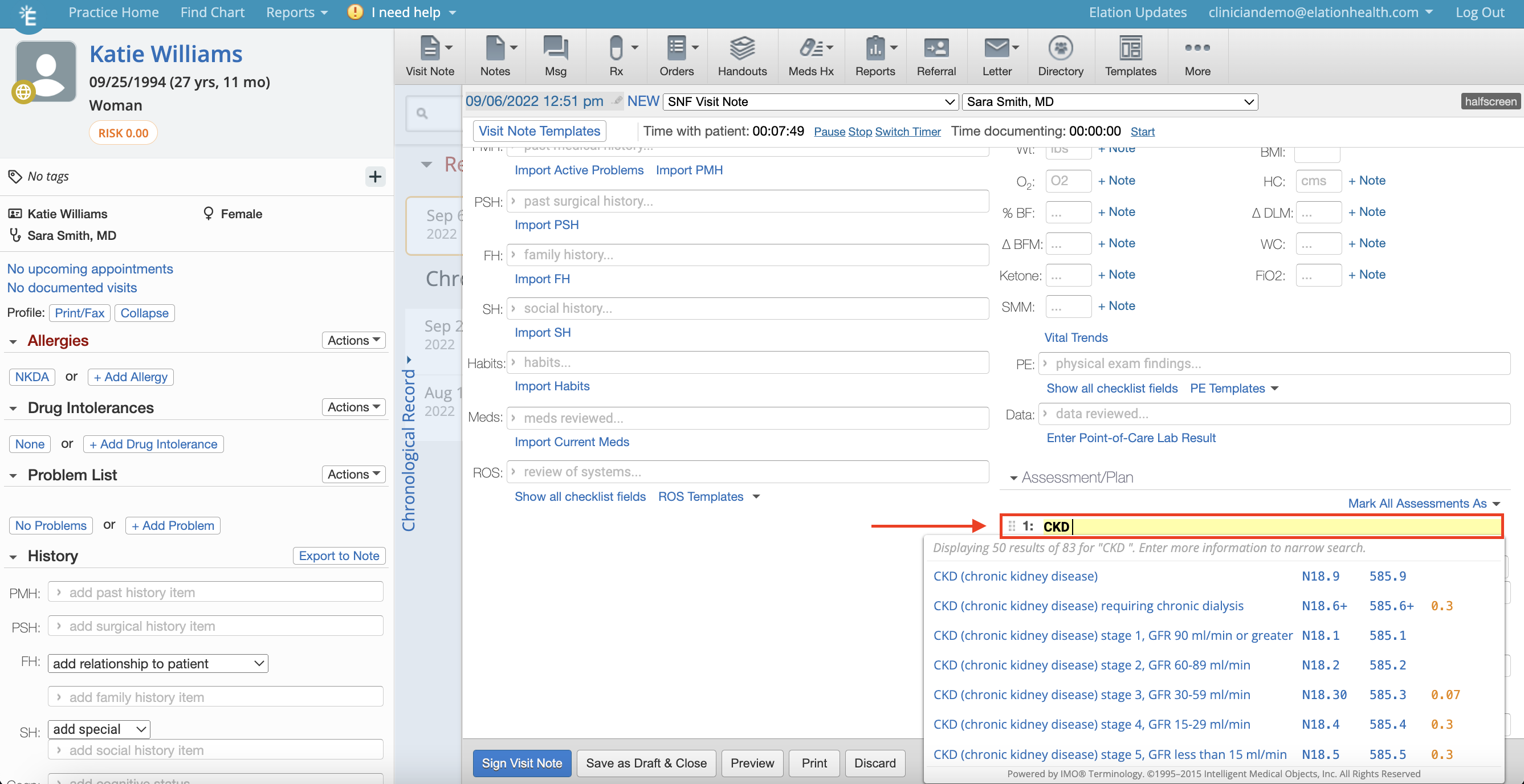
2. The patient's list of active problems from their Problem List will appear immediately below. Click a problem from the list to apply it as an assessment, or start typing to find a different assessment from the ICD database.
### Coded Assessments
By default, the
\*\* Coded Visit Note Assessments\*\*
feature is turned on for providers in the
*Preferences*
section of their Elation Settings upon account creation. The following workflow applies to any of the
\*\* H\&P\*\*
and
**Pre-Op**
Visit Note formats only.
1. Click into the **Assessment** field
2. The patient's list of active problems from their Problem List will appear immediately below. Click a problem from the list to apply it as an assessment, or start typing to find a different assessment from the ICD database.
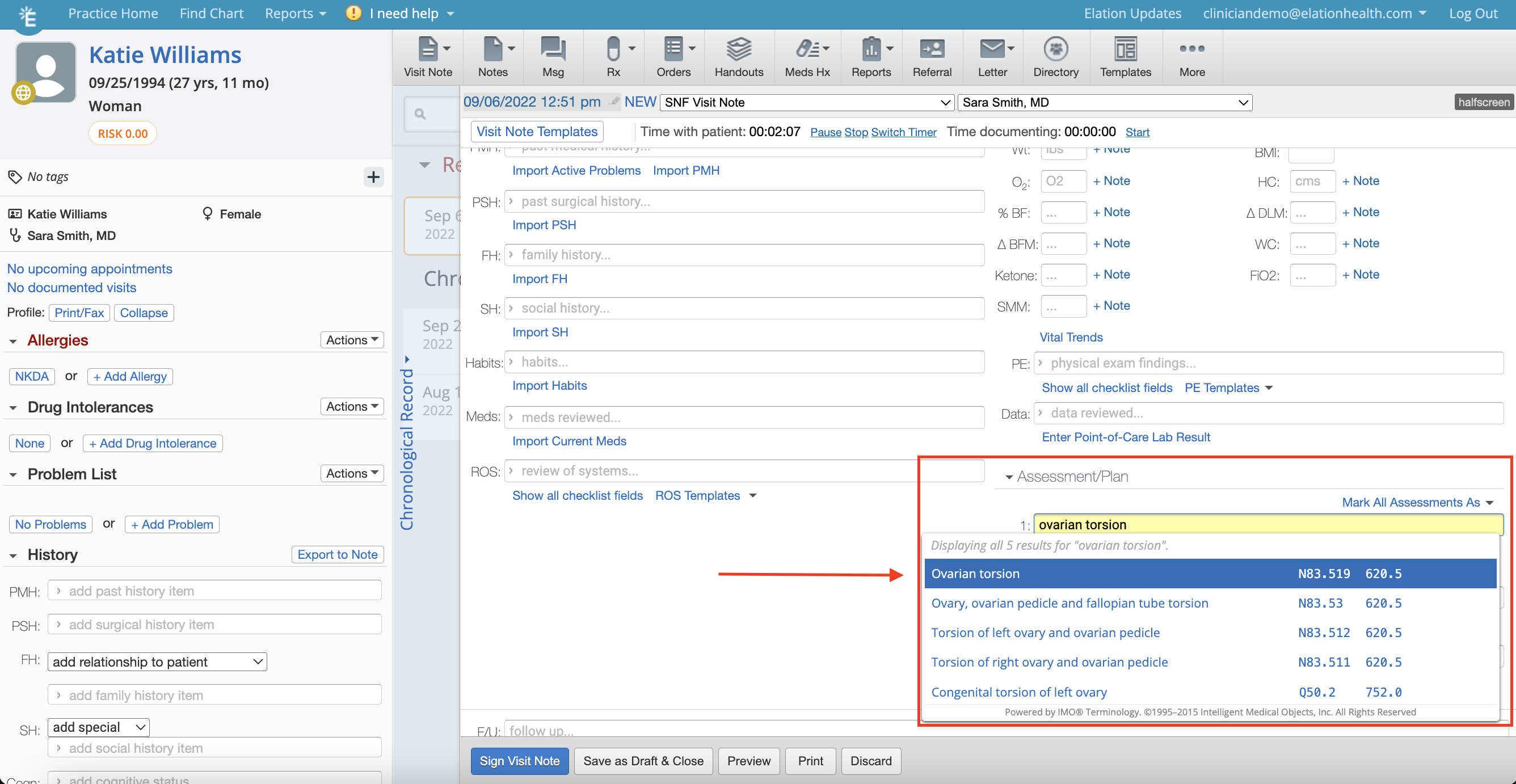 1. When you start typing, Elation will return search results from our ICD database.
2. Select the appropriate diagnosis from the list to apply it as an assessment. It will be added to your visit note along with its corresponding ICD-10 code(s).
* The ICD-10 code associated with the diagnosis selected will also be automatically added to the billing section of your visit note.
1. After you select a diagnosis from the search results, you can also edit its description by changing the text that is pre-filled in the assessment field:
1. When you start typing, Elation will return search results from our ICD database.
2. Select the appropriate diagnosis from the list to apply it as an assessment. It will be added to your visit note along with its corresponding ICD-10 code(s).
* The ICD-10 code associated with the diagnosis selected will also be automatically added to the billing section of your visit note.
1. After you select a diagnosis from the search results, you can also edit its description by changing the text that is pre-filled in the assessment field:
 ## Coded Assessments & Problem List
The patient's list of active problems from their Problem List will appear immediately when you click into the Assessment field in any of the H\&P and Pre-Op Visit Note formats to allow you to use data already stored in the Problem List in your visit note documentation.
You can also add a new assessment from your visit note documentation back to the Problem List directly from your visit note to make it easy for you to keep all problems in one place. Follow the steps below to accomplish this.
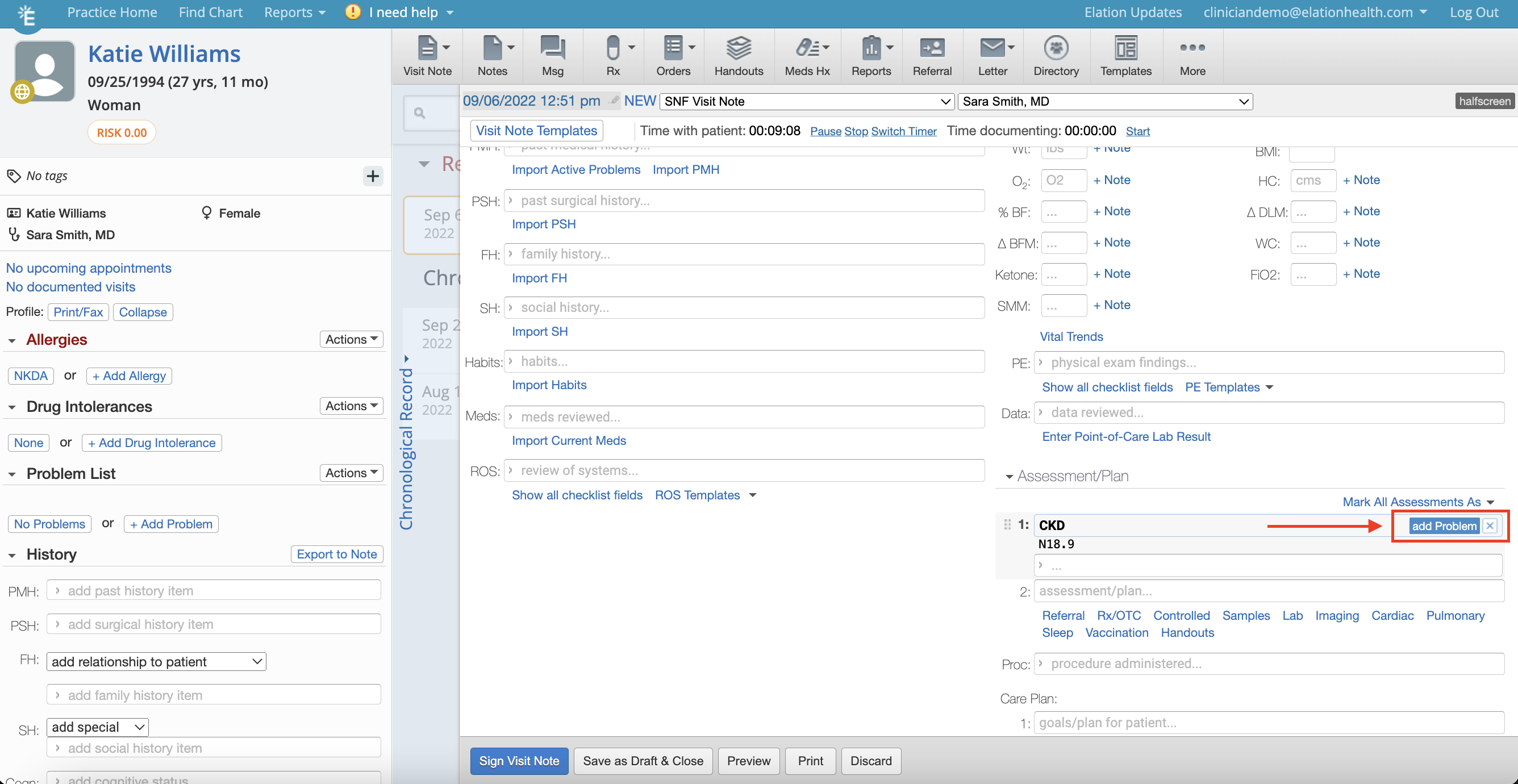
1. If you document a new chronic issue for the patient that you want to add to the patient's Problem List, click the **Add Problem** button that appears to quickly add it to the patient's Problem List.
## Coded Assessments & Problem List
The patient's list of active problems from their Problem List will appear immediately when you click into the Assessment field in any of the H\&P and Pre-Op Visit Note formats to allow you to use data already stored in the Problem List in your visit note documentation.
You can also add a new assessment from your visit note documentation back to the Problem List directly from your visit note to make it easy for you to keep all problems in one place. Follow the steps below to accomplish this.
1. If you document a new chronic issue for the patient that you want to add to the patient's Problem List, click the **Add Problem** button that appears to quickly add it to the patient's Problem List.
 1. The problem will immediately show up at the bottom of the patient's Problem List with the description that you entered in the Assessment field, ICD-10 code and today's date. Click **Actions** >> **Edit** to edit the details of this problem as needed.
## How to disable diagnosis codes in Assessments
By default, ICD-10 codes for your Assessments will show up in your visit note when you print, fax, or share them.
If you do not want Dx codes to show up alongside the assessments in your visit note
\*\*, \*\*
you can turn this off in **Settings** >> **Preferences**, under
**Coded Visit Note Assessments**
. The toggle will be set to **Yes** by default. Change it to **No** to remove Dx codes from your visit note documentation.
*
This is a Provider Level User Setting and each provider needs to adjust this setting in their own account if there are multiple providers in the practice.
1. The problem will immediately show up at the bottom of the patient's Problem List with the description that you entered in the Assessment field, ICD-10 code and today's date. Click **Actions** >> **Edit** to edit the details of this problem as needed.
## How to disable diagnosis codes in Assessments
By default, ICD-10 codes for your Assessments will show up in your visit note when you print, fax, or share them.
If you do not want Dx codes to show up alongside the assessments in your visit note
\*\*, \*\*
you can turn this off in **Settings** >> **Preferences**, under
**Coded Visit Note Assessments**
. The toggle will be set to **Yes** by default. Change it to **No** to remove Dx codes from your visit note documentation.
*
This is a Provider Level User Setting and each provider needs to adjust this setting in their own account if there are multiple providers in the practice.
 **Next Step**
**Utilize the coded assessments feature today to assist with billing and keep your Problem List up to date!**
## Related Articles
* [Visit Note Documentation Guide- Visit Note Formats](/articles/Visit-Note-Documentation-Guide-Visit-Note-Formats)
* [Visit Note Templates Guide](/articles/elation-visit-note-templates)
* [Visit Note Documentation Guide- Procedures](/articles/documenting-procedures)
* [Visit Note Documentation- Physical Exam (PE) & Review of Systems (ROS) Templates](/articles/physical-exam-pe-and-review-of-systems-ros-templates)
* [Billing Guide- Creating a Super Bill and coding for your visit](/articles/billing)
* [Billing Guide- Billing Report](/articles/lightning-reports)
**Next Step**
**Utilize the coded assessments feature today to assist with billing and keep your Problem List up to date!**
## Related Articles
* [Visit Note Documentation Guide- Visit Note Formats](/articles/Visit-Note-Documentation-Guide-Visit-Note-Formats)
* [Visit Note Templates Guide](/articles/elation-visit-note-templates)
* [Visit Note Documentation Guide- Procedures](/articles/documenting-procedures)
* [Visit Note Documentation- Physical Exam (PE) & Review of Systems (ROS) Templates](/articles/physical-exam-pe-and-review-of-systems-ros-templates)
* [Billing Guide- Creating a Super Bill and coding for your visit](/articles/billing)
* [Billing Guide- Billing Report](/articles/lightning-reports)