> ## Documentation Index
> Fetch the complete documentation index at: https://help.elationhealth.com/llms.txt
> Use this file to discover all available pages before exploring further.
# Patient Chart Guide - Marking charts as VIP for restricting access (Premium)
> Elation offers a VIP feature that allows you to designate certain patient charts as VIP, resulting in limited access to that chart across your practice.
## Overview
### What are VIP Charts?
The VIP Chart feature for Premium EHR users lets you mark specific charts as ‘VIP,’ restricting access across your practice.
Once enabled, only the **Provider assigned in practice** (as listed in Patient Demographics) can access the chart without restriction. Others can be either blocked entirely or allowed limited access—with any limited access attempts logged in the patient’s chronological record.
### What are the benefits of restricting access to VIP Charts?
The VIP Chart feature offers several key benefits:
* Restricts access to sensitive charts, helping protect the confidentiality of high-profile or sensitive cases.
* Allows you to align access permissions with your practice’s privacy standards.
* Logs all limited access attempts for visibility and accountability.
## Setup
### Requesting the feature
The VIP Charts feature is for Premium EHR customers only.
* If you are interested in upgrading to the Premium EHR subscription to use this feature, click the I need help button to notify Elation and a member of the Elation Team will reach out to assist you.
* If you are already a Premium EHR user and you are interested in using this feature, click the I need help button to notify Elation and a member of the Elation Team will turn this feature on for you.
### Specifying Chart Access Settings
An [Admin Level User](/articles/administrative-privileges) can specify the level of access granted to non-assigned users by:
| **1** | Go to **Settings** -> **Security & Privacy** . |
| ----- | -------------------------------------------------------------------------------------------------------------------------------------------------------------------------------- |
| **2** | Go to the\*\* Chart Access\*\* -> **VIP chart access** section and specify which of the following settings you prefer: **Warning & Optional Bypass** • **Strict Access Control** |
## Workflow Instructions
### Marking charts as VIP
Only the **Provider assigned in practice** or an [Admin Level User](/articles/administrative-privileges) can mark a chart as VIP.
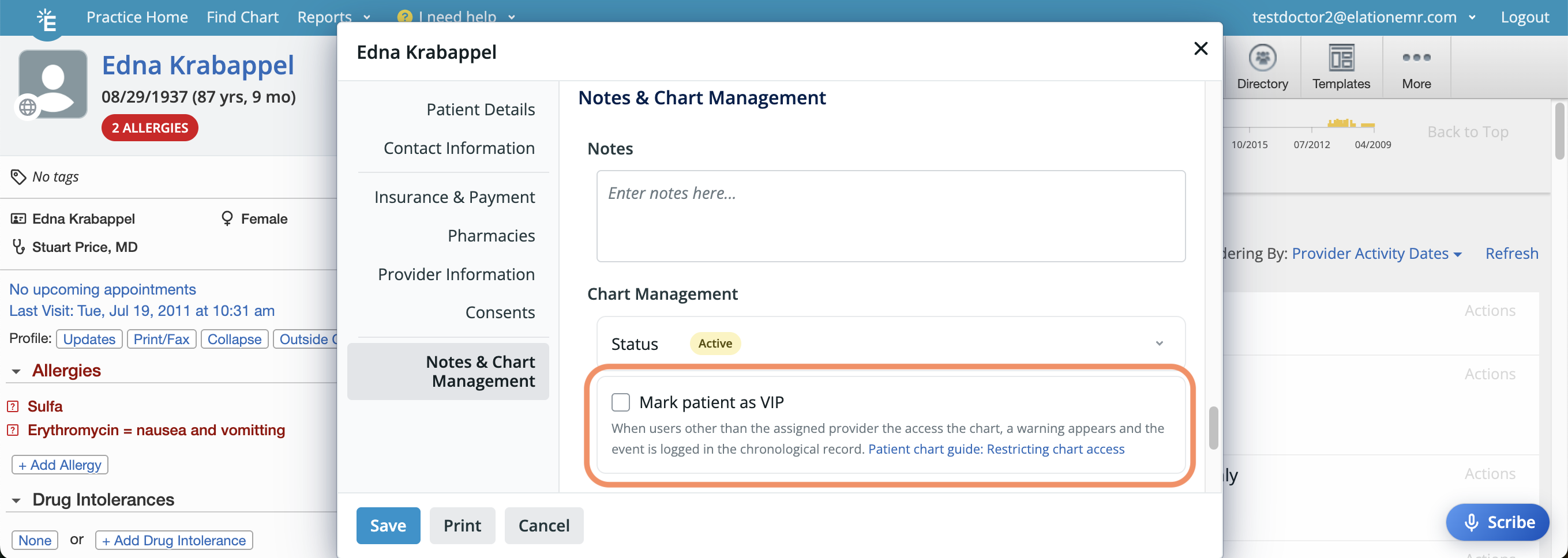 To mark a patient as VIP:
| **1** | Open the patient's demographics. |
| ----- | ---------------------------------------------------- |
| **2** | Go to the **Notes & Chart Management** \*\* Section. |
| **3** | Check **Mark patient as VIP** . |
| **4** | Click **Save & Close** . |
### Un-marking charts as VIP
Only the **Provider assigned in practice** can remove the VIP designation:
| **1** | Open the patient's demographics. |
| ----- | ----------------------------------------------- |
| **2** | Go to the **Notes & Chart Management** Section. |
| **3** | Uncheck **Mark patient as VIP** . |
| **4** | Click **Save & Close** . |
### Identifying VIP Charts
VIP Charts are labeled as such across the EHR:
* When searching for patients and viewing their chart, you will see a **VIP** label next to their name.
To mark a patient as VIP:
| **1** | Open the patient's demographics. |
| ----- | ---------------------------------------------------- |
| **2** | Go to the **Notes & Chart Management** \*\* Section. |
| **3** | Check **Mark patient as VIP** . |
| **4** | Click **Save & Close** . |
### Un-marking charts as VIP
Only the **Provider assigned in practice** can remove the VIP designation:
| **1** | Open the patient's demographics. |
| ----- | ----------------------------------------------- |
| **2** | Go to the **Notes & Chart Management** Section. |
| **3** | Uncheck **Mark patient as VIP** . |
| **4** | Click **Save & Close** . |
### Identifying VIP Charts
VIP Charts are labeled as such across the EHR:
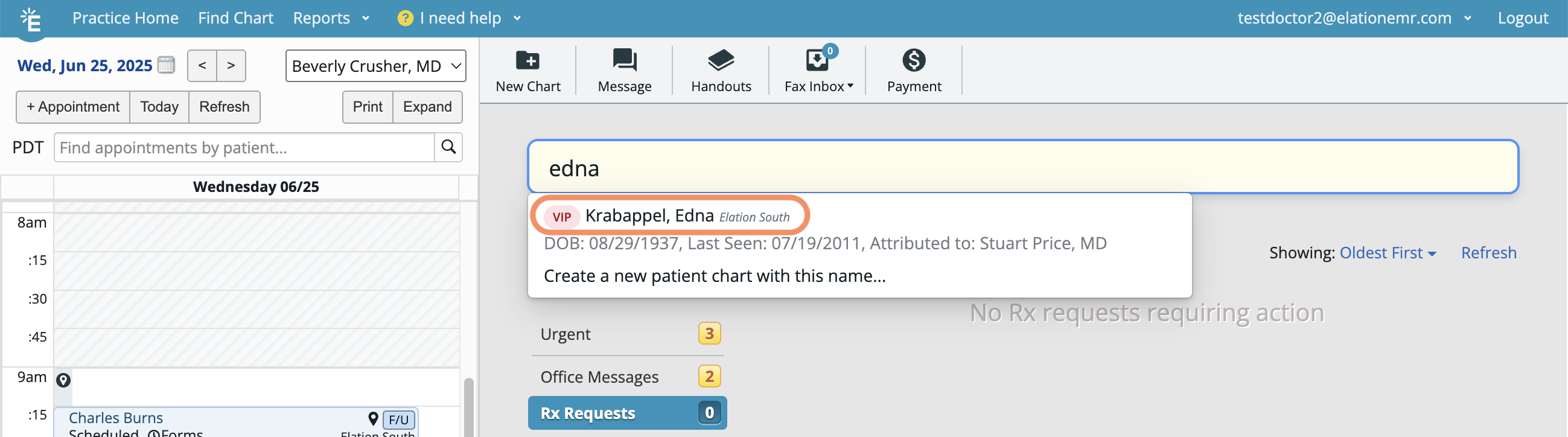
* When searching for patients and viewing their chart, you will see a **VIP** label next to their name.
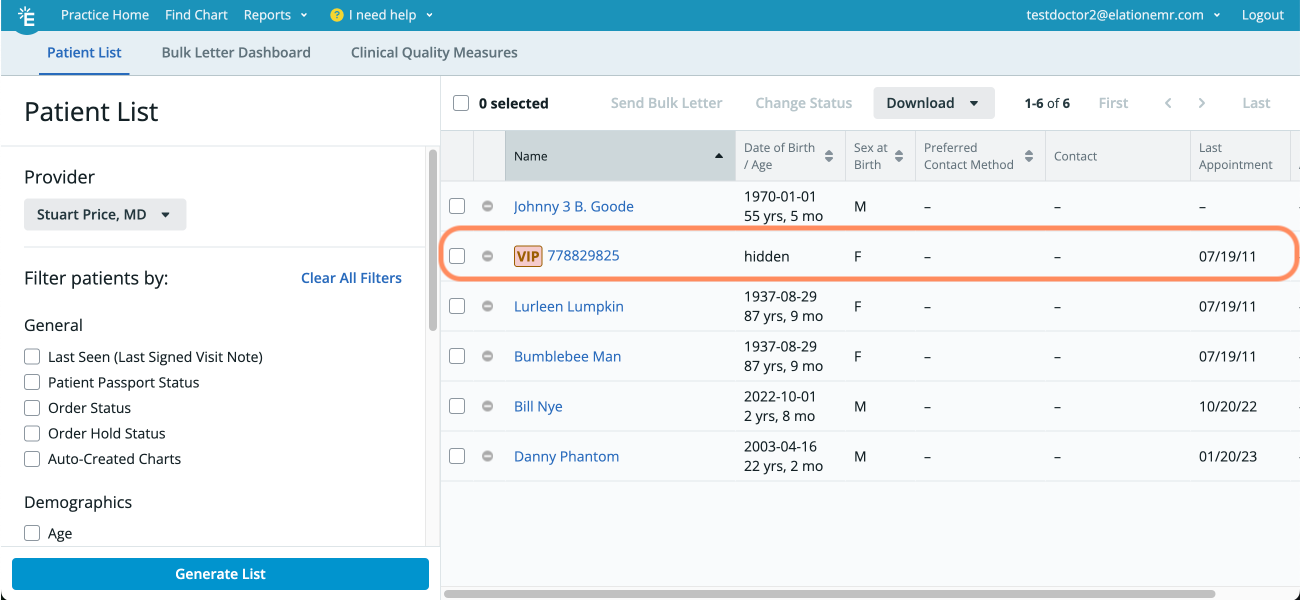
 * When running reports, you will see a 'VIP' label next to their Elation Patient ID and all identifiable information will be hidden.
 ### Accessing VIP Charts
The **Provider assigned in practice** can access a VIP Chart without restrictions or warning messages.
When any other user attempts to access a VIP patient's chart, they will see one of the following depending on your practice’s [Chart Access Settings](#settings).
* **Warning & Optional Bypass** - A warning will appear and the user must review and agree to the terms before accessing the VIP Chart. If they enter then their name will be recorded in an access note in the chart.
### Accessing VIP Charts
The **Provider assigned in practice** can access a VIP Chart without restrictions or warning messages.
When any other user attempts to access a VIP patient's chart, they will see one of the following depending on your practice’s [Chart Access Settings](#settings).
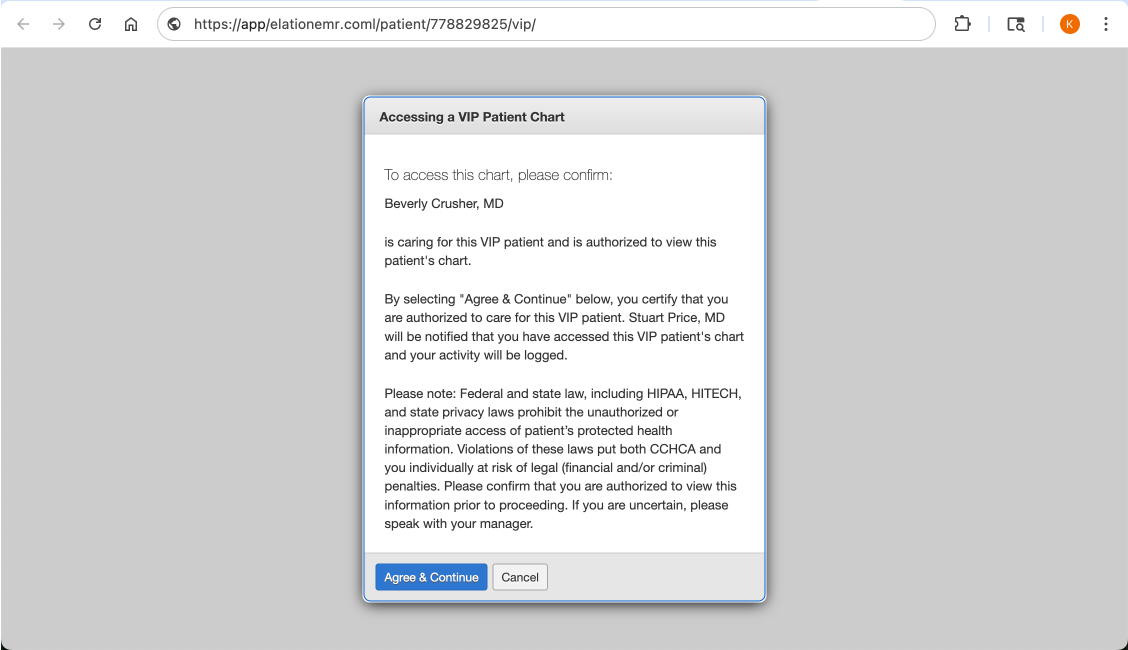
* **Warning & Optional Bypass** - A warning will appear and the user must review and agree to the terms before accessing the VIP Chart. If they enter then their name will be recorded in an access note in the chart.
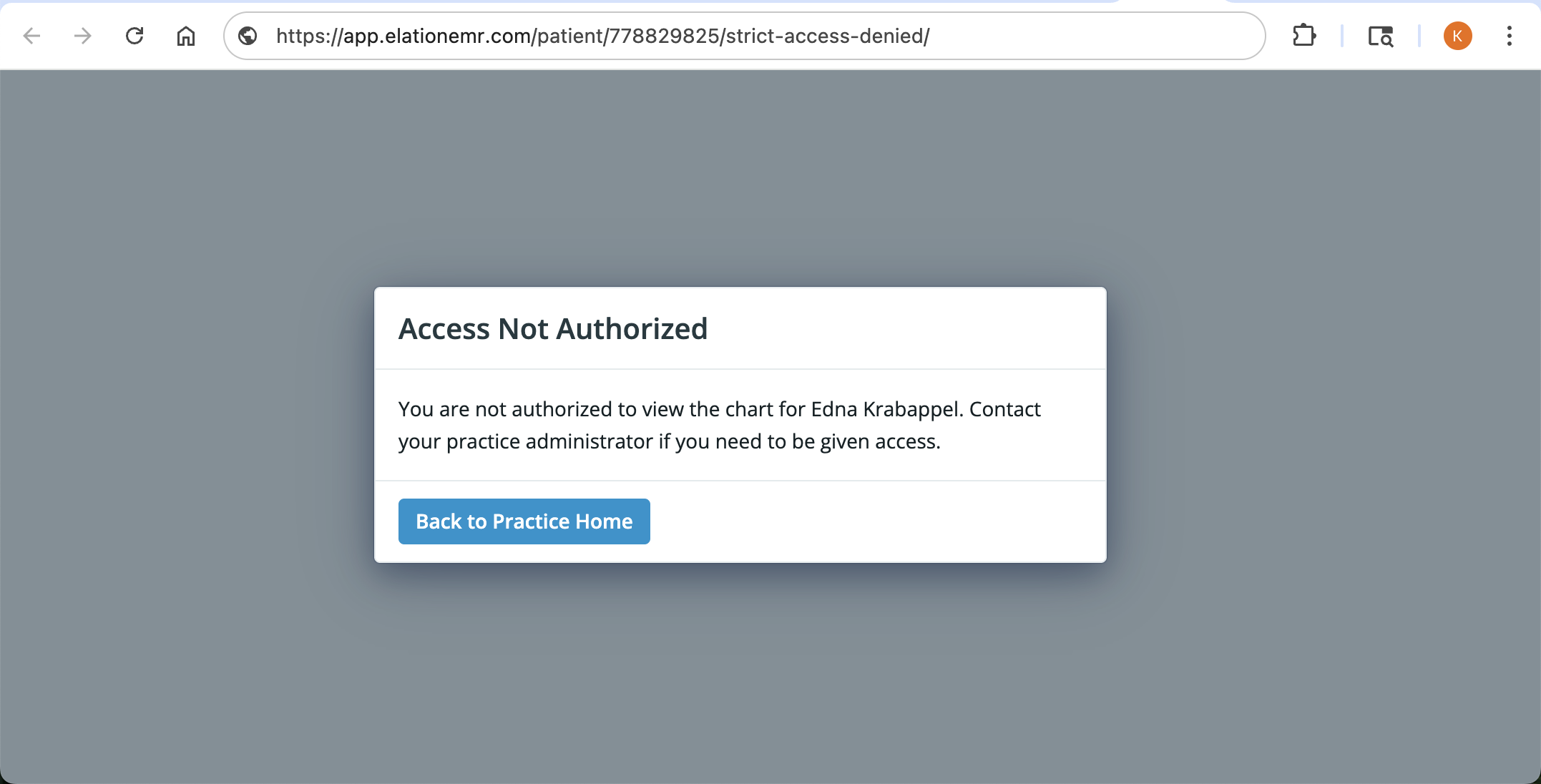
 * **Strict Access Controls** - An **Access Not Authorized** pop-up will appear to block the user from entering the chart. The user will be redirected back to the Practice Home page.
 ### Monitoring access to VIP Charts
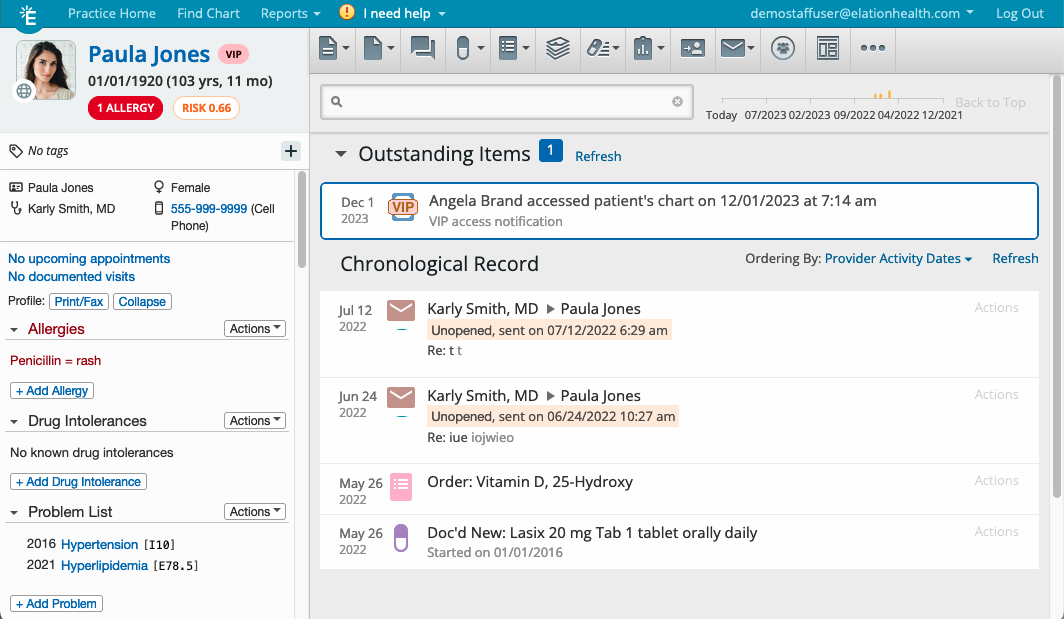
If the **Warning & Optional Bypass** setting is enabled, each time a non-assigned user accesses a VIP Chart, an access note is recorded in the chart’s Outstanding Items section for visibility and accountability. Only the **Provider assigned in practice** can acknowledge or remove this note.
### Monitoring access to VIP Charts
If the **Warning & Optional Bypass** setting is enabled, each time a non-assigned user accesses a VIP Chart, an access note is recorded in the chart’s Outstanding Items section for visibility and accountability. Only the **Provider assigned in practice** can acknowledge or remove this note.
 ## Related Articles
* [Patient Demographics Guide](/articles/Patient-Demographics-Guide)
* [Clinical Profile Guide- A snapshot of the patient's health status](/articles/clinical-profile-record-patient-medical-history)
* [Patient Chart Guide - Limiting access to patient charts based on patient criteria (Premium)](/articles/Patient-Chart-Guide-Restricting-access-to-patient-charts-based-on-patient-criteria)
## Related Articles
* [Patient Demographics Guide](/articles/Patient-Demographics-Guide)
* [Clinical Profile Guide- A snapshot of the patient's health status](/articles/clinical-profile-record-patient-medical-history)
* [Patient Chart Guide - Limiting access to patient charts based on patient criteria (Premium)](/articles/Patient-Chart-Guide-Restricting-access-to-patient-charts-based-on-patient-criteria)