> ## Documentation Index
> Fetch the complete documentation index at: https://help.elationhealth.com/llms.txt
> Use this file to discover all available pages before exploring further.
# Viewing ERAs and Auto-Posting
> Learn how to view Electronic Remittance Advice (ERA) and auto-post payments in Elation Billing
This article provides step-by-step instructions on how to view ERAs and use the auto-posting feature in Elation Billing.
## ERA and auto-posting basics
### What is an ERA?
An Electronic Remittance Advice (ERA) is an electronic version of an Explanation of Benefits (EOB) sent by insurance payers. It contains detailed payment information including allowed amounts, adjustments, and patient responsibility.
### Why is viewing ERAs important?
ERAs enable efficient payment posting by providing structured payment data that can be auto-posted to claims. This reduces manual data entry, speeds up payment processing, and minimizes errors.
## Prerequisites
Before you can view and auto-post ERAs, confirm the following:
* **User role**: You need one of the following [roles](https://help.elationhealth.com/articles/user-roles) to view and auto-post ERAs:
* Admin
* Manager
* Biller
* BillCo Admins
* BillCo Staff
* Data Entry
* **ERA enrollment**: The payer must be enrolled for ERAs through ClaimMD. See [Enrolling for Claims Submission, ERA, and Real-Time Eligibility (EDI)](/articles/enrolling-for-claims-submission-era-and-real-time-eligibility-edi).
* **Timing**: After enrollment is approved, ERAs typically begin arriving within 1–2 payer payment cycles, often 2–4 weeks. In the meantime you should still be receiving remittances in the mail or you can view your remittances via an external payer portal.
* If no ERAs appear after this window, see [Troubleshooting](#troubleshooting).
## Workflow Instructions
### Viewing the ERA list
Go to **Payments** → **ERAs**.
You can also access ERAs via Claim History in a patient's superbill. Go to the patient's Superbill, navigate to the Claim History section, and use the **Open ERA** dropdown to view or export ERAs. For more details, see [How to Locate an ERA from a Patient's Record](/articles/how-to-locate-an-era-from-a-patients-record).
The ERA list defaults to all ERAs that have not been reviewed. Use the filters and search box to narrow results. Available filters include:
* **Reviewed Status** - All, Reviewed, Not Reviewed
* **Posted Status -** All, Posted, Needs Review, Not Yet Posted
The **search box** supports lookup by check/EFT number, payer name, or Superbill ID.
#### ERA list columns
The ERA list displays the following columns:
| Column | Description |
| ---------------------- | ------------------------------------------------------ |
| Payer | Insurance payer that sent the ERA |
| Paid Date | Date the payer issued payment |
| Paid Amt (Amount) | Total payment amount on the ERA |
| Reviewed (status) | Current ERA status (see below) |
| Posted (status) | Current posting status (see below) |
| Check/EFT # | Check or EFT reference number |
| (# of )Paid Claims | Number of paid claims included on the ERA |
| (# of )Zero Pay Claims | Number of claims with \$0 payments included on the ERA |
#### Reviewed (status) labels
* **Mark Reviewed** - Click to manually mark the ERA as reviewed.
* **Reviewed** - Someone in the practice has reviewed the ERA, confirmed the posting and marked the ERA as reviewed.
* **Unreviewed** - New ERA, not yet posted or reviewed
#### Posted (status) labels
* **Auto Post Now** - Click to auto-post payments in the ERA to claims.
* **Auto Posted** - All the payments in the ERA were successfully auto-posted to claims.
* **Needs Review** - Certain payments in the ERA could not be posted when auto-post was triggered. Someone needs to review the unposted payments.
### Viewing a specific ERA
**To view a specific ERA**
Click on the **Payer Name**.
A new tab will open in your browser displaying the PDF version of the ERA. You can also choose to download the ERA for your records.
### Auto-Posting ERAs
To auto-post an ERA:
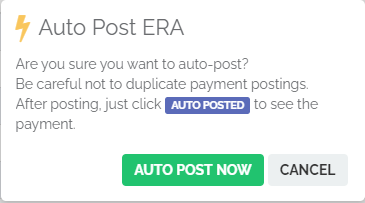
Click on the **Auto Post Now** button
A confirmation box will appear. Click **Auto Post Now** to confirm.
The system first scans the ERA for issues that would cause a system error. If errors are found, the ERA will be labeled **Needs Review** and must be manually posted. Otherwise, the ERA will auto-post.
#### What the auto-post scan checks
The scan verifies that each claim on the ERA can be matched and posted without ambiguity. Common blocking issues include:
* Missing or mismatched Superbill ID
* Claim not found in Elation Billing (e.g., claim was deleted or sent from a different system)
* Duplicate claim matches
* Missing metadata such as service line detail, CPT codes, or adjustment codes
#### How auto-post handles payment details
When auto-posting succeeds, the system applies the following automatically:
* **Allowed amounts** are recorded per service line
* **Contractual adjustments** (CARC codes like CO-45) are written off to the appropriate adjustment category
* **Patient responsibility** (copay, coinsurance, deductible — PR codes) is transferred to patient balance
* **Secondary/tertiary balances** are queued for crossover or secondary submission if a secondary payer is on file
* **Denials** (CO, OA, PI codes without payment) are flagged but not automatically worked — you must review these manually
We do not advise auto-posting ERAs with Denials, to avoid the creation of clerical errors. Review denied claims individually and work them through the claims workflow.
#### Partial auto-posting
Elation auto-posts the entire ERA as a single action — partial posting of individual claims from one ERA is not supported. If any claim fails, the full ERA is marked Needs Review.

 ### Reviewing auto-posted ERAs
An ERA that was successfully auto-posted, will say **Auto Posted** in the **Posted column**. Click the **Auto Posted** button to go straight to the payment details.
* Review the payment(s) for accuracy. Look for things like negative balances or zero payments.
### Marking ERAs as reviewed
After you've reviewed auto-posted or manually posted ERAs and are satisfied with the results, click **Mark Reviewed** in the **Reviewed** column.
You can always see reviewed ERAs again by going to the **Reviewed Status** dropdown and selecting **Reviewed**.
Marking an ERA as reviewed:
* Removes it from the default (unreviewed) ERA queue.
* Records a timestamp and the reviewing user for audit purposes.
* Does not change the posted payment — only the reviewed status.
### Reviewing auto-posted ERAs
An ERA that was successfully auto-posted, will say **Auto Posted** in the **Posted column**. Click the **Auto Posted** button to go straight to the payment details.
* Review the payment(s) for accuracy. Look for things like negative balances or zero payments.
### Marking ERAs as reviewed
After you've reviewed auto-posted or manually posted ERAs and are satisfied with the results, click **Mark Reviewed** in the **Reviewed** column.
You can always see reviewed ERAs again by going to the **Reviewed Status** dropdown and selecting **Reviewed**.
Marking an ERA as reviewed:
* Removes it from the default (unreviewed) ERA queue.
* Records a timestamp and the reviewing user for audit purposes.
* Does not change the posted payment — only the reviewed status.
 ## Troubleshooting
### ERA Needs Review
Occasionally, an ERA will need review before it can be posted. This is most often due to:
* **Missing/Mismatched Claim Info** - If the ERA is missing claim info (e.g., Superbill ID), the ERA will need review.
* **Missing Metadata** - Occasionally the payer will fail to include pertinent metadata attached to the claim data (e.g. service line breakdowns or adjustment reason codes).
* **Reversals, takebacks, or recoupments** - ERAs that reverse prior payments require manual review and cannot auto-post.
When an ERA is marked **Needs Review**, post it manually. See [Posting a Payment in Elation Billing](https://help.elationhealth.com/articles/posting-a-payment-in-elation-billing).
### Missing ERAs
If you were receiving ERAs for a payer and they have stopped arriving, or you expected ERAs after enrollment and none appear:
Confirm enrollment is still active in **Practice Settings → Insurance**.
Verify the payer issued payment — log into the payer portal or call the payer to confirm a check or EFT was sent.
Check with the payer that ERAs are still routed to ClaimMD (Elation's Clearinghouse).
If the ERA is still missing, contact Elation Support.
### Duplicate ERAs
If the same ERA appears twice, **do not** auto-post both. Review the check/EFT numbers and
* if they match, post one and mark the duplicate as reviewed without posting.
* if the amounts differ, the payer may have issued a corrected ERA. Post the corrected ERA and mark the duplicate ERA as reviewed without posting.
### Reversals, takebacks, and recoupments
Payers sometimes reverse a prior payment or recoup funds on a subsequent ERA. These cannot be auto-posted and must be manually posted against the original claim.
### ERA vs EOB mismatches
If the ERA total does not match the paper EOB or bank deposit:
Open the ERA PDF and compare line-by-line with the paper EOB.
Check for missing service lines or adjustment codes.
If the ERA is incorrect, ask the payer to send a corrected ERA.
## CARC and RARC codes
ERAs use standardized codes to explain adjustments:
* Claim Adjustment Reason Codes (CARC)- Explain why an adjustment was made (e.g., `CO-45` = charge exceeds fee schedule)
* Remittance Advice Remark Codes (RARC) - Provide additional context for adjustments
## Reporting
ERA data will appear in the following reports:
* Lightning Insights
* Lightning Reports
* Charges and Financial Transactions Report
* Deposit Report
* Denials Report
* Provider Payment Report
## Getting help
If ERAs are missing, stuck or mis-posting contact Elation Support.
## Related Articles
* [Posting a Payment in Elation Billing](/articles/posting-a-payment-in-elation-billing)
* [Enrolling for Claims Submission, ERA, and Real-Time Eligibility](/articles/enrolling-for-claims-submission-era-and-real-time-eligibility-edi)
* [How to Locate an ERA from a Patient's Record](/articles/how-to-locate-an-era-from-a-patients-record)
## Troubleshooting
### ERA Needs Review
Occasionally, an ERA will need review before it can be posted. This is most often due to:
* **Missing/Mismatched Claim Info** - If the ERA is missing claim info (e.g., Superbill ID), the ERA will need review.
* **Missing Metadata** - Occasionally the payer will fail to include pertinent metadata attached to the claim data (e.g. service line breakdowns or adjustment reason codes).
* **Reversals, takebacks, or recoupments** - ERAs that reverse prior payments require manual review and cannot auto-post.
When an ERA is marked **Needs Review**, post it manually. See [Posting a Payment in Elation Billing](https://help.elationhealth.com/articles/posting-a-payment-in-elation-billing).
### Missing ERAs
If you were receiving ERAs for a payer and they have stopped arriving, or you expected ERAs after enrollment and none appear:
Confirm enrollment is still active in **Practice Settings → Insurance**.
Verify the payer issued payment — log into the payer portal or call the payer to confirm a check or EFT was sent.
Check with the payer that ERAs are still routed to ClaimMD (Elation's Clearinghouse).
If the ERA is still missing, contact Elation Support.
### Duplicate ERAs
If the same ERA appears twice, **do not** auto-post both. Review the check/EFT numbers and
* if they match, post one and mark the duplicate as reviewed without posting.
* if the amounts differ, the payer may have issued a corrected ERA. Post the corrected ERA and mark the duplicate ERA as reviewed without posting.
### Reversals, takebacks, and recoupments
Payers sometimes reverse a prior payment or recoup funds on a subsequent ERA. These cannot be auto-posted and must be manually posted against the original claim.
### ERA vs EOB mismatches
If the ERA total does not match the paper EOB or bank deposit:
Open the ERA PDF and compare line-by-line with the paper EOB.
Check for missing service lines or adjustment codes.
If the ERA is incorrect, ask the payer to send a corrected ERA.
## CARC and RARC codes
ERAs use standardized codes to explain adjustments:
* Claim Adjustment Reason Codes (CARC)- Explain why an adjustment was made (e.g., `CO-45` = charge exceeds fee schedule)
* Remittance Advice Remark Codes (RARC) - Provide additional context for adjustments
## Reporting
ERA data will appear in the following reports:
* Lightning Insights
* Lightning Reports
* Charges and Financial Transactions Report
* Deposit Report
* Denials Report
* Provider Payment Report
## Getting help
If ERAs are missing, stuck or mis-posting contact Elation Support.
## Related Articles
* [Posting a Payment in Elation Billing](/articles/posting-a-payment-in-elation-billing)
* [Enrolling for Claims Submission, ERA, and Real-Time Eligibility](/articles/enrolling-for-claims-submission-era-and-real-time-eligibility-edi)
* [How to Locate an ERA from a Patient's Record](/articles/how-to-locate-an-era-from-a-patients-record)