> ## Documentation Index
> Fetch the complete documentation index at: https://help.elationhealth.com/llms.txt
> Use this file to discover all available pages before exploring further.
# Using the Document Center
> Learn how to upload and manage documents in the Document Center
This article explains how to use the Document Center to upload and manage documents in Elation Billing.
Documents cannot currently be transmitted with claims. If you have additional documentation you may have to print the claim and mail with your documents. Contact Support if you have an instance where the document MUST be attached.
> # Workflow Instructions
>
> ## Navigate
>
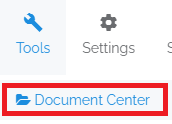
> 1. **Access Document Center** - Select the **Document Center** option from the **Tools** drop-down menu.
>
>  >
> ## Upload
>
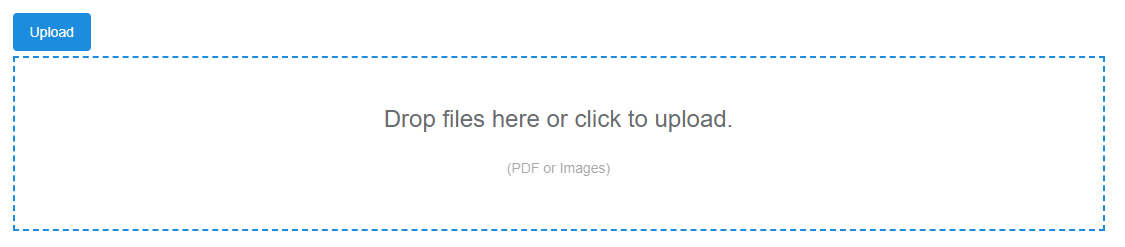
> 1. **Click Upload** - Click on the **Upload** button, then drop a file or just click in the box to upload.
>
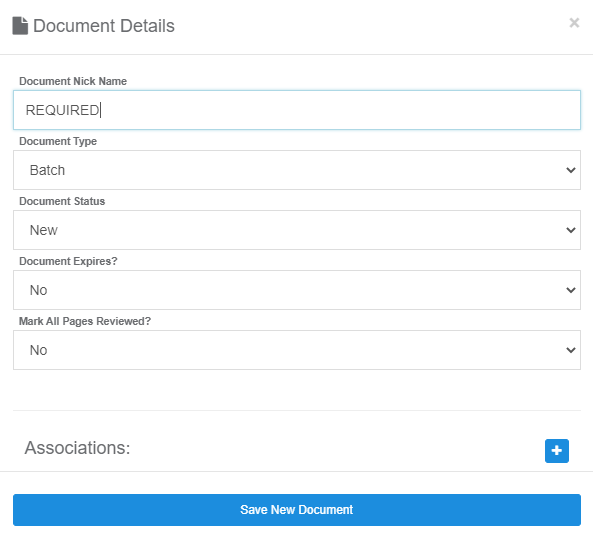
> 2. **Enter Details** - Once you select your file, you'll need to enter AT LEAST a **Nickname**. Only one file may be uploaded at a time.
>
>
>
> ## Upload
>
> 1. **Click Upload** - Click on the **Upload** button, then drop a file or just click in the box to upload.
>
> 2. **Enter Details** - Once you select your file, you'll need to enter AT LEAST a **Nickname**. Only one file may be uploaded at a time.
>
>  You can click the PLUS sign next to **Associations** to associate the file with a **Patient**, **Claim**, or **Payment**. You can then quickly access it from the respective patient, claim, or payment page. [For more information, click here!](/articles/patient-claim-and-payment-files)
 ## View the Document
1. **Open Document** - Just click on the **Nickname** of a document in the table to launch the viewer. From here you have access like a PDF for zooming, printing etc.
2. **Edit Details** - You can also edit the document details, like the nickname, as well as view a list of pages.
3. **Mark as Reviewed** - When viewing the pages, you can mark them **Reviewed** or **Unreviewed**. This is counted and listed in the document table list as R or U.
## Related Articles
* [Patient, Claim, and Payment Files](/articles/patient-claim-and-payment-files)
## View the Document
1. **Open Document** - Just click on the **Nickname** of a document in the table to launch the viewer. From here you have access like a PDF for zooming, printing etc.
2. **Edit Details** - You can also edit the document details, like the nickname, as well as view a list of pages.
3. **Mark as Reviewed** - When viewing the pages, you can mark them **Reviewed** or **Unreviewed**. This is counted and listed in the document table list as R or U.
## Related Articles
* [Patient, Claim, and Payment Files](/articles/patient-claim-and-payment-files)