> ## Documentation Index
> Fetch the complete documentation index at: https://help.elationhealth.com/llms.txt
> Use this file to discover all available pages before exploring further.
# User Roles
> Understanding user roles and permissions in Elation Billing
This article explains the different user roles available in Elation Billing and their associated permissions.
## Overview
At the highest level, Elation Billing has two Practice types - **Practice** and **Billing Company**.
If you're an **Elation EHR + Billing** practice, you will be using Practice roles.
**Practice** Users only have access to one practice, while **Bill Co** Users can have access to multiple practices.
***
## Updating User Roles
### Notes on Updating Roles
* Only Admins can update User Roles
* Only Admins can update other user's Admin statuses
### Instructions for Updating Roles
1. **Navigate to Elation Billing** - Log in to your Elation Billing account.
2. **Access Practice Settings** - Navigate to **Settings** → **Practice Settings**.
3. **Select Users Tab** - Click on the **Users** tab.
4. **Edit User** - On the User in question, select **Edit**.
5. **Update Role** - Update the Role and click **Save**.
***
## Practice/Elation EHR + Billing User Role Types
Practices are generally accounts managed by a team that serves only that Practice. To view a list of Practice Users, navigate to **Settings** → **Practice Settings** → **Users**.
| Role | Access/Description |
| ------- | ------------------------------------------------------------------------------------------------------------------------------------------------------------------------------------------------------------------------------------------------------------------------- |
| Admin | Admins have the highest amount of control over an account. They will have access to every tool Elation Billing has to offer including Settings, and updating User Roles. Additionally, an Admin has the authority to request back-end changes to the account via Support. |
| Manager | Managers have access to every tool Elation Billing has to offer including Settings, excluding updating User Roles. Managers do not have the authority to request back-end changes to the account. |
| Biller | Billers have access to every tool Elation Billing has to offer excluding Settings. |
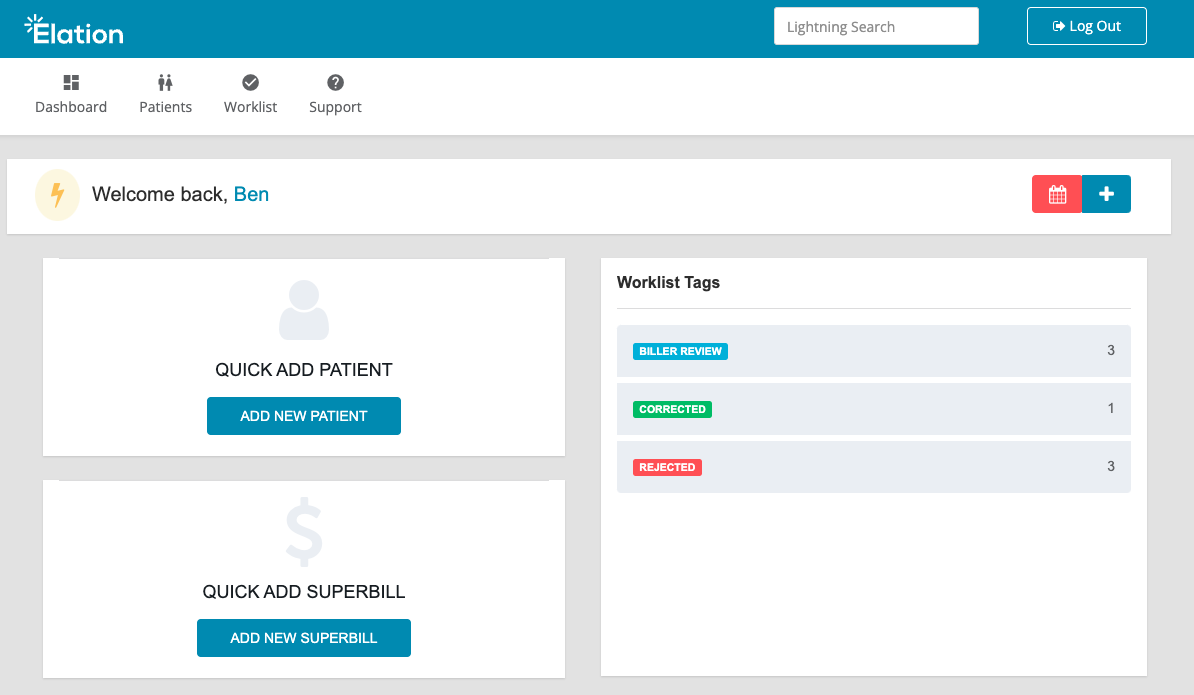
| Staff | Staff are offered limited access to a Practice. Staff can view the Worklist and Patient Ledger. |
### A Practice's "Staff" View
 ***
## Billing Company User Role Types
The roles for a Billing Company have slightly different rulesets than those in Practices. To view your Billing Company users, navigate to **Settings** → **Account Users**. If you do not have the Account Users option, reach out to an account Admin.
A Practice managed by a Billing Company may still have some Practice Users in addition to the BillCo Users.
> | Role | Access/Description |
> | -------------- | ------------------------------------------------------------------------------------------------------------------------------------------------------------------------------------------------------------------------------------------------------- |
> | BillCo Admins | BillCo Admins have the highest amount of control over an account. They will have access to every tool Elation Billing has to offer including Settings. Additionally, an Admin has the authority to request back-end changes to the account via Support. |
> | BillCo Staff\* | BillCo Staff has access to every tool Elation Billing has to offer excluding Settings. |
> | Data Entry\* | Data Entry has access to every tool Elation Billing has to offer excluding Settings. |
> | No Report | No Report can view the Worklist and Patient Ledger, as well as a simplified Dashboard that does not include the financial information for the Practice. |
> | Practice Staff | Staff roles are offered limited access to a Practice. Staff can view the Worklist and Patient Ledger, as well as a simplified Dashboard that does not include the financial information for the Practice. Staff cannot Bill Now. |
Over time, **BillCo Staff** and **Data Entry** have been adapted to include identical privileges. In the event these two roles ever diverge, we will be sure to alert our users prior to any changes so as to avoid any interruption to your workflow!
### A Billing Company's "Practice Staff" View
***
## Billing Company User Role Types
The roles for a Billing Company have slightly different rulesets than those in Practices. To view your Billing Company users, navigate to **Settings** → **Account Users**. If you do not have the Account Users option, reach out to an account Admin.
A Practice managed by a Billing Company may still have some Practice Users in addition to the BillCo Users.
> | Role | Access/Description |
> | -------------- | ------------------------------------------------------------------------------------------------------------------------------------------------------------------------------------------------------------------------------------------------------- |
> | BillCo Admins | BillCo Admins have the highest amount of control over an account. They will have access to every tool Elation Billing has to offer including Settings. Additionally, an Admin has the authority to request back-end changes to the account via Support. |
> | BillCo Staff\* | BillCo Staff has access to every tool Elation Billing has to offer excluding Settings. |
> | Data Entry\* | Data Entry has access to every tool Elation Billing has to offer excluding Settings. |
> | No Report | No Report can view the Worklist and Patient Ledger, as well as a simplified Dashboard that does not include the financial information for the Practice. |
> | Practice Staff | Staff roles are offered limited access to a Practice. Staff can view the Worklist and Patient Ledger, as well as a simplified Dashboard that does not include the financial information for the Practice. Staff cannot Bill Now. |
Over time, **BillCo Staff** and **Data Entry** have been adapted to include identical privileges. In the event these two roles ever diverge, we will be sure to alert our users prior to any changes so as to avoid any interruption to your workflow!
### A Billing Company's "Practice Staff" View