> ## Documentation Index
> Fetch the complete documentation index at: https://help.elationhealth.com/llms.txt
> Use this file to discover all available pages before exploring further.
# Transferring Patient Balances From a Prior Practice Management Software
> Learn how to transfer patient balances from your previous billing system
This article explains how to transfer patient balances from a prior practice management software to Elation Billing.
## Workflow Instructions
### Transferring Patient Balances
1. **Create Superbill** - Hover over the **Billing** tab and select **+ New Superbill**.
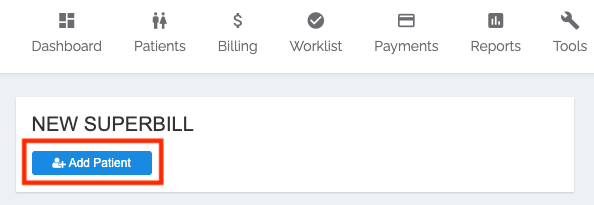
 2. **Add Patient** - Under **NEW SUPERBILL**, click the blue **Add Patient** button.
 3. **Select Rendering and Location** - Select the **Rendering Provider** and the **Location** for the date(s) being accounted.
If the patient has a balance from multiple providers/locations, and your practice is interested in tracking services per provider/location, you'll likely want to create individual Superbills for these different providers/locations.
> 4. **Select DOS** - In the Red **From Date/To Date** field, set the **From Date** to the first DOS being accounted for, and the **To Date** to the most recent DOS accounted for. If the patient only has a balance from one claim, just use the DOS for the claim.
>
> 5. **Add Charge Line** - Select **Add Charge Line**. Add the From and To date for the first claim for which you're accounting.
>
> 6. **Add Custom CPT** - Select **⚡️ ADD** to add the custom CPT you'll be using to track these transferred balances.
You are free to use whatever CPT you like - we suggest "PREV BAL". You'll likely want to use the same CPT as you transfer these balances for ease of tracking.
7. **Apply Patient Balance** - Apply the Patient Balance to the DOS's Charge value.
8. **Add Remaining CPTs and Balances** - Repeat Steps 5 and 6 for each DOS being transferred.
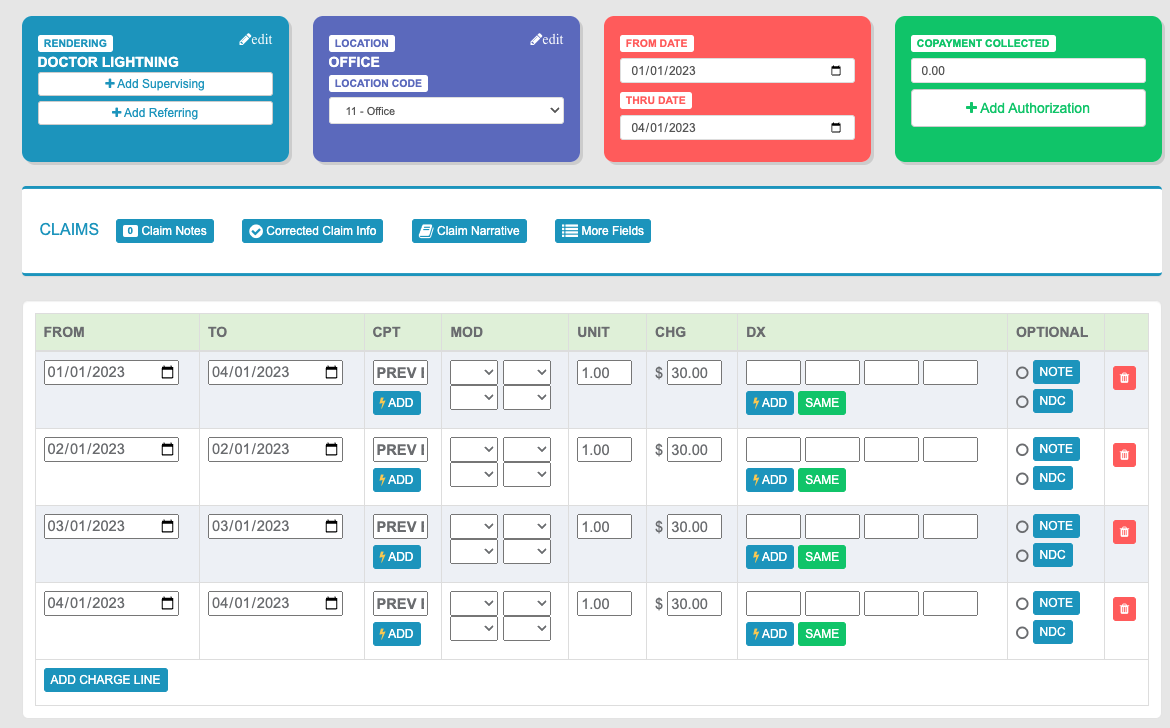
Below is a view of a patient with a previous balance of $120 - four Copays of $30 for their visits on the 1st of January, February, March, and April.
3. **Select Rendering and Location** - Select the **Rendering Provider** and the **Location** for the date(s) being accounted.
If the patient has a balance from multiple providers/locations, and your practice is interested in tracking services per provider/location, you'll likely want to create individual Superbills for these different providers/locations.
> 4. **Select DOS** - In the Red **From Date/To Date** field, set the **From Date** to the first DOS being accounted for, and the **To Date** to the most recent DOS accounted for. If the patient only has a balance from one claim, just use the DOS for the claim.
>
> 5. **Add Charge Line** - Select **Add Charge Line**. Add the From and To date for the first claim for which you're accounting.
>
> 6. **Add Custom CPT** - Select **⚡️ ADD** to add the custom CPT you'll be using to track these transferred balances.
You are free to use whatever CPT you like - we suggest "PREV BAL". You'll likely want to use the same CPT as you transfer these balances for ease of tracking.
7. **Apply Patient Balance** - Apply the Patient Balance to the DOS's Charge value.
8. **Add Remaining CPTs and Balances** - Repeat Steps 5 and 6 for each DOS being transferred.
Below is a view of a patient with a previous balance of $120 - four Copays of $30 for their visits on the 1st of January, February, March, and April.
 9. **Lightning Bill to Patient** - Once the balances have been accounted for, select **Lightning Bill**. Select **Patient** (in the dropdown menu), followed by **Bill Now**, to apply the balance to the patient!