> ## Documentation Index
> Fetch the complete documentation index at: https://help.elationhealth.com/llms.txt
> Use this file to discover all available pages before exploring further.
# Letter & Referral Guide - Sending correspondences to other Elation EHR Users
> This article describes how to communicate with other Elation EHR Users via a Provider Letter Referral.
## Overview
### How do I send correspondences to other Elation EHR users?
You can use the Provider Letter or Referral features to send correspondences to other Elation EHR users.
### What are the benefits of sending to other Elation EHR users?
When you send a Provider Letter or Referral to another Elation EHR user, they will receive it directly in their version of the patient’s chart.
**Key Features**:
* **Share records instantaneously and securely**– Ensure the Letter or Referral, along with all attachments, is securely and promptly transferred to the recipient’s version of the patient’s chart.
* **Attach unlimited records**– Send as many signed records from your patient’s chart with no page count restrictions.
* **Engage in two-way communication** – Communicate back and forth with the recipient for follow-up and clarification.
Communicate with other Elation users through Provider Letters or Referrals to ensure secure and efficient collaboration within the Elation EHR system.
## Workflow Instructions
### Sending a Provider Letter or Referral to another Elation EHR User
To send a Provider Letter or Referral to another Elation User,
| **1** | [Create a new Provider Letter or Referral](/articles/letter-and-referral-introduction#initiation). |
| ----- | ----------------------------------------------------------------------------------------------------------------------------------------------------------------------------------------------------------------------------------------------------------------------------------------------------------------------------------------------------------------------------------------------------------------------------------------------------------------------------------------------------------------------------------------------------------------------------------------------------------------------------------------------------------------------------------------------------------------------------------------------------------------------------------------------------------------------------------------------------------------------------------------------------------------------------------------------------------------------------------------------------------------------------------------------------------------------------------------------------------------------------------------------------------------------------------------------------------------------------------------------------------------------------------------------------------------------------------------------------------------------------------------------------------------------------------------------------------------------------------------------------------------------------------------------------------------------------------------------------------------------------------------------------------------------------------------------------------------------------------------------------------------------------------------------------------------------------------------------------------------------------- |
| **2** | Type the recipient’s name in the **To** field and then select a match from the search results. Elation EHR Users have a blue E icon in their profile picture. |
| **3** | Fill out the remaining fields of the Provider Letter or Referral. Click here for a detailed breakdown of the different fields. Subject: Provide a brief overview or context to explain the purpose of the correspondence.Body: Type the main content of your correspondence. Use Wordsmith, our generative AI tool, to help you draft your correspondence if needed. (Referral only) Referral details: Auth For: Document any authorization details (i.e. the approved service or procedure or number of encounters) as needed.Auth #: Record the authorization number supplied by the patient’s insurance if applicable.Add Dxs: Enter the ICD-10 codes that validate the medical necessity of the referral. Settings Post Date: Select a future date to send the Provider Letter or Referral.Unread Alert: Alert yourself if the Letter/Referral has not been read by the recipient by a specific timeframe.Print Header: Select the Print Header you want to appear on this Letter/Referral. |
| **4** | Adjust/Add attachments as needed. Click here for a detailed breakdown of the attachment options. Default behavior If you initiated the letter or referral from a patient record, the record will automatically be included as an attachment. If you are creating a referral, the patient’s demographics and Clinical Profile will automatically be included as attachments. Options for attaching records: Select Chart Items to Attach: Use this option to pick and choose individual patient records to attach to the letter or referral. Attach Everything in Chart: Use this option to attach all attachable records, referenced below, to the letter or referral. Records available as attachments include: Patient demographicsClinical ProfileImmunization HistoryMedication ListMedication HistorySigned Visit Notes & NotesSigned ReportsSigned OrdersCompleted office messagesOther signed letters or referrals |
| **5** | Check if the yellow banner at the bottom of the Provider Letter or Referral displays the text, \*\**This referral will be sent to the recipient \*\* s Elation Health account’,* to confirm that the correspondence will be sent to the recipient’s Elation Health account. 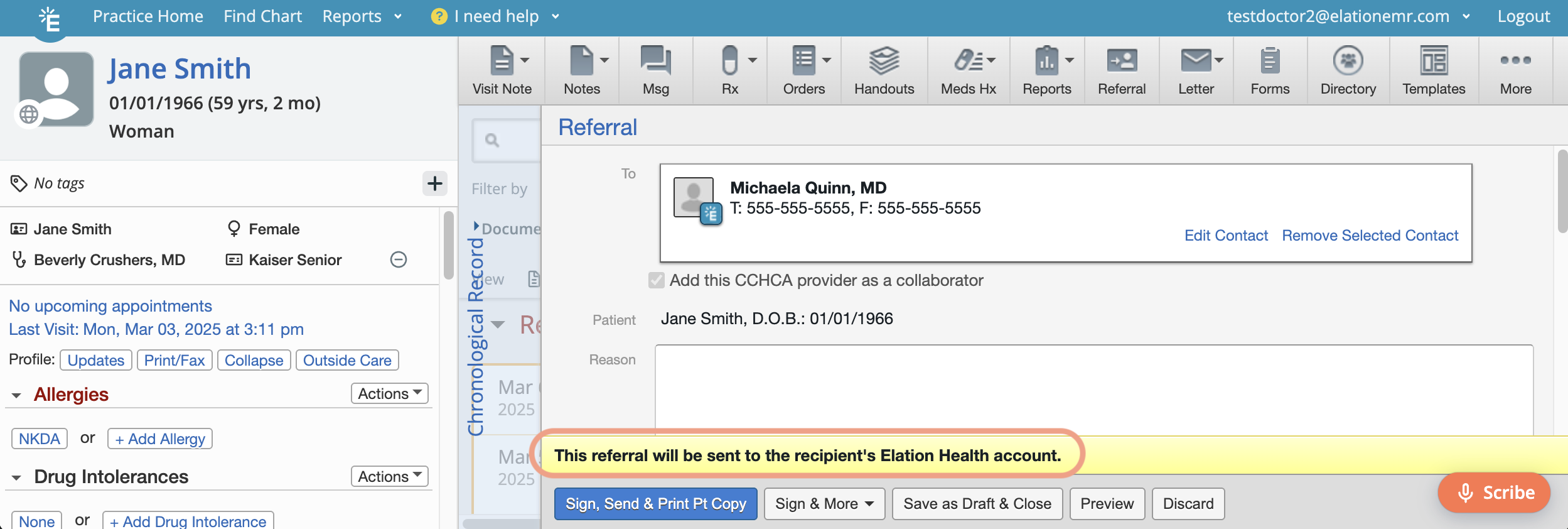 |
| **6** | **Sign & Send** the correspondence. Click here for a detailed breakdown of the different Send options. Sign & Send: Signs the correspondence and sends it to the recipient using the delivery method specified in the yellow banner. Sign, Send & Print Pt Copy: Signs the correspondence, sends it using the delivery method specified in the yellow banner and prints the body of the correspondence without attachments.Sign & Print w/attachments: Signs the correspondence and prints the entire correspondence and its attachments.Sign, Send & Create Follow-up Letter: Signs the correspondence, sends it to the recipient using the delivery method specified in the yellow banner and then creates a new correspondence draft for the same recipient. |
**Exception:** Only **Provider Level Users** can sign Referrals. Staff level users cannot sign Referrals unless they are an [authorized Referrals delegate](https://elation.lightning.force.com/articles/Knowledge/staff-permissions--staff-delegates) .
### Viewing sent correspondences
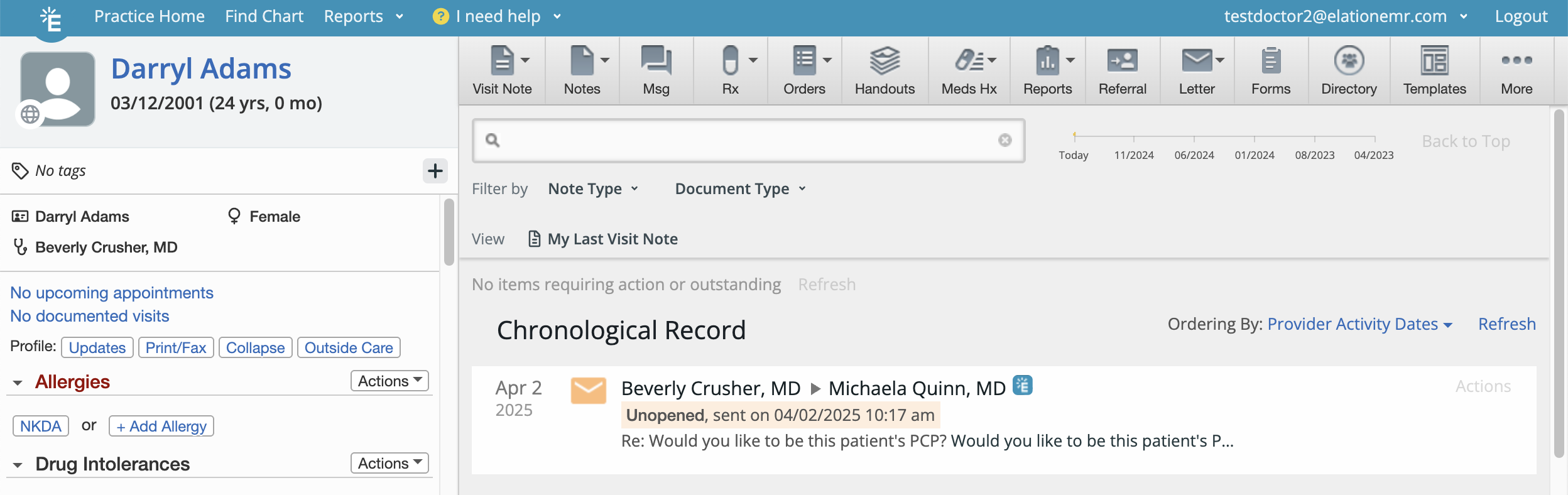
Check the Provider Letter or Referral in the **Chronological Record** to see if the recipient has viewed your correspondence. If necessary, follow up with additional messages.
|
| **6** | **Sign & Send** the correspondence. Click here for a detailed breakdown of the different Send options. Sign & Send: Signs the correspondence and sends it to the recipient using the delivery method specified in the yellow banner. Sign, Send & Print Pt Copy: Signs the correspondence, sends it using the delivery method specified in the yellow banner and prints the body of the correspondence without attachments.Sign & Print w/attachments: Signs the correspondence and prints the entire correspondence and its attachments.Sign, Send & Create Follow-up Letter: Signs the correspondence, sends it to the recipient using the delivery method specified in the yellow banner and then creates a new correspondence draft for the same recipient. |
**Exception:** Only **Provider Level Users** can sign Referrals. Staff level users cannot sign Referrals unless they are an [authorized Referrals delegate](https://elation.lightning.force.com/articles/Knowledge/staff-permissions--staff-delegates) .
### Viewing sent correspondences
Check the Provider Letter or Referral in the **Chronological Record** to see if the recipient has viewed your correspondence. If necessary, follow up with additional messages.
 ### Receiving a Provider Letter or Referral from another Elation EHR User
Check the **Provider Letter** inbox of your Practice Home for correspondences sent to you from other Elation EHR users. These correspondences can be new letters or referrals or responses to existing ones.
### Receiving a Provider Letter or Referral from another Elation EHR User
Check the **Provider Letter** inbox of your Practice Home for correspondences sent to you from other Elation EHR users. These correspondences can be new letters or referrals or responses to existing ones.
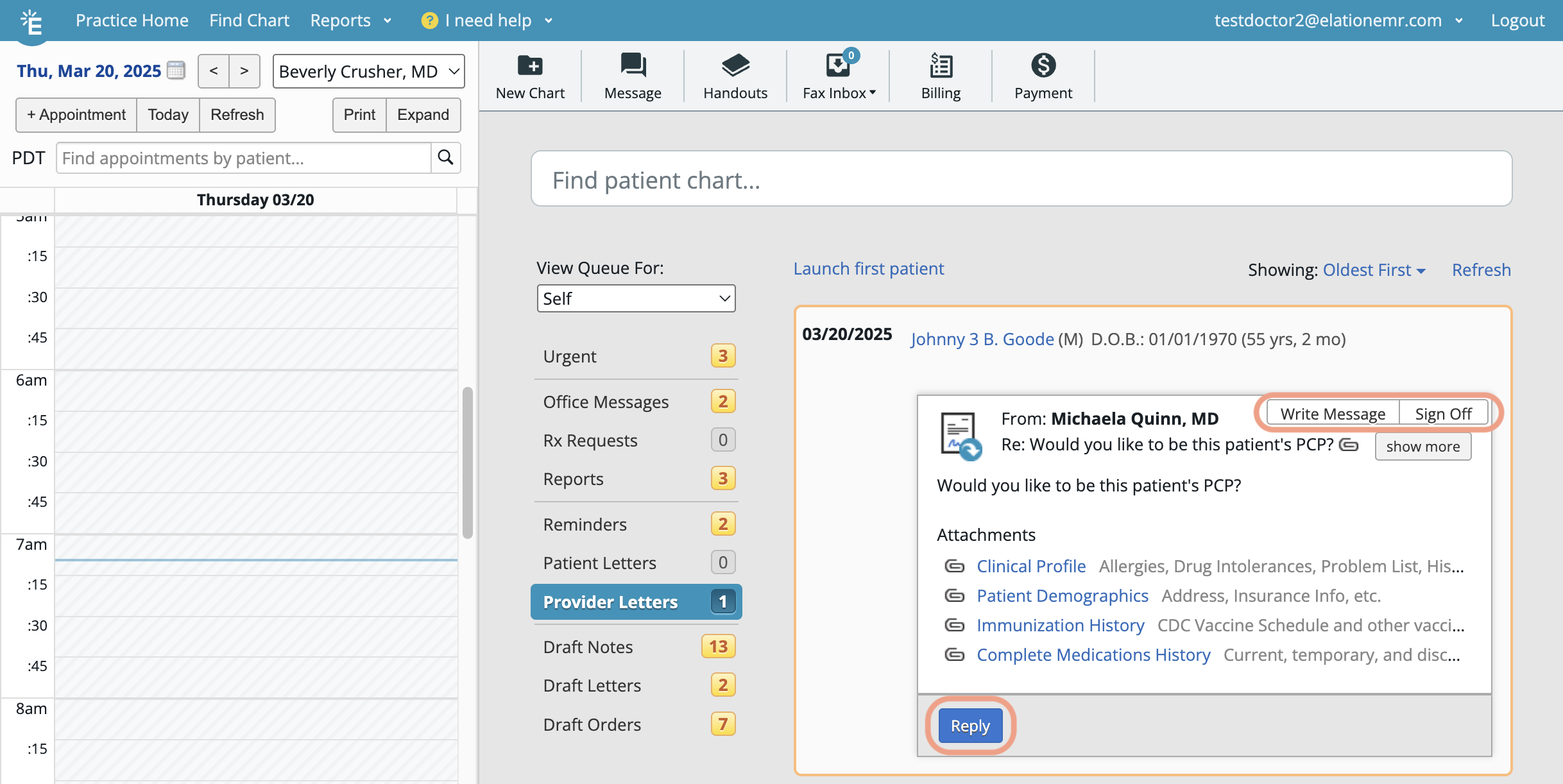 Take the following actions on received correspondences as needed:
* Click on the patient’s name to view the correspondence in the patient’s chart.
* **Reply**: Write a message back to the sender.
* **Sign Off**: Sign off on the Provider Letter or Referral and keep it in the patient’s chart.
* If the Provider Letter or Referral includes attachments, select which attachments (if any) to file as a Report in your version of the patient’s chart when prompted.
* **Write Message**: Send an office message about the Provider Letter or Referral to another member of your practice.
* (Conditional) **Acknowledge**:
* Appears once anyone starts a conversation.
* Dismiss the correspondence from your Practice Home inbox and keep it in the patient’s chart for records.
## Frequently Asked Questions
### Can anyone else besides the recipient (i.e. staff) respond to a Provider Letter or Referral?
Anyone in the practice is authorized to respond to a Provider Letter or Referral, including replying to and signing off on the correspondence.
### Can staff sign off on a new Provider Letter or Referral?
Staff may sign off on new Provider Letters at their discretion. However, only authorized Referral delegates are permitted to sign off on Referrals.
### How do I send patient records from a specific time frame?
To send records from a specific time frame, click **Select Chart Items to Attach** and choose all records within your desired period. Chart items are organized chronologically, from newest to oldest.
## Related Articles
* [Letter & Referral Introduction](/articles/letter-and-referral-introduction)
* [Letter & Referral Guide - Auto-drafting letters and referrals with Wordsmith](/articles/Auto-drafting-letters-and-referrals-with-Wordsmith)
* [Letter & Referral Guide - Sending and receiving Direct messages](/articles/how-to-use-direct-messaging)
* [Letter & Referral Guide - Sending a fax](/articles/letter-and-referral-introduction)
* [Letter & Referral Guide - Sending correspondences via a secure Provider Portal](/articles/secure-Provider-Portal)
* [Letter & Referral Guide - Accessing patient information sent by an Elation EHR user](/articles/access-patient-information-securely-shared-by-an-Elation-EHR-user)
* [Letter & Referral Guide - Managing & searching the provider directory](/articles/Using-the-Provider-Directory)
* [Letter & Referral Guide - Fax Usage Settings](/articles/fax-usage)
Take the following actions on received correspondences as needed:
* Click on the patient’s name to view the correspondence in the patient’s chart.
* **Reply**: Write a message back to the sender.
* **Sign Off**: Sign off on the Provider Letter or Referral and keep it in the patient’s chart.
* If the Provider Letter or Referral includes attachments, select which attachments (if any) to file as a Report in your version of the patient’s chart when prompted.
* **Write Message**: Send an office message about the Provider Letter or Referral to another member of your practice.
* (Conditional) **Acknowledge**:
* Appears once anyone starts a conversation.
* Dismiss the correspondence from your Practice Home inbox and keep it in the patient’s chart for records.
## Frequently Asked Questions
### Can anyone else besides the recipient (i.e. staff) respond to a Provider Letter or Referral?
Anyone in the practice is authorized to respond to a Provider Letter or Referral, including replying to and signing off on the correspondence.
### Can staff sign off on a new Provider Letter or Referral?
Staff may sign off on new Provider Letters at their discretion. However, only authorized Referral delegates are permitted to sign off on Referrals.
### How do I send patient records from a specific time frame?
To send records from a specific time frame, click **Select Chart Items to Attach** and choose all records within your desired period. Chart items are organized chronologically, from newest to oldest.
## Related Articles
* [Letter & Referral Introduction](/articles/letter-and-referral-introduction)
* [Letter & Referral Guide - Auto-drafting letters and referrals with Wordsmith](/articles/Auto-drafting-letters-and-referrals-with-Wordsmith)
* [Letter & Referral Guide - Sending and receiving Direct messages](/articles/how-to-use-direct-messaging)
* [Letter & Referral Guide - Sending a fax](/articles/letter-and-referral-introduction)
* [Letter & Referral Guide - Sending correspondences via a secure Provider Portal](/articles/secure-Provider-Portal)
* [Letter & Referral Guide - Accessing patient information sent by an Elation EHR user](/articles/access-patient-information-securely-shared-by-an-Elation-EHR-user)
* [Letter & Referral Guide - Managing & searching the provider directory](/articles/Using-the-Provider-Directory)
* [Letter & Referral Guide - Fax Usage Settings](/articles/fax-usage)