> ## Documentation Index
> Fetch the complete documentation index at: https://help.elationhealth.com/llms.txt
> Use this file to discover all available pages before exploring further.
# Running Eligibility
> Learn how to run real-time eligibility checks in Elation Billing and EHR
This article provides step-by-step instructions on how to run real-time eligibility (RTE) checks in both Elation Billing and Elation EHR.
## Overview
### What is Running Eligibility?
Running eligibility (also called Real-Time Eligibility or RTE) is the process of verifying a patient's insurance coverage status electronically. This checks whether the patient's policy is active and may provide additional coverage details.
### Why is Running Eligibility important?
Verifying eligibility before providing services helps prevent claim denials due to inactive coverage, identifies patient responsibility amounts, and ensures claims are submitted to the correct payer.
## Workflow Instructions
### Prerequisites
Before running eligibility, you must first [enroll for a Payer's Eligibility](/articles/enrolling-for-claims-submission-era-and-real-time-eligibility-edi).
### Running RTE in Elation Billing
You can run RTE from any Patient or Superbill Page.
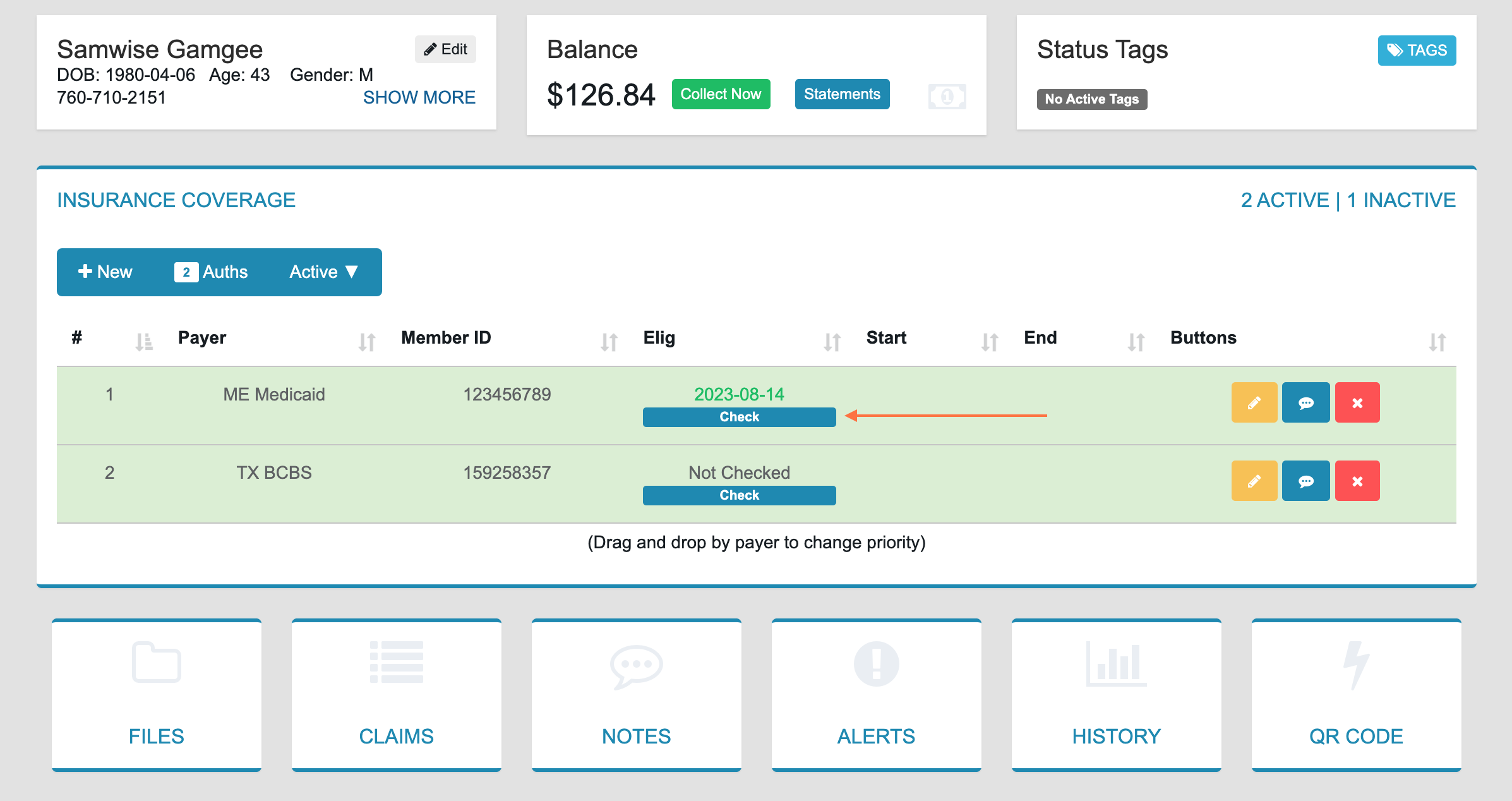
1. **Check the Policy** - Locate the patient's insurance policy and click the **Check** button.
 2. **Select Check Type** - Choose one of the following options:
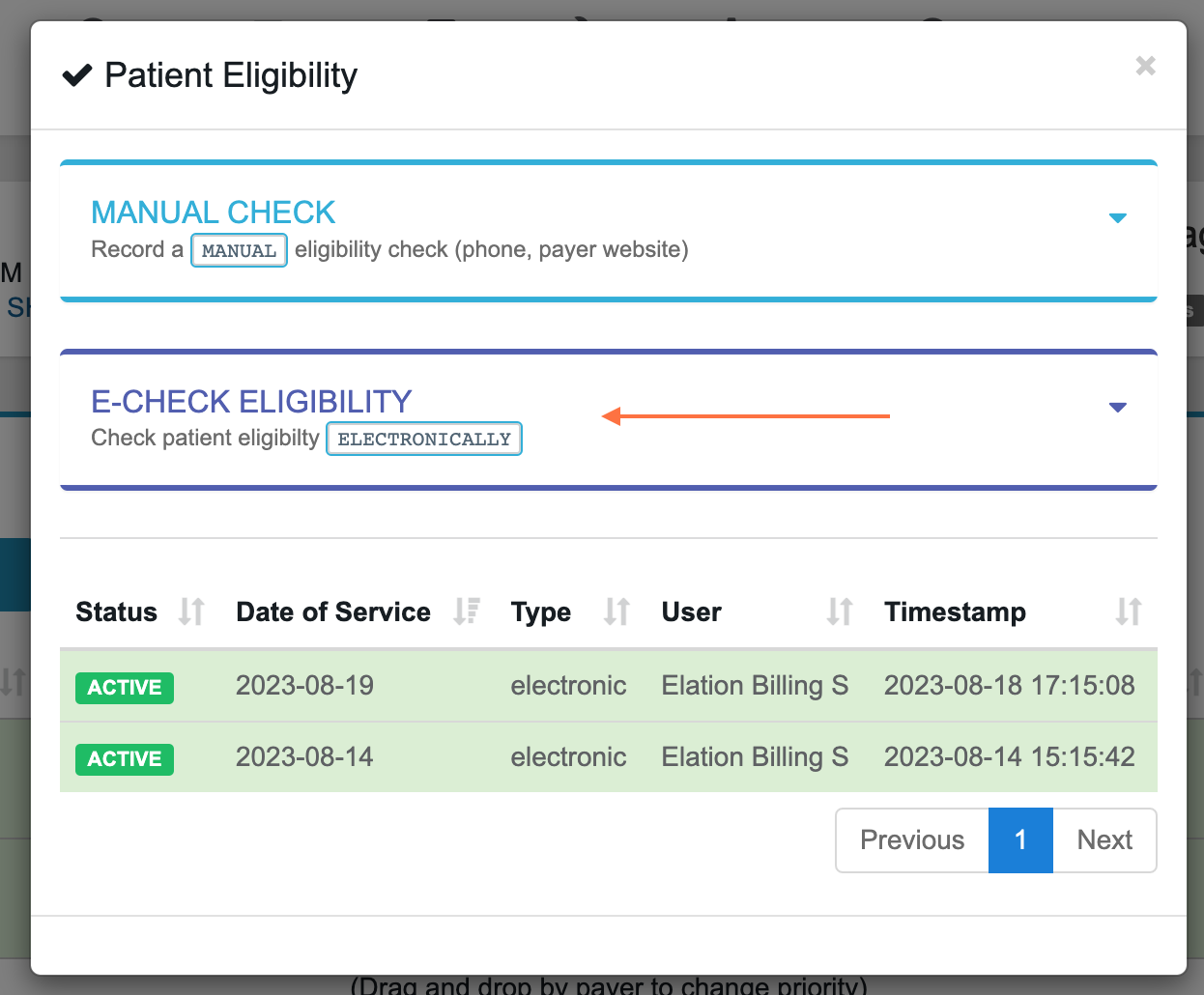
* **E-Check Eligibility** - Run an electronic eligibility check with the payer
2. **Select Check Type** - Choose one of the following options:
* **E-Check Eligibility** - Run an electronic eligibility check with the payer
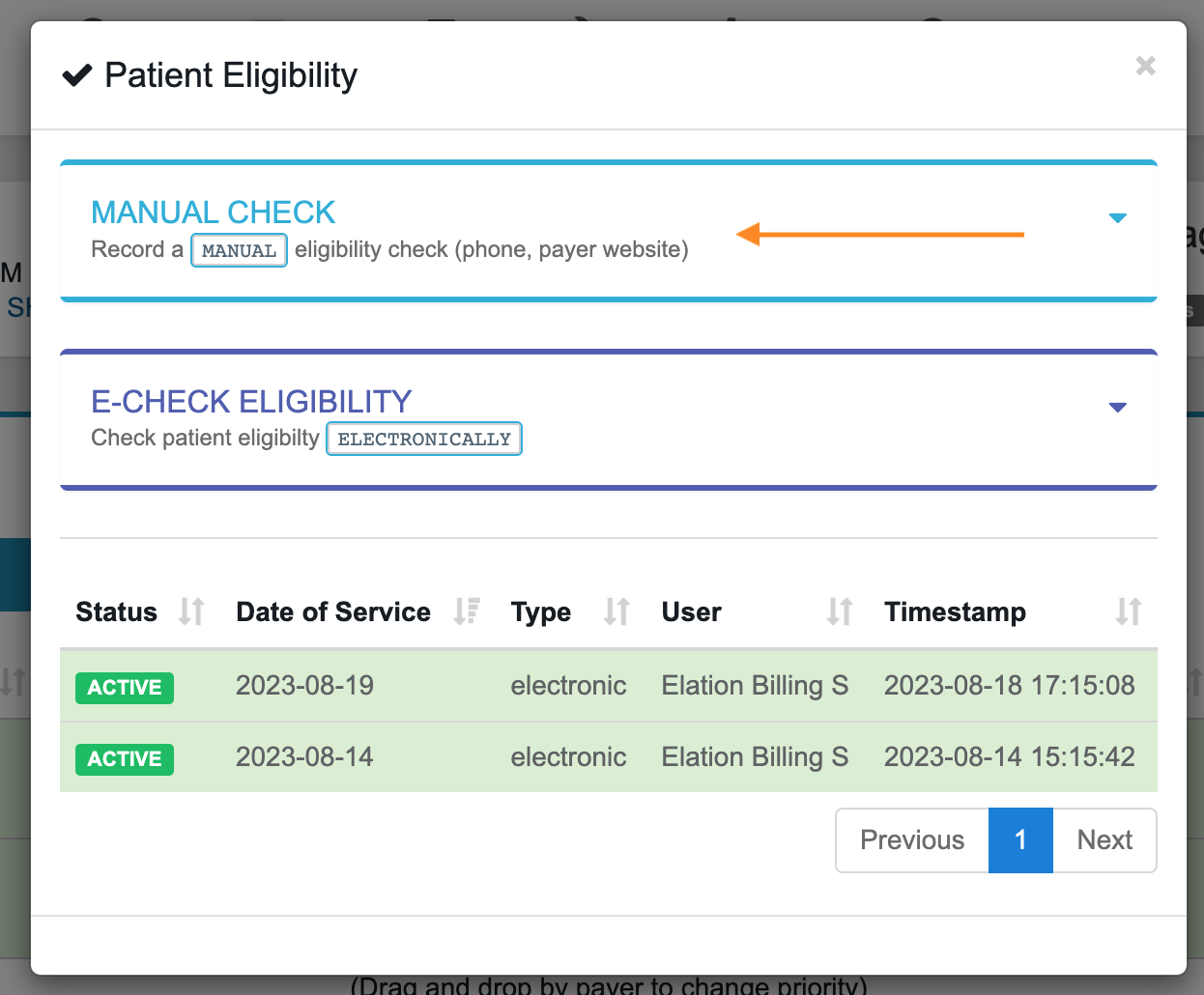
 * **Manual Check** - Manually mark a policy as active or inactive when electronic check is not available
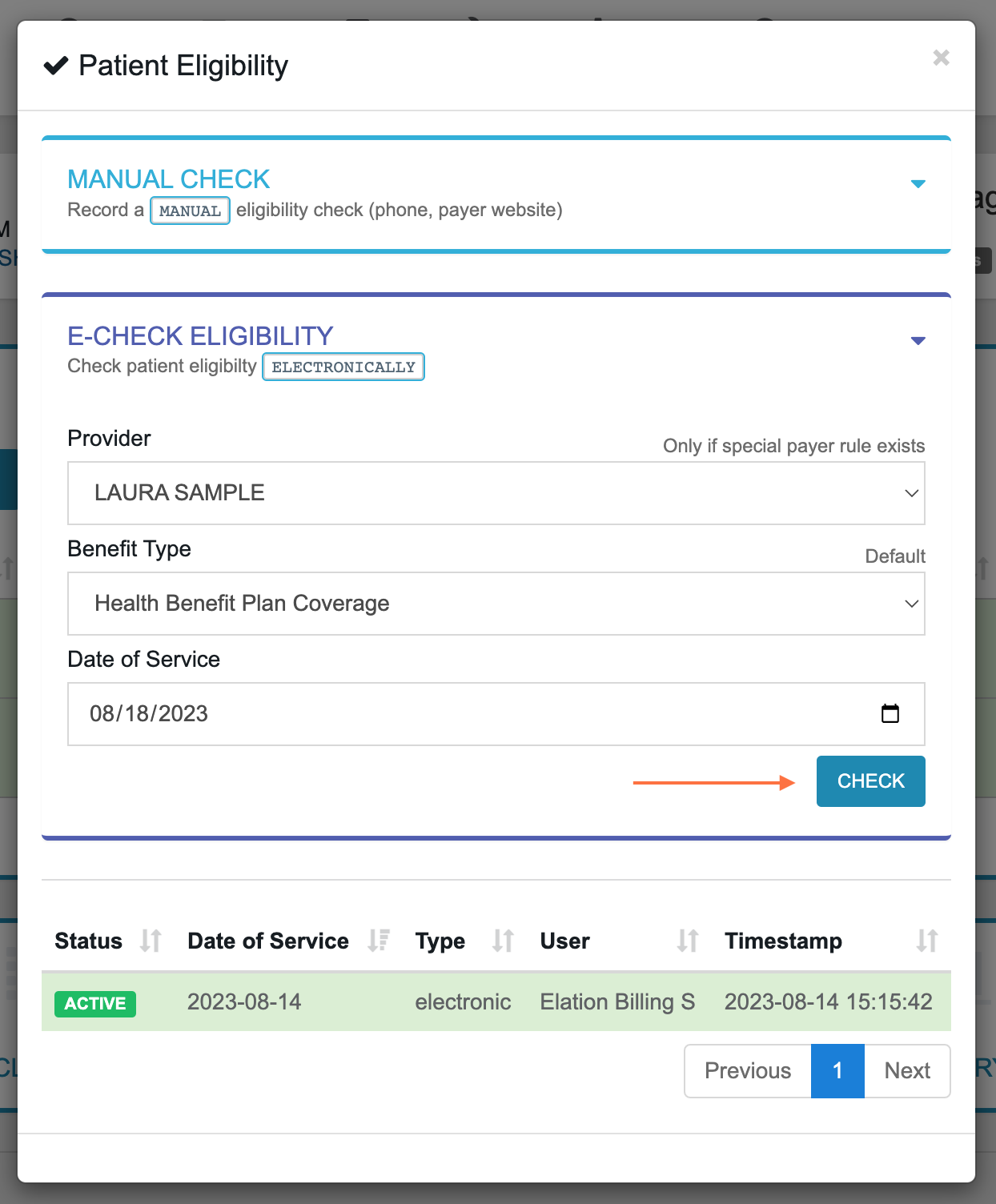
 3. **Run the Check** - Confirm and run the eligibility check.
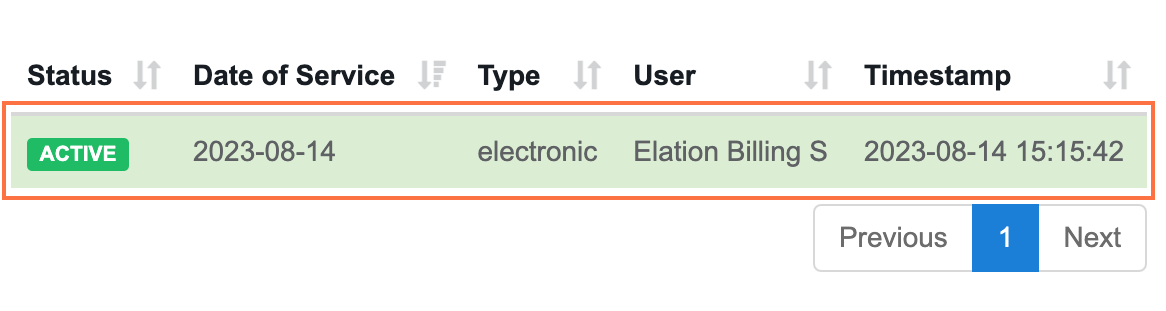
 4. **View the Report (Optional)** - You can view reports for both Active and Inactive policies to receive more information.
Click the Report summary to view more information. The info available is determined on a payer-by-payer basis, dependent on what the payer provides.
4. **View the Report (Optional)** - You can view reports for both Active and Inactive policies to receive more information.
Click the Report summary to view more information. The info available is determined on a payer-by-payer basis, dependent on what the payer provides.
 ***
### Running Eligibility in Elation EHR
For **Elation EHR + Billing** users, RTE can also be run in the EHR. Running RTE in the EHR will update the Eligibility in Elation Billing, and vice versa.
1. **Open Patient Demographics** - Open the patient's demographics page.
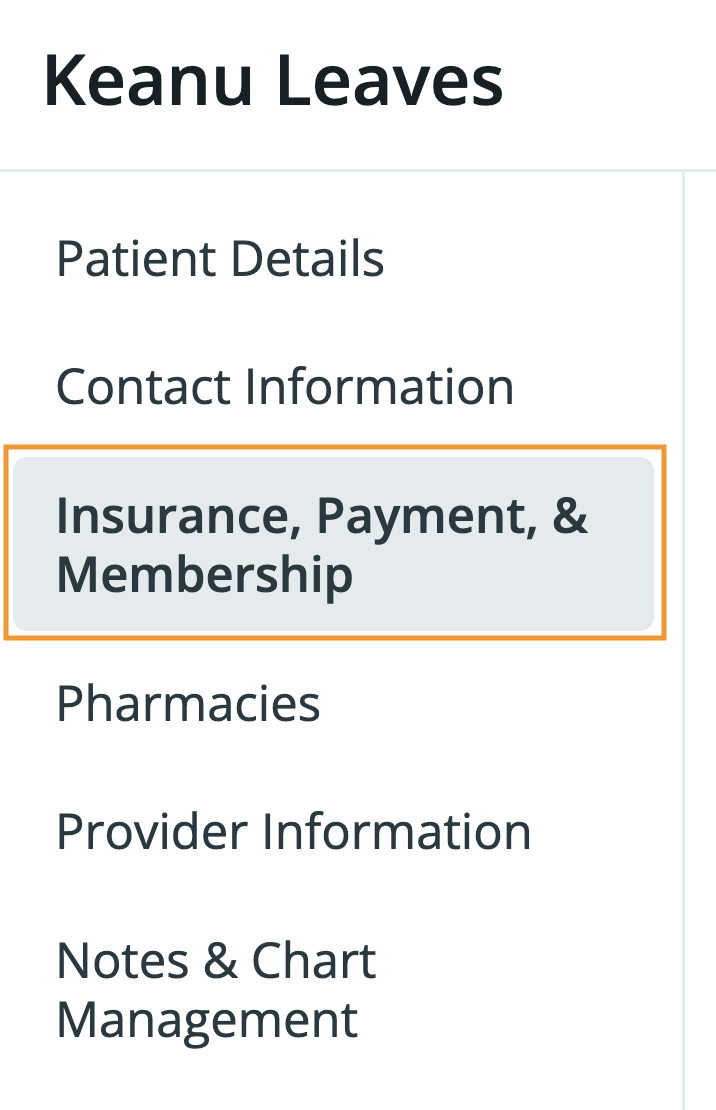
2. **Navigate to Insurance** - In the sidebar of the pop-up window, select **Insurance, Payment, & Membership**.
***
### Running Eligibility in Elation EHR
For **Elation EHR + Billing** users, RTE can also be run in the EHR. Running RTE in the EHR will update the Eligibility in Elation Billing, and vice versa.
1. **Open Patient Demographics** - Open the patient's demographics page.
2. **Navigate to Insurance** - In the sidebar of the pop-up window, select **Insurance, Payment, & Membership**.
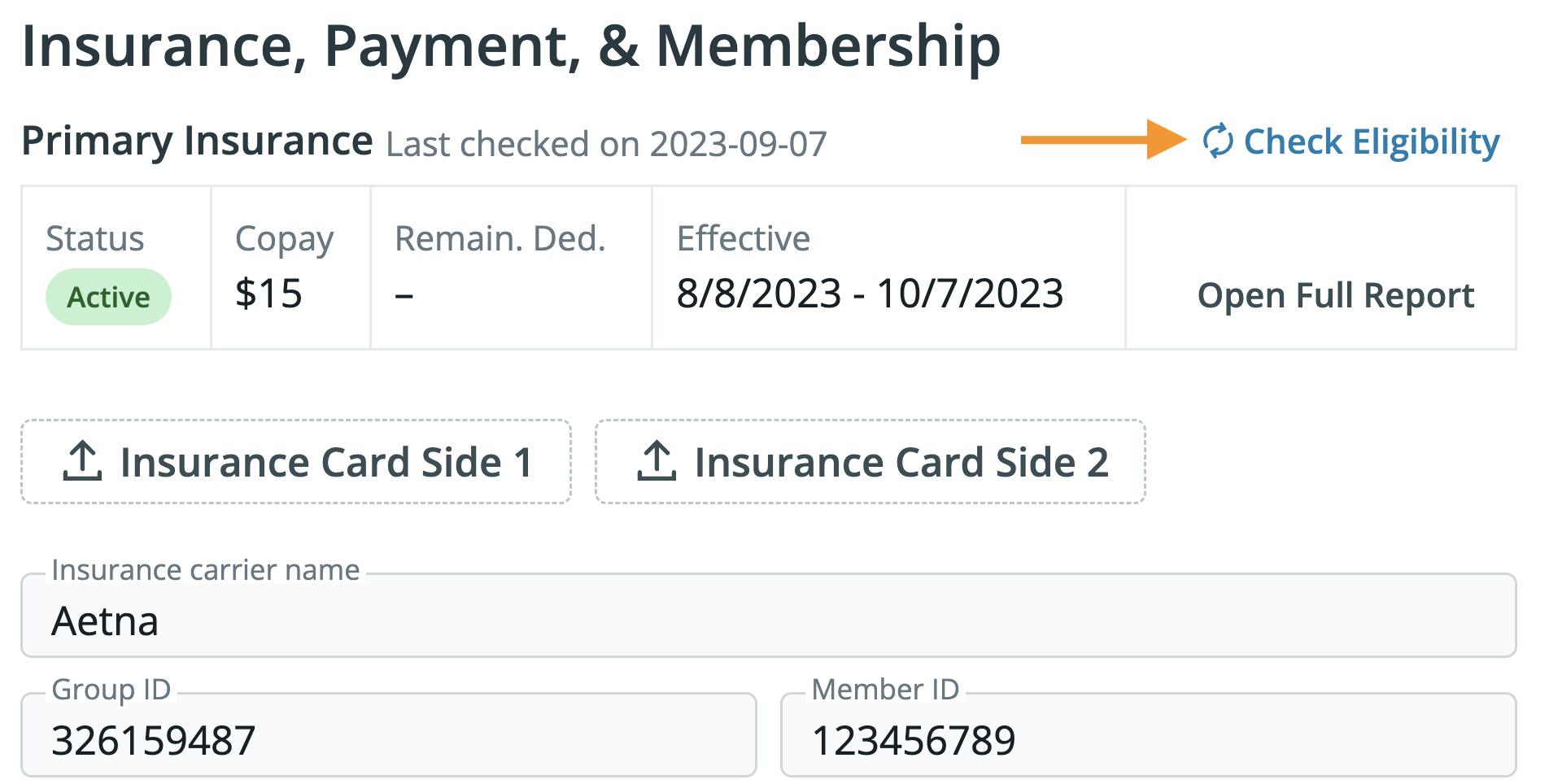
 3. **Check Eligibility** - Click the eligibility check button.
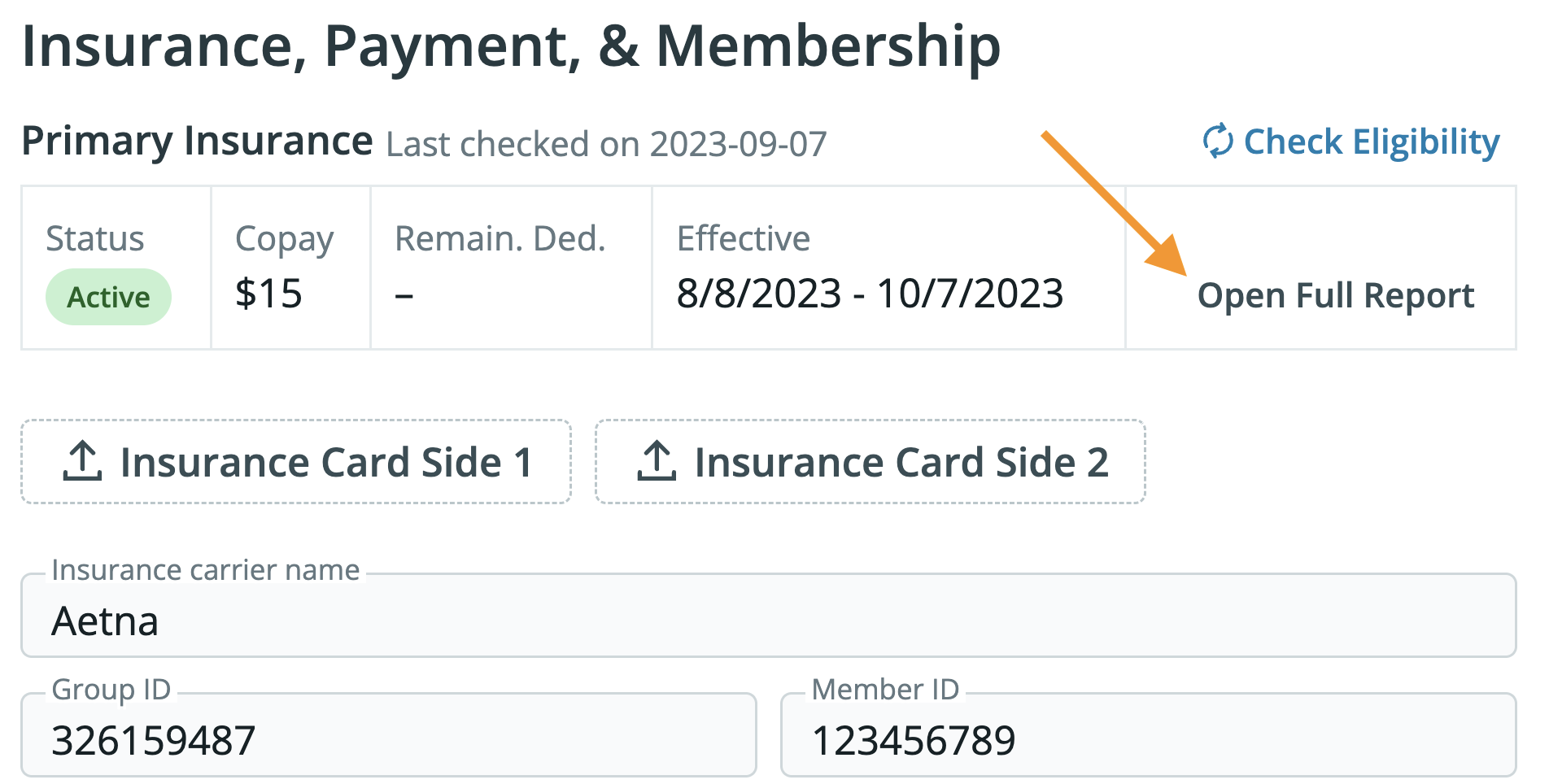
 4. **View the Report (Optional)** - Review the eligibility report for coverage details.
 ***
### In-Network and Out-of-Network Information
Each Eligibility report is provided directly by the payers and their own clearinghouses, and each payer offers different levels of information.
While some payers may provide information about both In- and Out-of-Network coverage, the report will not indicate NPI-specific information. For this information, please contact the payer directly.
## Related Articles
* [Enrolling for Claims Submission, ERA, and Real-Time Eligibility](/articles/enrolling-for-claims-submission-era-and-real-time-eligibility-edi)
* [Troubleshoot Eligibility](/articles/troubleshoot-eligibility)
* [Add or Edit Patient Insurance](/articles/add-or-edit-patient-insurance)
***
### In-Network and Out-of-Network Information
Each Eligibility report is provided directly by the payers and their own clearinghouses, and each payer offers different levels of information.
While some payers may provide information about both In- and Out-of-Network coverage, the report will not indicate NPI-specific information. For this information, please contact the payer directly.
## Related Articles
* [Enrolling for Claims Submission, ERA, and Real-Time Eligibility](/articles/enrolling-for-claims-submission-era-and-real-time-eligibility-edi)
* [Troubleshoot Eligibility](/articles/troubleshoot-eligibility)
* [Add or Edit Patient Insurance](/articles/add-or-edit-patient-insurance)