> ## Documentation Index
> Fetch the complete documentation index at: https://help.elationhealth.com/llms.txt
> Use this file to discover all available pages before exploring further.
# Report Categories Guide - Categorizing patient documents
> When you file a document into a patient chart in Elation, you must assign a document type to the document.
## Overview
**What are report categories?**
When you add a document to a patient chart in Elation, you need to assign it a document type. Each document type aligns with a report category in the patient’s chart, ensuring reports are categorized and grouped appropriately. Elation provides over 60 report categories, which you can customize to fit the specific needs of your practice.
### Report Categories Settings
**ADMINS ONLY** To edit report categories in your Elation settings, you must have Admin level privileges. To become an Admin, you must ask for an existing Admin at your practice (most likely a primary physician account holder) to grant you privileges via [Manage Accounts](/articles/managing-user-accounts) section of their Elation settings.
To customize the report categories available for report categorization:
| **1** | Go to **Settings** -> **Report & Visit Note** **Categories** . |
| ----- | -------------------------------------------------------------------------------------------------------------------------------------------------------------------------------------------------------------------------------------------------------------------------------- |
| **2** | View the list of report categories selected by your practice in the **Report Categories** section. With the exception of the **Laboratory Reports**, **Imaging Reports**, **Consultation Reports** and **Patient Form Reports** categories, you are free to remove any category. |
## Workflow Instructions
### Adding a new report category
To add a new report category:
| **1** | Go to **Settings** -> **Report & Visit Note** **Categories** . |
| ----- | -------------------------------------------------------------------------------------------------- |
| **2** | Click **+ Add Report Category** . |
| **3** | Click the dropdown menu that appears on the left side of the page to search for a report category. |
| **4** | Scroll through the list or type in search words to find the desired report category. |
| **5** | Select the report category that you want to add and click **Save** . |
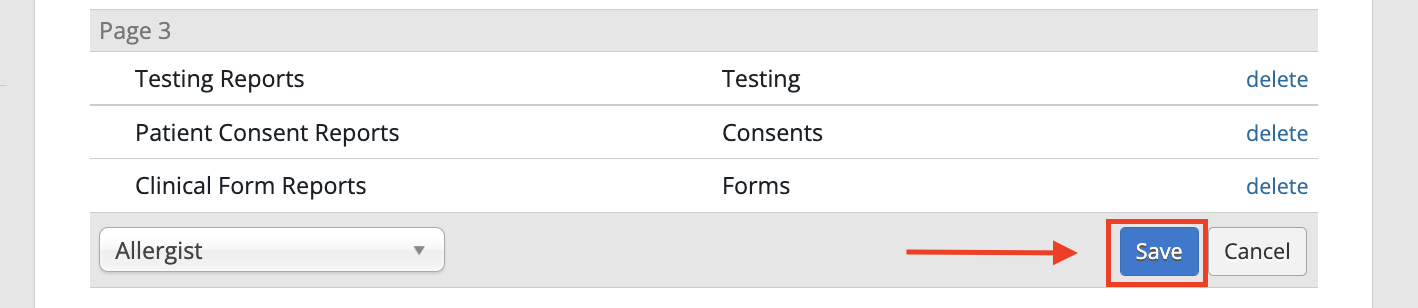 The **Patient Form Reports** category is specifically designed for the [Patient Forms feature](/articles/Getting-Started-with-Patient-Forms). If you file a report under this category for a provider to review, the report will only appear in the **Outstanding Items** section of the patient’s chart, **not** in the **Requiring Action** section. For storing patient paperwork in your office, we recommend using the **Clinical Form Reports**,**Intake Form Reports**, or **Patient Consent Reports** categories instead.
If you add the **Pulmonary Reports** or **Sleep Reports** categories to your list, all related orders will be moved under their respective sections rather than the **Consultation Reports** section where they are currently stored.
### Removing a report category
| **1** | Go to **Settings** -> **Report & Visit Note** **Categories** . |
| ----- | ---------------------------------------------------------------------------- |
| **2** | Find the report category you want to remove in the **Report Category** list. |
| **3** | Click the **delete** button next to the category to delete it. |
Deleted report categories will still appear in patient charts with previously assigned reports but will no longer be available as a categorization option for new reports. Deleted report categories will also be moved to the end of the report category list in patient charts.
**Exception:** The **Laboratory Reports**, **Imaging Reports**, **Consultation Reports** and **Patient Form Reports** categories cannot be removed.
If you remove the **Pulmonary Reports** or **Sleep Reports** categories to your list, all related orders, if any, will be moved to the **Consultation Reports** section even though the report category is still visible within the patient's chart.
### Changing the order of report categories
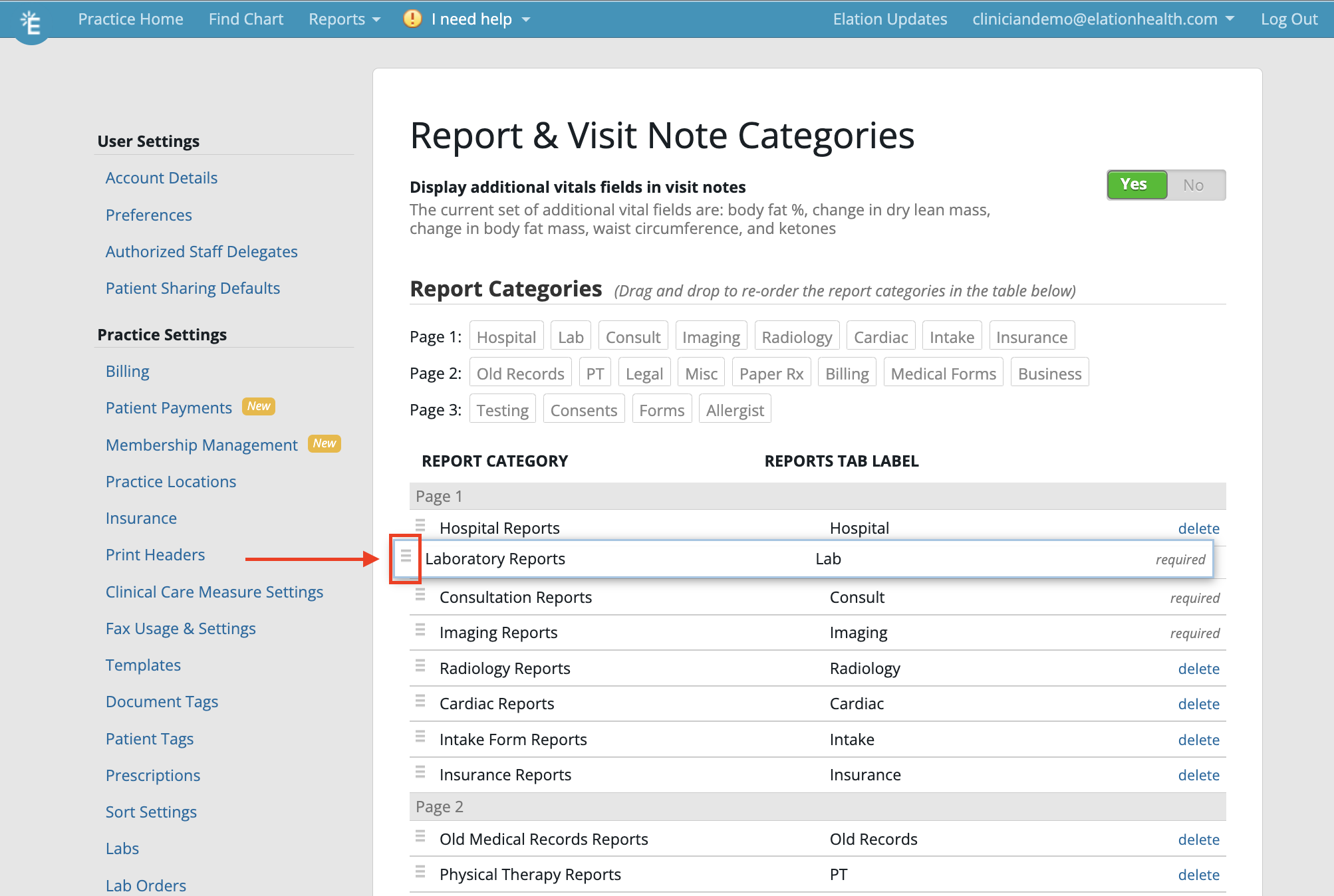
At the top of the **Report & Visit Note Categories** Settings page, you'll see the order in which report categories appear in the **Reports** dialog of the patient’s chart, along with the corresponding page for each category. Each page of the **Reports** dialog can display up to eight report categories.
The **Patient Form Reports** category is specifically designed for the [Patient Forms feature](/articles/Getting-Started-with-Patient-Forms). If you file a report under this category for a provider to review, the report will only appear in the **Outstanding Items** section of the patient’s chart, **not** in the **Requiring Action** section. For storing patient paperwork in your office, we recommend using the **Clinical Form Reports**,**Intake Form Reports**, or **Patient Consent Reports** categories instead.
If you add the **Pulmonary Reports** or **Sleep Reports** categories to your list, all related orders will be moved under their respective sections rather than the **Consultation Reports** section where they are currently stored.
### Removing a report category
| **1** | Go to **Settings** -> **Report & Visit Note** **Categories** . |
| ----- | ---------------------------------------------------------------------------- |
| **2** | Find the report category you want to remove in the **Report Category** list. |
| **3** | Click the **delete** button next to the category to delete it. |
Deleted report categories will still appear in patient charts with previously assigned reports but will no longer be available as a categorization option for new reports. Deleted report categories will also be moved to the end of the report category list in patient charts.
**Exception:** The **Laboratory Reports**, **Imaging Reports**, **Consultation Reports** and **Patient Form Reports** categories cannot be removed.
If you remove the **Pulmonary Reports** or **Sleep Reports** categories to your list, all related orders, if any, will be moved to the **Consultation Reports** section even though the report category is still visible within the patient's chart.
### Changing the order of report categories
At the top of the **Report & Visit Note Categories** Settings page, you'll see the order in which report categories appear in the **Reports** dialog of the patient’s chart, along with the corresponding page for each category. Each page of the **Reports** dialog can display up to eight report categories. The order of report categories also determines how they are displayed under the
**Reports**
button at the top of each patient's chart.
The order of report categories also determines how they are displayed under the
**Reports**
button at the top of each patient's chart.
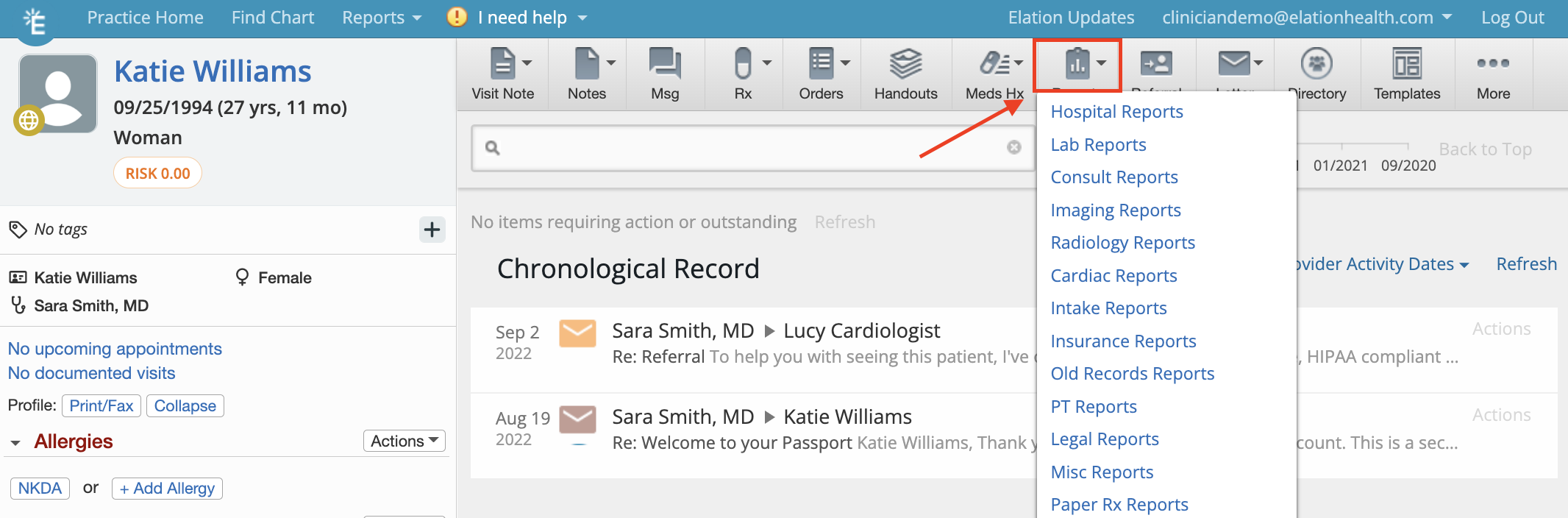 To change the order of your report categories:
| **1** | Go to **Settings** -> **Report & Visit Note** **Categories** . |
| ----- | ------------------------------------------------------------------------------------------------------------------------ |
| **2** | Find the report category you want to move in the **Report Category** list. |
| **3** | Click and hold the handle of the left side of the report category you are moving. |
| **4** | Drag the report category to the desired position, then drop it in place. You can drag categories within or across pages. |
To change the order of your report categories:
| **1** | Go to **Settings** -> **Report & Visit Note** **Categories** . |
| ----- | ------------------------------------------------------------------------------------------------------------------------ |
| **2** | Find the report category you want to move in the **Report Category** list. |
| **3** | Click and hold the handle of the left side of the report category you are moving. |
| **4** | Drag the report category to the desired position, then drop it in place. You can drag categories within or across pages. |
 ## Frequently Asked Questions (FAQ)
### What happens if I delete a report category that still has reports assigned to it?
Deleted report categories will still appear in patient charts with previously assigned reports but will no longer be available as a categorization option for new reports. Deleted report categories will also be moved to the end of the report category list in patient charts.
For example, if you were to delete the **Hospital Reports** category, any charts with reports categories under **Hospital Reports** will continue to have that report category but the **Hospital Reports** category will no longer be visible for any charts that do not have reports categories under **Hospital Reports**. Your practice can decide whether to choose to re-categorize the reports that are still assigned to **Hospital Reports** or keep them in that category.
### What should I do if I cannot find the report category I want?
If you cannot find the specific report category you want, try scrolling through the list to find an analogous type.
## Related Articles
* [Fax Inbox Guide- Managing records and reports received through electronic fax](/articles/Fax-Inbox-Introduction)
* [Filing Documents to a Patient Chart](/articles/filing-documents-to-a-patient-chart)
## Frequently Asked Questions (FAQ)
### What happens if I delete a report category that still has reports assigned to it?
Deleted report categories will still appear in patient charts with previously assigned reports but will no longer be available as a categorization option for new reports. Deleted report categories will also be moved to the end of the report category list in patient charts.
For example, if you were to delete the **Hospital Reports** category, any charts with reports categories under **Hospital Reports** will continue to have that report category but the **Hospital Reports** category will no longer be visible for any charts that do not have reports categories under **Hospital Reports**. Your practice can decide whether to choose to re-categorize the reports that are still assigned to **Hospital Reports** or keep them in that category.
### What should I do if I cannot find the report category I want?
If you cannot find the specific report category you want, try scrolling through the list to find an analogous type.
## Related Articles
* [Fax Inbox Guide- Managing records and reports received through electronic fax](/articles/Fax-Inbox-Introduction)
* [Filing Documents to a Patient Chart](/articles/filing-documents-to-a-patient-chart)