> ## Documentation Index
> Fetch the complete documentation index at: https://help.elationhealth.com/llms.txt
> Use this file to discover all available pages before exploring further.
# Patient Reports Guide- Receiving imaging (radiology) results from imaging interfaces
> This article will explain how to receive and view imaging (radiology) results from imaging vendors that are interfaced with your Elation account.
## What are electronic imaging results?
Electronic imaging results are imaging test results that are transferred electronically as structured data from imaging vendors (that are integrated with Elation) directly into patient charts in the EHR.
To view a list of Elation's integrated laboratory vendors, go to our [Partners](https://www.elationhealth.com/integrations/) page and filter by **Radiology/Imaging Centers**.
## Why are electronic imaging results useful?
Electronic imaging results allow you to receive and view higher quality results. Faxed results may sometimes be less clear because it came as a fax transmission. Electronic results are also shared with you before any other means of transmission (fax or mail).
## How to view results from imaging interfaces
When results are sent electronically from a lab vendor to Elation, Elation matches incoming imaging results to existing patient charts by first name, last name, date of birth, and gender. When the new imaging result is received in Elation, you can view the patient’s lab result in the following places:
* In the ordering provider’s [Reports Queue](#ReportsQueue)
* In the patient’s chart under ["Requiring Action”](#PatientChart)
* In the patient’s chart under the [**Reports** Tab](#Reports)
If it is not possible to match the imaging result to an existing chart with the same first name, last name, DOB and gender, a new patient chart will be created (see [below](#duplicate) for more details).
### Viewing imaging results in the ordering provider’s “Reports Queue”
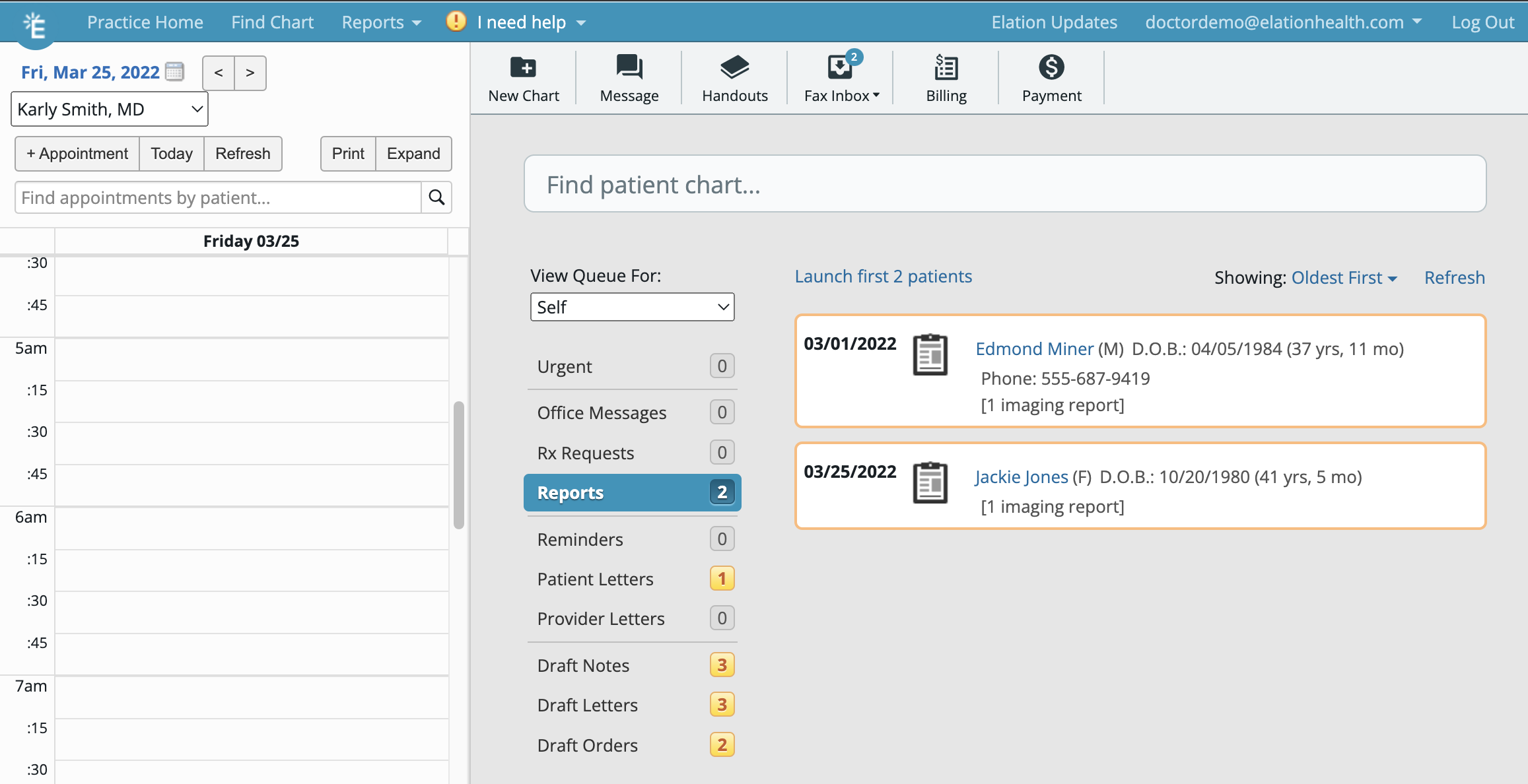
The Reports Queue is found on the ordering provider’s Practice Home page under **Reports**. Imaging results will appear in this queue, with the results listed in order of your sort preferences.
Users wishing to view imaging results ordered by another provider will need to switch their **View Queue For** settings to **Everyone** or to a specific provider. To view the report:
1. Click the patient’s name in the report summary to open the patient chart.
2. Once you have opened the patient’s chart, follow the **[Requiring Action](#PatientChart)** steps below.
 ### Viewing imaging results in the Patient’s Chart under **Requiring Action**
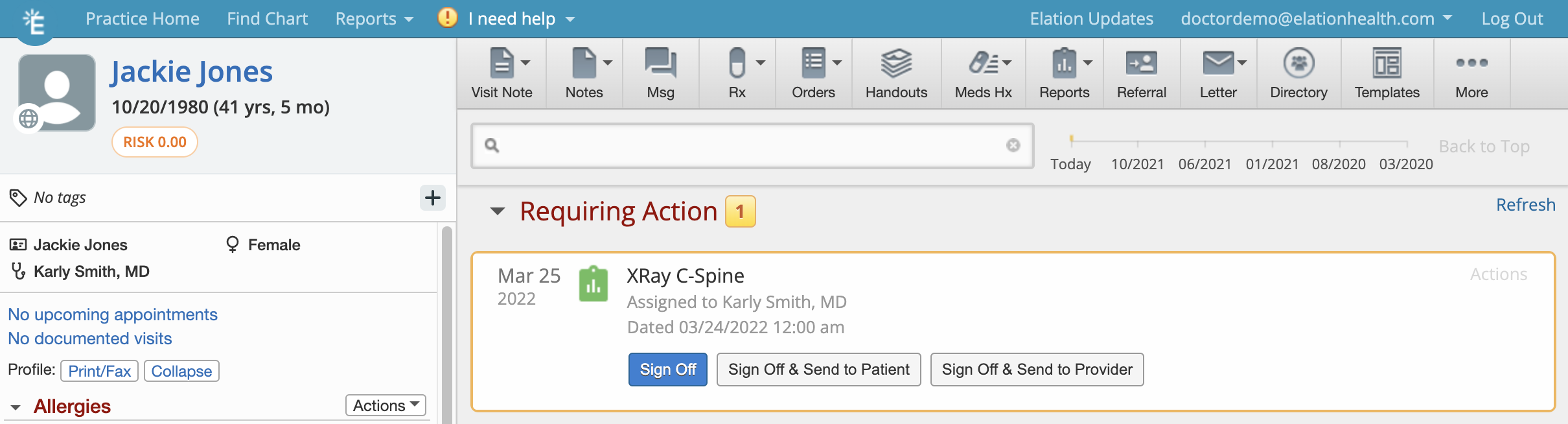
imaging results will appear in the patient’s chart under **Requiring Action.** From the **Requiring Action** queue the provider can review the result and choose to
* **Sign off**
* **Sign off & Send to patient**
* **Sign off & Send to provider** outside of Elation
Once the report has been “Signed off,” the report will be removed from the Requiring Action queue and filed in the Patient’s chronological record.
### Viewing imaging results in the Patient’s Chart under **Requiring Action**
imaging results will appear in the patient’s chart under **Requiring Action.** From the **Requiring Action** queue the provider can review the result and choose to
* **Sign off**
* **Sign off & Send to patient**
* **Sign off & Send to provider** outside of Elation
Once the report has been “Signed off,” the report will be removed from the Requiring Action queue and filed in the Patient’s chronological record.
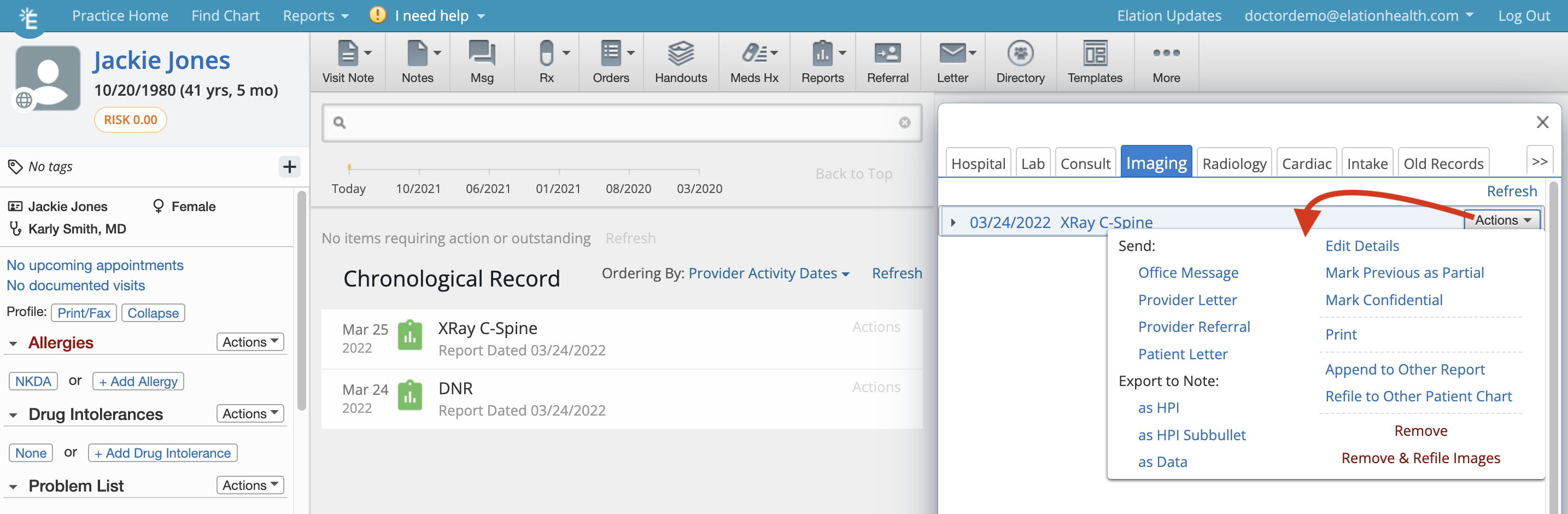
 Hovering over the lab result will allow the user to click **Actions** to take any of the following next steps:
* Sending an internal office message about the patient’s results
* Sending the results to another provider via a Letter or Referral
* Sending a letter to the patient with the results
* Editing the details to change the document date, report category, title, or tags
* Marking a previous lab report as partial (because the current one has all of the final results)
* Marking a report as confidential
* Printing
* Appending the results to another report to link them
* Refiling the results to another patient's chart because it was incorrectly filed
* Reassigning the report to another provider to review
* Removing (deleting) the report entirely
Hovering over the lab result will allow the user to click **Actions** to take any of the following next steps:
* Sending an internal office message about the patient’s results
* Sending the results to another provider via a Letter or Referral
* Sending a letter to the patient with the results
* Editing the details to change the document date, report category, title, or tags
* Marking a previous lab report as partial (because the current one has all of the final results)
* Marking a report as confidential
* Printing
* Appending the results to another report to link them
* Refiling the results to another patient's chart because it was incorrectly filed
* Reassigning the report to another provider to review
* Removing (deleting) the report entirely
 ### Viewing lab results in the patient chart under “Reports"
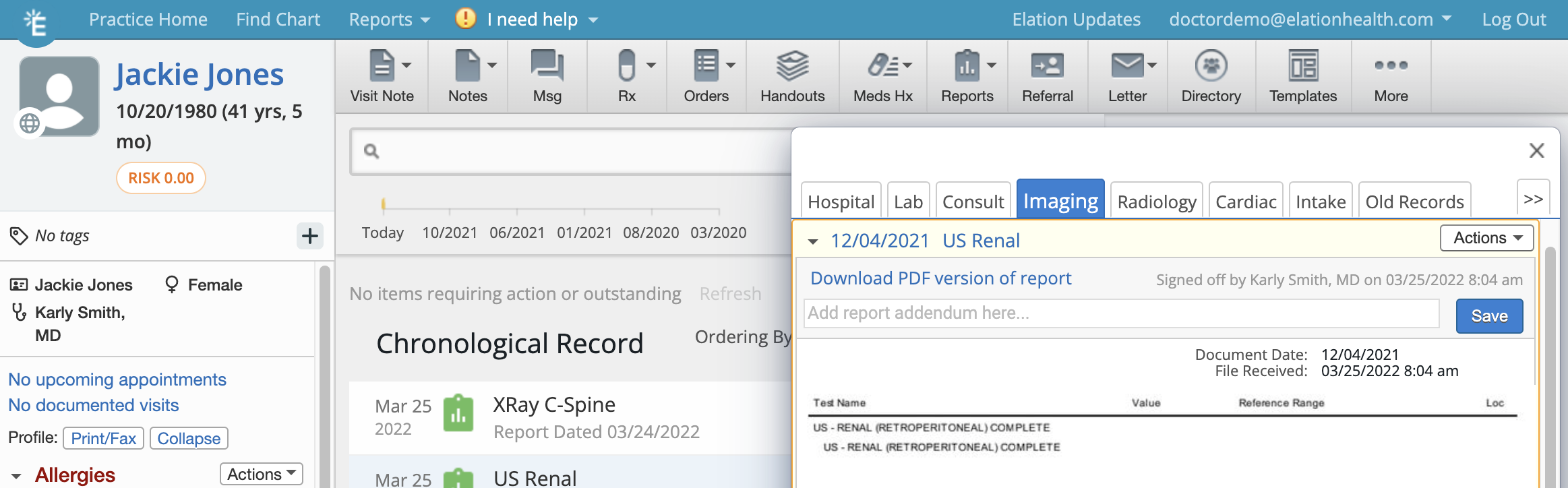
The result can also be viewed by clicking the **Reports** tab from the gray navigation bar and then selecting **Imaging Reports.** This can be helpful if you wish to see all the imaging results in one place. You can also add notes to the report using the **Add report addendum here** box.
### Viewing lab results in the patient chart under “Reports"
The result can also be viewed by clicking the **Reports** tab from the gray navigation bar and then selecting **Imaging Reports.** This can be helpful if you wish to see all the imaging results in one place. You can also add notes to the report using the **Add report addendum here** box.
 ## Duplicated charts created by incoming results
Elation matches incoming imaging results to existing charts by patient name, date of birth, and gender. If an incoming result does not match an existing chart, a new chart will be created with a pink warning banner. The banner will prompt you to **Merge Chart** or **Dismiss** depending on whether or not the patient already has a chart.
When “Merge Chart” is selected, you will be prompted to merge the duplicate chart into the patient's existing chart along with the lab results. Once this merge is completed, Elation will “remember” the chart merge for future results for the same patient and not create a duplicate chart again for the specific lab vendor. For more information on [merging duplicate charts click here](/articles/merging-duplicate-charts).
## Sending imaging results to patients
Patient Passport is Elation’s patient portal that allows your practice to send copies of imaging results (and orders) to patients. See the [Letters & Referrals Guide- Sending messages to patients & corresponding with third party professionals](https://elation.lightning.force.com/articles/Knowledge/how-to-send-a-letter-on-elation) article on how to send messages to patients using Patient Passport.
## Tag reports with Document Tags
Similar to Patient Tags, you can tag reports in Elation to categorize them for better organization, and to make them easier to find via [chart search](/articles/using-the-search-tool-in-your-patient-chart) and [Patient List](/articles/find-patients-with-elations-patient-list) search. For example, if you want to track all of your patients that have an abnormal mammogram result, you can add a special tag to those mammogram reports. Then, you can use the Patient List to run a report for all of the applicable patients.
To tag a report:
1. Click on the **Actions** button in the report
2. Select **Edit Details**
3. Enter the Tags you would like to add in the **Tags** field
4. Click **Save**
See this article for more information on [Document Tags for Reports](/articles/tag-reports-and-notes-with-document-tags).
## Related Articles
* [Practice Home Guide- Checking for requiring action items](https://elation.lightning.force.com/articles/Knowledge/check-for-your-offices-daily-to-do-list)
* [Chronological Record Search Guide- Searching for records in the patient's chart](https://elation.lightning.force.com/articles/Knowledge/using-the-search-tool-in-your-patient-chart)
* [Letters & Referrals Guide- Sending messages to patients & corresponding with third party professionals](https://elation.lightning.force.com/articles/Knowledge/how-to-send-a-letter-on-elation)
* [Document Tags for Visit Notes & Reports Guide](https://elation.lightning.force.com/articles/Knowledge/tag-reports-and-notes-with-document-tags)
* [Patient List Report Guide- Searching your patient panel](https://elation.lightning.force.com/articles/Knowledge/find-patients-with-elations-patient-list)
* [Patient Chart Guide- Uploading documents directly within the patient's chart](/articles/filing-documents-to-a-patient-chart)
* [Order Forms Guide- Ordering imaging (radiology) tests with the Imaging Order Form](/articles/ordering-imaging-tests)
## Duplicated charts created by incoming results
Elation matches incoming imaging results to existing charts by patient name, date of birth, and gender. If an incoming result does not match an existing chart, a new chart will be created with a pink warning banner. The banner will prompt you to **Merge Chart** or **Dismiss** depending on whether or not the patient already has a chart.
When “Merge Chart” is selected, you will be prompted to merge the duplicate chart into the patient's existing chart along with the lab results. Once this merge is completed, Elation will “remember” the chart merge for future results for the same patient and not create a duplicate chart again for the specific lab vendor. For more information on [merging duplicate charts click here](/articles/merging-duplicate-charts).
## Sending imaging results to patients
Patient Passport is Elation’s patient portal that allows your practice to send copies of imaging results (and orders) to patients. See the [Letters & Referrals Guide- Sending messages to patients & corresponding with third party professionals](https://elation.lightning.force.com/articles/Knowledge/how-to-send-a-letter-on-elation) article on how to send messages to patients using Patient Passport.
## Tag reports with Document Tags
Similar to Patient Tags, you can tag reports in Elation to categorize them for better organization, and to make them easier to find via [chart search](/articles/using-the-search-tool-in-your-patient-chart) and [Patient List](/articles/find-patients-with-elations-patient-list) search. For example, if you want to track all of your patients that have an abnormal mammogram result, you can add a special tag to those mammogram reports. Then, you can use the Patient List to run a report for all of the applicable patients.
To tag a report:
1. Click on the **Actions** button in the report
2. Select **Edit Details**
3. Enter the Tags you would like to add in the **Tags** field
4. Click **Save**
See this article for more information on [Document Tags for Reports](/articles/tag-reports-and-notes-with-document-tags).
## Related Articles
* [Practice Home Guide- Checking for requiring action items](https://elation.lightning.force.com/articles/Knowledge/check-for-your-offices-daily-to-do-list)
* [Chronological Record Search Guide- Searching for records in the patient's chart](https://elation.lightning.force.com/articles/Knowledge/using-the-search-tool-in-your-patient-chart)
* [Letters & Referrals Guide- Sending messages to patients & corresponding with third party professionals](https://elation.lightning.force.com/articles/Knowledge/how-to-send-a-letter-on-elation)
* [Document Tags for Visit Notes & Reports Guide](https://elation.lightning.force.com/articles/Knowledge/tag-reports-and-notes-with-document-tags)
* [Patient List Report Guide- Searching your patient panel](https://elation.lightning.force.com/articles/Knowledge/find-patients-with-elations-patient-list)
* [Patient Chart Guide- Uploading documents directly within the patient's chart](/articles/filing-documents-to-a-patient-chart)
* [Order Forms Guide- Ordering imaging (radiology) tests with the Imaging Order Form](/articles/ordering-imaging-tests)