> ## Documentation Index
> Fetch the complete documentation index at: https://help.elationhealth.com/llms.txt
> Use this file to discover all available pages before exploring further.
# Print a Claim
> Learn how to print a claim form in Elation Billing
This article explains how to print a claim form in Elation Billing.
## Overview
Claim forms are generated by the Clearinghouse, so the claim MUST have either:
1. Been billed electronically, or
2. Been printed from the Claims Queue
## Workflow Instructions
### Printing a Claim
1. **Navigate** - Access the claim from either:
* The Claims Manager
* The Claims Queue
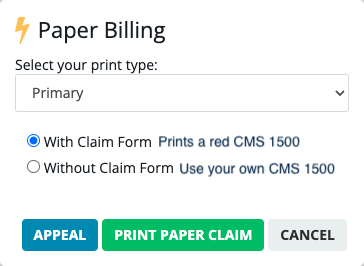
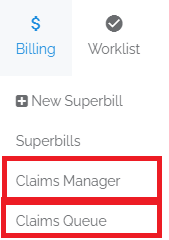 2. **Print** - Click the print icon (Claims Manager) or the **Print** button (Claims Queue).
 3. **Select Options** - Make your selections and click **Print Paper Claim**.
 ## Related Articles
* [Claims Queue](/articles/claims-queue)
* [How Can I Access and Print the CMS-1500 Claim Form](/articles/how-can-i-access-and-print-the-cms-1500-claim-form-in-elation-billing)
* [Fees Associated with Elation Billing](/articles/fees-associated-with-elation-billing)
## Related Articles
* [Claims Queue](/articles/claims-queue)
* [How Can I Access and Print the CMS-1500 Claim Form](/articles/how-can-i-access-and-print-the-cms-1500-claim-form-in-elation-billing)
* [Fees Associated with Elation Billing](/articles/fees-associated-with-elation-billing)