> ## Documentation Index
> Fetch the complete documentation index at: https://help.elationhealth.com/llms.txt
> Use this file to discover all available pages before exploring further.
# Practice Settings - Setup and Overview
> Learn how to configure practice settings in Elation Billing
This article provides an overview of practice settings configuration in Elation Billing.
## Overview
The Settings section of Elation Billing lets you customize essential data needed for account access and claims submission.
Elation Billing Admins and Managers can access Elation Billing settings.
## Workflow Instructions
### Navigating to Settings
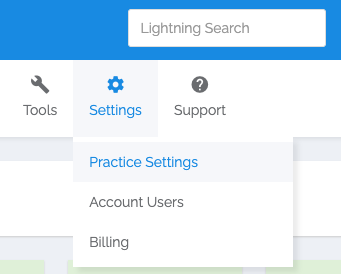
1. Go to the toolbar at the top of your Elation Billing account.
2. Click **Settings** → **Practice Settings**.
 ***
### Practice Info
The Practice Info section stores practice details, manages Practice Entities, and configures Online Payments.
***
### Practice Info
The Practice Info section stores practice details, manages Practice Entities, and configures Online Payments.
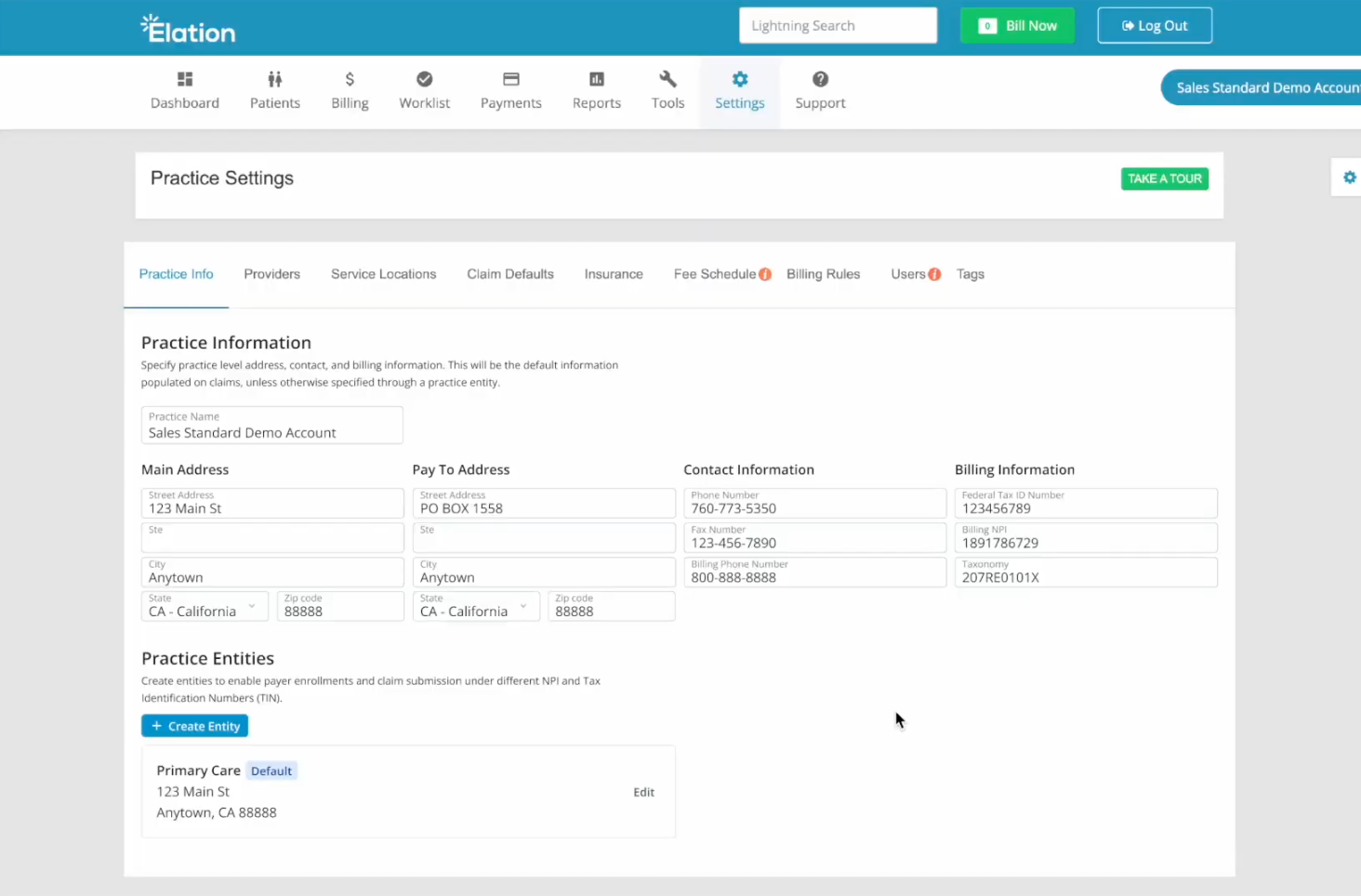 * Click **VERIFY NOW** to validate addresses against the USPS database
* The Billing Phone appears on Patient Statements
#### Practice Entities
Create additional entities if your practice submits claims under multiple TINs or NPIs:
1. Click **+ Create Entity**
2. Fill in entity details and billing information
3. Click **+ Add Provider** to specify providers
4. Click **+ Add service location** to specify locations
5. Click **Create**
***
### Managing Providers
* Click **VERIFY NOW** to validate addresses against the USPS database
* The Billing Phone appears on Patient Statements
#### Practice Entities
Create additional entities if your practice submits claims under multiple TINs or NPIs:
1. Click **+ Create Entity**
2. Fill in entity details and billing information
3. Click **+ Add Provider** to specify providers
4. Click **+ Add service location** to specify locations
5. Click **Create**
***
### Managing Providers
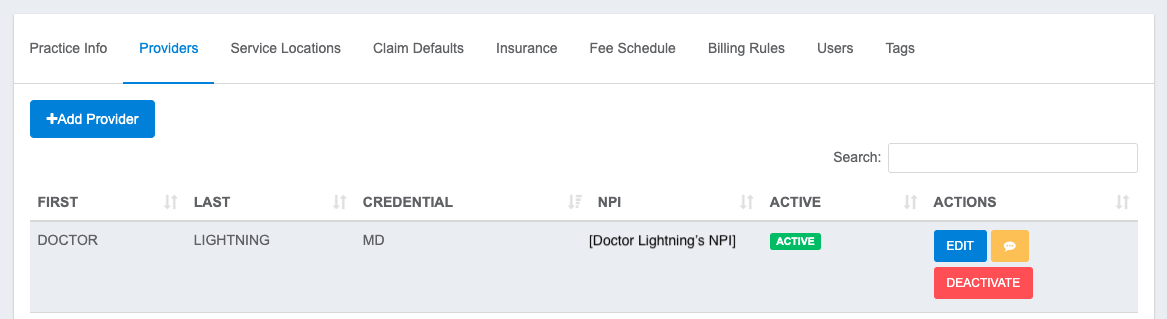 For **EHR + Billing practices**: You'll be redirected to the EHR to add providers.
For **Billing-only practices**: Enter the provider NPI (usually individual NPI) and click **Add Provider**.
***
### Service Locations
Click **Add Location** to add a service location. Enter the NPI if available, click **Auto Populate** to fill details, then **Validate** the address.
***
### Insurance List
Shows all payers available via ClaimMD. Use the ♡ to favorite commonly used payers.
#### Add a Payer
If a payer isn't found, click **Add Payer** and reference the [ClaimMD Payer List](https://www.claim.md/payer_list.html). You can also adjust the following payer settings as needed using the following buttons:
For **EHR + Billing practices**: You'll be redirected to the EHR to add providers.
For **Billing-only practices**: Enter the provider NPI (usually individual NPI) and click **Add Provider**.
***
### Service Locations
Click **Add Location** to add a service location. Enter the NPI if available, click **Auto Populate** to fill details, then **Validate** the address.
***
### Insurance List
Shows all payers available via ClaimMD. Use the ♡ to favorite commonly used payers.
#### Add a Payer
If a payer isn't found, click **Add Payer** and reference the [ClaimMD Payer List](https://www.claim.md/payer_list.html). You can also adjust the following payer settings as needed using the following buttons:
 * Blue 'AKA' = add/edit payer nicknames (e.g. Blue Cross Blue Shield is also known as BCBS)
* Yellow = edit the payer's address
* Purple = apply special payer rules for NPI/Tax ID used on claims
* The default rules are the use the group NPI and your entity's Tax ID.
* Adjust this preference if your contract with the payer has a different NPI or Tax ID.
* Red = add payer notes (e.g. phone #)
#### Paper Claims
For Payers that don't support electronic claims, you can have those claims printed and mailed for an additional fee.
***
### Fee Schedule
Adjust your default fee schedule as a percentage of your selected Medicare region.
***
### Billing Rules
Toggle rules for claim workflow automation:
| Rule | Description |
| ----------------------- | -------------------------------------------------------------------------------------------- |
| Legacy Payment Workflow | Re-enable manual patient payment posting in Elation Billing |
| Biller & Admin Rule | Apply rules to ALL user roles |
| All Claims Rule | Route ALL new claims to Biller Review |
| Eligibility Rule | Catch claims without eligibility verification |
| New Patients Rule | Catch claims for patients with no prior claims |
| Location Rule | Catch claims with location conflicts |
| Authorization Rule | Catch claims missing required authorizations |
| Track No Response | Tag claims without payer response after X days |
| Zero Dollar Claims | Bill \$0 claims for reporting purposes. This will add an RP code to claims with \$0 charges. |
***
### Users
Add Practice Users who will have access only to this practice. See [Add New User](/articles/add-new-user-legacy-practices) and [User Roles](/articles/user-roles) for details.
***
### Tags
Create, edit, or delete custom tags for Patients and Claims. Press **+** to create a new tag with custom text and color.
## Related Articles
* [Enrolling for Claims Submission, ERA, and Real-Time Eligibility](/articles/enrolling-for-claims-submission-era-and-real-time-eligibility-edi)
* [Add/Update a Fee Schedule](/articles/add-update-a-fee-schedule)
* [Using the Worklist](/articles/using-the-worklist)
* Blue 'AKA' = add/edit payer nicknames (e.g. Blue Cross Blue Shield is also known as BCBS)
* Yellow = edit the payer's address
* Purple = apply special payer rules for NPI/Tax ID used on claims
* The default rules are the use the group NPI and your entity's Tax ID.
* Adjust this preference if your contract with the payer has a different NPI or Tax ID.
* Red = add payer notes (e.g. phone #)
#### Paper Claims
For Payers that don't support electronic claims, you can have those claims printed and mailed for an additional fee.
***
### Fee Schedule
Adjust your default fee schedule as a percentage of your selected Medicare region.
***
### Billing Rules
Toggle rules for claim workflow automation:
| Rule | Description |
| ----------------------- | -------------------------------------------------------------------------------------------- |
| Legacy Payment Workflow | Re-enable manual patient payment posting in Elation Billing |
| Biller & Admin Rule | Apply rules to ALL user roles |
| All Claims Rule | Route ALL new claims to Biller Review |
| Eligibility Rule | Catch claims without eligibility verification |
| New Patients Rule | Catch claims for patients with no prior claims |
| Location Rule | Catch claims with location conflicts |
| Authorization Rule | Catch claims missing required authorizations |
| Track No Response | Tag claims without payer response after X days |
| Zero Dollar Claims | Bill \$0 claims for reporting purposes. This will add an RP code to claims with \$0 charges. |
***
### Users
Add Practice Users who will have access only to this practice. See [Add New User](/articles/add-new-user-legacy-practices) and [User Roles](/articles/user-roles) for details.
***
### Tags
Create, edit, or delete custom tags for Patients and Claims. Press **+** to create a new tag with custom text and color.
## Related Articles
* [Enrolling for Claims Submission, ERA, and Real-Time Eligibility](/articles/enrolling-for-claims-submission-era-and-real-time-eligibility-edi)
* [Add/Update a Fee Schedule](/articles/add-update-a-fee-schedule)
* [Using the Worklist](/articles/using-the-worklist)