> ## Documentation Index
> Fetch the complete documentation index at: https://help.elationhealth.com/llms.txt
> Use this file to discover all available pages before exploring further.
# Posting Voided, Reversed, or Updated Payments
> Learn how to process voided, reversed, or updated payments in Elation Billing
## Overview
This guide walks you through processing three types of payment adjustments:
| Type | What it means | How it typically arrives |
| ------------ | ----------------------------------------------------------------------- | --------------------------------------- |
| **Voided** | A payment is cancelled entirely before or after it was posted | Payer notification, paper EOB, or phone |
| **Reversed** | A payer retracts a prior payment (also called a takeback or recoupment) | Negative amount on a subsequent ERA |
| **Updated** | A payer corrects a previously issued payment amount (up or down) | Corrected ERA or payer notification |
Reversals, takebacks, and recoupments that arrive on an ERA cannot be auto-posted and must be handled manually using the workflow below.
## Workflow Instructions
### Voiding or reversing payments (Full)
Use this workflow when a patient or payer retracts/recoups an entire payment — whether the claim will be resubmitted afterward or not.
Go to **Payments** → **Payments** and find the payment in question.
* Search by patient, payer, posted date or check/reference #.
On the claim(s) that were fully reversed/recouped, click **Detail** to expand the payment fields if they're not already visible.
If the claim is marked as **Settled** in the **Bill To** field, change from **Settled** to **Primary Insurance** to prevent `$NaN` values. The `$NaN` value appears when a Settled claim's amounts are zeroed out before the disposition is changed; switching to **Primary Insurance** first avoids it.
Empty all **Allowed**, **Adjusted**, **Interest** and patient responsibility (**Deductible**, **Coinsurance**, **CoPayment**) fields.
Change the **Payment** to \$0.00. This will ensure the claim appears in financial reports.
Click **Save** at the bottom of the payment window to save the claim payment edits.
Click **Edit** at the top of the payment window.
 Add the total retracted/recouped amount to the **Ignored** field. The **Ignored** field records the retracted/recouped amount for audit purposes without affecting the claim balance.
Click **Save**.
Add a **Claim Note** and **Payment Note** to explain the **Ignored** amount if needed.
Add the total retracted/recouped amount to the **Ignored** field. The **Ignored** field records the retracted/recouped amount for audit purposes without affecting the claim balance.
Click **Save**.
Add a **Claim Note** and **Payment Note** to explain the **Ignored** amount if needed.
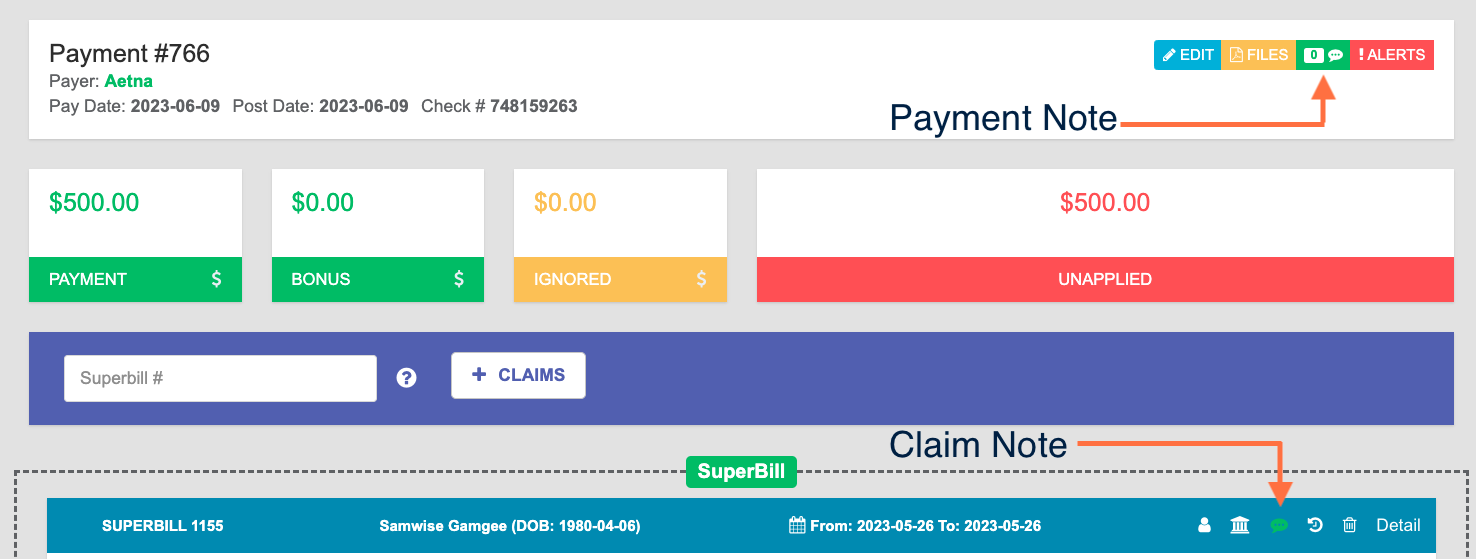 Review any claims that still have a balance and see if you need to send them to the Payer again.
### Voiding or reversing payments (Partial)
Use this workflow when a patient or payer retracts/recoups a portion of the original payment (e.g., \$30 of a \$100 payment)
Go to **Payments** → **Payments** and find the payment in question.
* Search by patient, payer, posted date or check/reference #.
On the claim(s) that were partial reversed/recouped, click **Detail** to expand the payment fields if they're not already visible.
If the claim is marked as **Settled** in the **Bill To** field, change from **Settled** to **Primary Insurance** to prevent `$NaN` values. The `$NaN` value appears when a Settled claim's amounts are zeroed out before the disposition is changed; switching to **Primary Insurance** first avoids it.
Reduce the amount in the **Payment** field by the retracted/recouped amount (e.g., in the example above, change \$100 to \$70.00.
Adjust the **Allowed**, **Adjusted**, **Interest** and patient responsibility (**Deductible**, **Coinsurance**, **CoPayment**) fields to match the corrected adjudication on the new EOB.
Click **Save** at the bottom of the payment window to save the claim payment edits.
Click **Edit** at the top of the payment window.
Add the total retracted/recouped amount to the **Ignored** field. The **Ignored** field records the retracted/recouped amount for audit purposes without affecting the claim balance.
Click **Save**.
Add a **Claim Note** and **Payment Note** to explain the **Ignored** amount if needed.
Review any claims that still have a balance and set **Bill To** to the correct responsible party for the remaining balance.
***
### Updating payments
Use when the payer reprocessed a claim and the adjudication changed (different allowed amount, payment, adjustment codes, or patient responsibility).
#### Payer increases the payment amount
Go to **Payments** → **Payments** and find the payment in question.
* Search by patient, payer, posted date or check/reference #.
On the claim(s) with the updated payment, click **Detail** to expand the payment fields if they're not already visible.
If the claim is marked as **Settled** in the **Bill To** field, change from **Settled** to **Primary Insurance** to prevent `$NaN` values. The `$NaN` value appears when a Settled claim's amounts are zeroed out before the disposition is changed; switching to **Primary Insurance** first avoids it.
On the original payment, update the claim's **Allowed** amount to the new value.
Add a **Claim Note** and **Payment Note** to explain the updated amount if needed.
Click **Save** at the bottom to save the payment changes on the claim.
Create a new payment using the instructions in the [Recording & posting a payment in Elation Billing](https://help.elationhealth.com/articles/posting-a-payment-in-elation-billing#posting-an-insurance-payment) article - if an existing ERA is available then post from that ERA.
* Record the additional payment from insurance in the **Payment Amount** field.
Add the corresponding claim to this new payment.
Record the **Payment** from this new payment onto the claim.
Add a **Claim Note** and **Payment Note** to explain the additional payment amount if needed.
Click **Save** at the bottom to save the payment changes on the claim.
#### Payer reduces the payment amount
Go to **Payments** → **Payments** and find the payment in question.
* Search by patient, payer, posted date or check/reference #.
On the claim(s) with the updated payment, click **Detail** to expand the payment fields if they're not already visible.
If the claim is marked as **Settled** in the **Bill To** field, change from **Settled** to **Primary Insurance** to prevent `$NaN` values. The `$NaN` value appears when a Settled claim's amounts are zeroed out before the disposition is changed; switching to **Primary Insurance** first avoids it.
On the original payment, update the claim's **Allowed** amount to the new value.
Reduce the **Payment** to the new paid amount.
Update the **Adjusted** section to match the new EOB/ERA.
* If the payer changed the reason (for example, original `CO45` is now `PR1` deductible), remove the old adjustment and add the corrected one.
Update the patient responsibility fields (**Deductible**, **Coinsurance**, **CoPayment**) if the new EOB/ERA shifted the balance to the patient.
Edit the Payment details and put the difference in payment in the **Ignored** field so the original check total still balances (e.g., if the Payer reduced the paid amount by \$30 then put that \$30 in the ignored field - if there's an existing ignored amount then add \$30 on top of it).
Click **Save** to save the updated payment details.
Add a **Claim Note** and **Payment Note** to explain the additional payment amount if needed.
Review any claims that still have a balance and set **Bill To** to the correct responsible party for the remaining balance.
Click **Save** at the bottom to save the payment changes on the claim.
### Updating adjustments only
Use when the payment amount didn't change but the payer updated adjustment reason codes or patient responsibility.
Go to **Payments** → **Payments** and find the payment in question.
* Search by patient, payer, posted date or check/reference #.
On the claim(s) with updated adjustment information, click **Detail** to expand the payment fields if they're not already visible.
Update the adjustment codes and patient responsibility fields to match the corrected EOB.
Add a **Claim Note** and **Payment Note** to explain the changes if needed.
Click **Save** at the bottom to save the payment changes on the claim.
### Managing recoupments in ERA's
When a payer issues a recoupment via ERA, it typically appears as a negative-payment line offsetting a prior payment, embedded inside a current remittance.
Auto-post the current ERA as usual. The recoupment line will be flagged for review.
For the recoupment line, follow the instructions in the [Voiding or reversing payments (Full)](#voiding-or-reversing-payments-full) or [Voiding or reversing payments (Partial)](#voiding-or-reversing-payments-partial) sections against the original payment record (not the current ERA payment).
Apply the remaining positive lines on the current ERA normally using Steps 7-11 from the [Payer increases the payment amount](#payer-increases-the-payment-amount) section
Confirm both the previous payment record and the current ERA balance independently.
For posting ERA's, see [Viewing ERAs and Auto-Posting](https://help.elationhealth.com/articles/viewing-eras-and-auto-posting).
## Special cases
* **Multiple claims on the original payment** — Only modify the affected claims details; leave other claims untouched. The **Ignored** amount on the payment header should equal only the voided/recouped portion.
* **Multiple payers on one claim (primary + secondary)** — Reverse only the affected payer's payment record. The other payer's posting and Bill-To routing stay intact.
* **Original payment included Bonus or Ignored amounts** — Leave those amounts unchanged. The new **Ignored** entry for the void/recoupment should be added to the original ignored amount.
* **Closed accounting period** — If the original payment is in a closed period, do not backdate the reversal. Use the current Posting Date and document the original period in the Note.
* **Stop payment / bounced check** — Treat as a full void. Use the original check number plus a suffix (for example, `12345-NSF`) in the Note.
* **Patient payment reversal** (refund or returned check) — This workflow does not apply. Use the patient credit and refund workflow instead — see [Manage patient credits and overpayments](https://help.elationhealth.com/articles/how-can-i-manage-patient-credits-and-overpayments-in-elation-billing) and [Integrated Refunds](https://help.elationhealth.com/articles/elation-ehr-billing-integrated-refunds).
* **Claim previously transferred to patient who paid** — After reversing the insurance payment, the patient's payment may now appear as a credit. Reconcile the credit with the patient as needed.
## Related Articles
* [Posting a Payment in Elation Billing](/articles/posting-a-payment-in-elation-billing)
* [Negative Balances](/articles/negative-balances)
* [Clearing Out a Payment](/articles/clearing-out-a-payment)
* [Viewing ERAs and Auto-Posting](/articles/viewing-eras-and-auto-posting)
Review any claims that still have a balance and see if you need to send them to the Payer again.
### Voiding or reversing payments (Partial)
Use this workflow when a patient or payer retracts/recoups a portion of the original payment (e.g., \$30 of a \$100 payment)
Go to **Payments** → **Payments** and find the payment in question.
* Search by patient, payer, posted date or check/reference #.
On the claim(s) that were partial reversed/recouped, click **Detail** to expand the payment fields if they're not already visible.
If the claim is marked as **Settled** in the **Bill To** field, change from **Settled** to **Primary Insurance** to prevent `$NaN` values. The `$NaN` value appears when a Settled claim's amounts are zeroed out before the disposition is changed; switching to **Primary Insurance** first avoids it.
Reduce the amount in the **Payment** field by the retracted/recouped amount (e.g., in the example above, change \$100 to \$70.00.
Adjust the **Allowed**, **Adjusted**, **Interest** and patient responsibility (**Deductible**, **Coinsurance**, **CoPayment**) fields to match the corrected adjudication on the new EOB.
Click **Save** at the bottom of the payment window to save the claim payment edits.
Click **Edit** at the top of the payment window.
Add the total retracted/recouped amount to the **Ignored** field. The **Ignored** field records the retracted/recouped amount for audit purposes without affecting the claim balance.
Click **Save**.
Add a **Claim Note** and **Payment Note** to explain the **Ignored** amount if needed.
Review any claims that still have a balance and set **Bill To** to the correct responsible party for the remaining balance.
***
### Updating payments
Use when the payer reprocessed a claim and the adjudication changed (different allowed amount, payment, adjustment codes, or patient responsibility).
#### Payer increases the payment amount
Go to **Payments** → **Payments** and find the payment in question.
* Search by patient, payer, posted date or check/reference #.
On the claim(s) with the updated payment, click **Detail** to expand the payment fields if they're not already visible.
If the claim is marked as **Settled** in the **Bill To** field, change from **Settled** to **Primary Insurance** to prevent `$NaN` values. The `$NaN` value appears when a Settled claim's amounts are zeroed out before the disposition is changed; switching to **Primary Insurance** first avoids it.
On the original payment, update the claim's **Allowed** amount to the new value.
Add a **Claim Note** and **Payment Note** to explain the updated amount if needed.
Click **Save** at the bottom to save the payment changes on the claim.
Create a new payment using the instructions in the [Recording & posting a payment in Elation Billing](https://help.elationhealth.com/articles/posting-a-payment-in-elation-billing#posting-an-insurance-payment) article - if an existing ERA is available then post from that ERA.
* Record the additional payment from insurance in the **Payment Amount** field.
Add the corresponding claim to this new payment.
Record the **Payment** from this new payment onto the claim.
Add a **Claim Note** and **Payment Note** to explain the additional payment amount if needed.
Click **Save** at the bottom to save the payment changes on the claim.
#### Payer reduces the payment amount
Go to **Payments** → **Payments** and find the payment in question.
* Search by patient, payer, posted date or check/reference #.
On the claim(s) with the updated payment, click **Detail** to expand the payment fields if they're not already visible.
If the claim is marked as **Settled** in the **Bill To** field, change from **Settled** to **Primary Insurance** to prevent `$NaN` values. The `$NaN` value appears when a Settled claim's amounts are zeroed out before the disposition is changed; switching to **Primary Insurance** first avoids it.
On the original payment, update the claim's **Allowed** amount to the new value.
Reduce the **Payment** to the new paid amount.
Update the **Adjusted** section to match the new EOB/ERA.
* If the payer changed the reason (for example, original `CO45` is now `PR1` deductible), remove the old adjustment and add the corrected one.
Update the patient responsibility fields (**Deductible**, **Coinsurance**, **CoPayment**) if the new EOB/ERA shifted the balance to the patient.
Edit the Payment details and put the difference in payment in the **Ignored** field so the original check total still balances (e.g., if the Payer reduced the paid amount by \$30 then put that \$30 in the ignored field - if there's an existing ignored amount then add \$30 on top of it).
Click **Save** to save the updated payment details.
Add a **Claim Note** and **Payment Note** to explain the additional payment amount if needed.
Review any claims that still have a balance and set **Bill To** to the correct responsible party for the remaining balance.
Click **Save** at the bottom to save the payment changes on the claim.
### Updating adjustments only
Use when the payment amount didn't change but the payer updated adjustment reason codes or patient responsibility.
Go to **Payments** → **Payments** and find the payment in question.
* Search by patient, payer, posted date or check/reference #.
On the claim(s) with updated adjustment information, click **Detail** to expand the payment fields if they're not already visible.
Update the adjustment codes and patient responsibility fields to match the corrected EOB.
Add a **Claim Note** and **Payment Note** to explain the changes if needed.
Click **Save** at the bottom to save the payment changes on the claim.
### Managing recoupments in ERA's
When a payer issues a recoupment via ERA, it typically appears as a negative-payment line offsetting a prior payment, embedded inside a current remittance.
Auto-post the current ERA as usual. The recoupment line will be flagged for review.
For the recoupment line, follow the instructions in the [Voiding or reversing payments (Full)](#voiding-or-reversing-payments-full) or [Voiding or reversing payments (Partial)](#voiding-or-reversing-payments-partial) sections against the original payment record (not the current ERA payment).
Apply the remaining positive lines on the current ERA normally using Steps 7-11 from the [Payer increases the payment amount](#payer-increases-the-payment-amount) section
Confirm both the previous payment record and the current ERA balance independently.
For posting ERA's, see [Viewing ERAs and Auto-Posting](https://help.elationhealth.com/articles/viewing-eras-and-auto-posting).
## Special cases
* **Multiple claims on the original payment** — Only modify the affected claims details; leave other claims untouched. The **Ignored** amount on the payment header should equal only the voided/recouped portion.
* **Multiple payers on one claim (primary + secondary)** — Reverse only the affected payer's payment record. The other payer's posting and Bill-To routing stay intact.
* **Original payment included Bonus or Ignored amounts** — Leave those amounts unchanged. The new **Ignored** entry for the void/recoupment should be added to the original ignored amount.
* **Closed accounting period** — If the original payment is in a closed period, do not backdate the reversal. Use the current Posting Date and document the original period in the Note.
* **Stop payment / bounced check** — Treat as a full void. Use the original check number plus a suffix (for example, `12345-NSF`) in the Note.
* **Patient payment reversal** (refund or returned check) — This workflow does not apply. Use the patient credit and refund workflow instead — see [Manage patient credits and overpayments](https://help.elationhealth.com/articles/how-can-i-manage-patient-credits-and-overpayments-in-elation-billing) and [Integrated Refunds](https://help.elationhealth.com/articles/elation-ehr-billing-integrated-refunds).
* **Claim previously transferred to patient who paid** — After reversing the insurance payment, the patient's payment may now appear as a credit. Reconcile the credit with the patient as needed.
## Related Articles
* [Posting a Payment in Elation Billing](/articles/posting-a-payment-in-elation-billing)
* [Negative Balances](/articles/negative-balances)
* [Clearing Out a Payment](/articles/clearing-out-a-payment)
* [Viewing ERAs and Auto-Posting](/articles/viewing-eras-and-auto-posting)