> ## Documentation Index
> Fetch the complete documentation index at: https://help.elationhealth.com/llms.txt
> Use this file to discover all available pages before exploring further.
# Visit Note Documentation Guide- Physical Exam (PE) & Review of Systems (ROS) Templates
> In any visit note template, you have the option of creating, editing & deleting ROS & PE templates.
## What are PE or ROS Templates?
PE (Physical Exam) Templates are pre-created texts of the evaluations of a patient's physical appearance divided by their anatomy.
ROS (Review of Systems) Templates are pre-created texts of the evaluations of a patients' various organ systems.
## Why are PE or ROS Templates useful?
PE Templates and ROS Templates come in handy for inserting standard evaluations based on the patient's exam reason. This way providers only need to edit the evaluations that are different from the standard or normal evaluations.
## Using PE or ROS Templates for charting
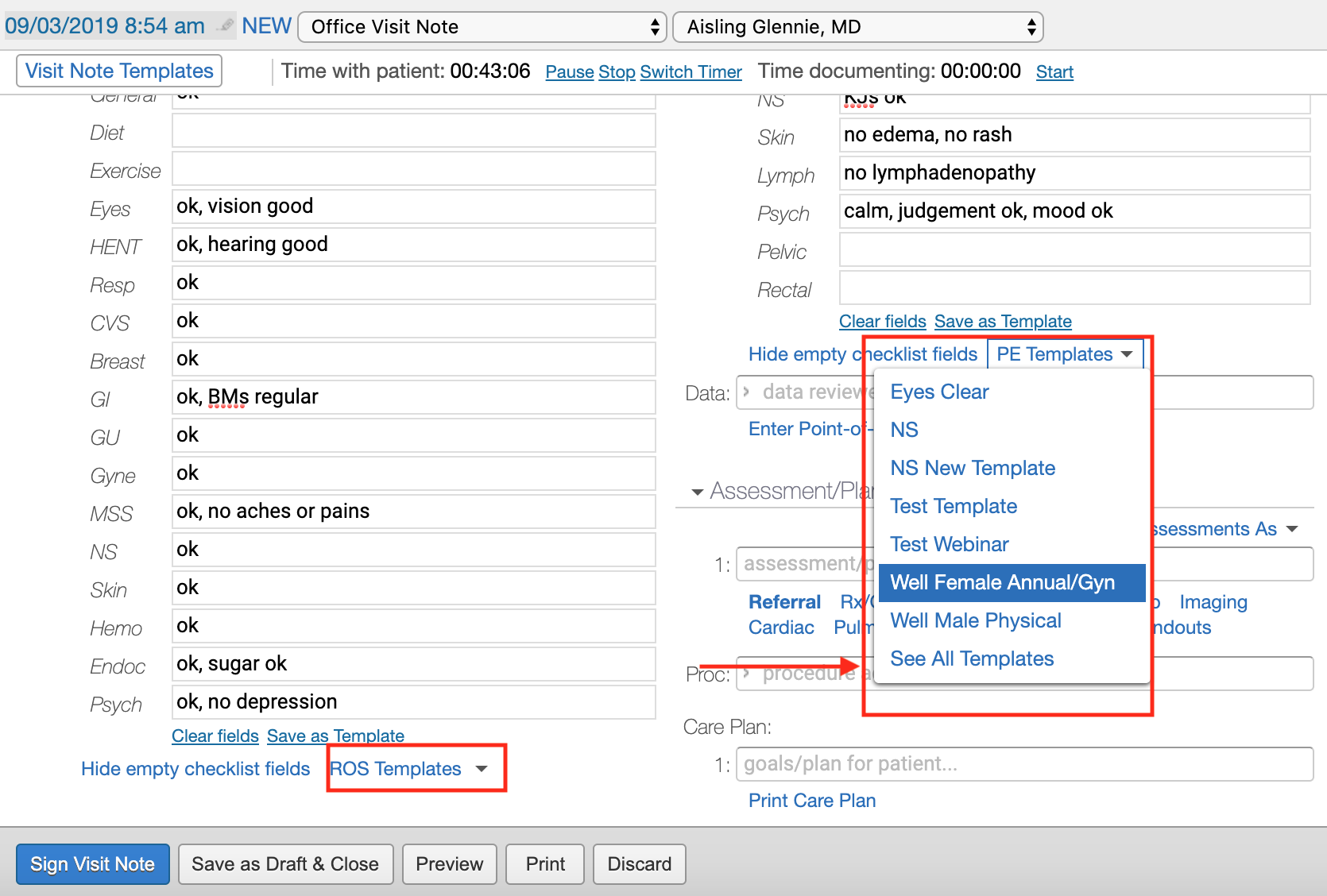
You can insert a PE or ROS template into your visit note by clicking on the **ROS Templates** or **PE Templates** button and selecting from the list of template names. You may also see a detailed list of all the templates by clicking on the **See All Templates** button.
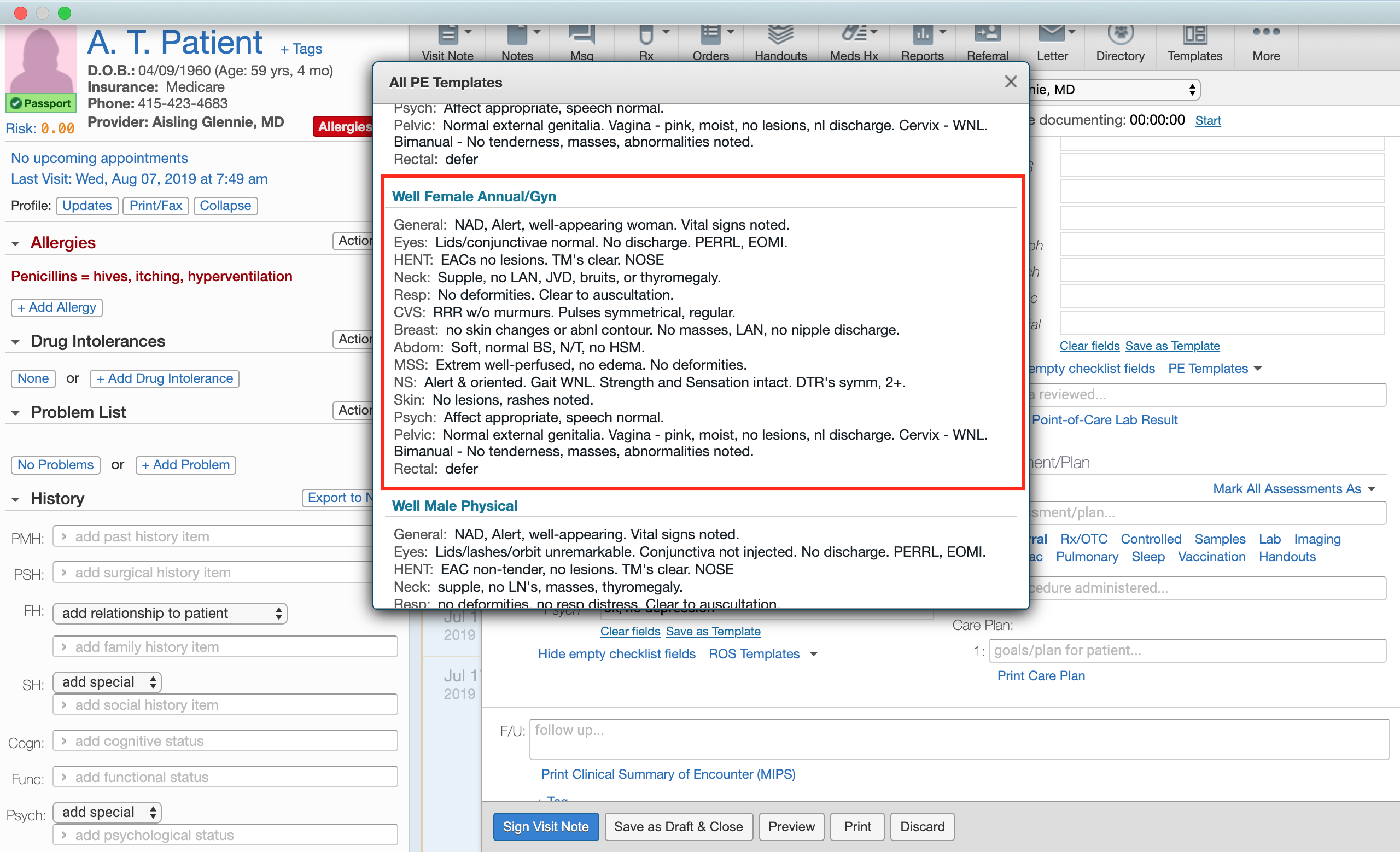
 To insert one of the templates (for example the **Well Female Annual/Gyn** PE Template) into your visit note, click on the name of the template.
 ## Creating PE or ROS Templates
### From Visit Notes
To create a new PE or ROS template from scratch
1. Click on the **Show all checklist fields** button next to the ROS or PE section
2. Fill out all of the fields you would like to use in the template & then click **Save as Template**
3. Give the template a name and click **Save**
To create a new PE or ROS template from an existing template
1. Click **ROS Templates** or **PE Templates** to select an existing template
2. Make the changes you would like & then click **Save As Template**
3. Save the new template with a new name
### From Settings
1. Click on your email and then click **Settings**
2. Click into the **Templates** section
3. Click **+ Add PE Template** or **+ Add ROS Template** to create a new template
4. Fill out all of the fields you would like to use in the template & then click **Save**
## Managing PE or ROS Templates
**From Visit Notes**
To edit your ROS or PE templates:
1. Select the Template you would like to change from your saved templates so that it populates the visit note.
2. Make the changes you would like & then click **Save As Template**
3. Save the new template under the same exact name as the one you are editing.
4. This new template will now replace the old one.
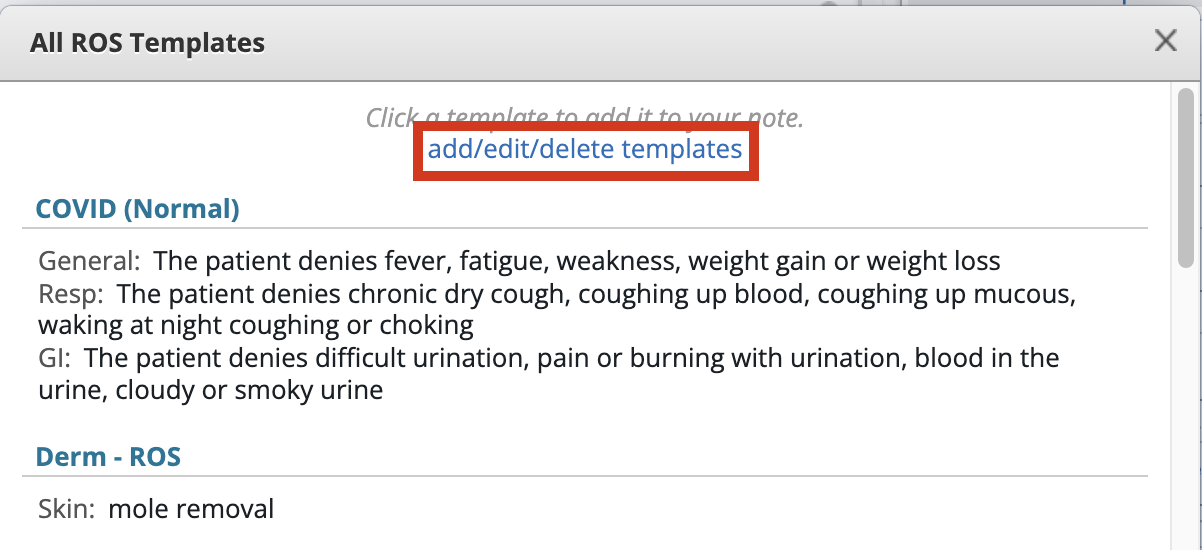
To delete a template, click **add/edit/delete templates** from the window and click the
## Creating PE or ROS Templates
### From Visit Notes
To create a new PE or ROS template from scratch
1. Click on the **Show all checklist fields** button next to the ROS or PE section
2. Fill out all of the fields you would like to use in the template & then click **Save as Template**
3. Give the template a name and click **Save**
To create a new PE or ROS template from an existing template
1. Click **ROS Templates** or **PE Templates** to select an existing template
2. Make the changes you would like & then click **Save As Template**
3. Save the new template with a new name
### From Settings
1. Click on your email and then click **Settings**
2. Click into the **Templates** section
3. Click **+ Add PE Template** or **+ Add ROS Template** to create a new template
4. Fill out all of the fields you would like to use in the template & then click **Save**
## Managing PE or ROS Templates
**From Visit Notes**
To edit your ROS or PE templates:
1. Select the Template you would like to change from your saved templates so that it populates the visit note.
2. Make the changes you would like & then click **Save As Template**
3. Save the new template under the same exact name as the one you are editing.
4. This new template will now replace the old one.
To delete a template, click **add/edit/delete templates** from the window and click the  button from the Settings page.
 **From Settings**
1. Click on your email and then click **Settings**
2. Click into the **Templates** section
3. Click the button to edit an existing PE or ROS template
4. Make your changes & then click **Save**
To delete a template, click the
button from the Settings page.
**Next Step**
**Create your own PE or ROS Template for easy charting!**
## Related Articles
* [Visit Note Documentation Guide- Visit Note Formats](/articles/Visit-Note-Documentation-Guide-Visit-Note-Formats)
* [Visit Note Templates Guide](/articles/elation-visit-note-templates)
* [Visit Note Documentation Guide- Assessments](/articles/visit-note-assessments)
* [Visit Note Documentation Guide- Procedures](/articles/documenting-procedures)
* [Visit Note Categories Guide](/articles/visit-note-categories)
**From Settings**
1. Click on your email and then click **Settings**
2. Click into the **Templates** section
3. Click the button to edit an existing PE or ROS template
4. Make your changes & then click **Save**
To delete a template, click the
button from the Settings page.
**Next Step**
**Create your own PE or ROS Template for easy charting!**
## Related Articles
* [Visit Note Documentation Guide- Visit Note Formats](/articles/Visit-Note-Documentation-Guide-Visit-Note-Formats)
* [Visit Note Templates Guide](/articles/elation-visit-note-templates)
* [Visit Note Documentation Guide- Assessments](/articles/visit-note-assessments)
* [Visit Note Documentation Guide- Procedures](/articles/documenting-procedures)
* [Visit Note Categories Guide](/articles/visit-note-categories)