> ## Documentation Index
> Fetch the complete documentation index at: https://help.elationhealth.com/llms.txt
> Use this file to discover all available pages before exploring further.
# Payment Plans
> Learn how to create and manage payment plans in Elation Billing
This article explains how to create and manage payment plans in Elation Billing.
## Overview
### Important Notes
* This workflow automates payment plan statements to be **mailed** to the patient (text/email is not supported for Plan statements at this time)
* The patient will be tagged with **\$ PLAN**
* The payment plan feature does not currently auto-charge credit cards
* Online Payments must be set up to access the Payment Plan feature
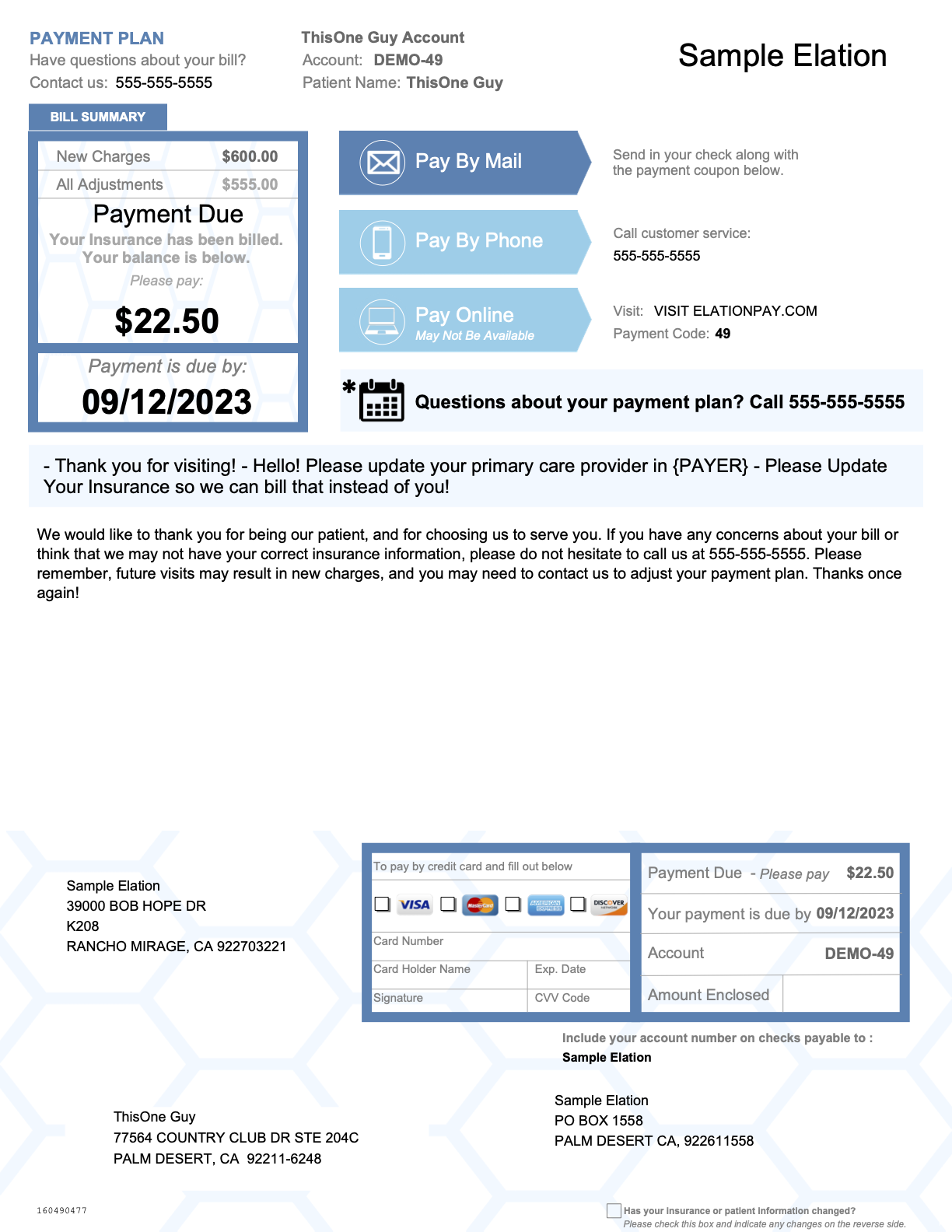
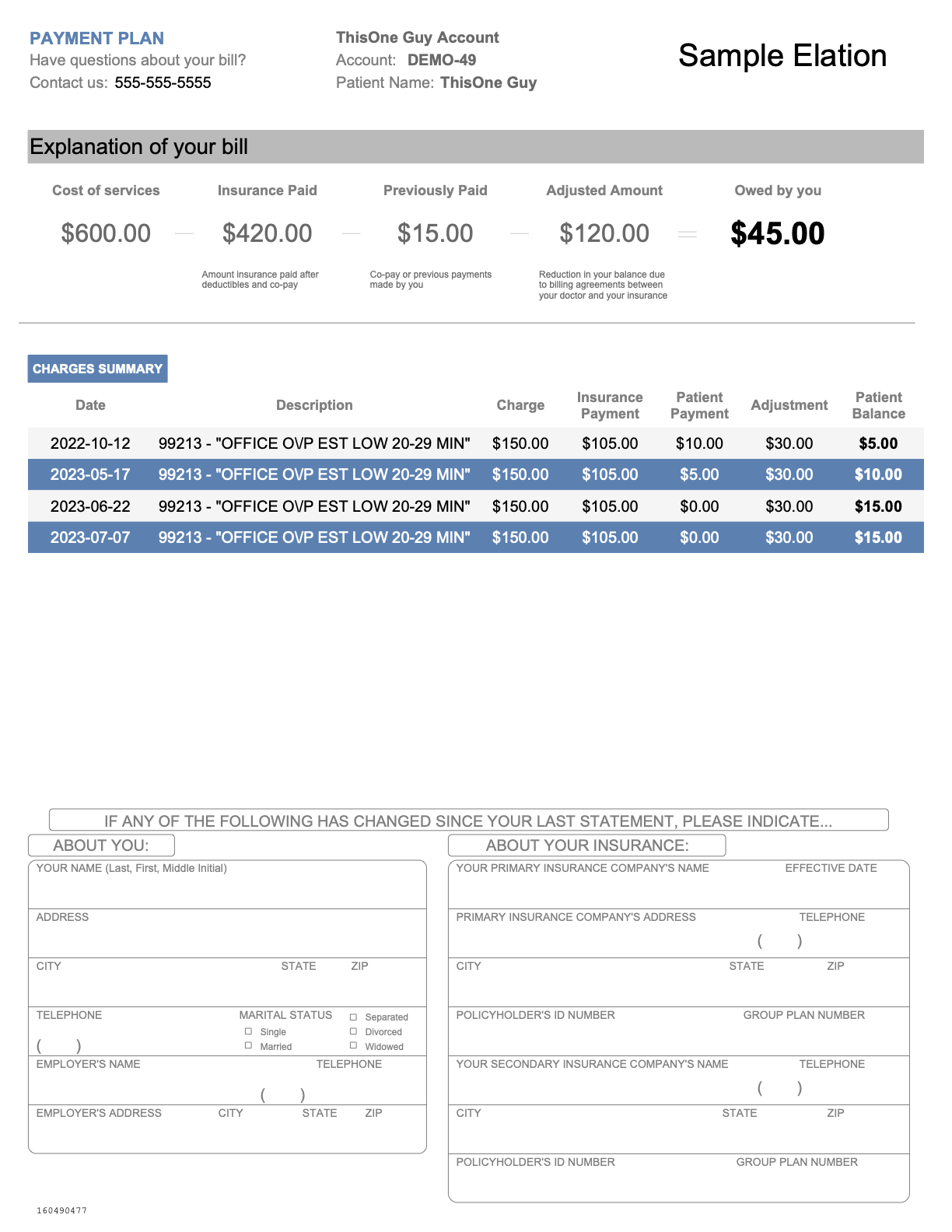
### Example Payment Plan Statement
Plan Statements are similar to standard statements with notable differences:
* Blue coloration (opposed to standard Green/Yellow/Red)
* **PAYMENT PLAN** in the upper-left
* Shows Payment Due (amount due now) in addition to Owed By You (total balance)
 ## Workflow Instructions
### Creating a Payment Plan
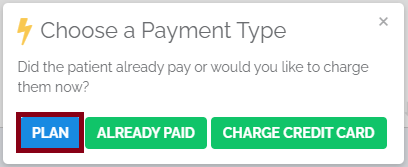
1. **Choose the Patient** - On the patient page, click **COLLECT NOW** to collect a payment. Click the **Payment Plan** button.
## Workflow Instructions
### Creating a Payment Plan
1. **Choose the Patient** - On the patient page, click **COLLECT NOW** to collect a payment. Click the **Payment Plan** button.
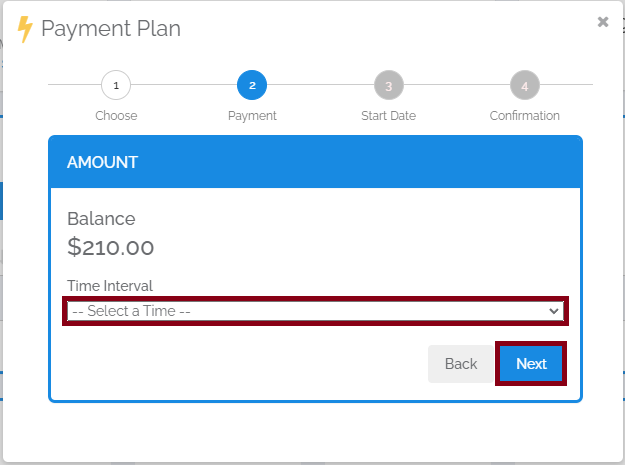
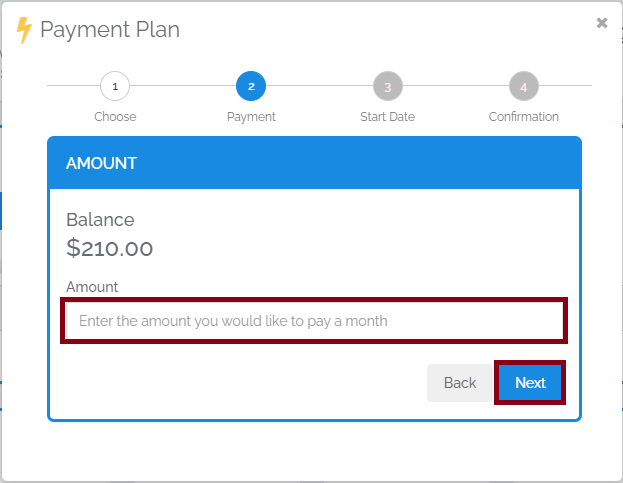
 2. **Select Payment Option** - Choose to pay by **Time** (set time period to pay off balance) or **Amount** (set monthly payment amount).
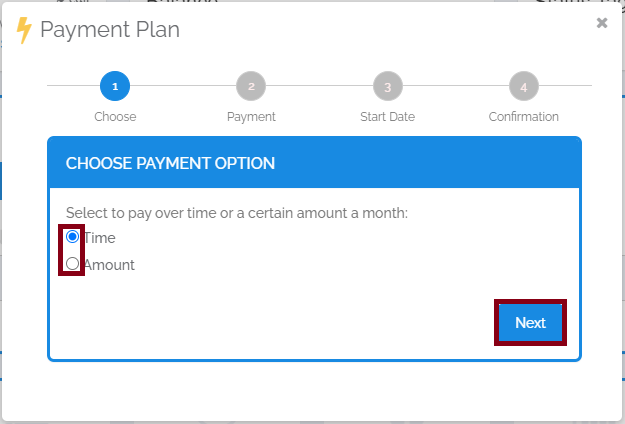 3. **Configure Payment** - For Time option, select a timespan. For Amount option, enter the monthly payment amount.
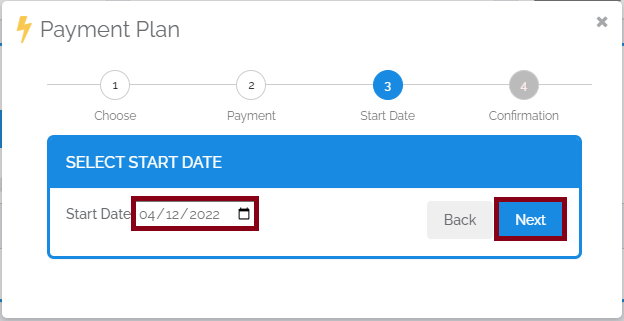
 4. **Select Start Date** - Choose when payments are due each month.
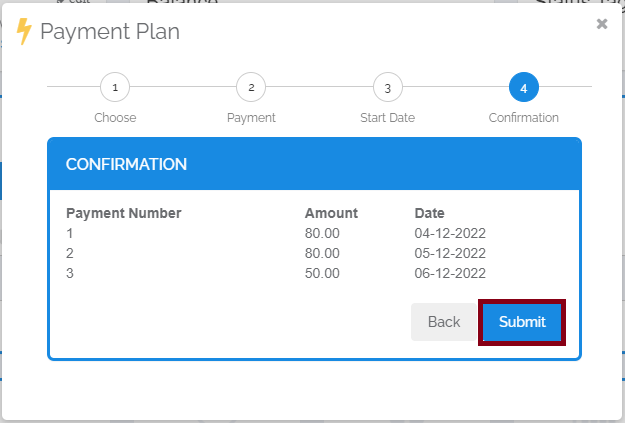
 5. **Confirm** - Review the summary showing due dates, amounts, and payment numbers. Click **Submit** to start the plan.
 ***
### Managing Active Plans
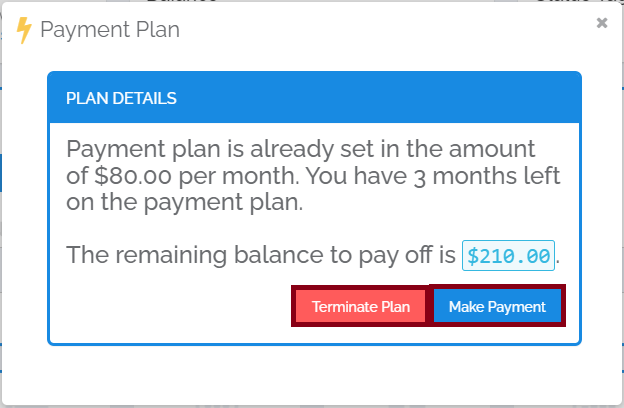
When a plan is active, clicking the Plan button shows:
* Amount owed per payment
* Months left on the plan
* Remaining pay-off balance
* Options to terminate the plan or make a payment
***
### Managing Active Plans
When a plan is active, clicking the Plan button shows:
* Amount owed per payment
* Months left on the plan
* Remaining pay-off balance
* Options to terminate the plan or make a payment
 For a new balance to be included in a Payment Plan, the current plan must be terminated and a new one begun. Patients can only be on one plan at a time.
## Related Articles
* [Sending Statements](/articles/sending-statements)
* [Activate Online Payments](/articles/activate-online-payments)
For a new balance to be included in a Payment Plan, the current plan must be terminated and a new one begun. Patients can only be on one plan at a time.
## Related Articles
* [Sending Statements](/articles/sending-statements)
* [Activate Online Payments](/articles/activate-online-payments)