> ## Documentation Index
> Fetch the complete documentation index at: https://help.elationhealth.com/llms.txt
> Use this file to discover all available pages before exploring further.
# Family and Friends Access
> How to set up and use family and friends access in the Elation Patient Passport, gaining access, first-login verification, and switching between patient charts.
**For family members and caregivers** · 3 min read
You'll need an invitation email from the patient's provider's office before you can get started. If you haven't received one, contact the practice directly. **Practice staff:** see [Granting Family and Friends Access](/articles/patient-passport-family-and-friends-access-staff) instead.
Family and friends access lets you view a patient's health information in Patient Passport using your own login. The patient's provider's office controls who gets access and what information is shared — they must send you an invitation before you can register.
Register and verify your access for the first time
Move between patient charts after you are logged in
## Register your account
You will receive an invitation email from Elation.
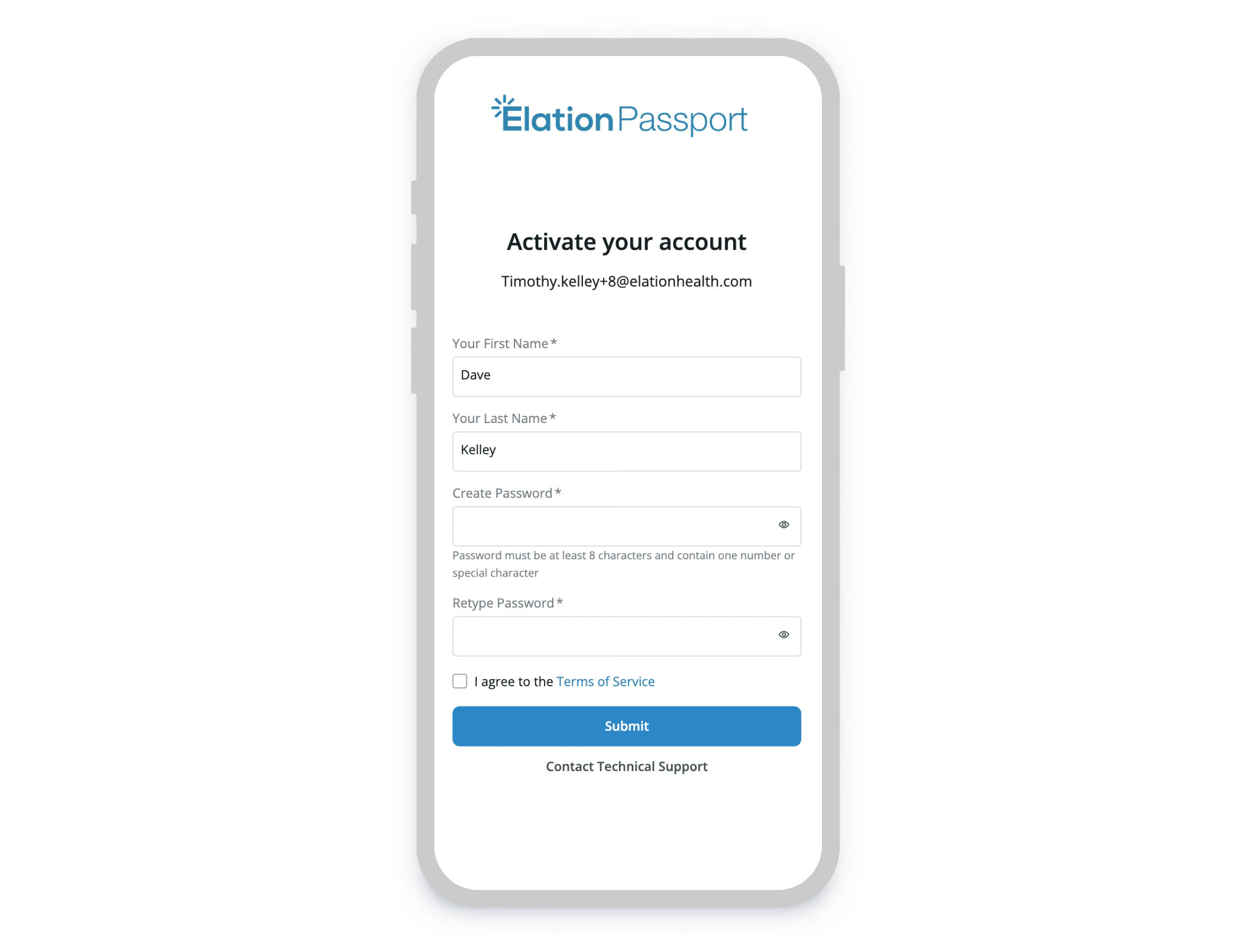
Click **Create Your Account** in the email to open the registration page
Verify the First Name and Last Name you want to appear on the account (especially for messages to the care team), then enter a unique password twice. Your password must be at least 8 characters and include at least one number or special character.
Next, review the terms of service and then check **I agree to Elation's Terms of Service** if you agree to the terms and click **Submit**.
 ## Verify your access
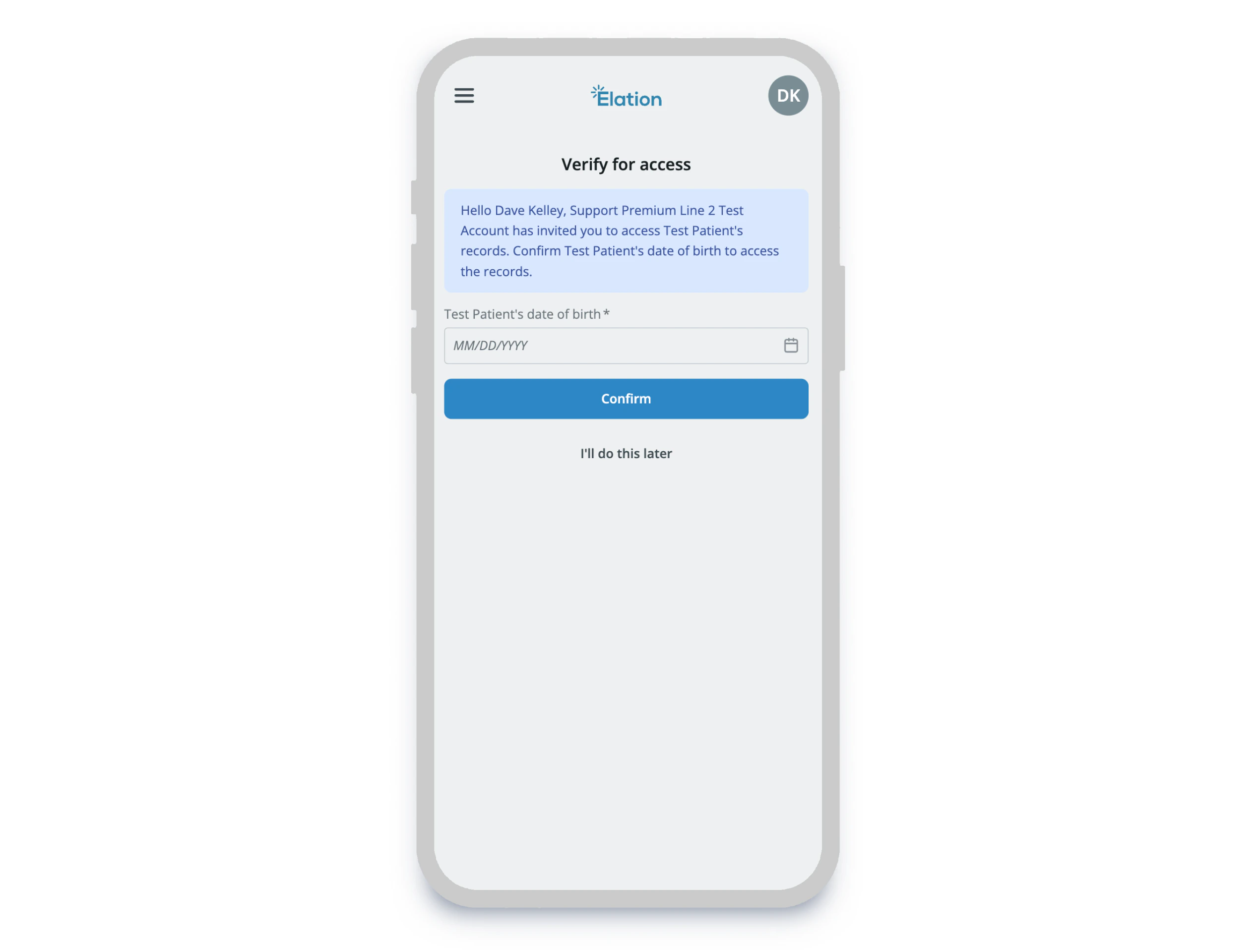
After registering — or the first time you log in after receiving access to a new chart — you will be asked to verify that patient's date of birth.
* If you click **I'll do this later** then you will not be able to access the chart until you complete this verification at a later time.
## Verify your access
After registering — or the first time you log in after receiving access to a new chart — you will be asked to verify that patient's date of birth.
* If you click **I'll do this later** then you will not be able to access the chart until you complete this verification at a later time.
 ## Specify your relationship
Click **Create Your Account** in the email to open the registration page
Verify the First Name and Last Name you want to appear on the account (especially for messages to the care team), then enter a unique password twice. Your password must be at least 8 characters and include at least one number or special character.
Next, review the terms of service and then check **I agree to Elation's Terms of Service** if you agree to the terms and click **Submit**.
## Verify your access
After registering — or the first time you log in after receiving access to a new chart — you will be asked to verify that patient's date of birth.
* If you click **I'll do this later** then you will not be able to access the chart until you complete this verification at a later time.
## Specify your relationship
You may be prompted to specify your relationship with the patient. Choose from one of the following options and then click **Continue**:You may be prompted to specify your relationship with the patient. Choose from one of the following options and then click **Continue**:
* **This is me** — You are the patient.
* **I manage their care** — You are the parent, guardian, or caregiver.
* **Remove this chart** — You do not recognize the patient chart or do not want access to the patient chart anymore.
* **This is me** — You are the patient.
* **I manage their care** — You are the parent, guardian, or caregiver.
* **Remove this chart** — You do not recognize the patient chart or do not want access to the patient chart anymore.
This allows you to properly designate your relationship to the patient charThis allows you to properly designate your relationship to the patient chart.
## Switch between patient charts
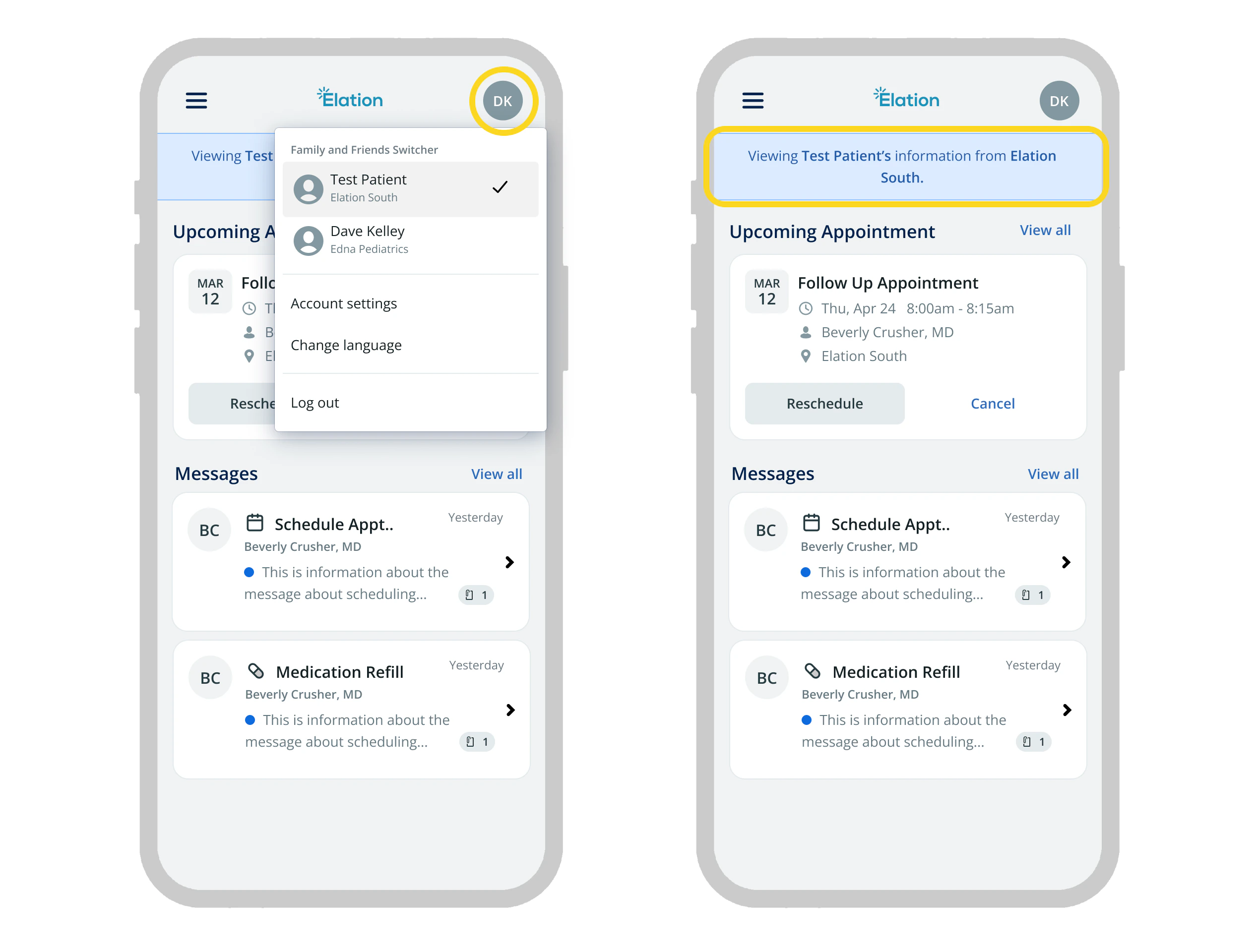
Once logged in, select your profile icon in the upper right corner of the header. A **Switch patient view** menu lists all patient charts you have access to. Select a chart to switch to it.
A banner at the top of the page confirms whose information you are viewing whenever you are not viewing your own chart.
## Specify your relationship
Click **Create Your Account** in the email to open the registration page
Verify the First Name and Last Name you want to appear on the account (especially for messages to the care team), then enter a unique password twice. Your password must be at least 8 characters and include at least one number or special character.
Next, review the terms of service and then check **I agree to Elation's Terms of Service** if you agree to the terms and click **Submit**.
## Verify your access
After registering — or the first time you log in after receiving access to a new chart — you will be asked to verify that patient's date of birth.
* If you click **I'll do this later** then you will not be able to access the chart until you complete this verification at a later time.
## Specify your relationship
You may be prompted to specify your relationship with the patient. Choose from one of the following options and then click **Continue**:You may be prompted to specify your relationship with the patient. Choose from one of the following options and then click **Continue**:
* **This is me** — You are the patient.
* **I manage their care** — You are the parent, guardian, or caregiver.
* **Remove this chart** — You do not recognize the patient chart or do not want access to the patient chart anymore.
* **This is me** — You are the patient.
* **I manage their care** — You are the parent, guardian, or caregiver.
* **Remove this chart** — You do not recognize the patient chart or do not want access to the patient chart anymore.
This allows you to properly designate your relationship to the patient charThis allows you to properly designate your relationship to the patient chart.
## Switch between patient charts
Once logged in, select your profile icon in the upper right corner of the header. A **Switch patient view** menu lists all patient charts you have access to. Select a chart to switch to it.
A banner at the top of the page confirms whose information you are viewing whenever you are not viewing your own chart.
 ## Update a patient's chosen name
Each patient chart has their own chosen name — the name shown for their records throughout Passport. If you manage a patient's chart (for example, your child's), you can update their chosen name:
1. Open the patient's **Profile**.
2. Go to **Patient Demographics > Patient Details** and select **Edit**.
3. Update the **Full Name (if different from legal)** field and **Save**.
This change flows back to the practice, so the care team will see the updated name too.
The patient's chosen name is separate from your **Account Name**, which is the name that appears when you send messages. Update your Account Name in **Account Settings**.
## Switch between patient charts
Once logged in, select your profile icon in the upper right corner of the header. A **Switch patient view** menu lists all patient charts you have access to. Select a chart to switch to it.
A banner at the top of the page confirms whose information you are viewing whenever you are not viewing your own chart.
## Update a patient's chosen name
Each patient chart has their own chosen name — the name shown for their records throughout Passport. If you manage a patient's chart (for example, your child's), you can update their chosen name:
1. Open the patient's **Profile**.
2. Go to **Patient Demographics > Patient Details** and select **Edit**.
3. Update the **Full Name (if different from legal)** field and **Save**.
This change flows back to the practice, so the care team will see the updated name too.
The patient's chosen name is separate from your **Account Name**, which is the name that appears when you send messages. Update your Account Name in **Account Settings**.
## What you can see
The practice controls what information is visible to you. Depending on the sharing settings configured when your invitation was sent, you may see a subset of the patient's clinical information rather than the full chart.
Contact the practice if you have questions about what is shared with you.
## Remove access
To remove your access to a patient's chart, contact the practice and ask them to revoke it.
## Frequently Asked Questions
Yes. A single Patient Passport account can hold access to multiple patient charts. After logging in, use the **Switch patient view** menu in the header to move between them.
This means another user has already claimed that chart. You can still select **I manage their care** as a caregiver or guardian. Contact the practice if you believe there is an error.
No. The practice must send you an invitation before you can access a patient's chart. Contact the patient's practice to request one.
Contact the practice directly and ask them to send a new invitation.
Access is managed by the practice. Contact the practice for details on how they notify patients about access grants.
## Related Articles
* [Using Patient Passport](/articles/what-patient-passport-messaging-looks-like-to-a-patient)
## Update a patient's chosen name
Each patient chart has their own chosen name — the name shown for their records throughout Passport. If you manage a patient's chart (for example, your child's), you can update their chosen name:
1. Open the patient's **Profile**.
2. Go to **Patient Demographics > Patient Details** and select **Edit**.
3. Update the **Full Name (if different from legal)** field and **Save**.
This change flows back to the practice, so the care team will see the updated name too.
The patient's chosen name is separate from your **Account Name**, which is the name that appears when you send messages. Update your Account Name in **Account Settings**.
## Switch between patient charts
Once logged in, select your profile icon in the upper right corner of the header. A **Switch patient view** menu lists all patient charts you have access to. Select a chart to switch to it.
A banner at the top of the page confirms whose information you are viewing whenever you are not viewing your own chart.
## Update a patient's chosen name
Each patient chart has their own chosen name — the name shown for their records throughout Passport. If you manage a patient's chart (for example, your child's), you can update their chosen name:
1. Open the patient's **Profile**.
2. Go to **Patient Demographics > Patient Details** and select **Edit**.
3. Update the **Full Name (if different from legal)** field and **Save**.
This change flows back to the practice, so the care team will see the updated name too.
The patient's chosen name is separate from your **Account Name**, which is the name that appears when you send messages. Update your Account Name in **Account Settings**.
## What you can see
The practice controls what information is visible to you. Depending on the sharing settings configured when your invitation was sent, you may see a subset of the patient's clinical information rather than the full chart.
Contact the practice if you have questions about what is shared with you.
## Remove access
To remove your access to a patient's chart, contact the practice and ask them to revoke it.
## Frequently Asked Questions
Yes. A single Patient Passport account can hold access to multiple patient charts. After logging in, use the **Switch patient view** menu in the header to move between them.
This means another user has already claimed that chart. You can still select **I manage their care** as a caregiver or guardian. Contact the practice if you believe there is an error.
No. The practice must send you an invitation before you can access a patient's chart. Contact the patient's practice to request one.
Contact the practice directly and ask them to send a new invitation.
Access is managed by the practice. Contact the practice for details on how they notify patients about access grants.
## Related Articles
* [Using Patient Passport](/articles/what-patient-passport-messaging-looks-like-to-a-patient)