> ## Documentation Index
> Fetch the complete documentation index at: https://help.elationhealth.com/llms.txt
> Use this file to discover all available pages before exploring further.
# Elation Patient Passport Guide - Granting Family and Friends Access
> How to grant, manage, and revoke family and friends access to a patient's chart in Patient Passport.
**For practice staff** · 2 min read
You'll need staff-level access to patient charts in Elation EHR. **Family members and caregivers:** see [Family and Friends Access — Caregiver Guide](/articles/patient-passport-family-and-friends-access) instead.
Family and friends access lets a parent, guardian, caregiver, or any trusted person view a patient's chart in Patient Passport using their own login. Your practice controls who receives access and what they can see.
Send an invitation to a family member or caregiver
Remove a family member or caregiver's access to a patient's chart
## How it works
When you grant family and friends access, the person receives an invitation email to register for Patient Passport — or, if they already have an account, a prompt to accept the new chart access. Once they log in, they can view the patient's information according to the sharing settings you configured.
A single Patient Passport account can hold access to multiple patient charts. For example, a parent can use one login to access charts for two children at your practice, or charts across different practices.
## Grant access
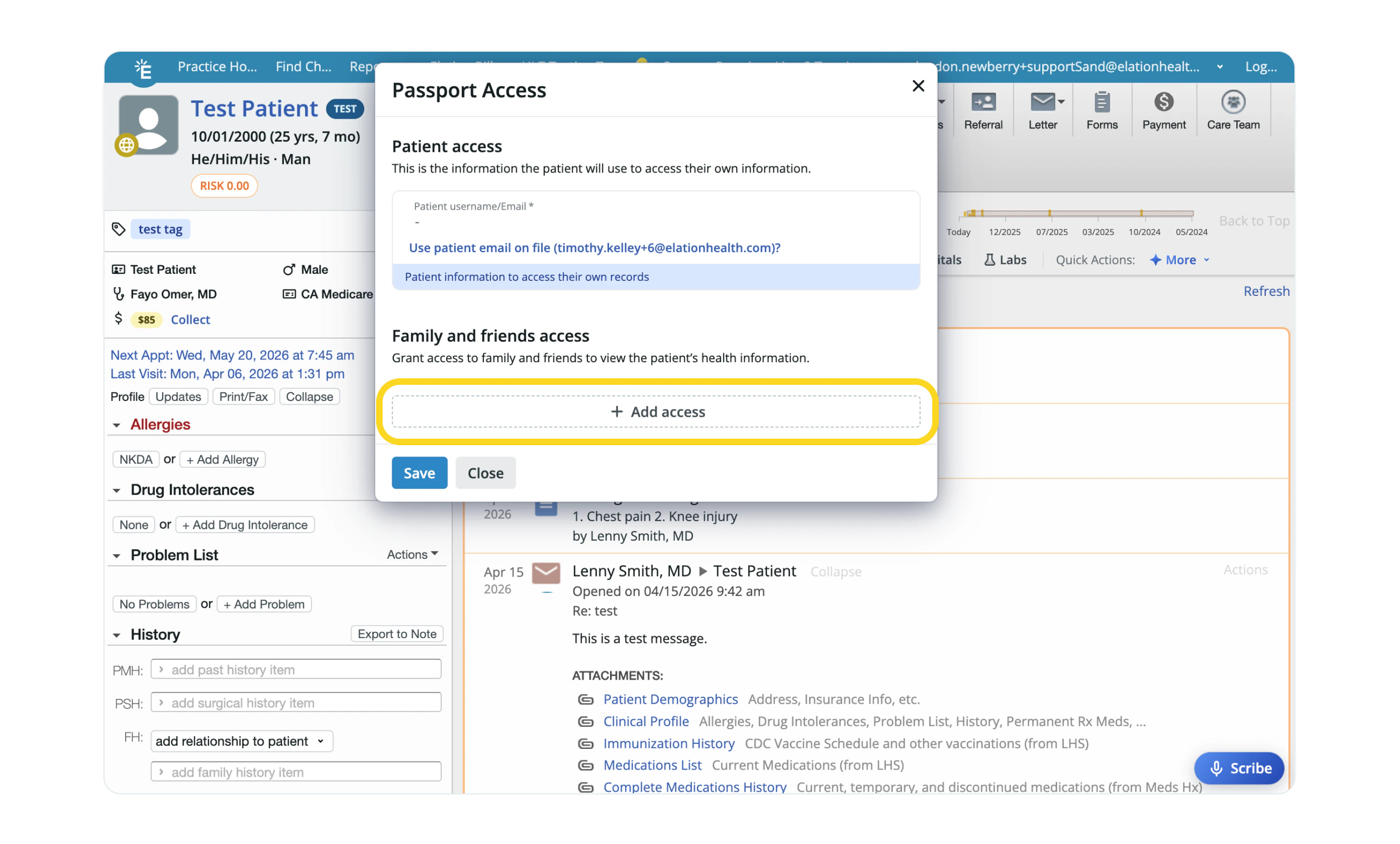
In the patient's chart, click the **Passport** icon (the globe) at the corner of the patient's profile picture.
Click **+ Add access**.
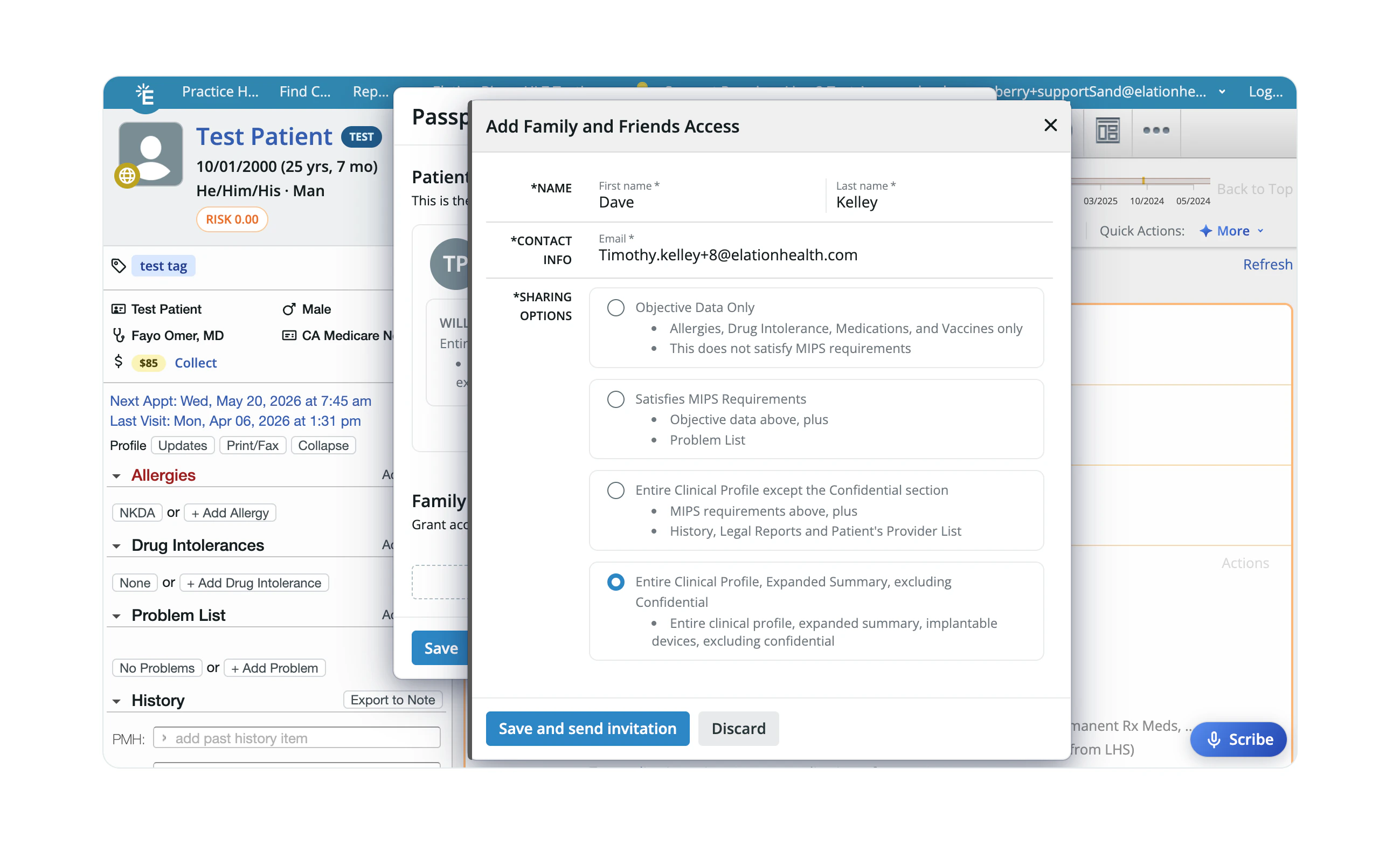
Enter the person's **First name**, **Last name**, and **Email**.
Review **Sharing Options** to set how much of the Clinical Profile they can see.
Click **Save & send invitation**.
 If the person already has a Patient Passport account, they will receive a prompt to accept the new chart access rather than a new registration email.
## Revoke invitation
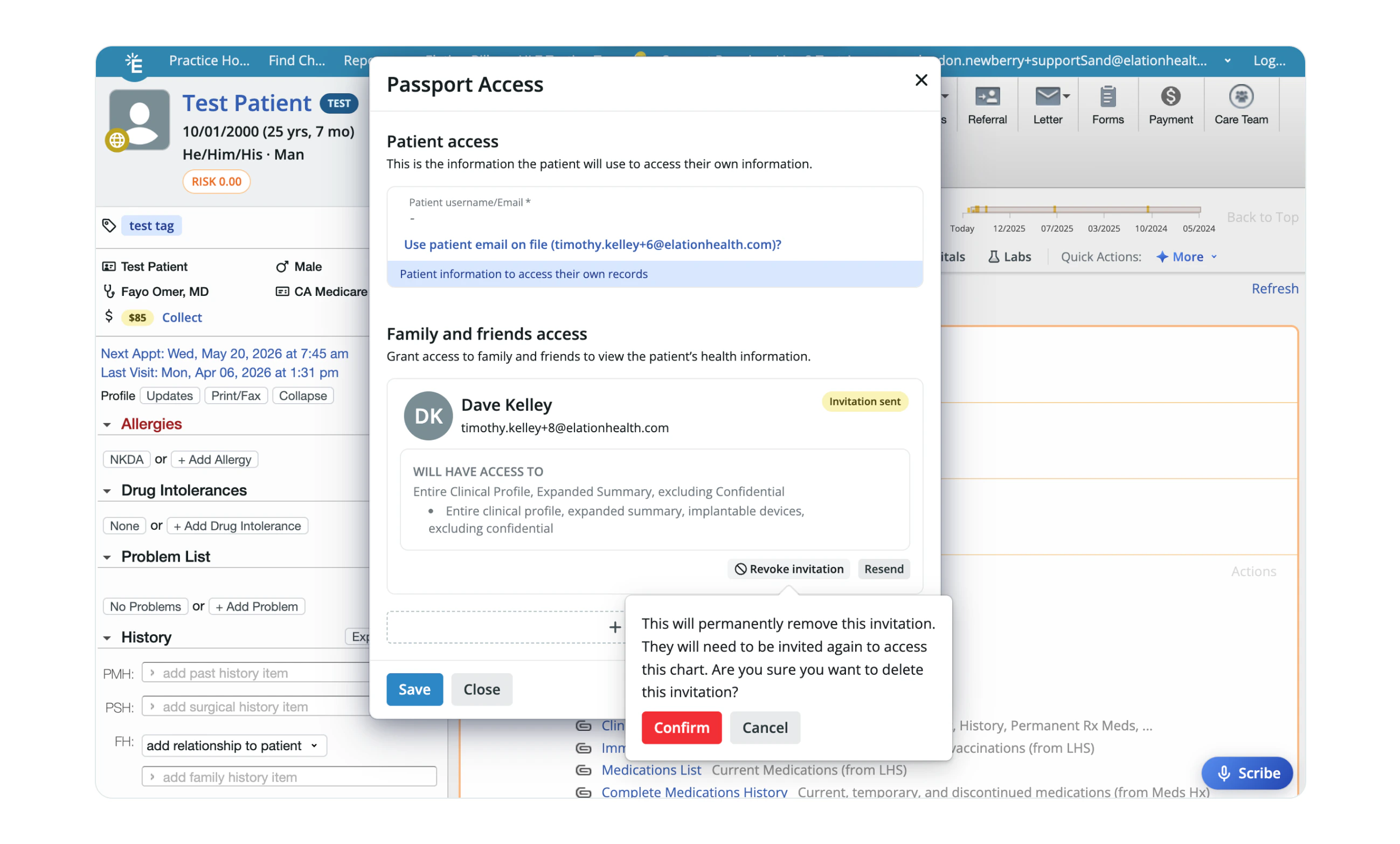
In the patient's chart, click the **Passport** icon (the globe).
Click **Revoke invitation** next to the family member or caregiver's name.
Click **Save**.
If the person already has a Patient Passport account, they will receive a prompt to accept the new chart access rather than a new registration email.
## Revoke invitation
In the patient's chart, click the **Passport** icon (the globe).
Click **Revoke invitation** next to the family member or caregiver's name.
Click **Save**.
 ## Disable access
In the patient's chart, click the **Passport** icon (the globe).
Click **Disable access** next to the patient’s name.
Click **Save**.
## Related Articles
* [Family and Friends Access — Caregiver Guide](/articles/patient-passport-family-and-friends-access)
* [Managing Passport Invitations](/articles/Managing-Passport-invitations)
* [Setting up Patient Passport](/articles/Setting-up-Patient-Passport)
* [Elation Patient Passport Introduction](/articles/elation-patient-passport-an-introduction)
## Disable access
In the patient's chart, click the **Passport** icon (the globe).
Click **Disable access** next to the patient’s name.
Click **Save**.
## Related Articles
* [Family and Friends Access — Caregiver Guide](/articles/patient-passport-family-and-friends-access)
* [Managing Passport Invitations](/articles/Managing-Passport-invitations)
* [Setting up Patient Passport](/articles/Setting-up-Patient-Passport)
* [Elation Patient Passport Introduction](/articles/elation-patient-passport-an-introduction)