> ## Documentation Index
> Fetch the complete documentation index at: https://help.elationhealth.com/llms.txt
> Use this file to discover all available pages before exploring further.
# Patient Chart Guide - Recovering deleted charts
> Learn how practice administrators and staff can restore accidentally deleted patient charts directly from Elation, without contacting support.
Practice administrators and staff can restore accidentally deleted patient charts directly from Elation, without contacting support. The feature is available on the Practice Home page for practices where it has been enabled.
This feature is not available to all practices. If you do not see the **Restore a deleted chart** option described below, contact Elation Support to ask about enabling it for your practice.
## How to access
1. From the Practice Home page, click **I need help** in the top navigation bar.
2. Select **Restore a deleted chart** from the dropdown menu.
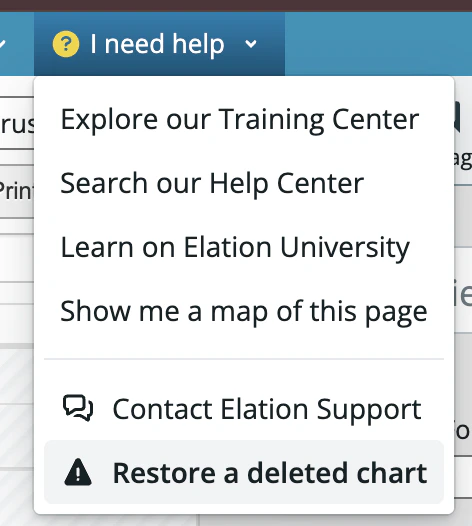 3. A dialog opens showing recently deleted patients in your practice.
## Who can see what
* **Practice administrators** can see all recently deleted charts in the practice, regardless of who deleted them.
* **Other staff members** can only see charts they personally deleted.
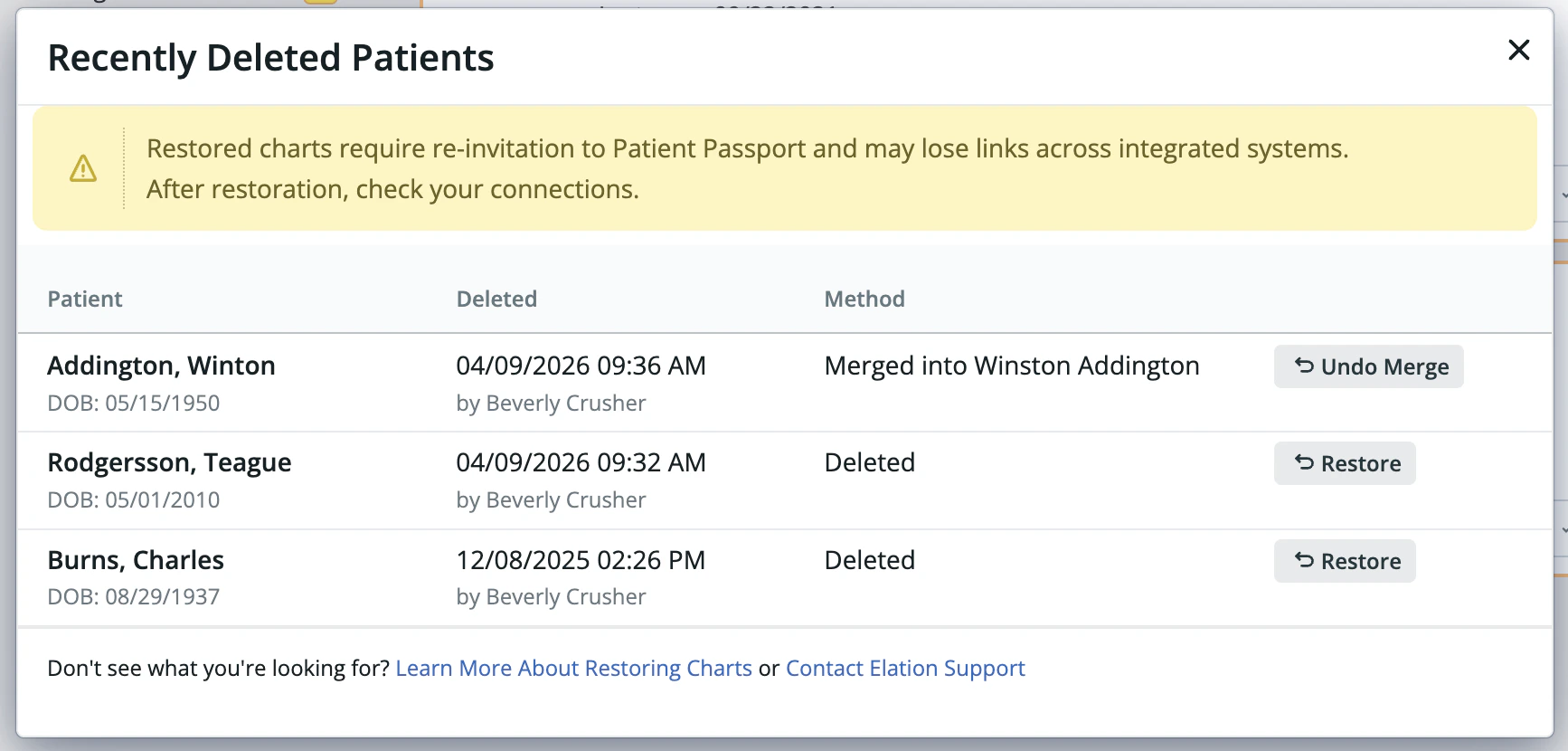
## What the dialog shows
A warning at the top of the dialog reminds you that restored charts will require you to:
* Send an invitation to patients with Patient Passport for the patient to restore access to their account.
* Check any integrations you have to make sure the charts are reconnected.
Each row in the list includes:
* **Patient name and date of birth**
* **Date and time of deletion**, and the name of the staff member who deleted the chart
* **Method** — how the chart was removed:
* *Deleted* — the chart was directly deleted
* *Merged into \[Patient Name]* — the chart was removed as part of a chart merge
3. A dialog opens showing recently deleted patients in your practice.
## Who can see what
* **Practice administrators** can see all recently deleted charts in the practice, regardless of who deleted them.
* **Other staff members** can only see charts they personally deleted.
## What the dialog shows
A warning at the top of the dialog reminds you that restored charts will require you to:
* Send an invitation to patients with Patient Passport for the patient to restore access to their account.
* Check any integrations you have to make sure the charts are reconnected.
Each row in the list includes:
* **Patient name and date of birth**
* **Date and time of deletion**, and the name of the staff member who deleted the chart
* **Method** — how the chart was removed:
* *Deleted* — the chart was directly deleted
* *Merged into \[Patient Name]* — the chart was removed as part of a chart merge
 ## Restoring a chart
1. Find the patient in the list and click **Restore** (for deleted charts) or **Undo Merge** (for merged charts).
2. A **Before you restore...** dialog appears asking why the chart was accidentally deleted. The feedback field is optional — you can leave it blank.
## Restoring a chart
1. Find the patient in the list and click **Restore** (for deleted charts) or **Undo Merge** (for merged charts).
2. A **Before you restore...** dialog appears asking why the chart was accidentally deleted. The feedback field is optional — you can leave it blank.
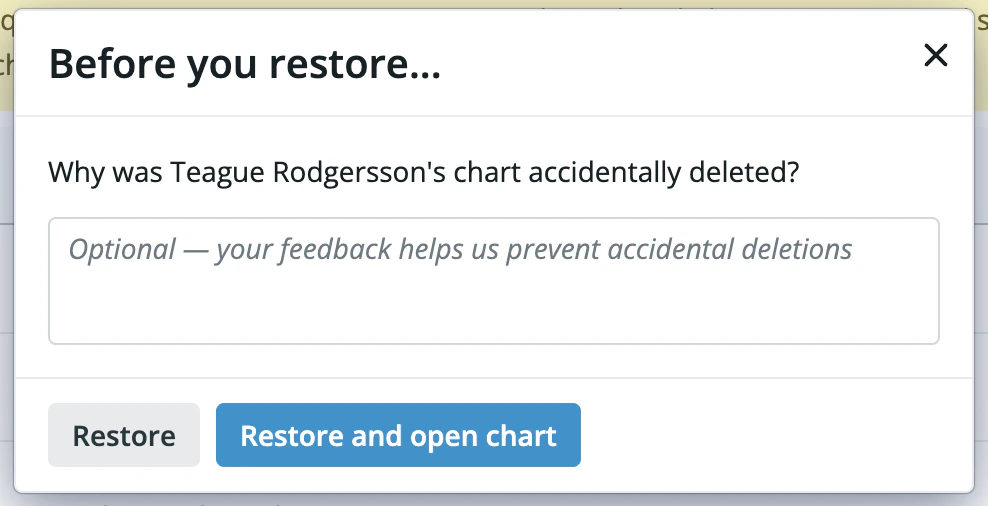 3. Click **Restore** to restore the chart, or **Restore and open chart** to restore it and navigate directly to the patient's chart in a new tab.
Once restored, the row stays visible in the list with a **Restored** label and a link to the patient's chart.
## Caveats and limitations
### Patient Passport
After restoring a chart, the patient will need to be re-invited to Patient Passport. Their previous Patient Passport connection is not automatically restored.
### Integrations and connected systems
Restoring a chart may break or disconnect links in systems integrated with Elation — for example, external lab systems, scheduling tools, or billing platforms. After restoring a chart, check your integrations to make sure everything is linked correctly. If you're unsure which connections need to be re-established, contact Elation Support.
### Undoing a chart merge
When two charts have been merged, undoing the merge moves all clinical data (notes, medications, allergies, etc.) back to the original chart. However:
* The patient's **Patient Passport** connection is not automatically restored and will need to be set up again.
* Any **integrations**/**external system connections** (such as lab vendors or billing integrations) that were updated as part of the merge may not be fully reversed and should be reviewed manually.
* Changes made to the winning chart (the chart you kept) after a merge cannot be automatically attributed to the correct chart and will require careful review. If extensive changes have been made since the merge, unmerging may result in errors when opening or viewing elements of the chart. Contact Elation Support in this situation.
### What isn't restored
Restoring a deleted chart brings back the patient record and their clinical data, but a small number of things are not automatically restored:
* **External system identifiers** assigned by integrated vendor systems (e.g. lab vendor IDs)
* **Patient Passport** enrollment (see above)
In most cases these can be re-established manually or by re-running the relevant setup steps.
### Charts not appearing in the list
This list displays recent deletions within your practice. Charts deleted outside this window or not tied to a staff action may not appear here. For assistance locating these records, contact Elation Support.
## If something goes wrong
If there are issues restoring or un-merging charts, an error message will appear. Contact Elation Support if the issue persists.
The **Contact Elation Support** and **Learn More About Restoring Charts** links are always available at the bottom of the dialog.
## Related Articles
* [Patient Chart Guide- Merging duplicate charts](/articles/merging-duplicate-charts)
* [User Accounts Guide- Viewing activity logs for users in your practice](/articles/User-Accounts-Guide-Viewing-activity-logs-for-users-in-your-practice)
* [User Accounts Guide- Configuring delete permissions](/articles/User-Accounts-Guide-Configuring-delete-permissions)
3. Click **Restore** to restore the chart, or **Restore and open chart** to restore it and navigate directly to the patient's chart in a new tab.
Once restored, the row stays visible in the list with a **Restored** label and a link to the patient's chart.
## Caveats and limitations
### Patient Passport
After restoring a chart, the patient will need to be re-invited to Patient Passport. Their previous Patient Passport connection is not automatically restored.
### Integrations and connected systems
Restoring a chart may break or disconnect links in systems integrated with Elation — for example, external lab systems, scheduling tools, or billing platforms. After restoring a chart, check your integrations to make sure everything is linked correctly. If you're unsure which connections need to be re-established, contact Elation Support.
### Undoing a chart merge
When two charts have been merged, undoing the merge moves all clinical data (notes, medications, allergies, etc.) back to the original chart. However:
* The patient's **Patient Passport** connection is not automatically restored and will need to be set up again.
* Any **integrations**/**external system connections** (such as lab vendors or billing integrations) that were updated as part of the merge may not be fully reversed and should be reviewed manually.
* Changes made to the winning chart (the chart you kept) after a merge cannot be automatically attributed to the correct chart and will require careful review. If extensive changes have been made since the merge, unmerging may result in errors when opening or viewing elements of the chart. Contact Elation Support in this situation.
### What isn't restored
Restoring a deleted chart brings back the patient record and their clinical data, but a small number of things are not automatically restored:
* **External system identifiers** assigned by integrated vendor systems (e.g. lab vendor IDs)
* **Patient Passport** enrollment (see above)
In most cases these can be re-established manually or by re-running the relevant setup steps.
### Charts not appearing in the list
This list displays recent deletions within your practice. Charts deleted outside this window or not tied to a staff action may not appear here. For assistance locating these records, contact Elation Support.
## If something goes wrong
If there are issues restoring or un-merging charts, an error message will appear. Contact Elation Support if the issue persists.
The **Contact Elation Support** and **Learn More About Restoring Charts** links are always available at the bottom of the dialog.
## Related Articles
* [Patient Chart Guide- Merging duplicate charts](/articles/merging-duplicate-charts)
* [User Accounts Guide- Viewing activity logs for users in your practice](/articles/User-Accounts-Guide-Viewing-activity-logs-for-users-in-your-practice)
* [User Accounts Guide- Configuring delete permissions](/articles/User-Accounts-Guide-Configuring-delete-permissions)