> ## Documentation Index
> Fetch the complete documentation index at: https://help.elationhealth.com/llms.txt
> Use this file to discover all available pages before exploring further.
# Order Test Management Guide — Managing imaging, cardiac, pulmonary, and sleep tests
> Add, edit, and delete your practice's imaging, cardiac, pulmonary, and sleep order tests and their CPT codes from the Settings page.
Order Test Management lets your practice maintain its own list of imaging, cardiac, pulmonary, and sleep tests. You can add tests, correct test names, add CPT codes, and remove tests you no longer use. The tests you manage here appear in the **Test** field of the matching order form for everyone in your practice.
This guide is for practice administrators, office managers, and clinical staff who maintain the tests your practice orders.
## Setup
* Order Test Management is available to all practices. Elation enables it by default.
* If the **Admin only** toggle at the top right of the page is on, only [Admin Level Users](/articles/administrative-privileges) can add, edit, or delete tests. Other users can view the list, but the add, edit, and delete buttons are unavailable.
## Opening Order Test Management
1. Click **Settings**.
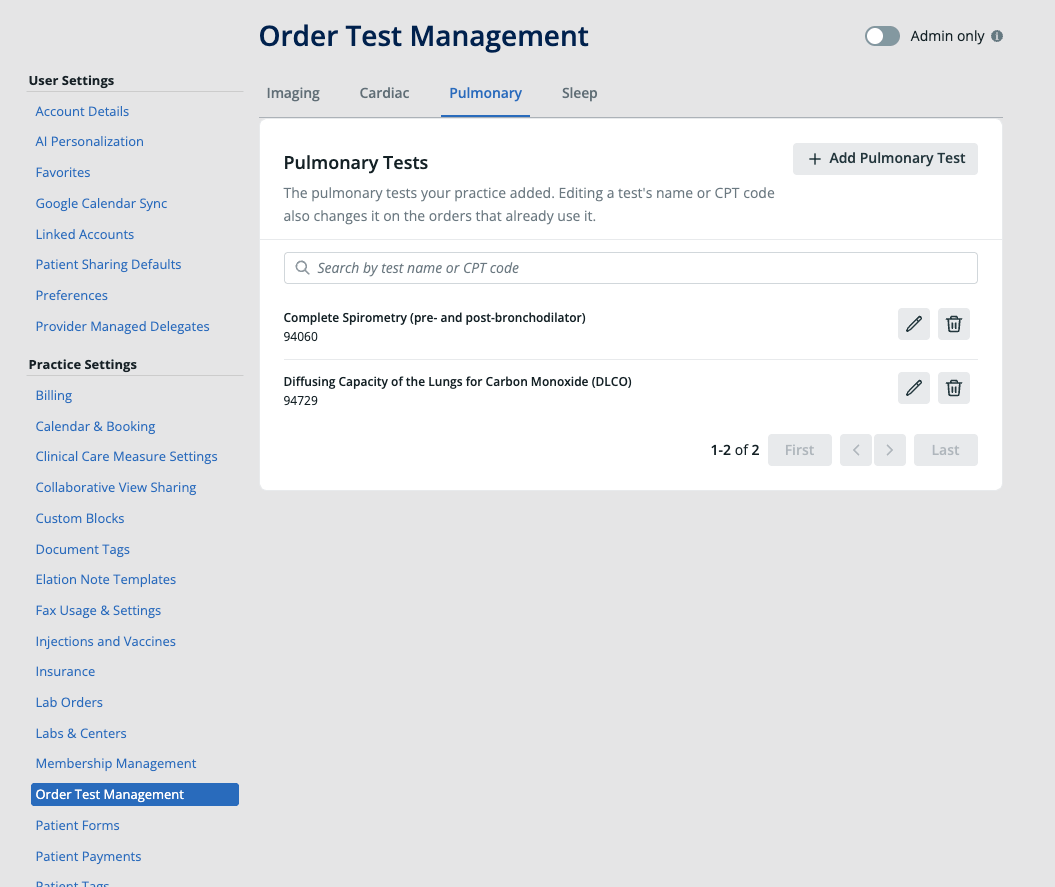
2. Under **Practice Settings**, click **Order Test Management**.
3. Click the tab for the order type you want to manage: **Imaging**, **Cardiac**, **Pulmonary**, or **Sleep**.
Each tab lists the tests your practice added, with the CPT code below each test name. Use the **Search by test name or CPT code** field to find a specific test.
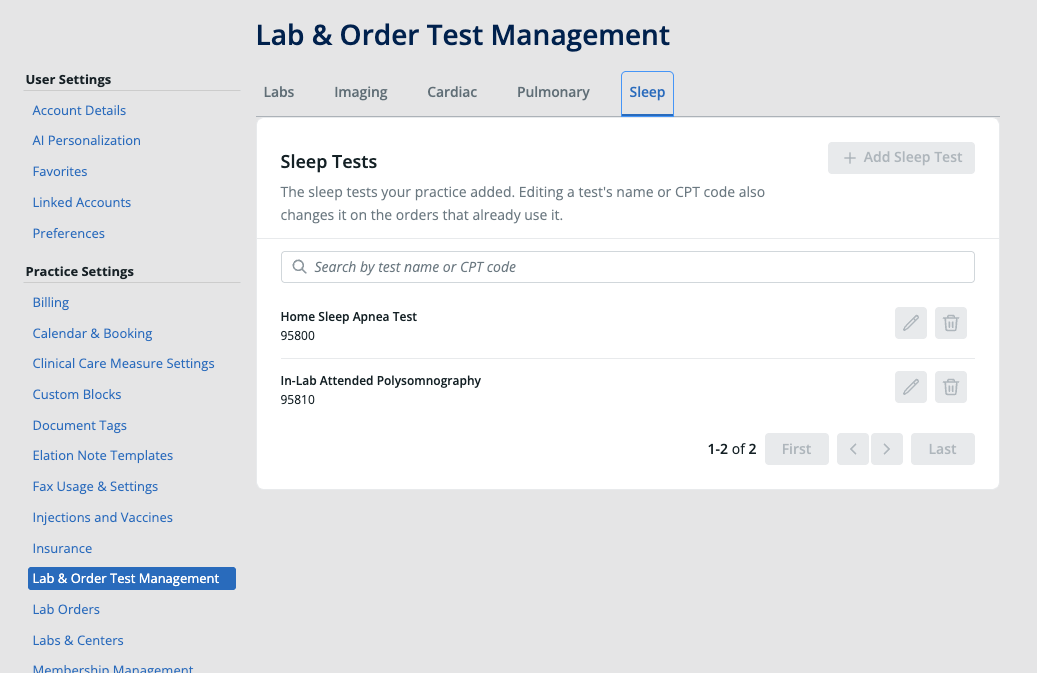
 In some practices, this section is labeled **Lab & Order Test Management** and includes an additional **Labs** tab. The **Imaging**, **Cardiac**, **Pulmonary**, and **Sleep** tabs work the same way under either label.
 ### Opening Order Test Management from an order form
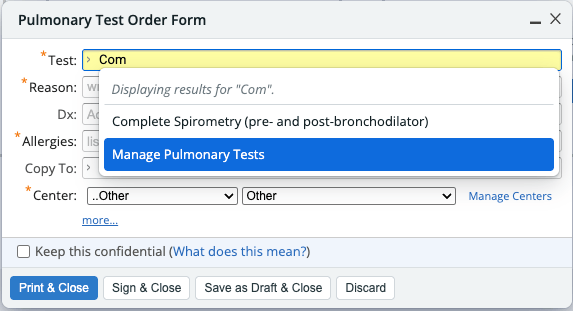
You can also go straight to the matching tab from an imaging, cardiac, pulmonary, or sleep order form:
1. In the order form, click the **Test** field (the **Cons/Test** field on the Sleep Order Form).
2. In the dropdown, click **Manage \[Order type] Tests**, such as **Manage Pulmonary Tests**.
### Opening Order Test Management from an order form
You can also go straight to the matching tab from an imaging, cardiac, pulmonary, or sleep order form:
1. In the order form, click the **Test** field (the **Cons/Test** field on the Sleep Order Form).
2. In the dropdown, click **Manage \[Order type] Tests**, such as **Manage Pulmonary Tests**.
 ## Adding a test
1. Open the tab for the order type.
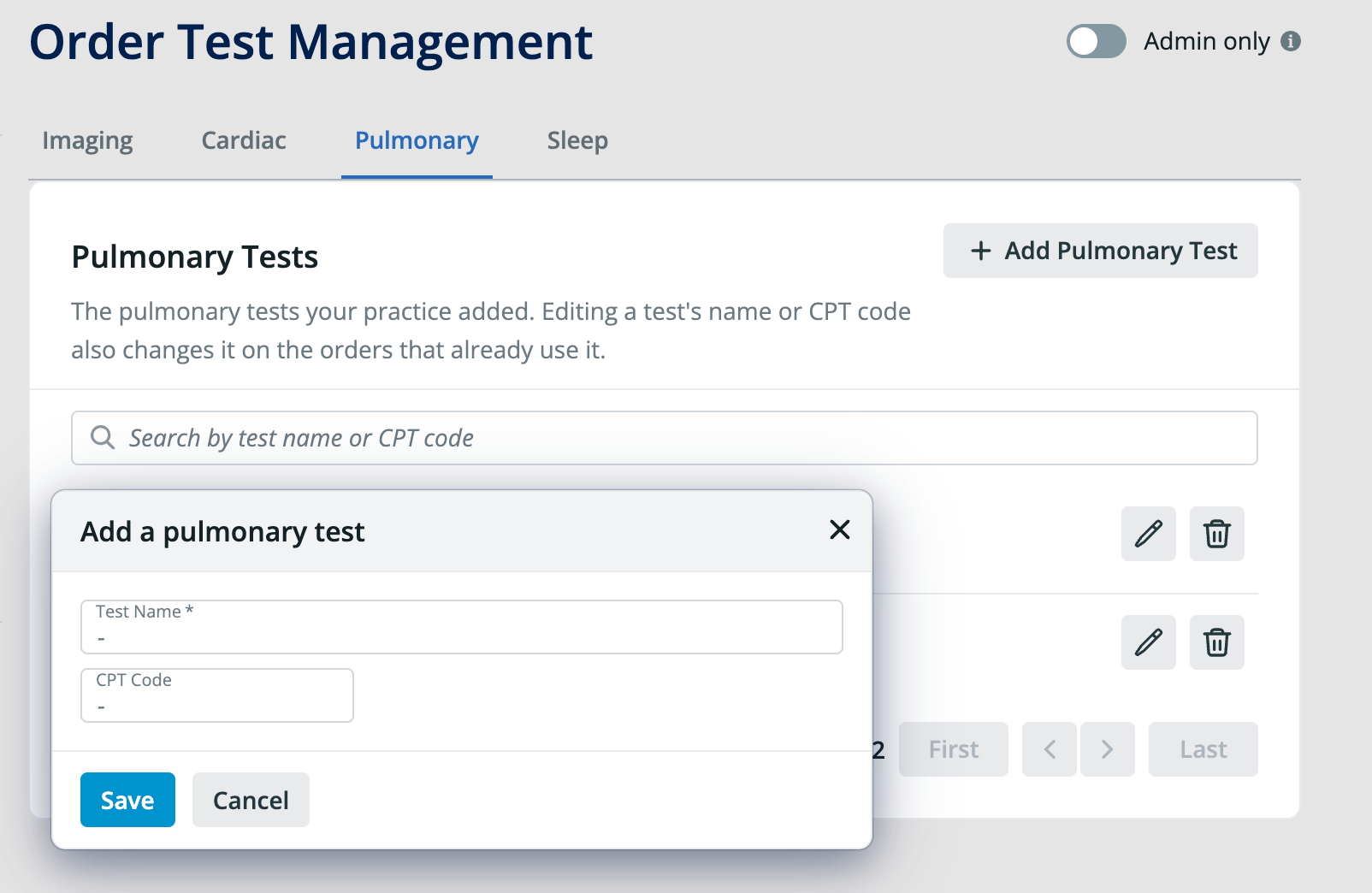
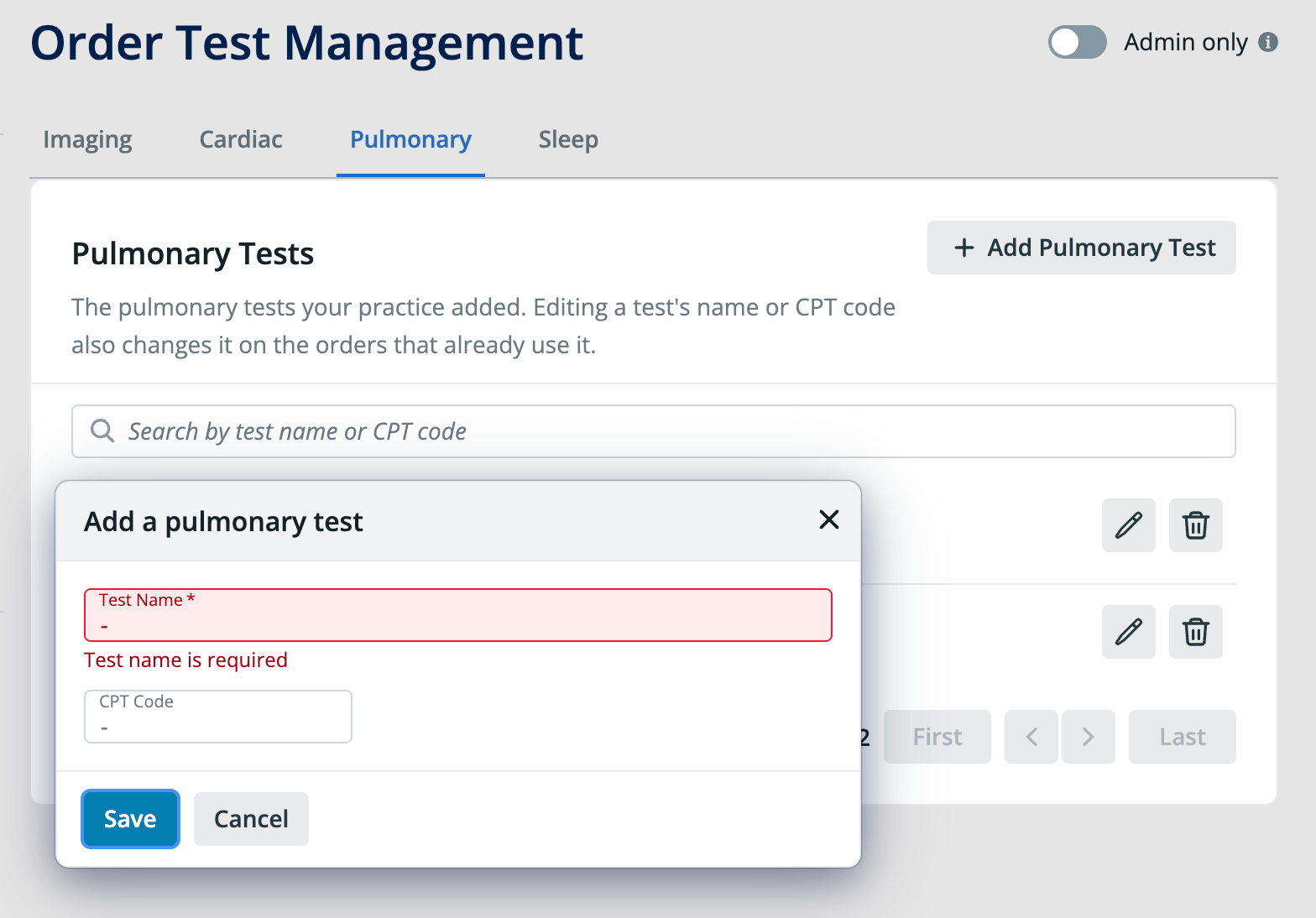
2. Click **Add \[Order type] Test**, such as **Add Pulmonary Test**.
3. Enter the **Test Name**. This field is required.
4. Optional: Enter the **CPT Code** for the test.
5. Click **Save**.
The test now appears in the **Test** field dropdown of the matching order form for everyone in your practice.
## Adding a test
1. Open the tab for the order type.
2. Click **Add \[Order type] Test**, such as **Add Pulmonary Test**.
3. Enter the **Test Name**. This field is required.
4. Optional: Enter the **CPT Code** for the test.
5. Click **Save**.
The test now appears in the **Test** field dropdown of the matching order form for everyone in your practice.
 If you click **Save** without a test name, Elation shows the message "Test name is required."
 ## Editing a test name or CPT code
1. Open the tab for the order type.
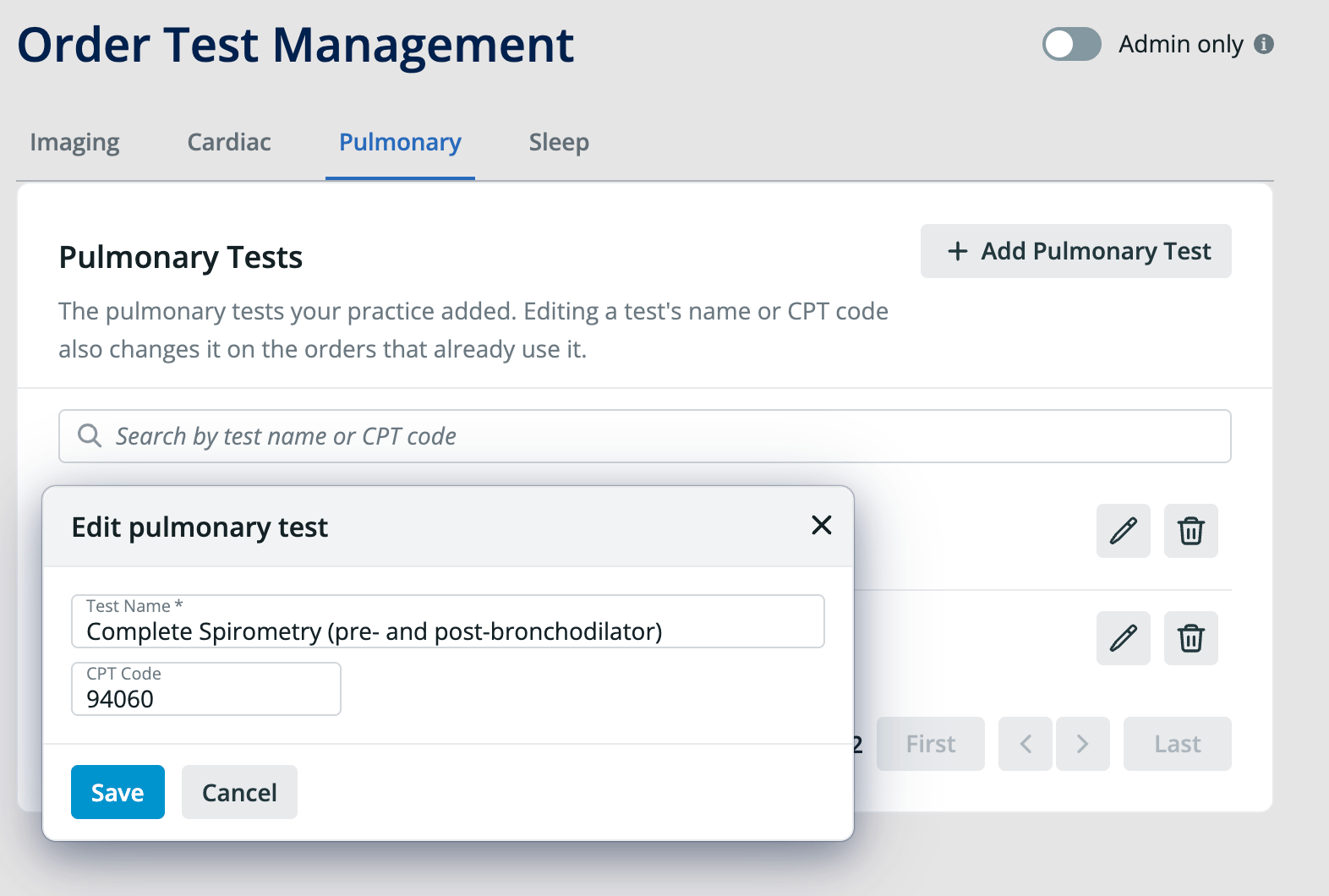
2. Find the test and click the edit (pencil) icon next to it.
3. Update the **Test Name**, the **CPT Code**, or both.
4. Click **Save**.
Editing a test's name or CPT code also changes it on the orders that already use that test.
## Editing a test name or CPT code
1. Open the tab for the order type.
2. Find the test and click the edit (pencil) icon next to it.
3. Update the **Test Name**, the **CPT Code**, or both.
4. Click **Save**.
Editing a test's name or CPT code also changes it on the orders that already use that test.
 ## Deleting a test
1. Open the tab for the order type.
2. Find the test and click the delete (trash can) icon next to it.
## Frequently Asked Questions
### Why can't I add, edit, or delete tests?
The **Admin only** toggle is likely on for the Order Test Management page. When it is on, only Admin Level Users can make changes. Ask an Admin Level User in your practice to make the change or to turn off the toggle. Learn more in [User Accounts Guide — Administrative privileges](/articles/administrative-privileges).
### I misspelled a test. Can I fix it?
Yes. Click the edit (pencil) icon next to the test, correct the name, and click **Save**. The corrected name also appears on orders that already use the test.
### Do I have to add a CPT code?
No. **Test Name** is the only required field. Adding a CPT code keeps the correct code attached to the test each time someone orders it.
### Can I manage lab tests here?
This guide covers imaging, cardiac, pulmonary, and sleep tests. To create lab tests, see [Orders Guide — Creating tests for Order Forms](/articles/Creating-tests-for-Order-Forms).
## Related Articles
* [Orders Guide — Creating tests for Order Forms](/articles/Creating-tests-for-Order-Forms)
* [Order Forms Introduction — Ordering medical tests for your patients](/articles/Order-Forms-Introduction-Ordering-medical-tests-for-your-patients)
* [Order Forms Guide — Ordering imaging (radiology) tests with the Imaging Order Form](/articles/ordering-imaging-tests)
* [Order Forms Guide — Ordering cardiology tests using the Cardiac Order Form](/articles/ordering-cardiology-tests)
* [Order Forms Guide — Ordering pulmonary tests using the Pulmonary Order Form](/articles/ordering-pulmonary-tests)
* [Order Forms Guide — Ordering sleep tests using the Sleep Order Form](/articles/ordering-sleep-tests)
## Deleting a test
1. Open the tab for the order type.
2. Find the test and click the delete (trash can) icon next to it.
## Frequently Asked Questions
### Why can't I add, edit, or delete tests?
The **Admin only** toggle is likely on for the Order Test Management page. When it is on, only Admin Level Users can make changes. Ask an Admin Level User in your practice to make the change or to turn off the toggle. Learn more in [User Accounts Guide — Administrative privileges](/articles/administrative-privileges).
### I misspelled a test. Can I fix it?
Yes. Click the edit (pencil) icon next to the test, correct the name, and click **Save**. The corrected name also appears on orders that already use the test.
### Do I have to add a CPT code?
No. **Test Name** is the only required field. Adding a CPT code keeps the correct code attached to the test each time someone orders it.
### Can I manage lab tests here?
This guide covers imaging, cardiac, pulmonary, and sleep tests. To create lab tests, see [Orders Guide — Creating tests for Order Forms](/articles/Creating-tests-for-Order-Forms).
## Related Articles
* [Orders Guide — Creating tests for Order Forms](/articles/Creating-tests-for-Order-Forms)
* [Order Forms Introduction — Ordering medical tests for your patients](/articles/Order-Forms-Introduction-Ordering-medical-tests-for-your-patients)
* [Order Forms Guide — Ordering imaging (radiology) tests with the Imaging Order Form](/articles/ordering-imaging-tests)
* [Order Forms Guide — Ordering cardiology tests using the Cardiac Order Form](/articles/ordering-cardiology-tests)
* [Order Forms Guide — Ordering pulmonary tests using the Pulmonary Order Form](/articles/ordering-pulmonary-tests)
* [Order Forms Guide — Ordering sleep tests using the Sleep Order Form](/articles/ordering-sleep-tests)