> ## Documentation Index
> Fetch the complete documentation index at: https://help.elationhealth.com/llms.txt
> Use this file to discover all available pages before exploring further.
# Lab Orders & Results — Managing imaging centers
> Add, edit, and remove imaging centers for your practice directly from the Settings > Labs page in Elation.
## Setup
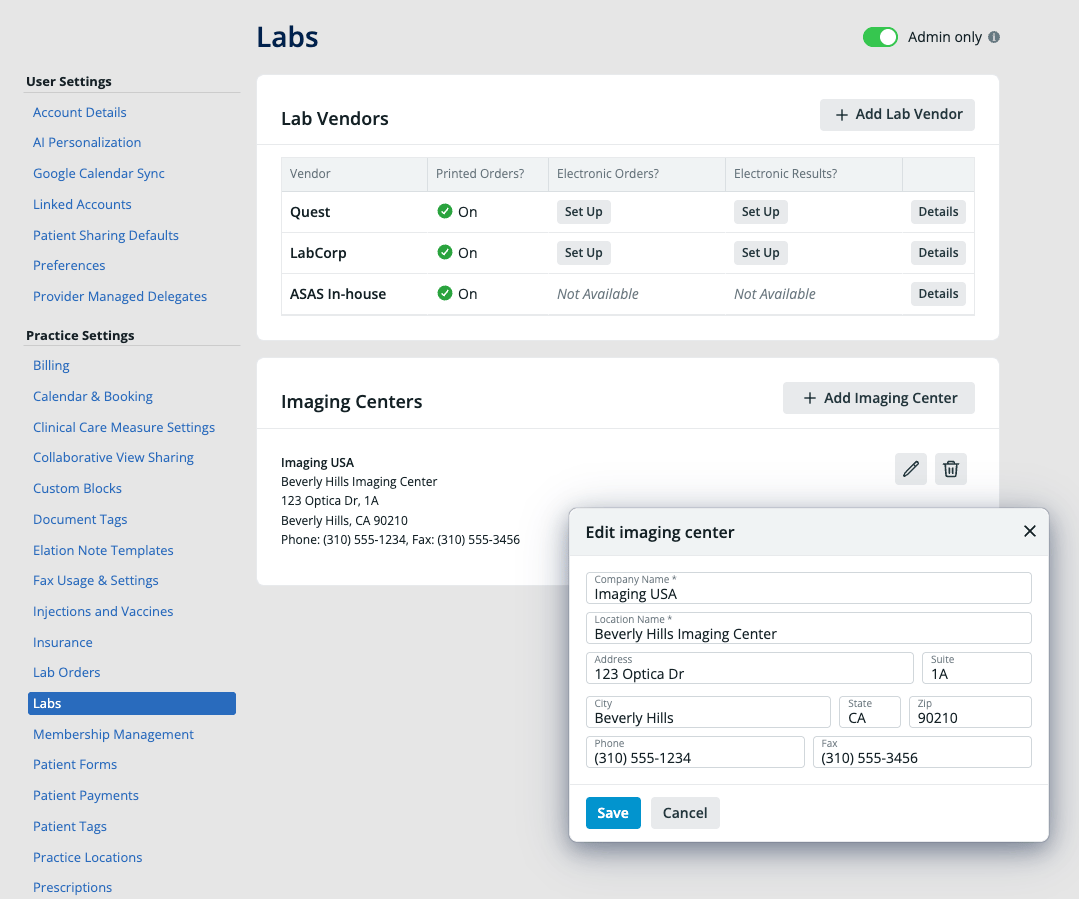
You can add and manage the imaging centers that appear on the Imaging Order Form directly from **Settings > Labs**. Any user with access to Practice Settings can manage imaging centers, and changes apply to the entire practice.
## Add an imaging center
1. Click the gear icon in the upper right of your Elation account and select **Settings**.
2. Under **Practice Settings**, click **Labs**.
3. In the **Imaging Centers** section, click **+ Add Imaging Center**.
4. Enter the imaging center's details:
* **Company Name** (required)
* **Location Name** (required)
* **Address**, **Suite**, **City**, **State**, **Zip**
* **Phone** and **Fax**
5. Click **Save**.
The new imaging center is immediately available in the **Center** dropdown on the Imaging Order Form for all users at your practice.
 ## Edit an imaging center
1. Go to **Settings > Labs**.
2. In the **Imaging Centers** section, click the pencil icon next to the imaging center you want to update.
3. Update the fields as needed.
4. Click **Save**.
## Delete an imaging center
1. Go to **Settings > Labs**.
2. In the **Imaging Centers** section, click the trash icon next to the imaging center you want to remove.
3. Confirm the deletion.
Deleting an imaging center removes it from the **Center** dropdown on the Imaging Order Form. Signed orders that were previously sent to that center are not affected.
## Manage imaging centers from the Imaging Order Form
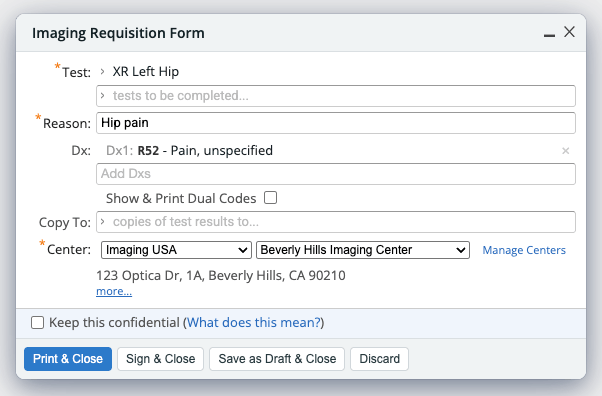
You can also open the Imaging Centers page directly from the Imaging Order Form. Click **Manage Centers** to the right of the **Center** field to jump to **Settings > Labs**.
## Edit an imaging center
1. Go to **Settings > Labs**.
2. In the **Imaging Centers** section, click the pencil icon next to the imaging center you want to update.
3. Update the fields as needed.
4. Click **Save**.
## Delete an imaging center
1. Go to **Settings > Labs**.
2. In the **Imaging Centers** section, click the trash icon next to the imaging center you want to remove.
3. Confirm the deletion.
Deleting an imaging center removes it from the **Center** dropdown on the Imaging Order Form. Signed orders that were previously sent to that center are not affected.
## Manage imaging centers from the Imaging Order Form
You can also open the Imaging Centers page directly from the Imaging Order Form. Click **Manage Centers** to the right of the **Center** field to jump to **Settings > Labs**.
 ## Frequently Asked Questions
### Who can add or edit imaging centers?
Any user with access to Practice Settings can manage imaging centers. Changes apply to every user at the practice.
### Do I still need to contact Elation Support to add an imaging center?
No. Practices manage their own imaging centers through **Settings > Labs**. Contact Elation Support only if you need to set up an electronic results interface with an integrated imaging vendor.
### Where do these imaging centers appear?
Imaging centers you add appear in the **Center** dropdown on the Imaging Order Form. Select the company, then choose a specific location.
### Can I add multiple locations for the same imaging center?
Yes. Add a separate entry for each location, using the same **Company Name** and a distinct **Location Name** for each site. Users can then select the location from the second dropdown on the Imaging Order Form.
## Related Articles
* [Order Forms Guide — Ordering imaging (radiology) tests with the Imaging Order Form](/articles/ordering-imaging-tests)
* [Patient Reports Guide — Receiving imaging (radiology) results from imaging interfaces](/articles/receiving-imaging-results-from-imaging-interfaces)
* [Lab Orders & Results — Managing lab vendors](/articles/Managing-lab-vendors)
* [Order Forms Introduction — Ordering medical tests for your patients](/articles/Order-Forms-Introduction-Ordering-medical-tests-for-your-patients)
## Frequently Asked Questions
### Who can add or edit imaging centers?
Any user with access to Practice Settings can manage imaging centers. Changes apply to every user at the practice.
### Do I still need to contact Elation Support to add an imaging center?
No. Practices manage their own imaging centers through **Settings > Labs**. Contact Elation Support only if you need to set up an electronic results interface with an integrated imaging vendor.
### Where do these imaging centers appear?
Imaging centers you add appear in the **Center** dropdown on the Imaging Order Form. Select the company, then choose a specific location.
### Can I add multiple locations for the same imaging center?
Yes. Add a separate entry for each location, using the same **Company Name** and a distinct **Location Name** for each site. Users can then select the location from the second dropdown on the Imaging Order Form.
## Related Articles
* [Order Forms Guide — Ordering imaging (radiology) tests with the Imaging Order Form](/articles/ordering-imaging-tests)
* [Patient Reports Guide — Receiving imaging (radiology) results from imaging interfaces](/articles/receiving-imaging-results-from-imaging-interfaces)
* [Lab Orders & Results — Managing lab vendors](/articles/Managing-lab-vendors)
* [Order Forms Introduction — Ordering medical tests for your patients](/articles/Order-Forms-Introduction-Ordering-medical-tests-for-your-patients)