> ## Documentation Index
> Fetch the complete documentation index at: https://help.elationhealth.com/llms.txt
> Use this file to discover all available pages before exploring further.
# How to Use the Waiting Room (Legacy Practices Only)
> Learn how to use the waiting room feature in Elation Billing (Legacy)
This article explains how to use the waiting room feature in Elation Billing for Legacy practices.
## Overview
Elation EHR + Billing Practices will use the EHR Calendar instead of the Elation Billing Calendar. This article applies to Legacy practices only.
## Workflow Instructions
### Accessing the Waiting Room
1. **Navigate** - Click on the **Appointment Calendar** option under the **Patients** drop-down menu.
2. **Open Waiting Room** - Click on **Waiting Room**.
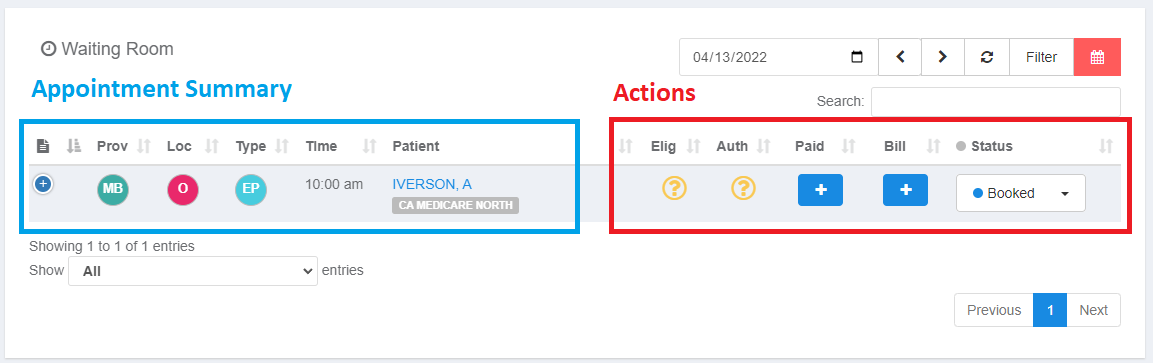
 3. **Take Action** - Manage your waiting room appointments.
 ***
### Available Actions
#### Run Eligibility
The status icon is displayed based on eligibility ran from the start of the month up until the appointment date. Click the icon to run eligibility.
#### Authorization
Does this appointment need pre-auth/referral? Click the icon to mark as **No Auth Needed** or choose an Auth to attach to this visit (Auth will be attached when you capture charges).
#### Paid
Does this patient have a copay? Click the icon to mark as **No Payment Needed** or choose to record a payment or take a new credit card.
#### Bill
Do this last. Click the icon to mark as **No Charges** or choose to capture charges, which will create a new superbill automatically. All that's left is to add CPT and DX Codes and Lightning Bill.
Superbill will be added to the worklist with tag "Biller Review".
#### Status
Change the appointment status: Booked, Check-In, Check-Out, Canceled, No Show.
***
### Reviewing the Waiting Room
Are all the indicators showing correctly? Were all the charges captured?
You can also look days ahead in the waiting room to check eligibility in advance.
## Related Articles
* [How to Create an Appointment (Legacy Practices Only)](/articles/how-to-create-an-appointment-legacy-practices-only)
* [How to Edit/Cancel an Appointment (Legacy Practices Only)](/articles/how-to-editcancel-an-appointment-legacy-practices-only)
* [Running Eligibility](/articles/running-eligibility)
***
### Available Actions
#### Run Eligibility
The status icon is displayed based on eligibility ran from the start of the month up until the appointment date. Click the icon to run eligibility.
#### Authorization
Does this appointment need pre-auth/referral? Click the icon to mark as **No Auth Needed** or choose an Auth to attach to this visit (Auth will be attached when you capture charges).
#### Paid
Does this patient have a copay? Click the icon to mark as **No Payment Needed** or choose to record a payment or take a new credit card.
#### Bill
Do this last. Click the icon to mark as **No Charges** or choose to capture charges, which will create a new superbill automatically. All that's left is to add CPT and DX Codes and Lightning Bill.
Superbill will be added to the worklist with tag "Biller Review".
#### Status
Change the appointment status: Booked, Check-In, Check-Out, Canceled, No Show.
***
### Reviewing the Waiting Room
Are all the indicators showing correctly? Were all the charges captured?
You can also look days ahead in the waiting room to check eligibility in advance.
## Related Articles
* [How to Create an Appointment (Legacy Practices Only)](/articles/how-to-create-an-appointment-legacy-practices-only)
* [How to Edit/Cancel an Appointment (Legacy Practices Only)](/articles/how-to-editcancel-an-appointment-legacy-practices-only)
* [Running Eligibility](/articles/running-eligibility)