> ## Documentation Index
> Fetch the complete documentation index at: https://help.elationhealth.com/llms.txt
> Use this file to discover all available pages before exploring further.
# How to Create an Appointment (Legacy Practices Only)
> Learn how to create appointments in Elation Billing (Legacy)
This article explains how to create appointments in Elation Billing for Legacy practices.
## Overview
Elation EHR + Billing Practices will use the EHR Calendar instead of the Elation Billing Calendar. This article applies to Legacy practices only.
## Workflow Instructions
### Creating an Appointment
1. **Navigate** - Click on the **Appointment Calendar** option under the **Patients** drop-down menu.
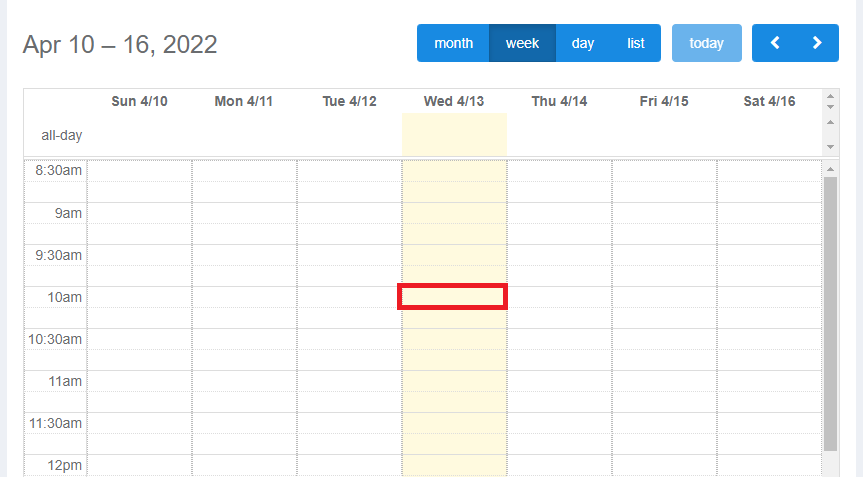
2. **Select Calendar View** - The default is by month, but viewing by week or day is easier when setting new appointments.
 3. **Click on an Open Time Slot** - A new dialogue will open.
 You can select an existing patient to prepopulate the appointment fields or create a new patient.
Make sure the phone field is filled out with the patient's mobile number if you want them to receive text reminders or telehealth links.
You can select an existing patient to prepopulate the appointment fields or create a new patient.
Make sure the phone field is filled out with the patient's mobile number if you want them to receive text reminders or telehealth links.
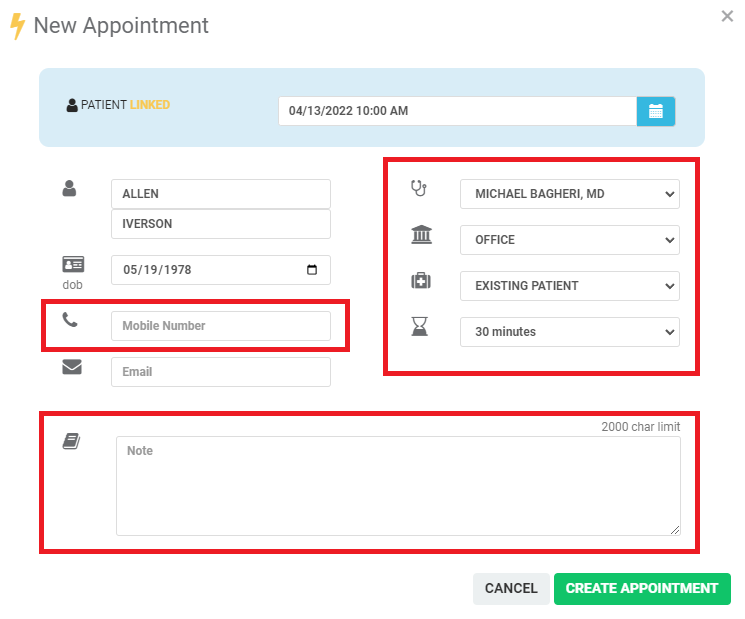 Be sure to select:
* **Provider**
* **Location**
* **Type**
* **Duration**
You can also add a brief **note** that will only be visible on the calendar or in the waiting room.
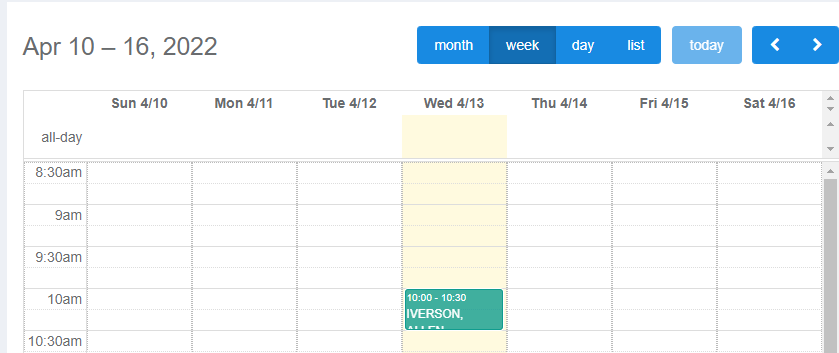
4. **Create Appointment** - Click **CREATE APPOINTMENT**.
Be sure to select:
* **Provider**
* **Location**
* **Type**
* **Duration**
You can also add a brief **note** that will only be visible on the calendar or in the waiting room.
4. **Create Appointment** - Click **CREATE APPOINTMENT**.
 ## Related Articles
* [How to Edit/Cancel an Appointment (Legacy Practices Only)](/articles/how-to-editcancel-an-appointment-legacy-practices-only)
* [How to Adjust Your Appointment Calendar Settings (Legacy Practices Only)](/articles/how-to-adjust-your-appointment-calendar-settings-legacy-practices-only)
* [How to Use the Waiting Room (Legacy Practices Only)](/articles/how-to-use-the-waiting-room-legacy-practices-only)
## Related Articles
* [How to Edit/Cancel an Appointment (Legacy Practices Only)](/articles/how-to-editcancel-an-appointment-legacy-practices-only)
* [How to Adjust Your Appointment Calendar Settings (Legacy Practices Only)](/articles/how-to-adjust-your-appointment-calendar-settings-legacy-practices-only)
* [How to Use the Waiting Room (Legacy Practices Only)](/articles/how-to-use-the-waiting-room-legacy-practices-only)