> ## Documentation Index
> Fetch the complete documentation index at: https://help.elationhealth.com/llms.txt
> Use this file to discover all available pages before exploring further.
# Using worksheets to write queries
## Accessing Worksheets To Write Queries
Worksheet lets you write your SQL statements allowing you to pull your data. This is also where you can download, save, and organize your queries for future reference.
**Step 1: Start a New Worksheet**
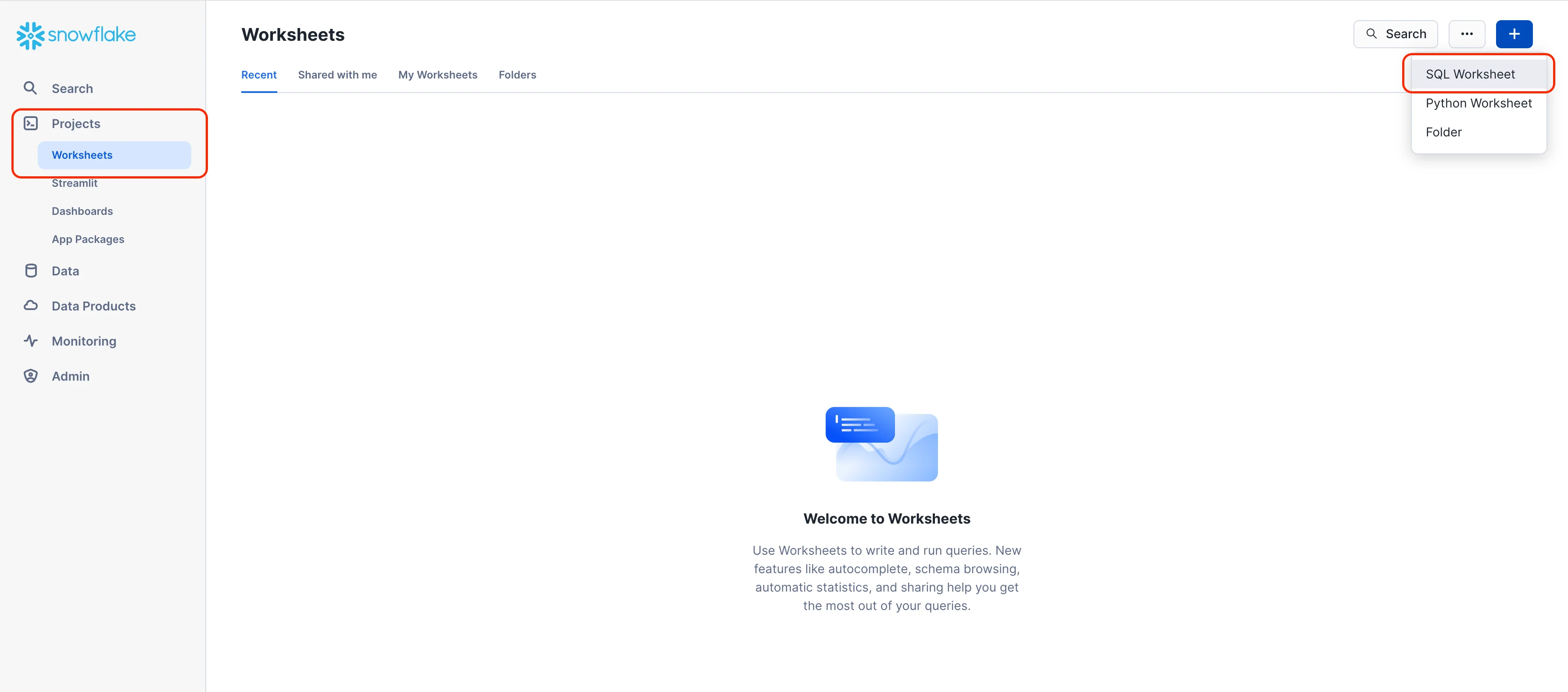
1. On the left hand navigation bar click on Projects > Worksheets
2. Click on the blue + button on the right hand corner of the page
3. Select SQL Worksheet
 **Step 2: Pick your Role and Warehouse**
On the top right hand side of the worksheet click on the link located left of the Share button
Select the **USERADMIN** role and choose the warehouse named after your practice.
**Step 2: Pick your Role and Warehouse**
On the top right hand side of the worksheet click on the link located left of the Share button
Select the **USERADMIN** role and choose the warehouse named after your practice.
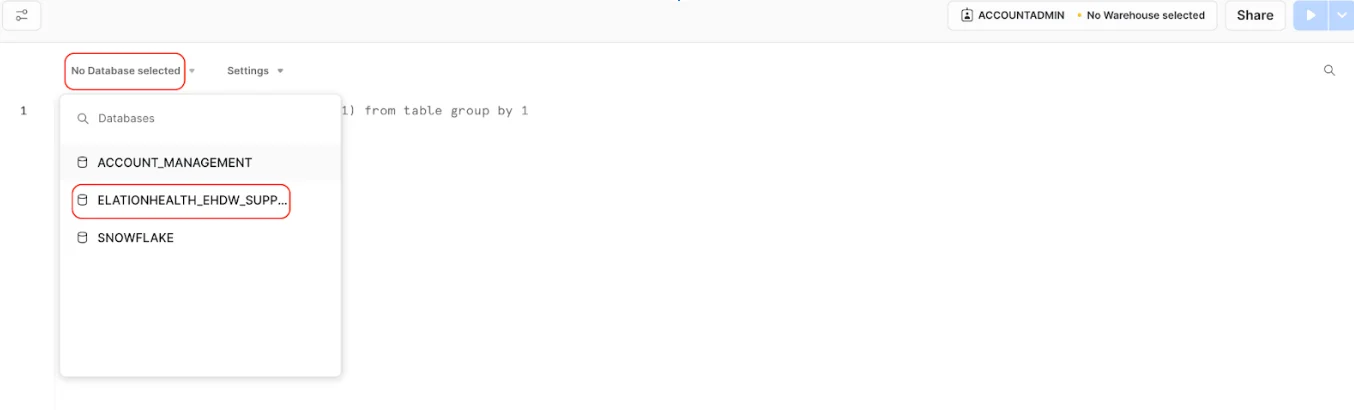
 **Step 4: Select your database and warehouse**
On the top left hand corner of your **Worksheet** click on **No Database selected** and choose your Database name. Your Database name will start with **ELATIONHEALTH\_EHDW**
**Step 4: Select your database and warehouse**
On the top left hand corner of your **Worksheet** click on **No Database selected** and choose your Database name. Your Database name will start with **ELATIONHEALTH\_EHDW**
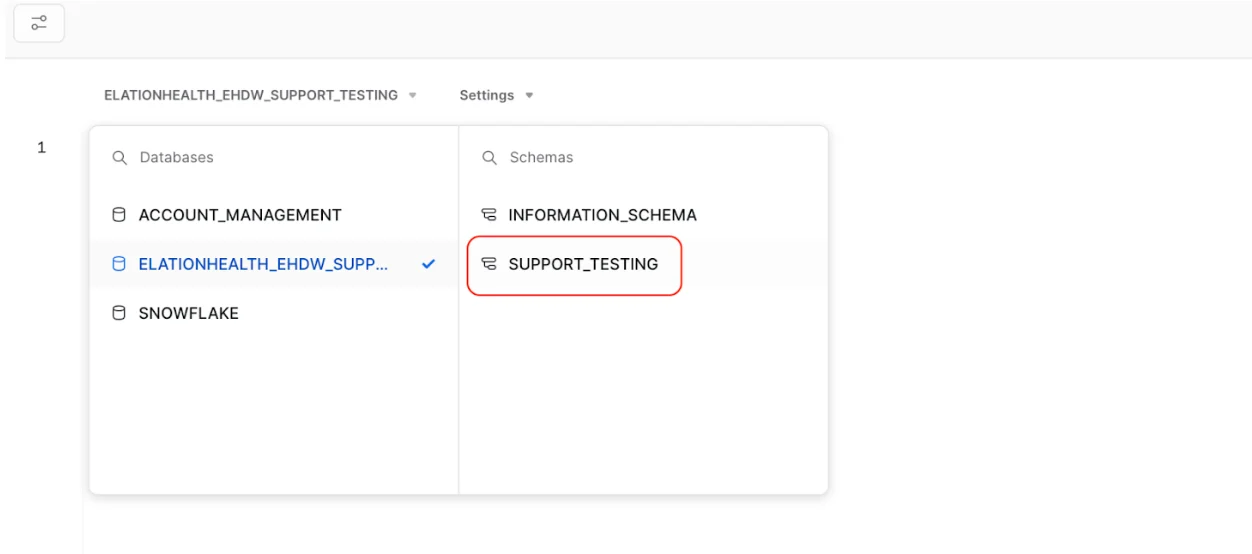
 Now choose your Schema which will be your practice name
 **Pro tip:** You can run the below commands in a worksheet to choose your database, schema, role, and warehouse
```sql sql theme={null}
USE DATABASE ELATIONHEALTH_EHDW_YOUR_PRACTICE_NAME
USE SCHEMA YOUR_PRACTICE_NAME;
USE ROLE USERADMIN;
USE WAREHOUSE YOUR_PRACTICE_NAME_WH;
select * from appointments;
```
**You are now all set to run your first query!**
Test this out by typing the below query into your worksheet.
```sql sql theme={null}
SELECT * FROM APPOINTMENT;
```
**Pro tip:** You can run the below commands in a worksheet to choose your database, schema, role, and warehouse
```sql sql theme={null}
USE DATABASE ELATIONHEALTH_EHDW_YOUR_PRACTICE_NAME
USE SCHEMA YOUR_PRACTICE_NAME;
USE ROLE USERADMIN;
USE WAREHOUSE YOUR_PRACTICE_NAME_WH;
select * from appointments;
```
**You are now all set to run your first query!**
Test this out by typing the below query into your worksheet.
```sql sql theme={null}
SELECT * FROM APPOINTMENT;
```
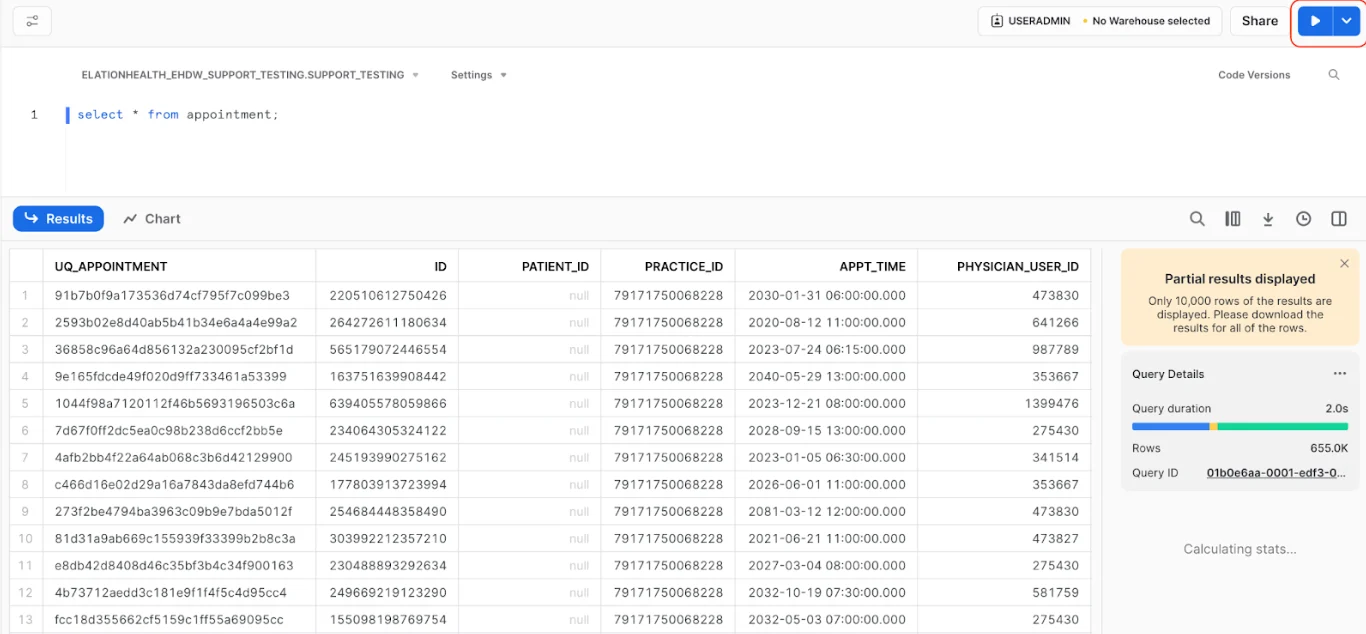
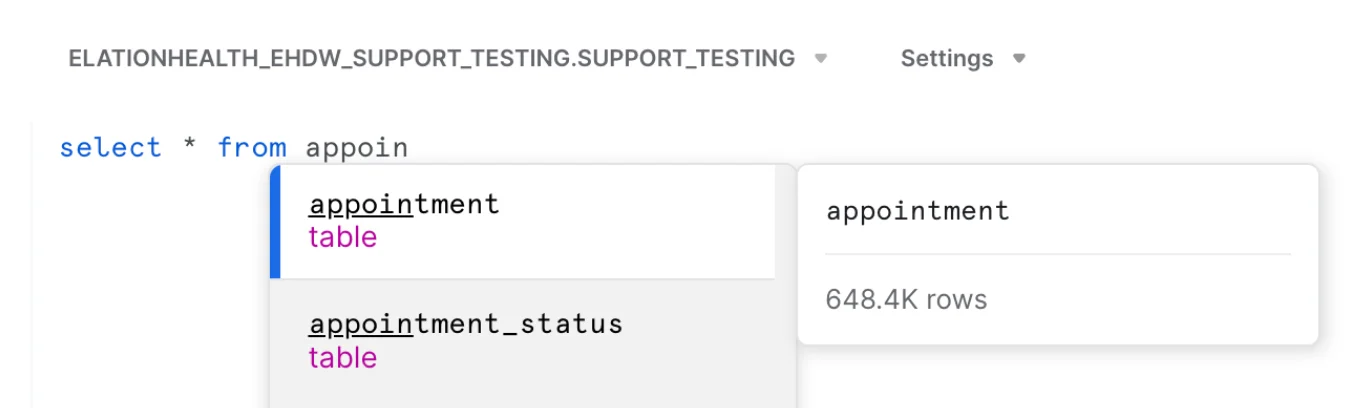 Press the **blue play button** on the top right hand corner of your worksheet to get your results
 ***
Submit a request through the [Elation Support Portal](/articles/support-portal-introduction) with the subject line **HDB - unable to run queries** and include the error message you are receiving.
***
Submit a request through the [Elation Support Portal](/articles/support-portal-introduction) with the subject line **HDB - unable to run queries** and include the error message you are receiving.