> ## Documentation Index
> Fetch the complete documentation index at: https://help.elationhealth.com/llms.txt
> Use this file to discover all available pages before exploring further.
# Managing your users
## Viewing a list of Users
You can view a list of users and their status by either:
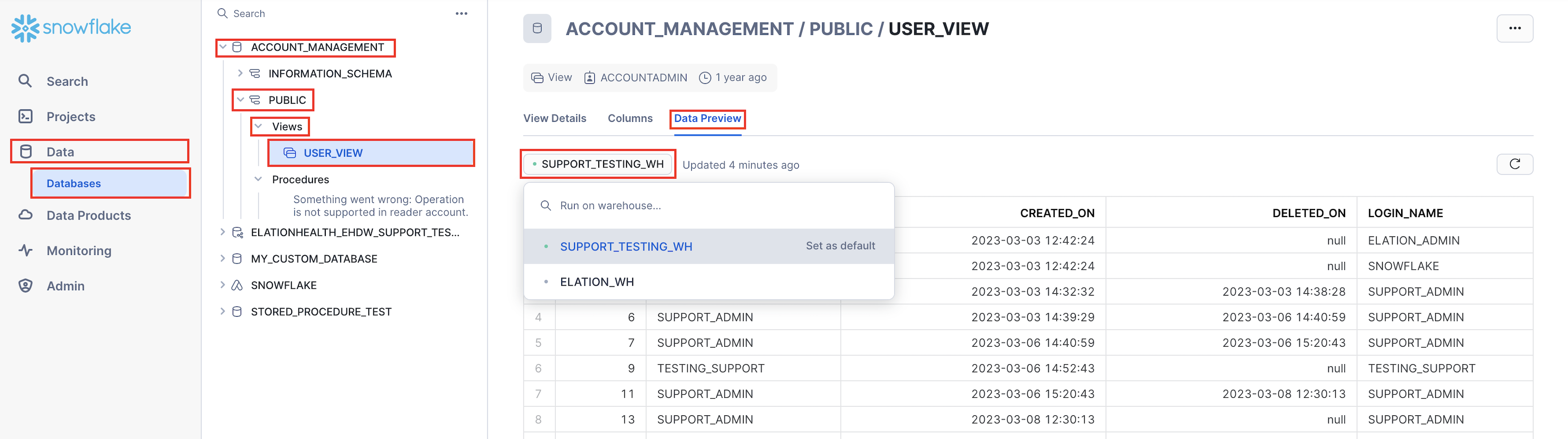
**Accessing USER\_VIEW**
**Step 1:** On the left hand navigation bar clicking on Data > Databases
**Step 2:** Clicking on ACCOUNT\_MANAGEMENT > Public
**Step 3:** Then Click on USER\_VIEW and picking your warehouse under Data Preview
 **Worksheet**
Step 1: Go into a worksheet
Step 2: Run the below command
```sql sql theme={null}
SHOW USERS;
```
This will not give you as much information as USER\_VIEW but will give you a quick summary of your users.
## Creating a new User
You can create a new user by running the below statement in a new worksheet
```sql sql theme={null}
CREATE USER PASSWORD = '' DEFAULT_ROLE = MUST_CHANGE_PASSWORD = TRUE;
```
## Creating a new Role
You can create a new role by running the below statement in a new worksheet
```sql sql theme={null}
CREATE ROLE ;
```
## Creating a new User and assigning it to a new Role
You can create a new user and assign it to a new role by running the below statement in a new worksheet
```sql sql theme={null}
CREATE ROLE ;
CREATE USER PASSWORD = '' DEFAULT_ROLE = MUST_CHANGE_PASSWORD = TRUE;
GRANT ROLE TO USER ;
GRANT SELECT to all tables in schema your_table_name.your_schema_name to role ;
```
* You only have to create a ROLE once, then you can assign it to other users
* New Roles created will only have permissions to read and query the data
* You can assign the existing USERADMIN roles to other users you create but you will be granting them permission to:
* Create users
* Create new roles
* Create tables
## Granting a Role to an Existing User
You can grant an existing role to an existing user by
```sql sql theme={null}
GRANT ROLE TO USER ;
```
## Disable a User's access
Please reach out to [Elation Support Portal](/articles/support-portal-introduction) to disable a user's access with the subject line HDB - \ along with the username and email.
***
*If you have any questions about this topic please reach out to [Elation Support Portal](/articles/support-portal-introduction) with the subject line HDB - \*
**Worksheet**
Step 1: Go into a worksheet
Step 2: Run the below command
```sql sql theme={null}
SHOW USERS;
```
This will not give you as much information as USER\_VIEW but will give you a quick summary of your users.
## Creating a new User
You can create a new user by running the below statement in a new worksheet
```sql sql theme={null}
CREATE USER PASSWORD = '' DEFAULT_ROLE = MUST_CHANGE_PASSWORD = TRUE;
```
## Creating a new Role
You can create a new role by running the below statement in a new worksheet
```sql sql theme={null}
CREATE ROLE ;
```
## Creating a new User and assigning it to a new Role
You can create a new user and assign it to a new role by running the below statement in a new worksheet
```sql sql theme={null}
CREATE ROLE ;
CREATE USER PASSWORD = '' DEFAULT_ROLE = MUST_CHANGE_PASSWORD = TRUE;
GRANT ROLE TO USER ;
GRANT SELECT to all tables in schema your_table_name.your_schema_name to role ;
```
* You only have to create a ROLE once, then you can assign it to other users
* New Roles created will only have permissions to read and query the data
* You can assign the existing USERADMIN roles to other users you create but you will be granting them permission to:
* Create users
* Create new roles
* Create tables
## Granting a Role to an Existing User
You can grant an existing role to an existing user by
```sql sql theme={null}
GRANT ROLE TO USER ;
```
## Disable a User's access
Please reach out to [Elation Support Portal](/articles/support-portal-introduction) to disable a user's access with the subject line HDB - \ along with the username and email.
***
*If you have any questions about this topic please reach out to [Elation Support Portal](/articles/support-portal-introduction) with the subject line HDB - \*