> ## Documentation Index
> Fetch the complete documentation index at: https://help.elationhealth.com/llms.txt
> Use this file to discover all available pages before exploring further.
# Patient Chart Guide- Uploading documents directly within the patient's chart
> This article describes the step-by-step instructions for uploading documents into a patient chart using the drag-and-drop feature.
## Overview
### How to add documents to a patient's chart
There are two ways to add documents to a patient's chart
1. File documents from the [Fax Inbox](/articles/Fax-Inbox-Introduction).
2. Upload documents (e.g. PDF, .JPEG, .PNG, .doc, .xls) directly within the patient's chart using the drag-and-drop feature.
### When to use the drag-and-drop feature
The drag-and-drop feature comes in handy when you have documents on your computer that you would like to upload to a patient's chart. You can only use the drag-and-drop feature to upload one document at a time. If you need to upload multiple documents, you will need to take the drag-and-drop steps multiple times.
Use the [Fax Inbox](/articles/Fax-Inbox-Introduction) if:
* If you need to combine multiple documents into one record in the chart
* If a single document contains records for more than one patient
## Workflow Instructions
### Uploading files to the patient's chart using the drag-and-drop feature
| **1** | Find the document (e.g. PDF, .JPEG, .PNG, .doc, .xls) you want to file into your patient's chart on your computer. |
| ----- | --------------------------------------------------------------------------------------------------------------------------------------------------------------------------------------------------------------------------------------------------------------------------------------------------------------------------------------------------------------------------------------------------------------------------------------------------------------------------------------------------------------------------------------------------------------------------------------------------------------------------------------------------------------------------------------------------------------------------------------------------------------------------------------------------------------------------------------------------------------------------------------------------------------------------------------------------------------------------------------------------------------------------------------------------------------------------------------------------------------------------------------------------------------------------------------------------------------------------------------------------------------------------------------------------------------------------------------------------------------------------------------------------------------------------------------------------------------------------------------------------------------------------------------------------------------------------------------------------------------------------------------------------------------------------------------------------------------------------------------------------------------------------- |
| **2** | Click on the file from your the folder on your computer, hold down on your mouse cursor and drag the file anywhere over the patient's chart in Elation and release your mouse cursor to drop the file. 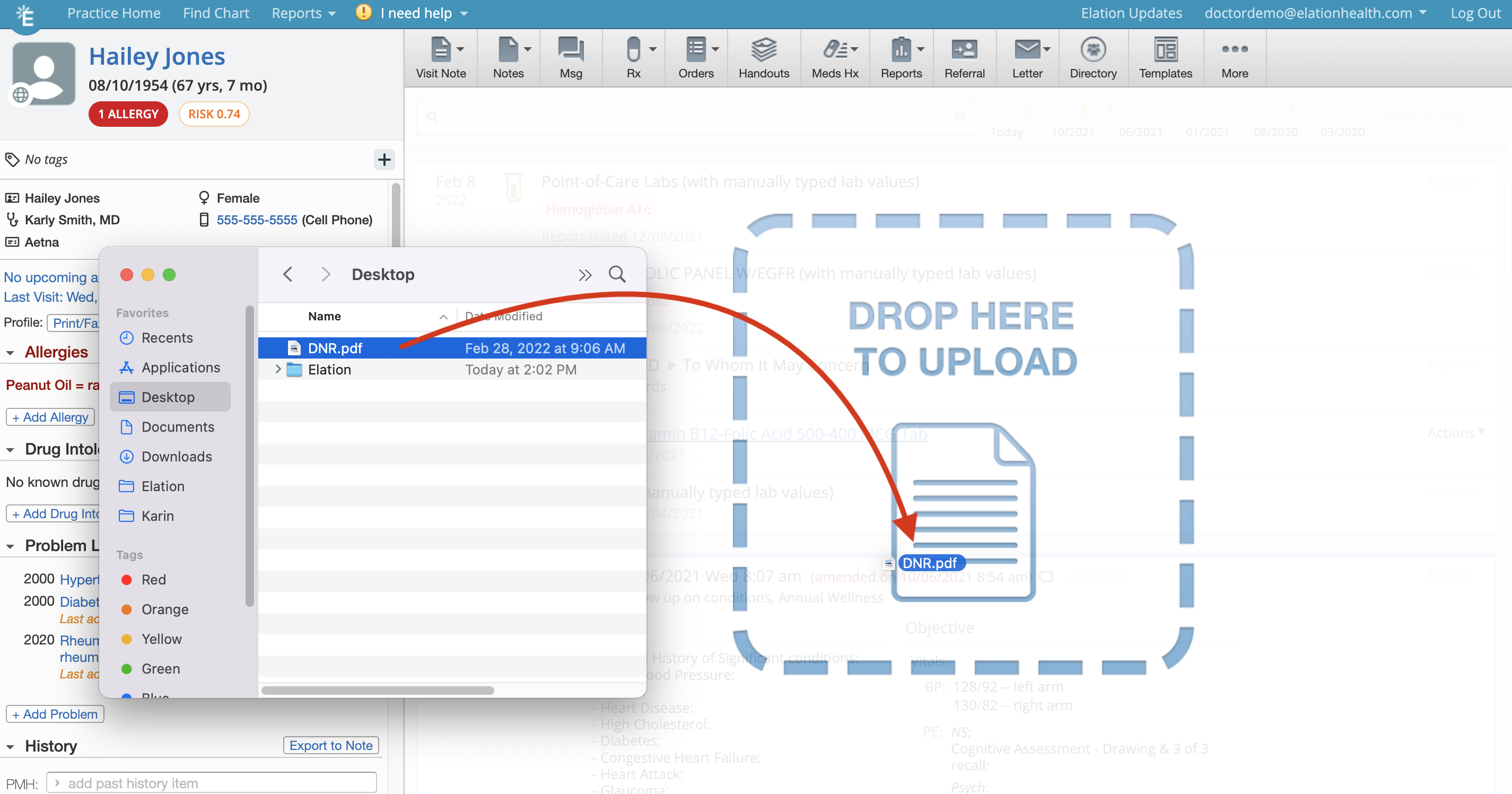 |
| **3** | Fill out the reviewer's name, date of document, select the document type ( [Report Category](/articles/report-types) ) and add a title and/or report tags if desired. |
| **4** | Click **Upload File** when you are ready to upload the document.
|
| **3** | Fill out the reviewer's name, date of document, select the document type ( [Report Category](/articles/report-types) ) and add a title and/or report tags if desired. |
| **4** | Click **Upload File** when you are ready to upload the document. 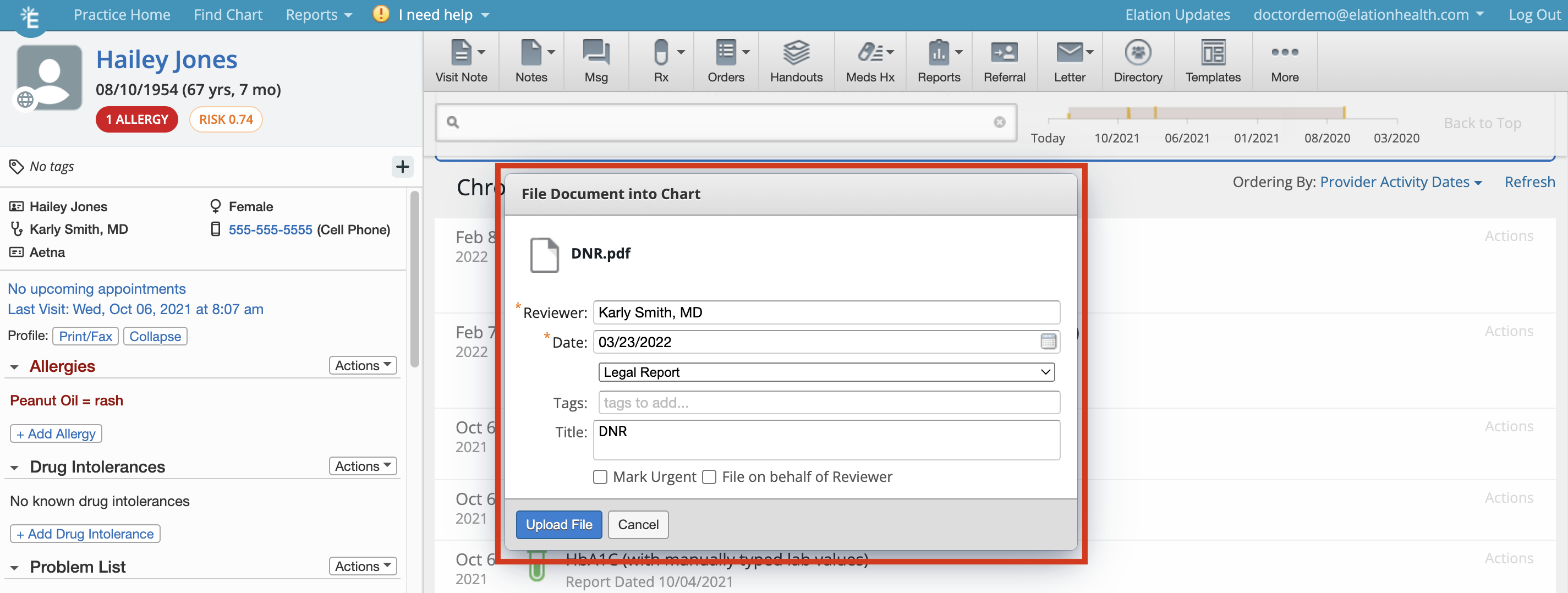 |
| **5** | Wait for the document to upload and process before moving or removing it from the original location on your computer or the upload will fail. |
| **6** | Once processed, the document will appear in the Chronological Record. |
### Uploading files to a visit note draft using the drag-and-drop feature
**1**
Find the document (e.g. PDF, .JPEG, .PNG, .doc, .xls) you want to file into your patient's chart on your computer.
**2**
While a visit note draft is open, click on the file from your the folder on your computer, hold down on your mouse cursor and drag the file anywhere over the visit note in Elation and release your mouse cursor to drop the file.
|
| **5** | Wait for the document to upload and process before moving or removing it from the original location on your computer or the upload will fail. |
| **6** | Once processed, the document will appear in the Chronological Record. |
### Uploading files to a visit note draft using the drag-and-drop feature
**1**
Find the document (e.g. PDF, .JPEG, .PNG, .doc, .xls) you want to file into your patient's chart on your computer.
**2**
While a visit note draft is open, click on the file from your the folder on your computer, hold down on your mouse cursor and drag the file anywhere over the visit note in Elation and release your mouse cursor to drop the file. 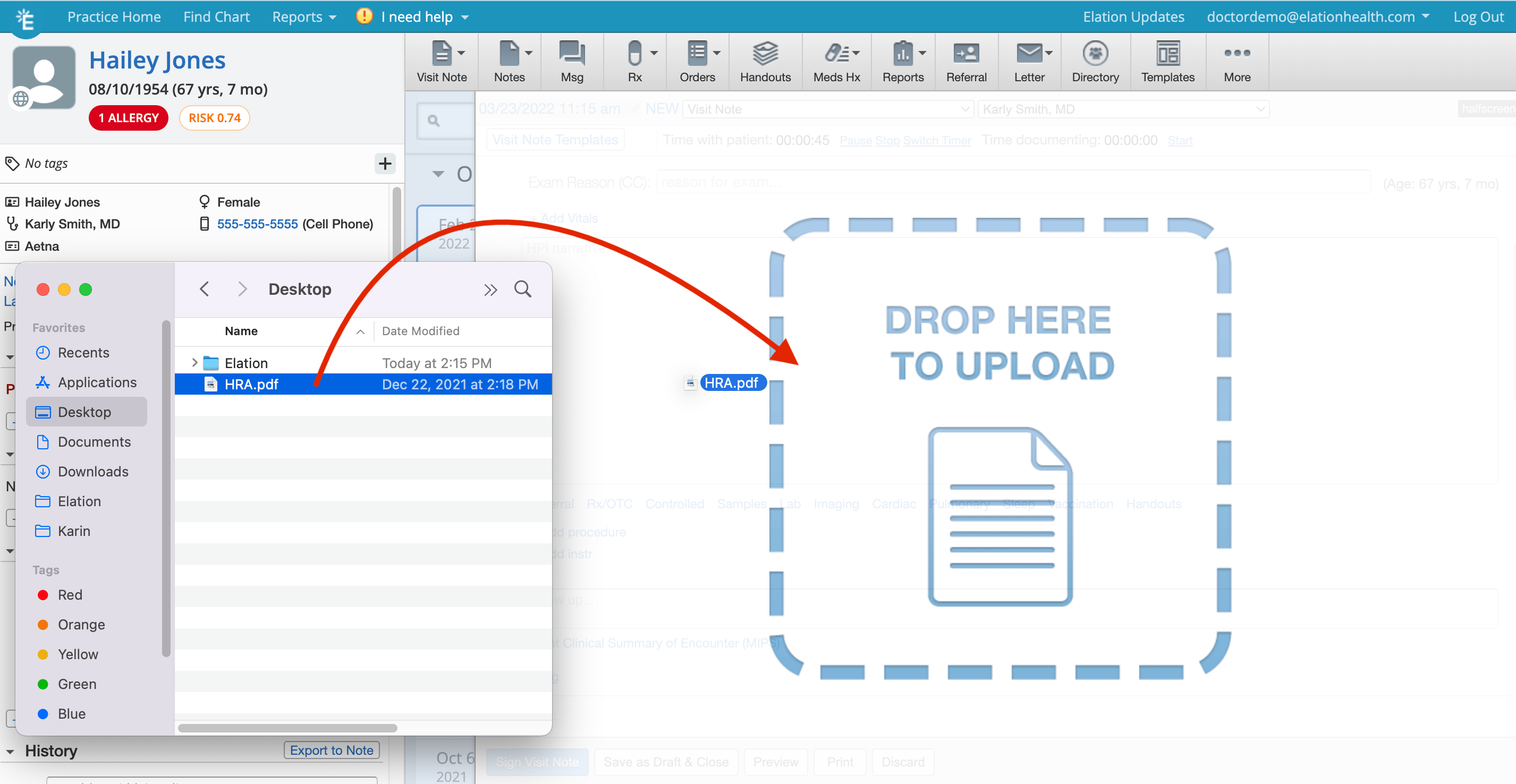 **3**
Wait for the document to upload and process before moving or removing it from the original location on your computer or the upload will fail.
Once the document is processed it will appear in a new **Attachment** section immediately below the **Follow Up** section of the visit note draft.
**3**
Wait for the document to upload and process before moving or removing it from the original location on your computer or the upload will fail.
Once the document is processed it will appear in a new **Attachment** section immediately below the **Follow Up** section of the visit note draft. 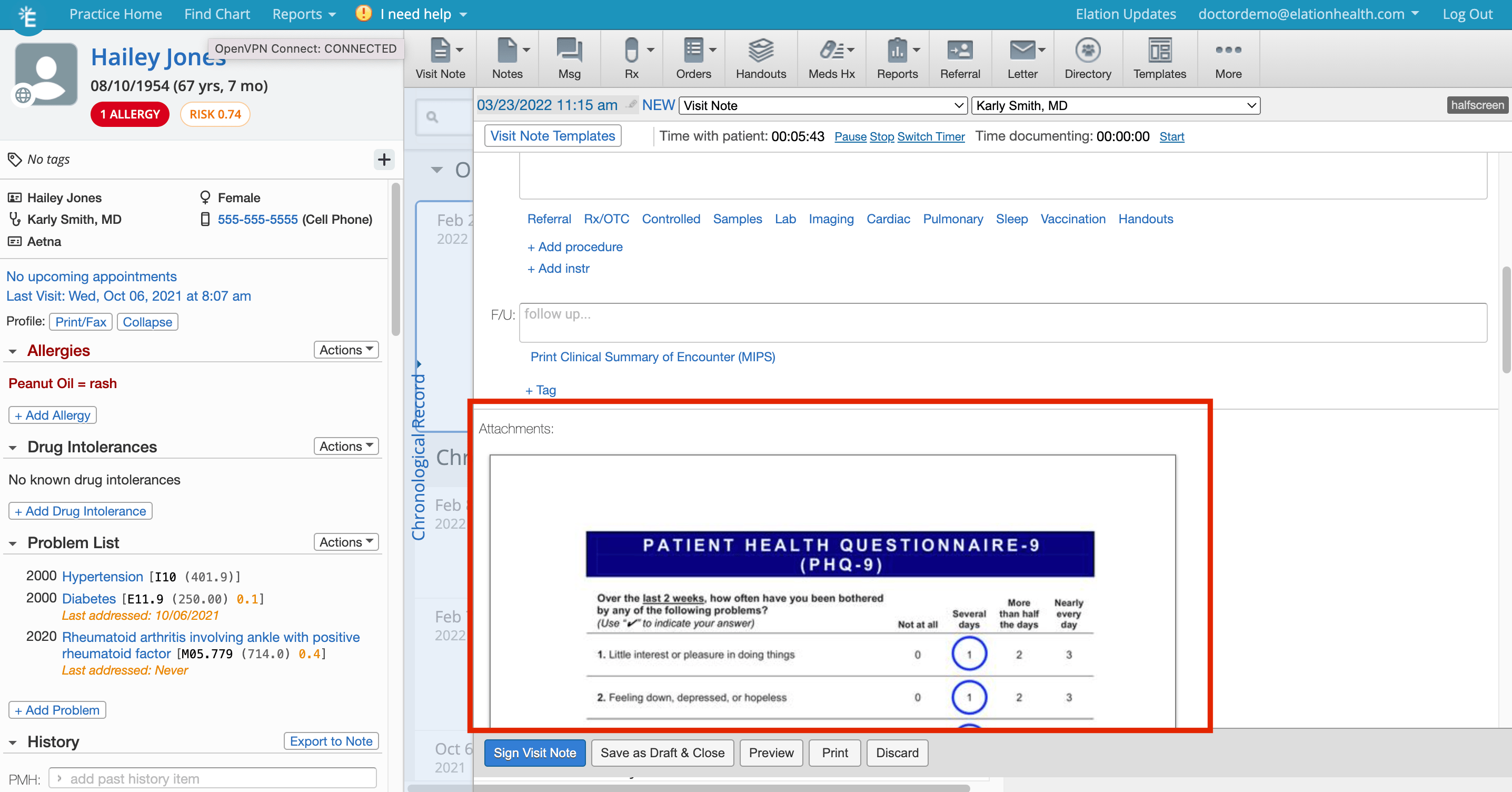 **Related Articles**
* [Fax Inbox Guide- Managing inbound electronic faxes and uploading documents](/articles/Fax-Inbox-Introduction)
* [Report Category Guide- Categorizing patient documents](/articles/report-types)
**Related Articles**
* [Fax Inbox Guide- Managing inbound electronic faxes and uploading documents](/articles/Fax-Inbox-Introduction)
* [Report Category Guide- Categorizing patient documents](/articles/report-types)