> ## Documentation Index
> Fetch the complete documentation index at: https://help.elationhealth.com/llms.txt
> Use this file to discover all available pages before exploring further.
# Elation EHR + Billing - Self Pay Patients
> Learn how to handle self-pay patients in Elation EHR + Billing
This article explains how to collect payments and bill for self-pay patients in Elation EHR + Billing.
## Overview
### Self-Pay in the EHR
When collecting a Patient Payment in the EHR, there is no "Self-Pay" reason available at this time. While this feature is being developed, follow the steps below for billing self-pay patients and collecting/applying their payments.
## Workflow Instructions
### Step 1 - Collect Payment
#### Option A - Collect Payment in EHR
See [Collecting a Payment in the EHR](/articles/elation-ehr-billing-collecting-a-patient-payment-in-the-ehr) for detailed instructions.
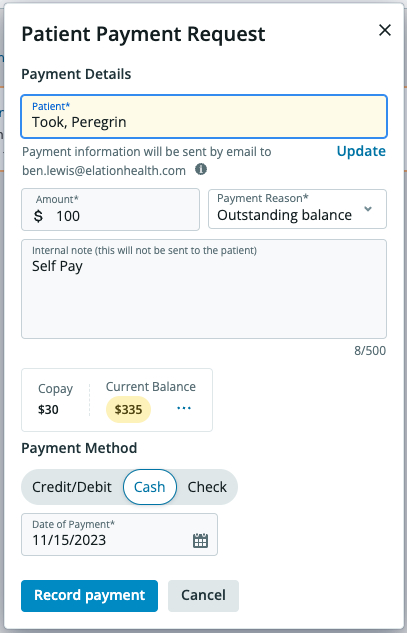
**Payment Reason Options:**
* **Copay** - Locks the payment to the patient's DOS that matches the Date of Payment. Leftover funds will need to be manually applied.
* **Outstanding Balance** - Allows funds to be applied to any of the patient's balances until exhausted.
**Optional - Internal Note:**
Add an Internal Note (which will NOT be sent to the patient) indicating "Self Pay". This note will be found in the EHR Patient Payment Report but will NOT transfer to Elation Billing.
 #### Option B - Collect Third-Party Payment, Record in Elation Billing
If your practice:
* Collects Patient Payments through a third-party vendor, and
* Wants to record the Patient Payments directly in Elation Billing (bypassing the EHR)
See [Manually Recording Patient Payments in Elation Billing](/articles/elation-ehr-billing-manually-record-patient-payment-in-elation-billing).
***
### Step 2 - Create the Claim
Create the Visit Note and subsequent Superbill as you typically would.
***
### Step 3 - Lightning Bill to Patient
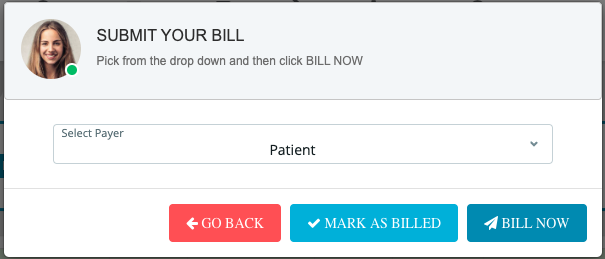
When you Lightning Bill the Superbill, select **PATIENT** (not Self Pay), then click **Bill Now**. This transfers the balance to the patient in Elation Billing.
#### Option B - Collect Third-Party Payment, Record in Elation Billing
If your practice:
* Collects Patient Payments through a third-party vendor, and
* Wants to record the Patient Payments directly in Elation Billing (bypassing the EHR)
See [Manually Recording Patient Payments in Elation Billing](/articles/elation-ehr-billing-manually-record-patient-payment-in-elation-billing).
***
### Step 2 - Create the Claim
Create the Visit Note and subsequent Superbill as you typically would.
***
### Step 3 - Lightning Bill to Patient
When you Lightning Bill the Superbill, select **PATIENT** (not Self Pay), then click **Bill Now**. This transfers the balance to the patient in Elation Billing.
 ***
### Step 4 - Apply the Payment
Use [Applying Patient Payments with ⚡️Apply Patient Payments](/articles/applying-patient-payments-with-apply-patient-payments) to automatically apply unapplied funds to patient balances.
> **Reminder:** Copays are locked to the patient's DOS that matches the Date of Payment. Leftover copay funds will need to be manually applied.
## Related Articles
* [Elation EHR + Billing - Collecting a Patient Payment in the EHR](/articles/elation-ehr-billing-collecting-a-patient-payment-in-the-ehr)
* [Applying Patient Payments with ⚡️Apply Patient Payments](/articles/applying-patient-payments-with-apply-patient-payments)
* [Filing a Claim](/articles/filing-a-claim)
***
### Step 4 - Apply the Payment
Use [Applying Patient Payments with ⚡️Apply Patient Payments](/articles/applying-patient-payments-with-apply-patient-payments) to automatically apply unapplied funds to patient balances.
> **Reminder:** Copays are locked to the patient's DOS that matches the Date of Payment. Leftover copay funds will need to be manually applied.
## Related Articles
* [Elation EHR + Billing - Collecting a Patient Payment in the EHR](/articles/elation-ehr-billing-collecting-a-patient-payment-in-the-ehr)
* [Applying Patient Payments with ⚡️Apply Patient Payments](/articles/applying-patient-payments-with-apply-patient-payments)
* [Filing a Claim](/articles/filing-a-claim)