> ## Documentation Index
> Fetch the complete documentation index at: https://help.elationhealth.com/llms.txt
> Use this file to discover all available pages before exploring further.
# Elation EHR + Billing - Integrated Refunds
> Learn how to process patient refunds that sync between EHR and Elation Billing
This article explains how to process patient refunds in the EHR with automatic updates to Elation Billing.
## Overview
### What are Integrated Refunds?
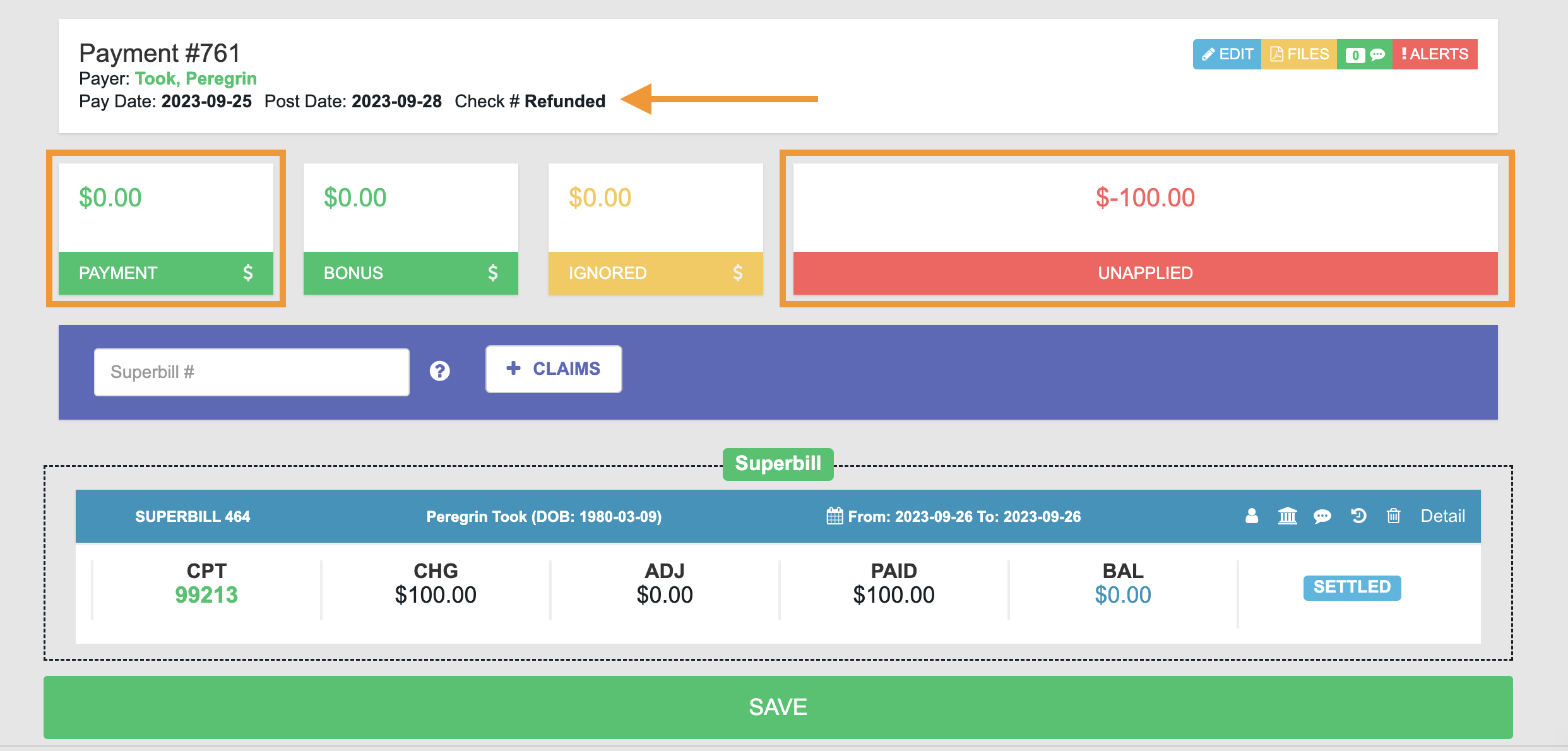
In the EHR, using **Refund** or **Mark Refunded** will apply the following changes in Elation Billing:
* Update the Payment amount to \$0
* Update the Check Number to **Refunded**
It will NOT update or remove any Superbills that have been added to the Payment.
## Workflow Instructions
### Processing a Refund
1. **Navigate to Patient Payment Report** - In the EHR (not Elation Billing), navigate to **Reports** → **Patient Payment Report**.
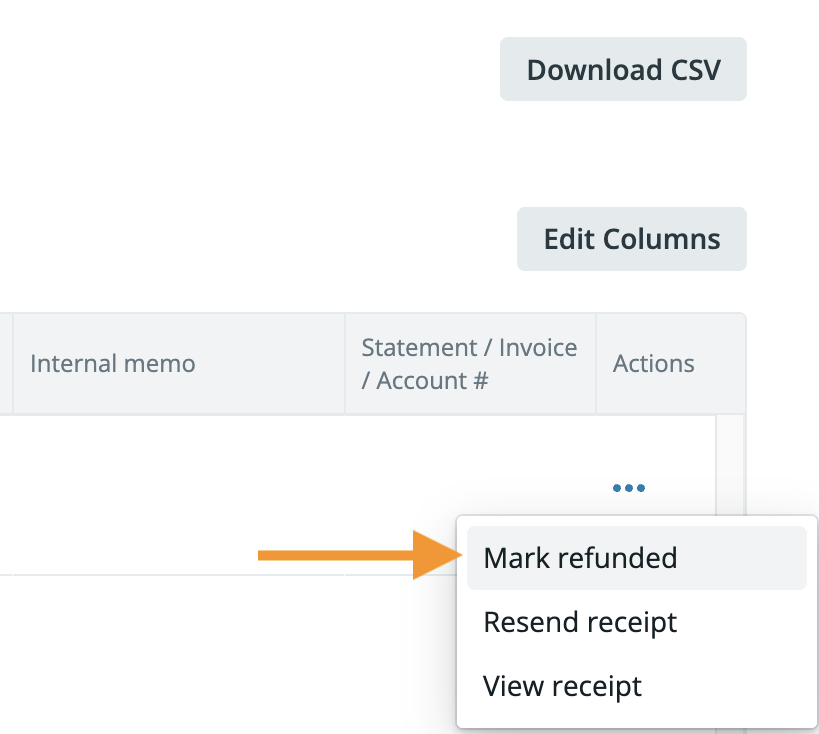
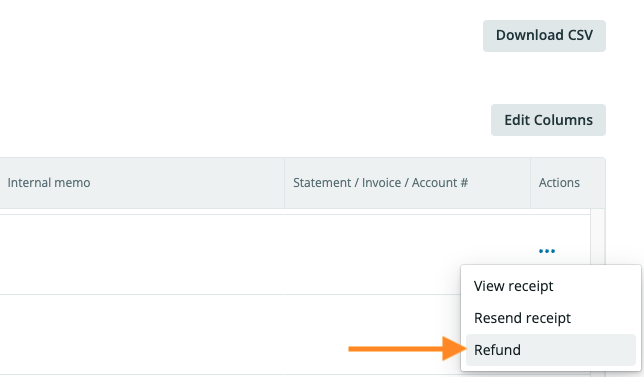
2. **Refund or Mark Refunded** - Once you've found the Patient Payment you wish to refund, use the Actions button:
### For Cash/Check Payments → Mark Refunded
 ### For Credit Card Payments → Refund
 3. **Review in Elation Billing** - Verify the refund was processed correctly.
### Before the Refund
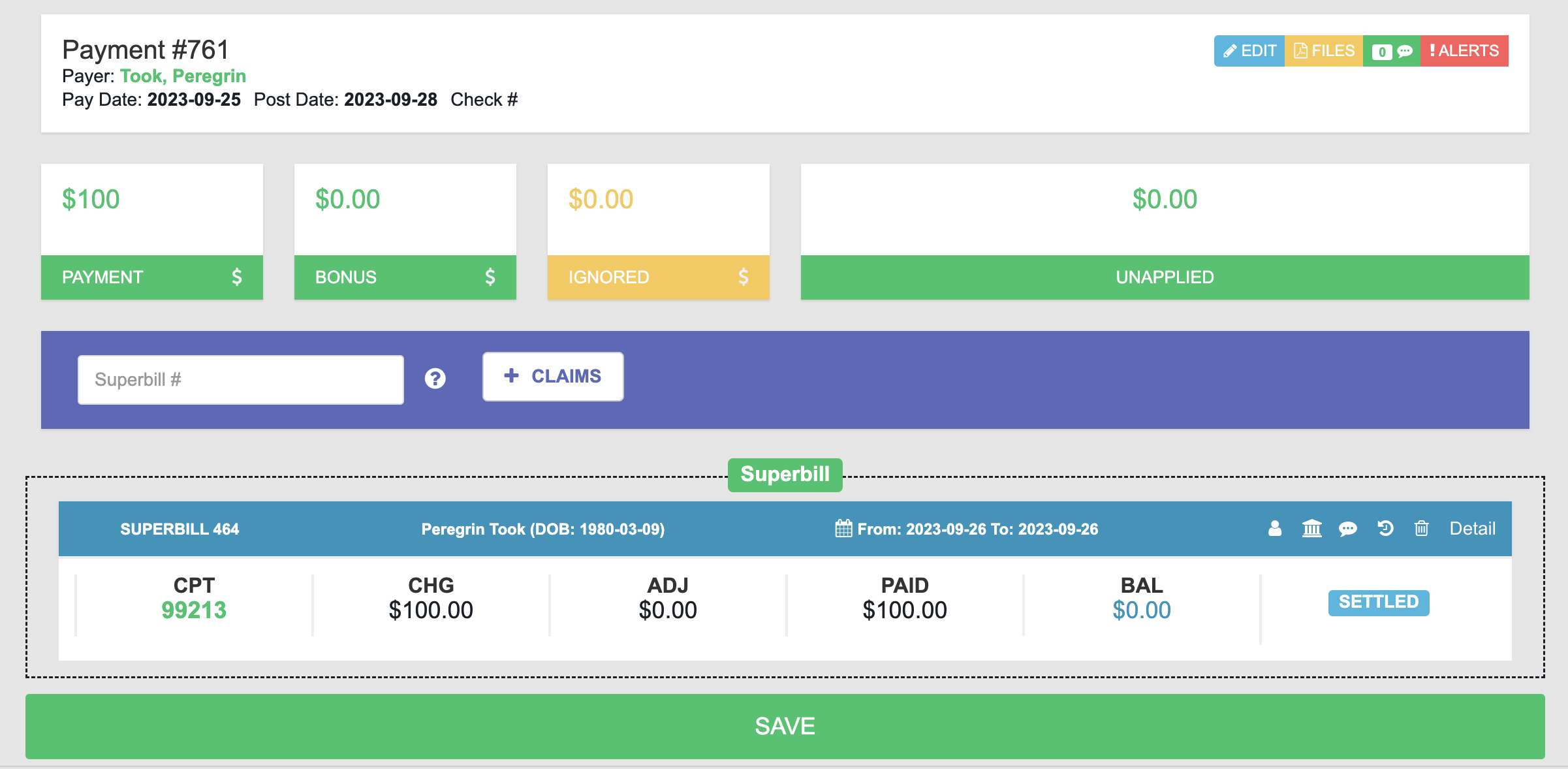
The payment will look something like this:
3. **Review in Elation Billing** - Verify the refund was processed correctly.
### Before the Refund
The payment will look something like this:
 ### After the Refund
* The Check # has been updated to **Refunded**
* The Payment amount has been updated to \$0
* The Unapplied amount will represent the amount that is now over-applied to any Superbills
### After the Refund
* The Check # has been updated to **Refunded**
* The Payment amount has been updated to \$0
* The Unapplied amount will represent the amount that is now over-applied to any Superbills
 ## Related Articles
* [Elation EHR + Billing - Collecting a Patient Payment in the EHR](/articles/elation-ehr-billing-collecting-a-patient-payment-in-the-ehr)
* [Clearing Out a Payment](/articles/clearing-out-a-payment)
## Related Articles
* [Elation EHR + Billing - Collecting a Patient Payment in the EHR](/articles/elation-ehr-billing-collecting-a-patient-payment-in-the-ehr)
* [Clearing Out a Payment](/articles/clearing-out-a-payment)