> ## Documentation Index
> Fetch the complete documentation index at: https://help.elationhealth.com/llms.txt
> Use this file to discover all available pages before exploring further.
# Letter & Referral Guide - Faxing lab, radiology or other orders to vendors
> After you have created and signed a lab or radiology (imaging) order in Elation, you can electronically fax it to the vendor via Elation's Letter to Provider feature.
📖
**RECOMMENDED READING**
[Click here for an introduction to the Letter and Referral features](/articles/letter-and-referral-introduction)
.
If the Lab Vendor you are working with accepts electronic lab orders, simply click **eOrder** from the Lab Order Form - you do not need to fax the lab order to them. [Click here for more information about eOrdering](/articles/Electronic-Lab-Order-Form).
The workflow outlined in this article is an example of a way you can share test orders with testing facilities. Adjust the workflow (e.g. what you attach) as needed.
## Faxing orders to test vendors
After you create and sign any lab, radiology (imaging) or other test orders in Elation, you can electronically fax it to a test vendor via the Letter to Provider feature.
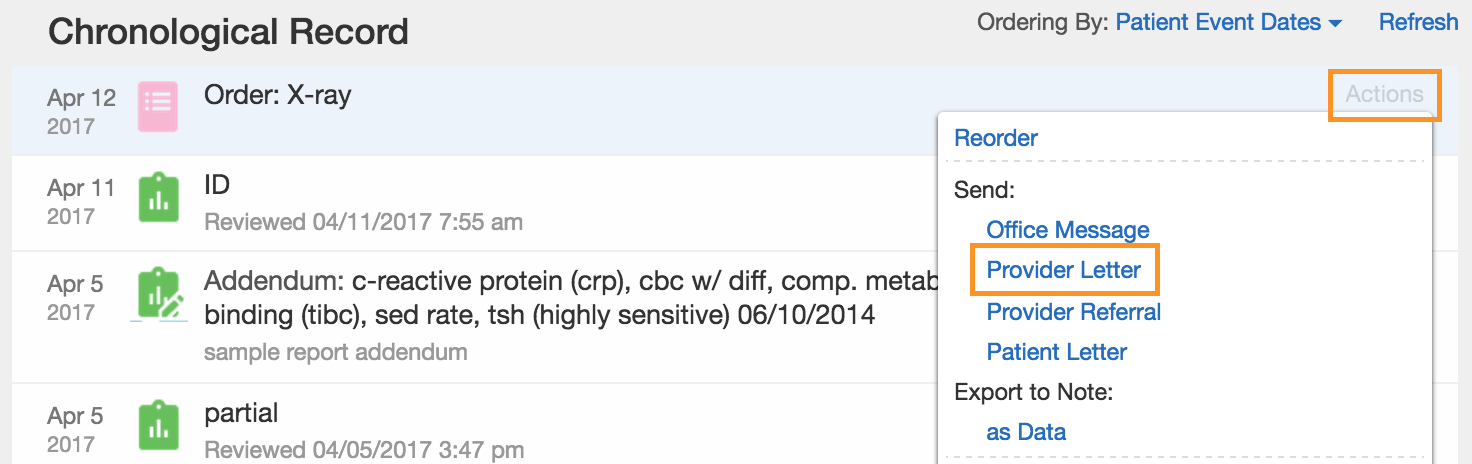
1. Locate the order that you’d like to send in your patient’s chart. Hover over the order, and click **Actions** -> **Provider Letter**.
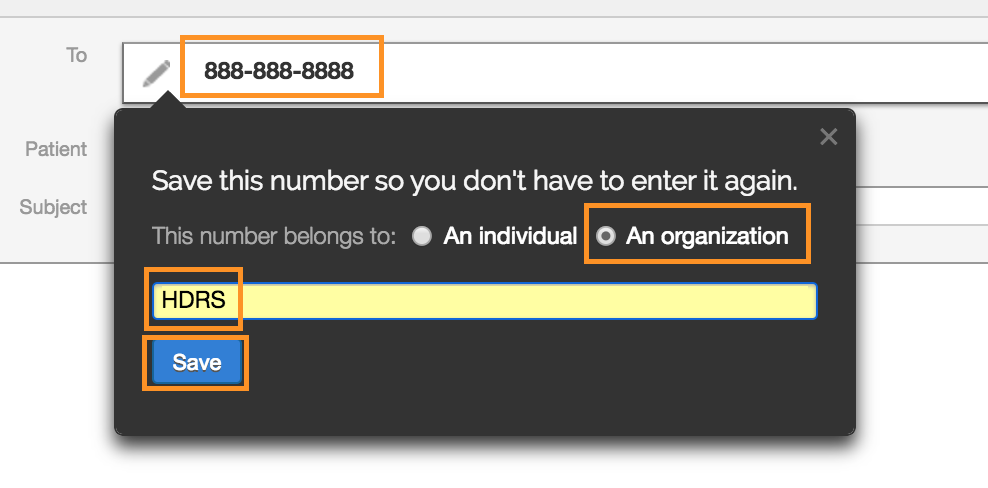
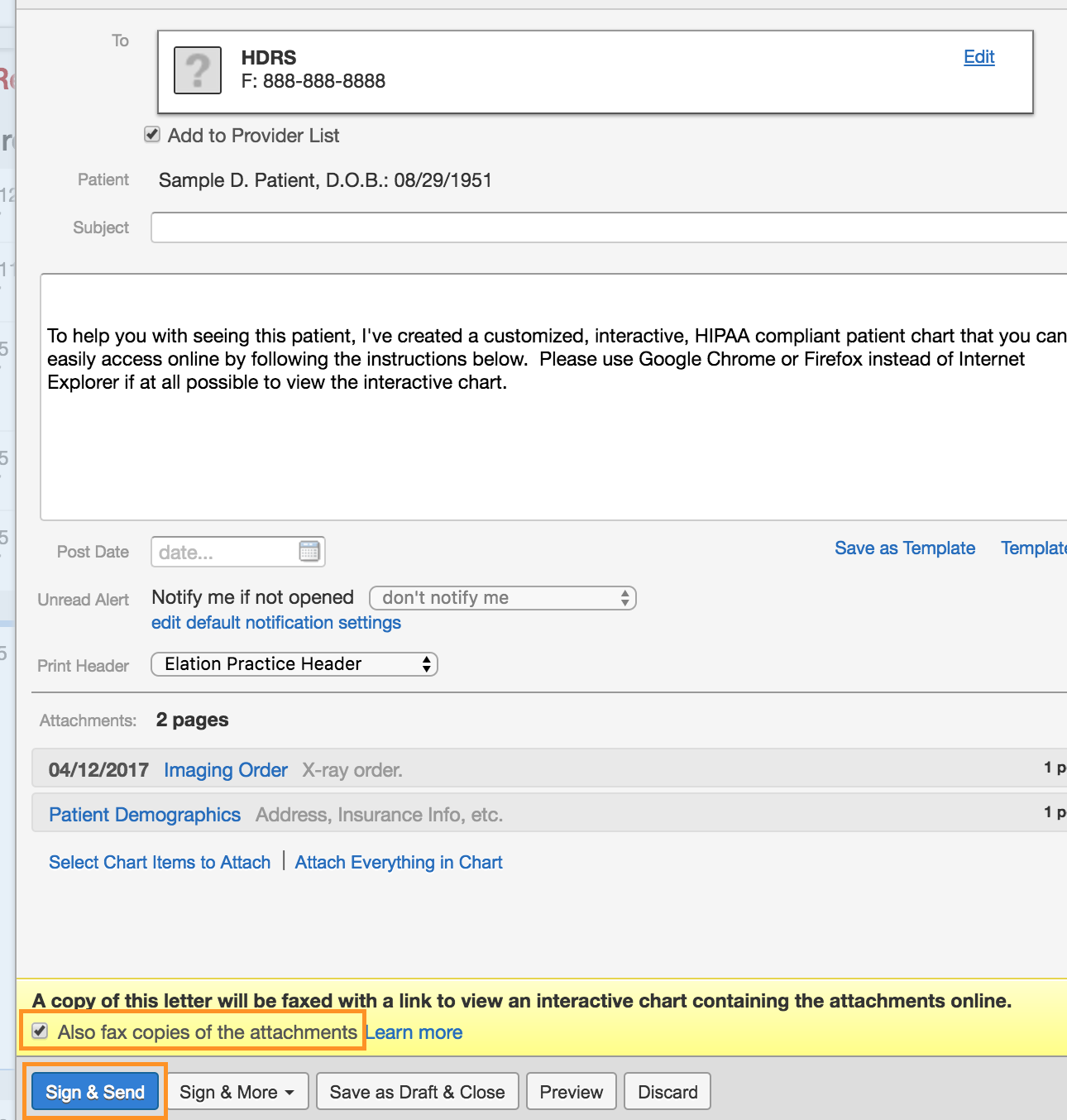
 1. In the **To** field, type the fax number of the vendor. If a search result appears in the [Provider Directory](/articles/Using-the-Provider-Directory) dropdown, click on the result to select an existing contact.
* If no results are found, press the **TAB** key on your keyboard and a dialogue window will appear prompting you to save the fax number to a new contact. Select **Organization**, type the name of the vendor, and click **Save**.
1. In the **To** field, type the fax number of the vendor. If a search result appears in the [Provider Directory](/articles/Using-the-Provider-Directory) dropdown, click on the result to select an existing contact.
* If no results are found, press the **TAB** key on your keyboard and a dialogue window will appear prompting you to save the fax number to a new contact. Select **Organization**, type the name of the vendor, and click **Save**.
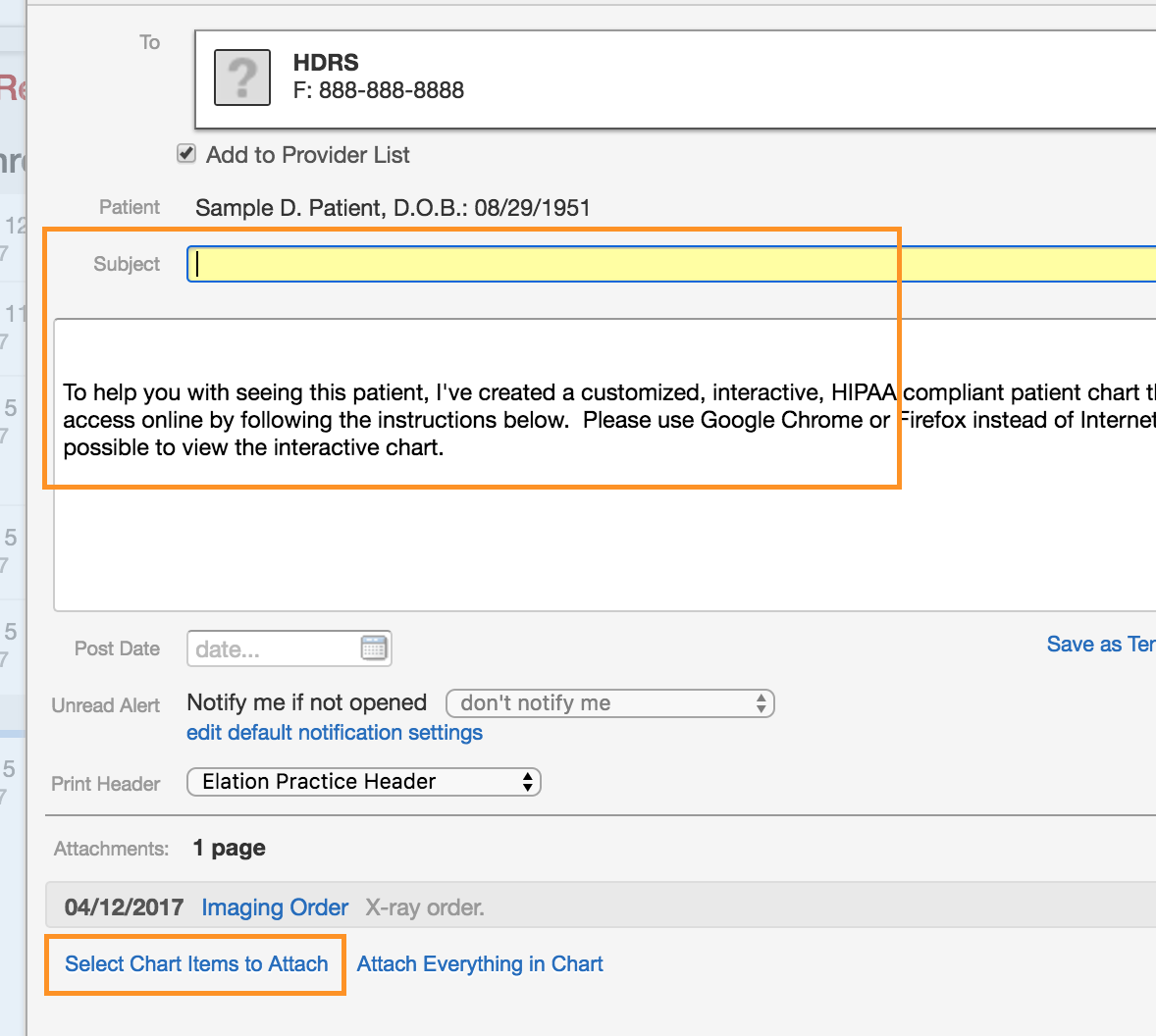
 1. Type a subject and message to the vendor as needed.
2. Next, click **Select Chart Items to Attach**.
1. Type a subject and message to the vendor as needed.
2. Next, click **Select Chart Items to Attach**.
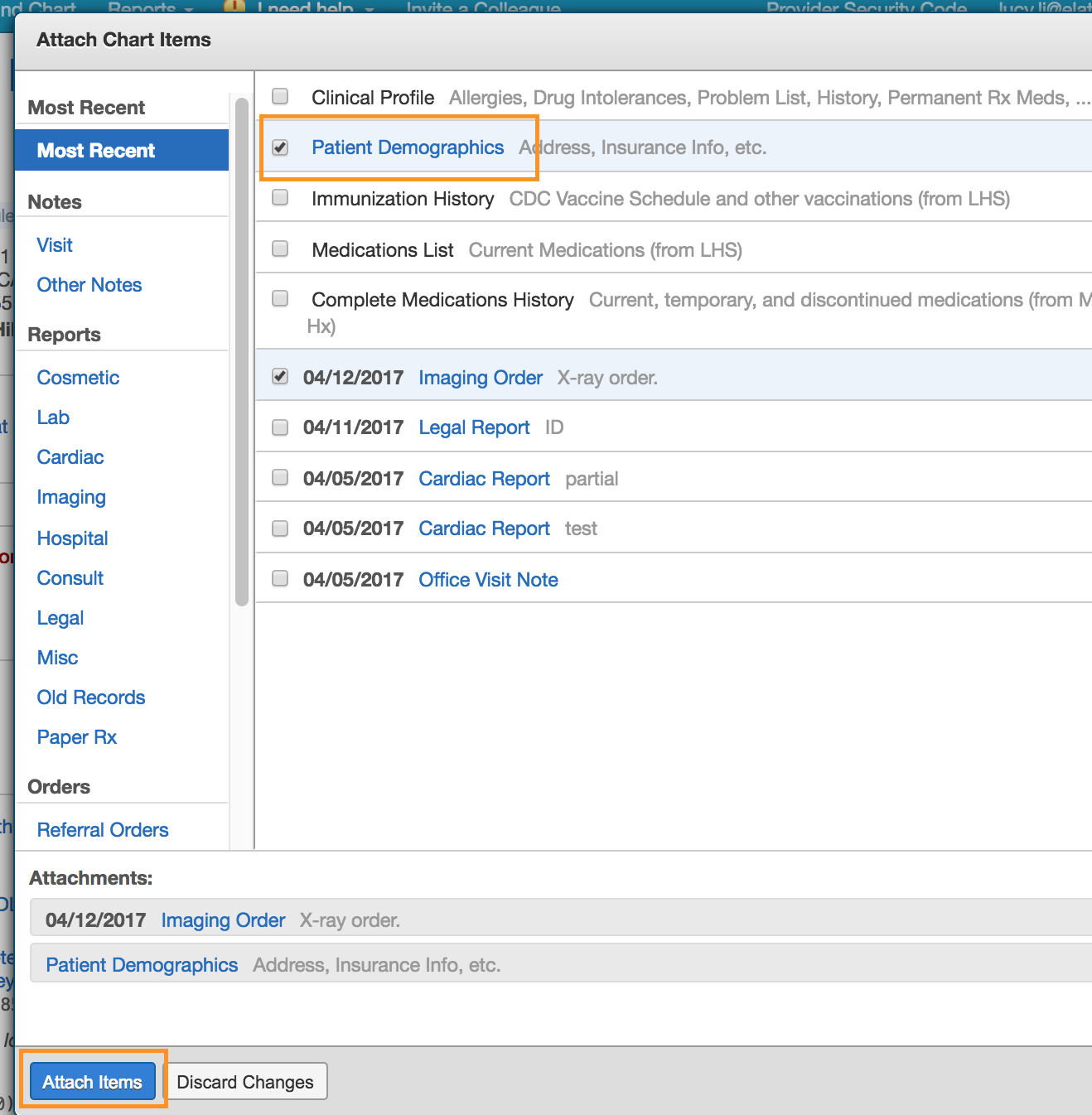
 1. Check off the box for **Patient Demographics** and click **Attach Items**.
 1. At the bottom of the letter, check off the box for **Also fax copies of attachments**.
2. Click **Sign & Send** to fax the order to the vendor.
1. At the bottom of the letter, check off the box for **Also fax copies of attachments**.
2. Click **Sign & Send** to fax the order to the vendor.
 To fax the order outside of Elation with your physical fax machine print the order by clicking **Actions** -> **Print** and then use your fax machine.
**Next StepFax a lab or radiology to your local vendor for a patient!**
## Related Articles
* [Letter & Referral Introduction](/articles/letter-and-referral-introduction)
* [Letter & Referral Guide - Sending a fax](/articles/how-to-send-a-fax)
* [How to Share a Patient's Entire Chart](/articles/how-to-share-a-patients-entire-chart)
* [Lab Orders & Results - Using the electronic Lab Order Form](/articles/Electronic-Lab-Order-Form)
To fax the order outside of Elation with your physical fax machine print the order by clicking **Actions** -> **Print** and then use your fax machine.
**Next StepFax a lab or radiology to your local vendor for a patient!**
## Related Articles
* [Letter & Referral Introduction](/articles/letter-and-referral-introduction)
* [Letter & Referral Guide - Sending a fax](/articles/how-to-send-a-fax)
* [How to Share a Patient's Entire Chart](/articles/how-to-share-a-patients-entire-chart)
* [Lab Orders & Results - Using the electronic Lab Order Form](/articles/Electronic-Lab-Order-Form)