> ## Documentation Index
> Fetch the complete documentation index at: https://help.elationhealth.com/llms.txt
> Use this file to discover all available pages before exploring further.
# Drug Decision Support Guide- Monitoring drug interactions
> This article describes the medication drug-to-drug and drug-to-allergy decision support functionality within the prescription form.
## What is Drug Decision Support?
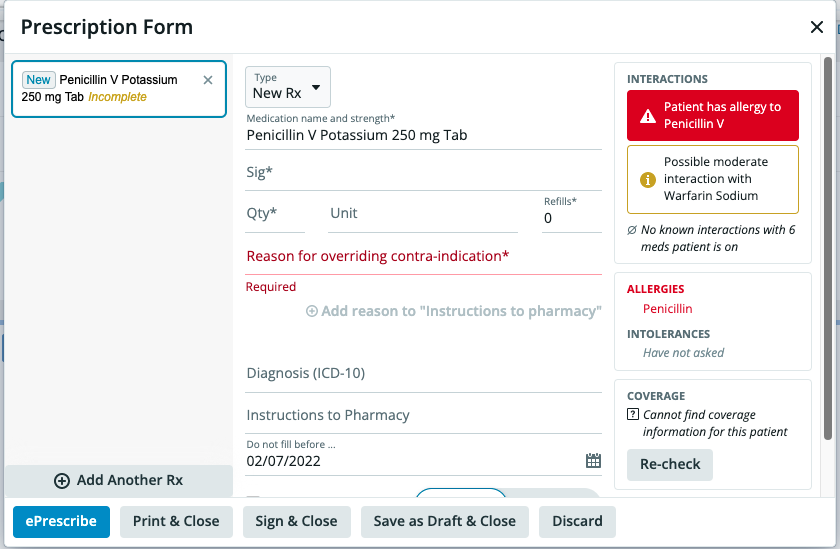
Elation’s Drug Decision Support feature displays drug to drug interactions or drug to allergy interactions directly in the prescription form when a provider is prescribing a medication.
The drug interactions definitions are risk-rated from Mild > Moderate > Major. The definitions for these ratings are based on Medispan data provided by [Wolters Kluwer](https://www.wolterskluwercdi.com/drug-data/why-medispan/).
## Why is Drug Decision Support valuable?
The Drug Decision Support feature allows providers to make informed decisions when writing prescriptions for their patients by using the allergy, drug intolerances and medications information already stored in the patient's chart to inform providers when there is risk for drug or allergy interactions against the medication being prescribed.
The alerts will also supply providers with the severity, onset and details of the interaction to allow providers to make the best choices when prescribing medications for their patients.
## How to turn on Drug Decision Support
To turn on the Drug Decision Support feature please follow the steps below:
1. Click on your email in the top right-hand corner and then click **Settings**
2. Under **User Settings**, Click **Preferences**
3. Scroll down the page until you see the section shown labelled Drug Decision Support
4. Click on the Drug-to-Drug drop-down box and select which alert settings you would like on.
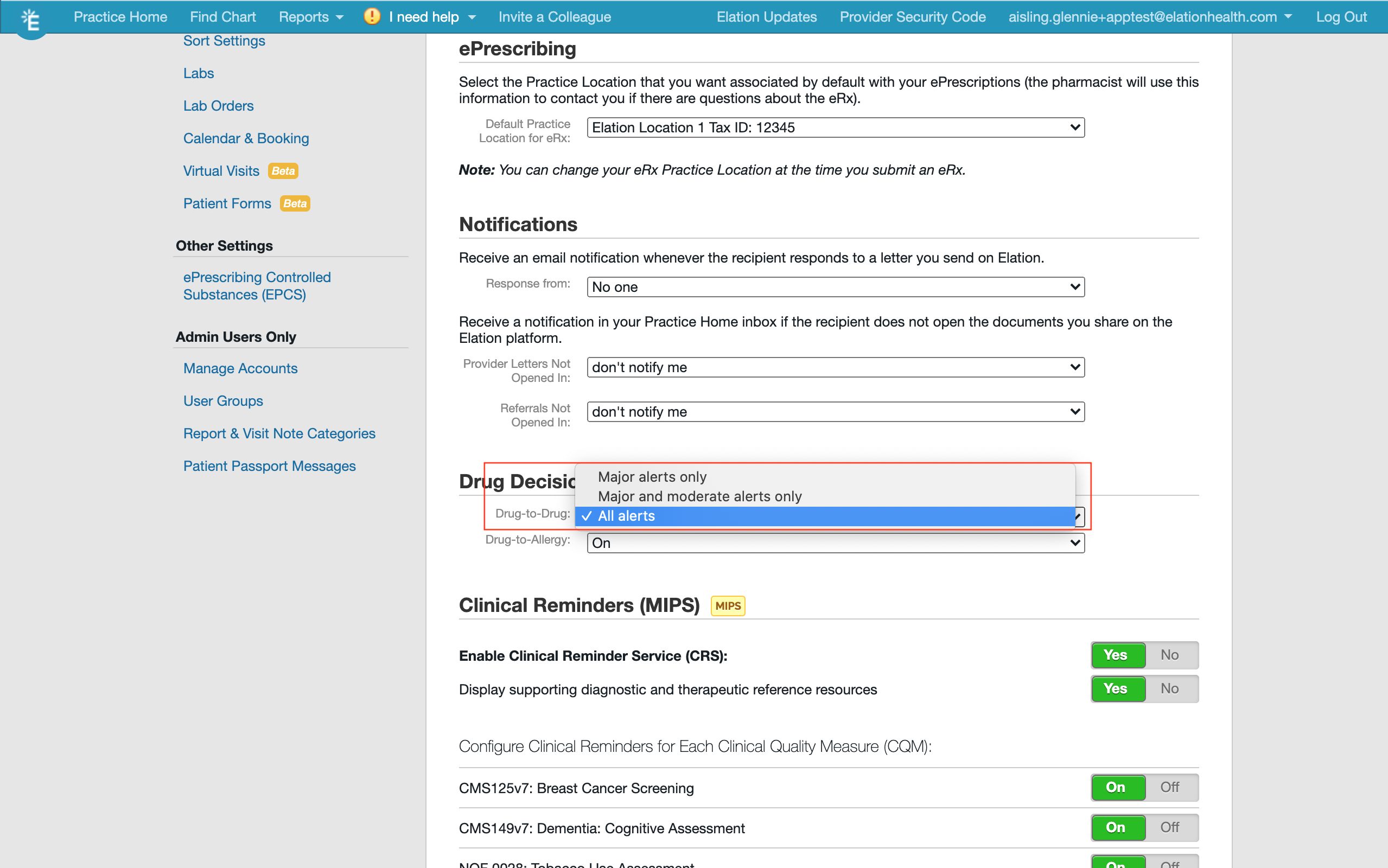 *
**Please Note** : **All Alerts** = you will receive Minor, Moderate and Major Alerts
**Major and Moderate Alerts only** = you will not receive Minor alerts
**Major Alerts only** = you will not receive Minor or Moderate alerts
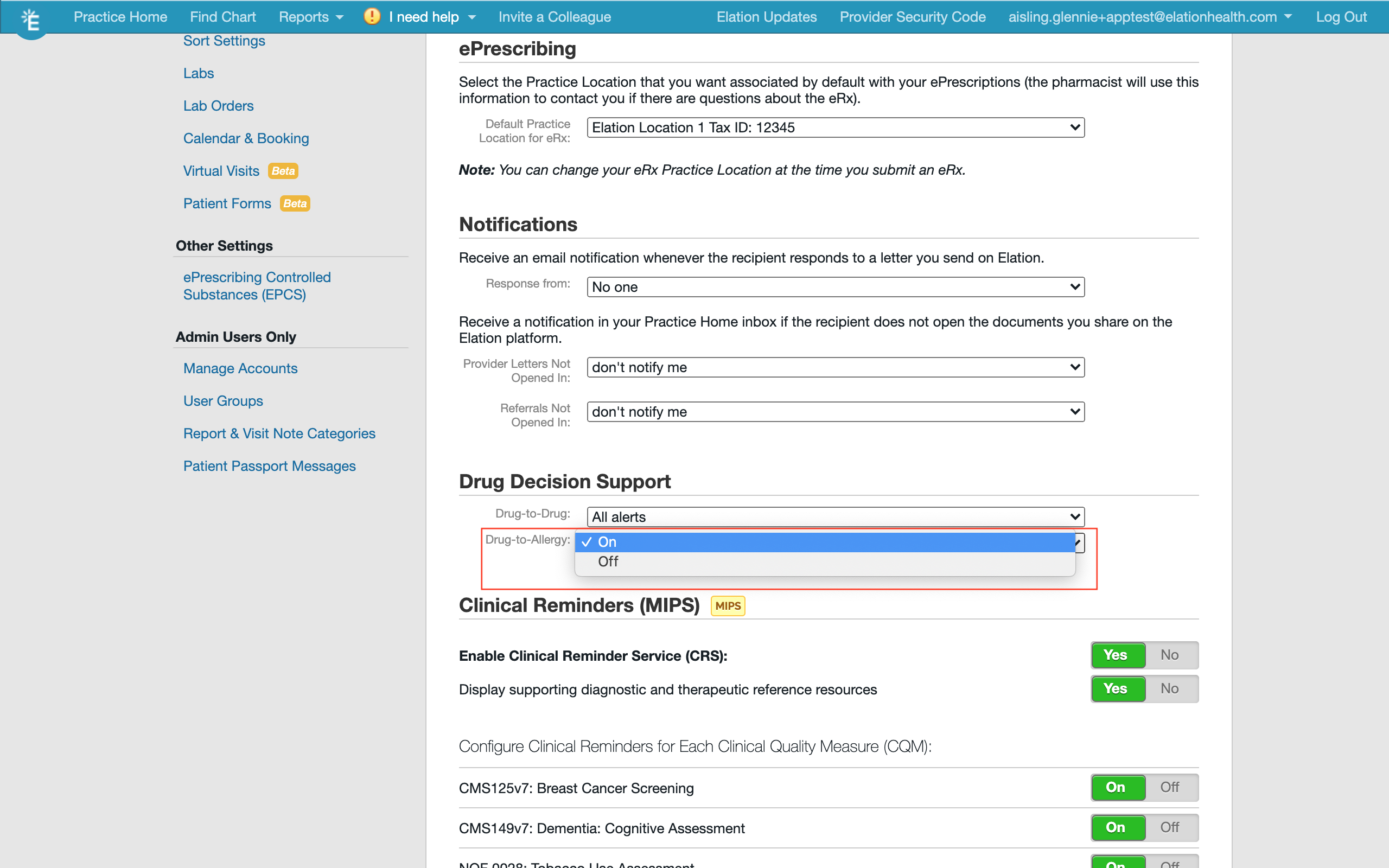
1. Click on the Drug-to-Allergy drop-down box and select whether you would like Drug-to-Allergy alerts turned **On** or **Off**.
*
**Please Note** : **All Alerts** = you will receive Minor, Moderate and Major Alerts
**Major and Moderate Alerts only** = you will not receive Minor alerts
**Major Alerts only** = you will not receive Minor or Moderate alerts
1. Click on the Drug-to-Allergy drop-down box and select whether you would like Drug-to-Allergy alerts turned **On** or **Off**.
 ## How to ensure for high quality alerts
The Drug Decision Support feature uses information documented in the
*Allergies*
,
*Drug Intolerances*
and
*Medication History*
sections of the patient's chart to provide you with information about possible interactions against the medication you are drafting for your patient.
To ensure for high quality alerts, make sure you select the allergen, ingredient or drug name from the drop down menu that appears in the
\*Allergy \*
or
*Substance*
boxes when you document
\*Allergies \*
or Drug Intolerances. When documenting a medication or writing prescriptions, always select the drug from the drop down menu (medication database). These databases supply the special codes used to compare the drugs and substances against each other.
## How interaction alerts are displayed
### Drug-to Drug Alerts:
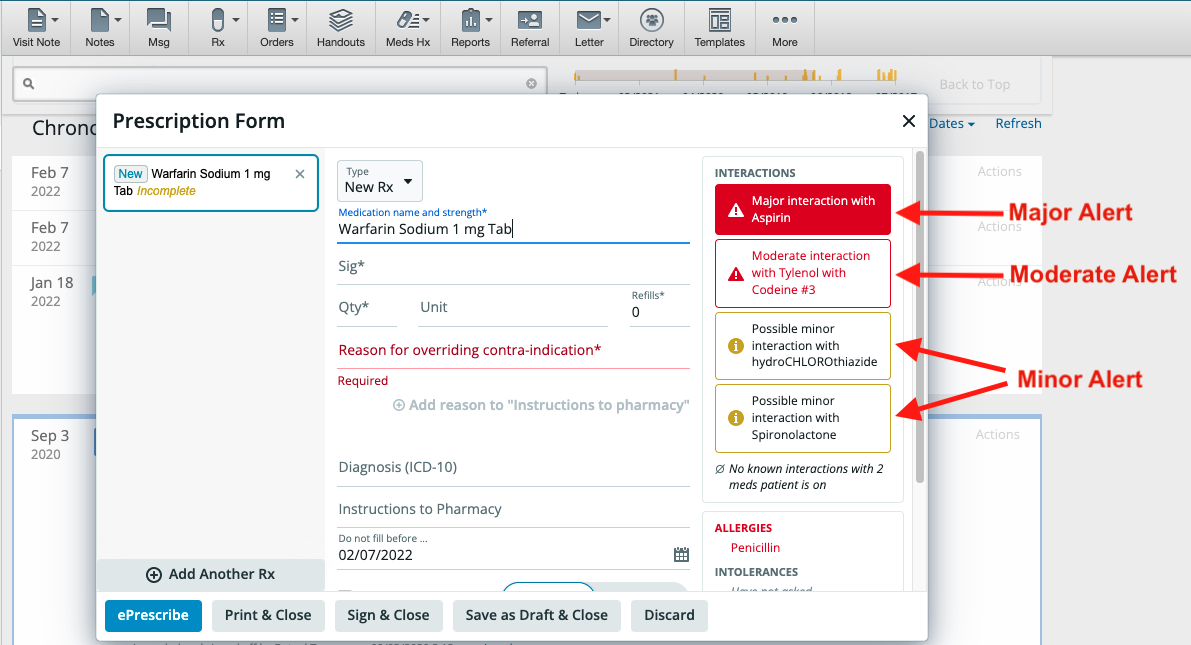
Drug-to Drug alerts will show up in the prescribing box when you select the medication. Minor alerts will show up in a box with a yellow border, Moderate alerts in a box with a red border and Major alerts in a red box.
## How to ensure for high quality alerts
The Drug Decision Support feature uses information documented in the
*Allergies*
,
*Drug Intolerances*
and
*Medication History*
sections of the patient's chart to provide you with information about possible interactions against the medication you are drafting for your patient.
To ensure for high quality alerts, make sure you select the allergen, ingredient or drug name from the drop down menu that appears in the
\*Allergy \*
or
*Substance*
boxes when you document
\*Allergies \*
or Drug Intolerances. When documenting a medication or writing prescriptions, always select the drug from the drop down menu (medication database). These databases supply the special codes used to compare the drugs and substances against each other.
## How interaction alerts are displayed
### Drug-to Drug Alerts:
Drug-to Drug alerts will show up in the prescribing box when you select the medication. Minor alerts will show up in a box with a yellow border, Moderate alerts in a box with a red border and Major alerts in a red box.
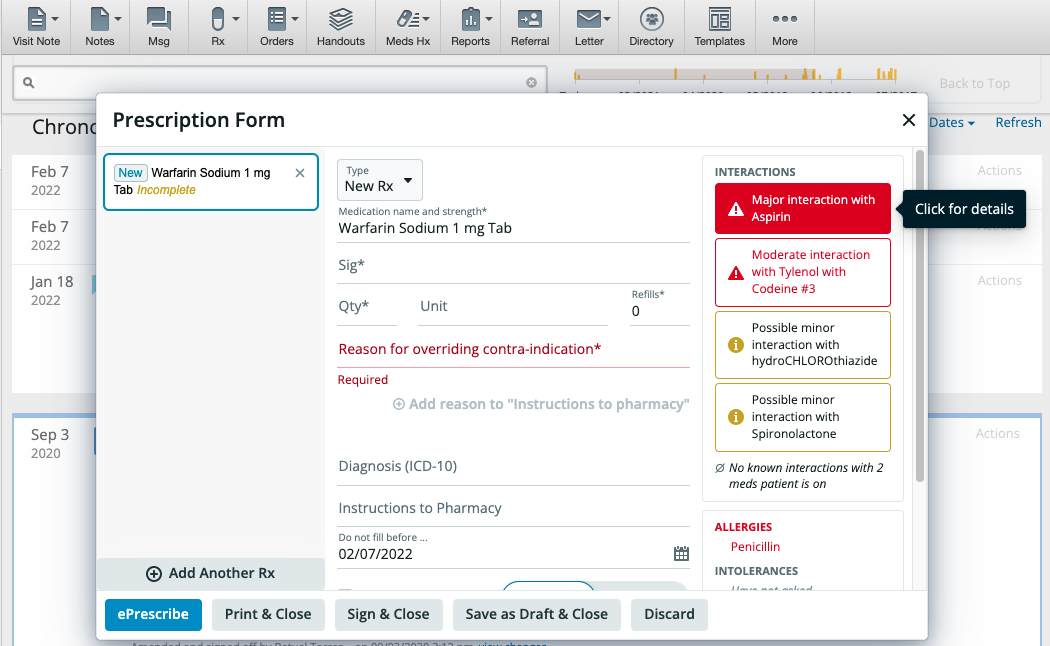
 To view more information about the alert, Click on Alert to view details of the interaction.
 ### Drug-to-Allergy Alerts:
Similarly, Drug-to-Allergy alerts will show up in the prescription box with a Major red alert box.
### Drug-to-Allergy Alerts:
Similarly, Drug-to-Allergy alerts will show up in the prescription box with a Major red alert box.
 **Next StepStart documenting allergies, drug intolerances and medications in your patient's chart to use the Drug Decision Support feature!**
## Related Articles
* [Prescription Form Guide- ePrescribing & Ordering Medications](/articles/Prescriptions-Forms-Guide-ePrescribing-and-ordering-meds)
* [How to e-Prescribe Controlled Substances](/articles/how-to-e-prescribe-controlled-substances)
* [Clinical Profile: A summary snapshot of the patient's health status](/articles/clinical-profile-record-patient-medical-history)
**Next StepStart documenting allergies, drug intolerances and medications in your patient's chart to use the Drug Decision Support feature!**
## Related Articles
* [Prescription Form Guide- ePrescribing & Ordering Medications](/articles/Prescriptions-Forms-Guide-ePrescribing-and-ordering-meds)
* [How to e-Prescribe Controlled Substances](/articles/how-to-e-prescribe-controlled-substances)
* [Clinical Profile: A summary snapshot of the patient's health status](/articles/clinical-profile-record-patient-medical-history)