> ## Documentation Index
> Fetch the complete documentation index at: https://help.elationhealth.com/llms.txt
> Use this file to discover all available pages before exploring further.
# Prescription (Rx) Templates Guide
> Save your most commonly prescribed medication scripts as prescription templates to complete your prescriptions with a few simple clicks.
## Recommended Readings
* [Prescription Form Guide- ePrescribing and ordering medications](/articles/Prescriptions-Forms-Guide-ePrescribing-and-ordering-meds)
## What are Prescription (Rx) Templates?
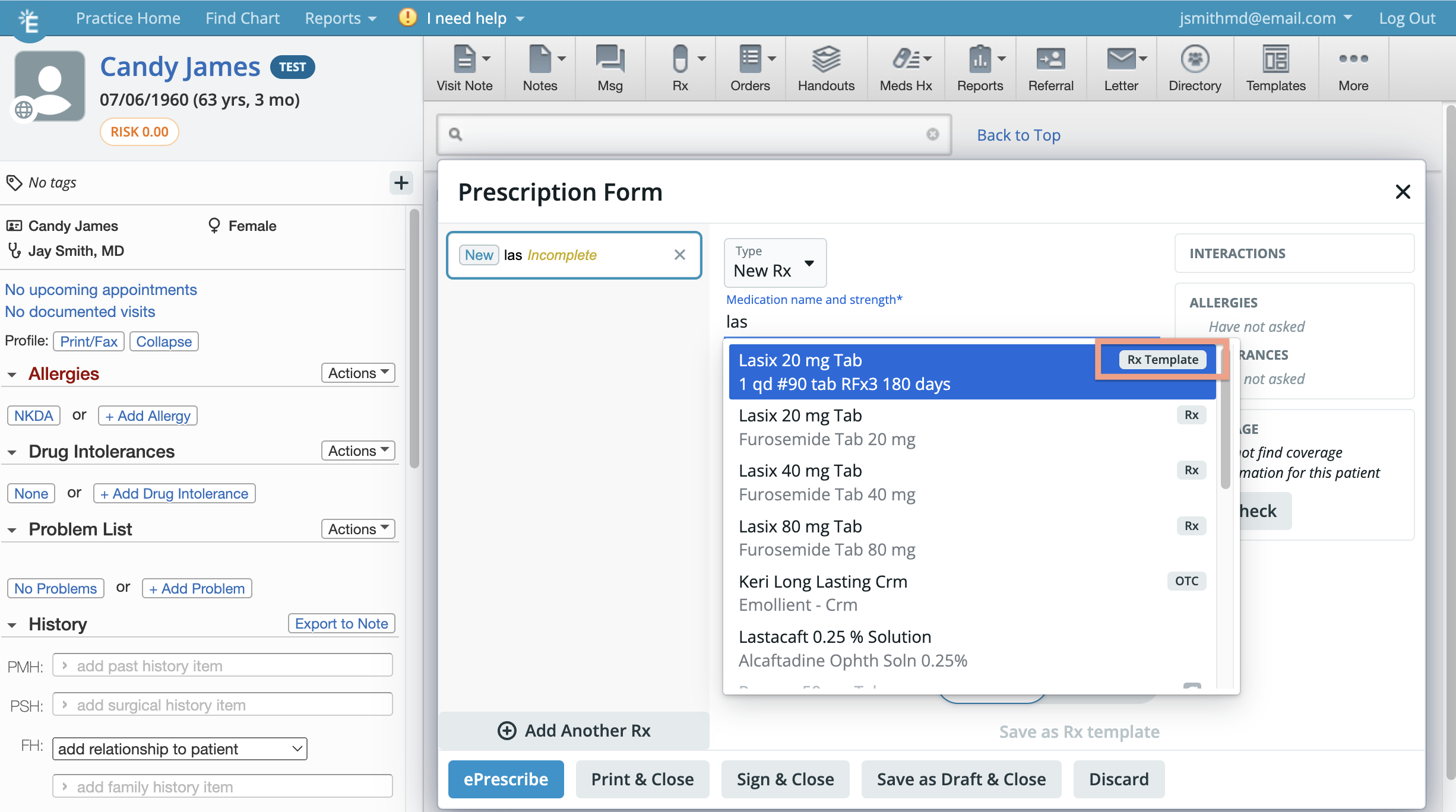
Prescription (Rx) Templates allow you to easily save frequently used medications and its specifications (**Sig**, **Qty**, **Unit**, **Refills**,**Days Supply**,**Packaging (NDC)**) as a set of information to use and reuse at a later time. Rx Templates are available for use in the [Prescription Form](/articles/Prescriptions-Forms-Guide-ePrescribing-and-ordering-meds) and will always appear at the very top of the medication search drop down menu. Templates created by your practice will have the label **Rx Template** next to them in the drop down menu.
## Why are Prescription (Rx) Templates useful?
Prescription (Rx) Templates allows you to save time when prescribing medications because the specifications of the medication will be pre-entered for you depending on the Rx Template you saved and selected. This also reduces room for error and ensures consistency in your Prescriptions you write for your patients.
## Creating Prescription (Rx) Templates
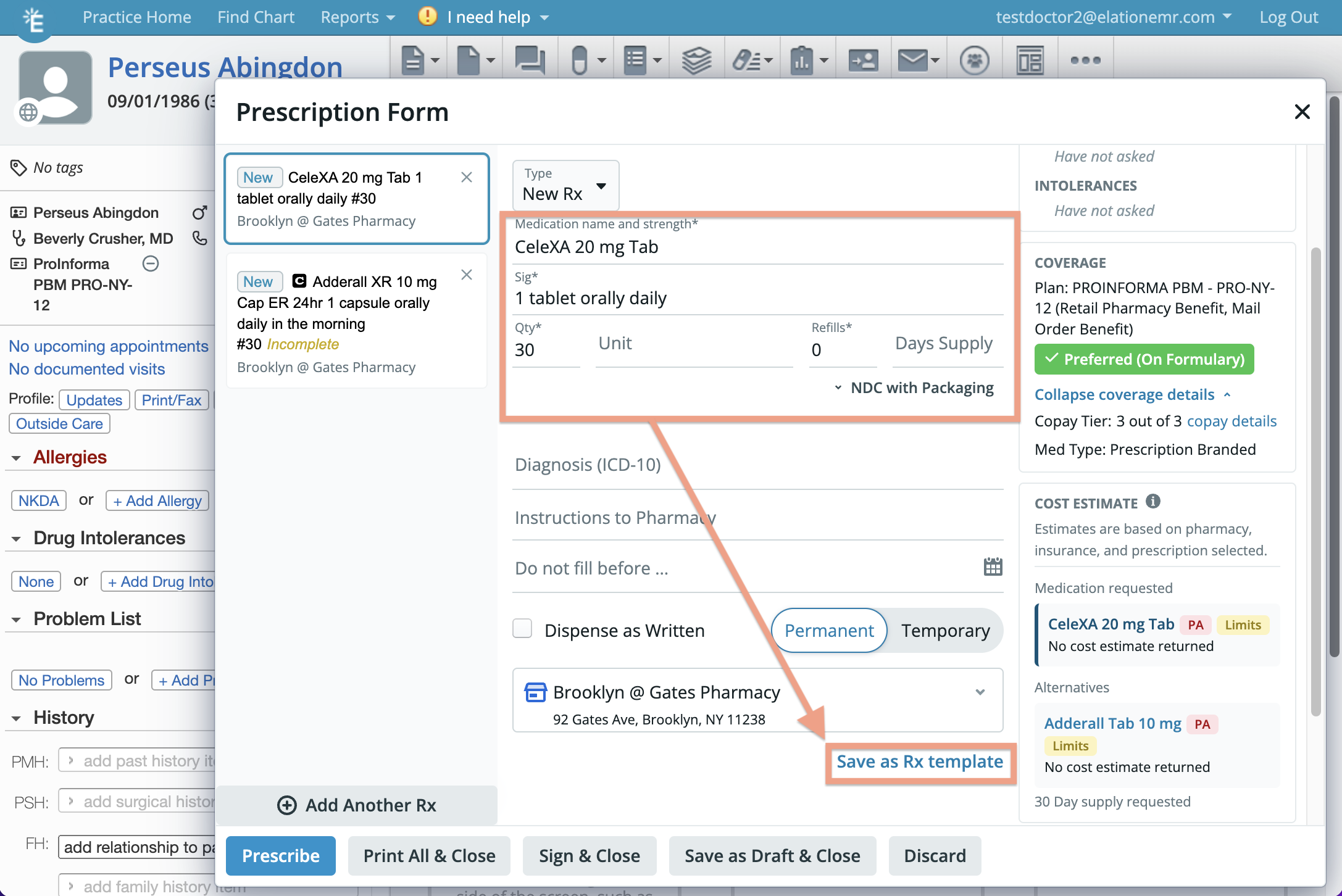
To create a Prescription (Rx) template from the Prescription Form:
1. Click on the **Rx** button in the gray navigation bar at the top of a patient's chart
2. Select **Prescription Form (Rx/OTC/CS)**
3. Fill in the following fields
* **Medication name & strength**
* **Sig**
* **Qty**
* **Unit**
* **Refills**
* **Days Supply**
* **Packing (NDC)**
4. Click **Save as Rx template**
5. Click **Save**
 ### Prescriptions Settings Page
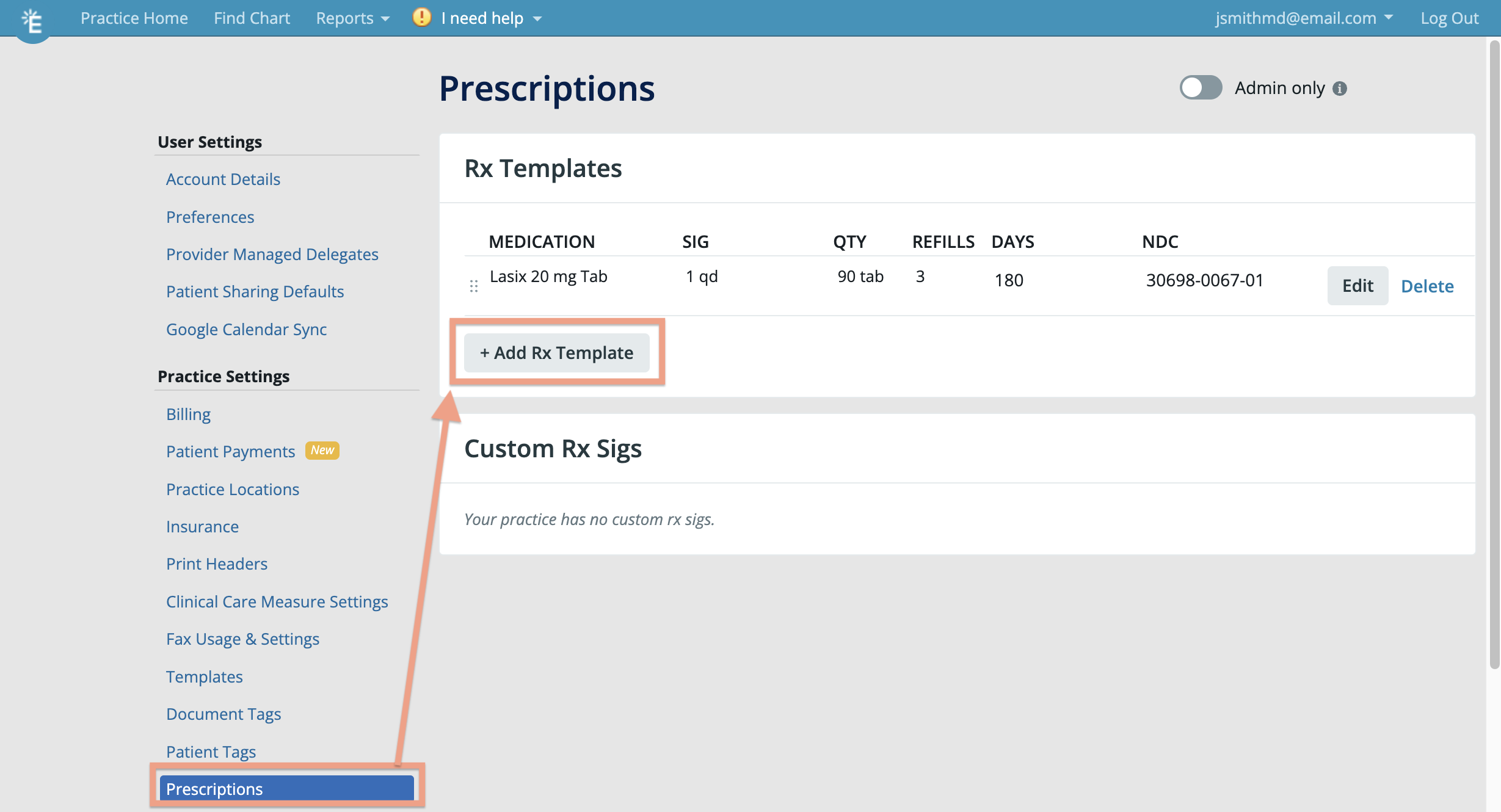
1. Click on your email at the top right corner of Elation
2. Click **Settings**
3. Click **Prescriptions** under **Practice Settings**
4. Go to the bottom of the **Rx Templates** section & click **+ Add Rx Template**
5. Fill in the following fields
* **Medication name & strength**
* **Sig**
* **Qty**
* **Unit**
* **Refills**
* **Days Supply**
* **Packing (NDC)**
6. Click **Save**
### Prescriptions Settings Page
1. Click on your email at the top right corner of Elation
2. Click **Settings**
3. Click **Prescriptions** under **Practice Settings**
4. Go to the bottom of the **Rx Templates** section & click **+ Add Rx Template**
5. Fill in the following fields
* **Medication name & strength**
* **Sig**
* **Qty**
* **Unit**
* **Refills**
* **Days Supply**
* **Packing (NDC)**
6. Click **Save**
 ## Applying Prescription (Rx) Templates
When prescribing medications, begin searching for the medication in the **Medication Name & Strength** field and you will find Rx Templates for those medications at the very top of the search drop down menu with the label \*\*Rx Template \*\* next to the medication name. Select an Rx Template and Elation will automatically fill in any **Sig**, **Qty**, **Unit**, **Refills**,**Days Supply** and **Packaging (NDC)** associated with the template.
## Applying Prescription (Rx) Templates
When prescribing medications, begin searching for the medication in the **Medication Name & Strength** field and you will find Rx Templates for those medications at the very top of the search drop down menu with the label \*\*Rx Template \*\* next to the medication name. Select an Rx Template and Elation will automatically fill in any **Sig**, **Qty**, **Unit**, **Refills**,**Days Supply** and **Packaging (NDC)** associated with the template.
 ## Managing Prescription (Rx) Templates
The **Prescriptions** Settings page in Elation is dedicated towards managing prescription templates and custom Sigs. You can [add new templates](#creating_templates), edit existing templates or delete templates you no longer need from this page.
1. Click on your email at the top right corner of Elation
2. Click **Settings**
3. Click **Prescriptions** under **Practice Settings**
### Updating a template that has a discontinued or off-the-market medication
When a medication is discontinued by the manufacturer and/or taken off the market, its NDC code will be made obsolete and you will not be able to prescribe the medication or retrieve formulary or coverage information for that medication. If one of your prescription templates has a discontinued or off-the-market medication, you will run into an error when applying the template to a Prescription Form. To avoid running into this error:
* update the prescription template with an active medication
* delete the prescription template if it's no longer needed
## Frequently Asked Questions
[Click here to view our comprehensive list of 'Frequently Asked Questions' about the Rx Templates Feature](/articles/Prescriptions-Guide-Frequently-Asked-Questions#prescription_templates_and_custom_rx_sigs).
**Next Step**
**Create a Rx Template today and start using it for prescriptions!**
## Related Articles
* [Prescription Form Guide- ePrescribing and ordering medications](/articles/Prescriptions-Forms-Guide-ePrescribing-and-ordering-meds)
* [Prescriptions Guide- Frequently Asked Questions](/articles/Prescriptions-Guide-Frequently-Asked-Questions)
## Managing Prescription (Rx) Templates
The **Prescriptions** Settings page in Elation is dedicated towards managing prescription templates and custom Sigs. You can [add new templates](#creating_templates), edit existing templates or delete templates you no longer need from this page.
1. Click on your email at the top right corner of Elation
2. Click **Settings**
3. Click **Prescriptions** under **Practice Settings**
### Updating a template that has a discontinued or off-the-market medication
When a medication is discontinued by the manufacturer and/or taken off the market, its NDC code will be made obsolete and you will not be able to prescribe the medication or retrieve formulary or coverage information for that medication. If one of your prescription templates has a discontinued or off-the-market medication, you will run into an error when applying the template to a Prescription Form. To avoid running into this error:
* update the prescription template with an active medication
* delete the prescription template if it's no longer needed
## Frequently Asked Questions
[Click here to view our comprehensive list of 'Frequently Asked Questions' about the Rx Templates Feature](/articles/Prescriptions-Guide-Frequently-Asked-Questions#prescription_templates_and_custom_rx_sigs).
**Next Step**
**Create a Rx Template today and start using it for prescriptions!**
## Related Articles
* [Prescription Form Guide- ePrescribing and ordering medications](/articles/Prescriptions-Forms-Guide-ePrescribing-and-ordering-meds)
* [Prescriptions Guide- Frequently Asked Questions](/articles/Prescriptions-Guide-Frequently-Asked-Questions)