> ## Documentation Index
> Fetch the complete documentation index at: https://help.elationhealth.com/llms.txt
> Use this file to discover all available pages before exploring further.
# Collaborative Billing Fields
> Learn how to enable and use additional billing fields in Elation EHR and Elation Billing
This article explains how to enable and use additional billing fields in both Elation EHR and Elation Billing.
## Overview
### What are Collaborative Billing Fields?
Additional Billing Fields introduces new Provider Fields into both the EHR and Elation Billing:
* **Supervising Provider** - Available in Elation Billing by default, new to EHR
* **Billing Provider / Incident To** - For designating incident-to encounters
* **Ordering Provider** - For specifying who ordered a service
* **Prior Authorization** - Available in Elation Billing by default, new to EHR
### Why are Collaborative Billing Fields important?
These fields ensure that claims include all required provider information, which is necessary for proper reimbursement, especially for incident-to billing and supervised services.
## Workflow Instructions
### Enabling Additional Billing Fields in the EHR
1. **Navigate to EHR Settings** - Navigate to your practice's EHR **Practice Settings** → **Practice Settings** → **Billing**.
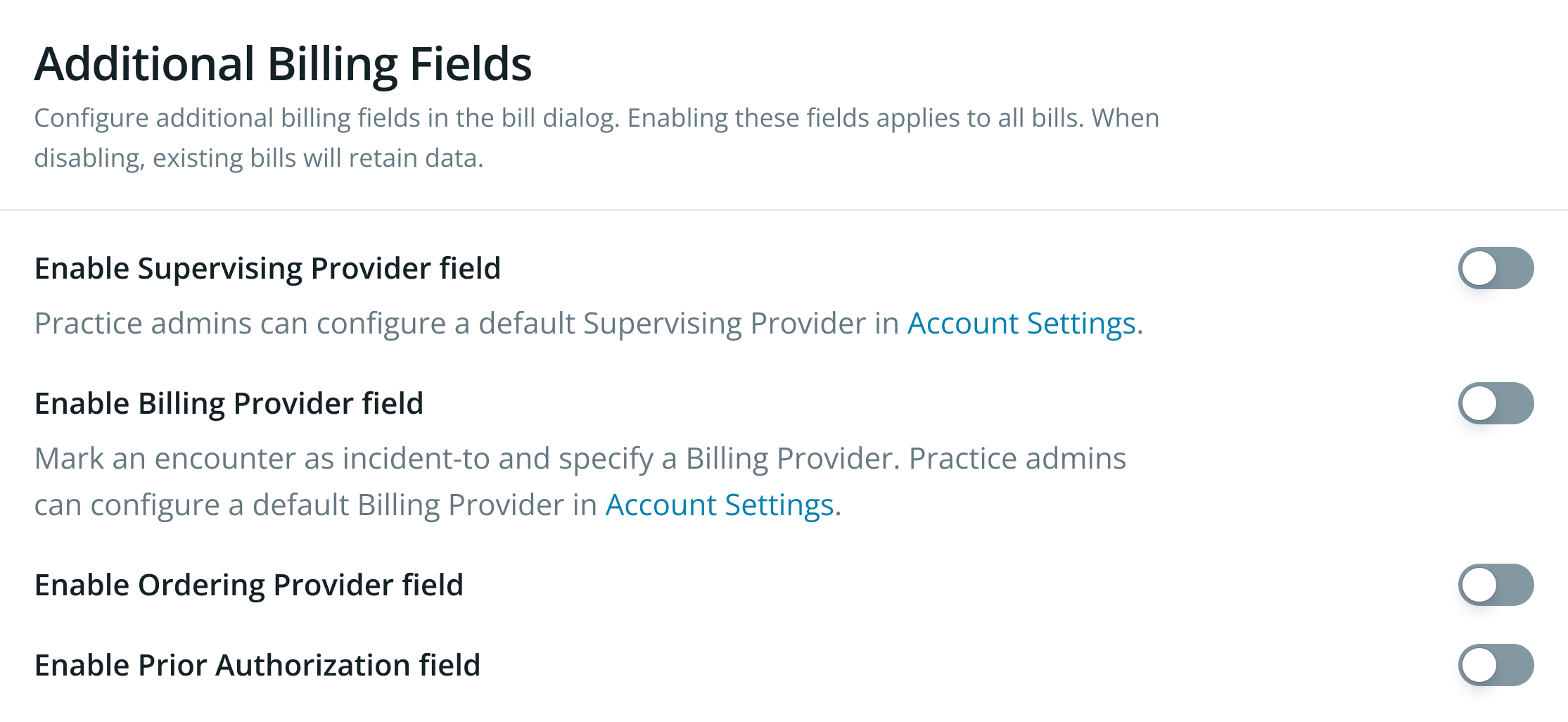
2. **Toggle Additional Fields** - Navigate down the page to **Additional Billing Fields** and enable the field(s) you'd like to be available on the Visit Note.
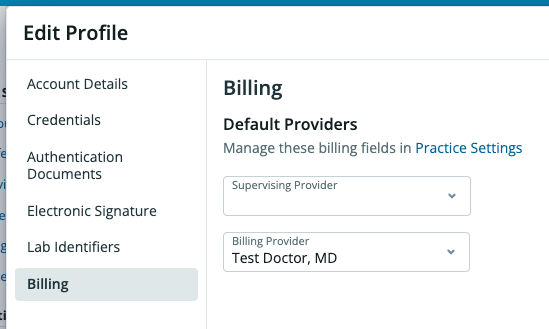
 3. **Establish Default Providers (Optional, Admin Only)** - To establish a default Supervising and/or Billing Provider:
* Within the EHR Settings, navigate to **Manage Accounts**
* Under **Providers**, select **Edit** on the Provider you'd like to update
* Select the **Billing** tab
* Establish the default Provider(s)
* Click **Save**
3. **Establish Default Providers (Optional, Admin Only)** - To establish a default Supervising and/or Billing Provider:
* Within the EHR Settings, navigate to **Manage Accounts**
* Under **Providers**, select **Edit** on the Provider you'd like to update
* Select the **Billing** tab
* Establish the default Provider(s)
* Click **Save**
 ***
### Enabling Additional Billing Fields in Elation Billing
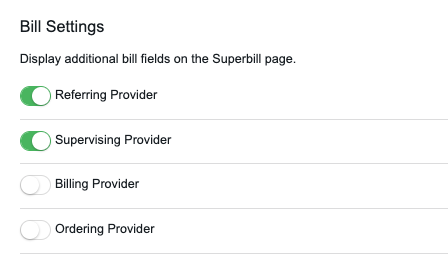
1. **Navigate to Elation Billing Settings** - Navigate to Elation Billing **Settings** → **Practice Settings** → **Billing Rules**.
2. **Toggle Fields** - Select the fields you'd like to be available on the Superbill.
***
### Enabling Additional Billing Fields in Elation Billing
1. **Navigate to Elation Billing Settings** - Navigate to Elation Billing **Settings** → **Practice Settings** → **Billing Rules**.
2. **Toggle Fields** - Select the fields you'd like to be available on the Superbill.
 ***
### Using Additional Billing Fields in the EHR
Any combination of these four fields can be enabled. The information in these fields will also populate on the Superbill when pushed from EHR into Elation Billing.
#### Supervising Provider
Enabling Supervising Provider will display this field in the Billing Information of the Visit Note:
***
### Using Additional Billing Fields in the EHR
Any combination of these four fields can be enabled. The information in these fields will also populate on the Superbill when pushed from EHR into Elation Billing.
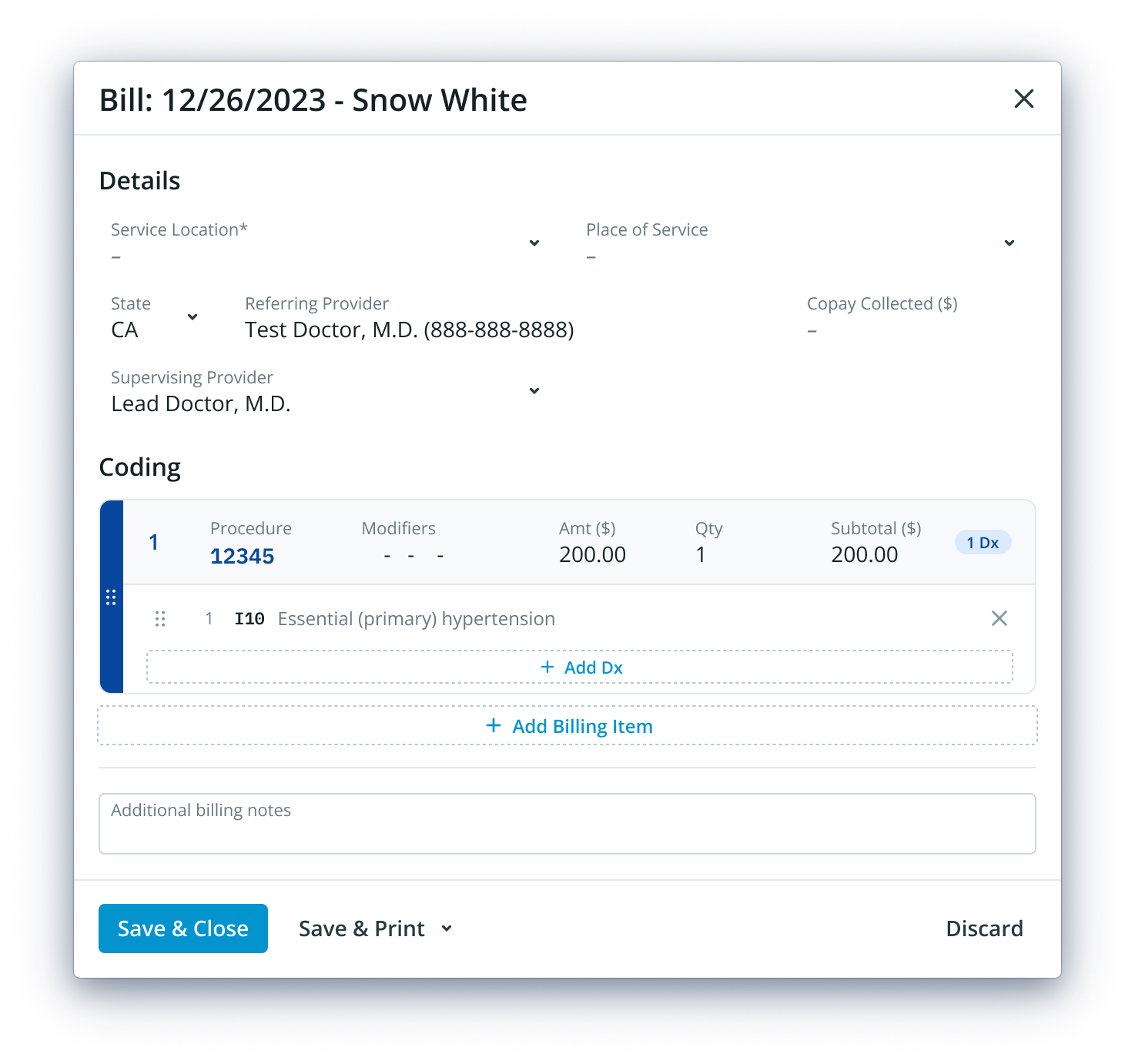
#### Supervising Provider
Enabling Supervising Provider will display this field in the Billing Information of the Visit Note:
 #### Billing Provider / Incident To
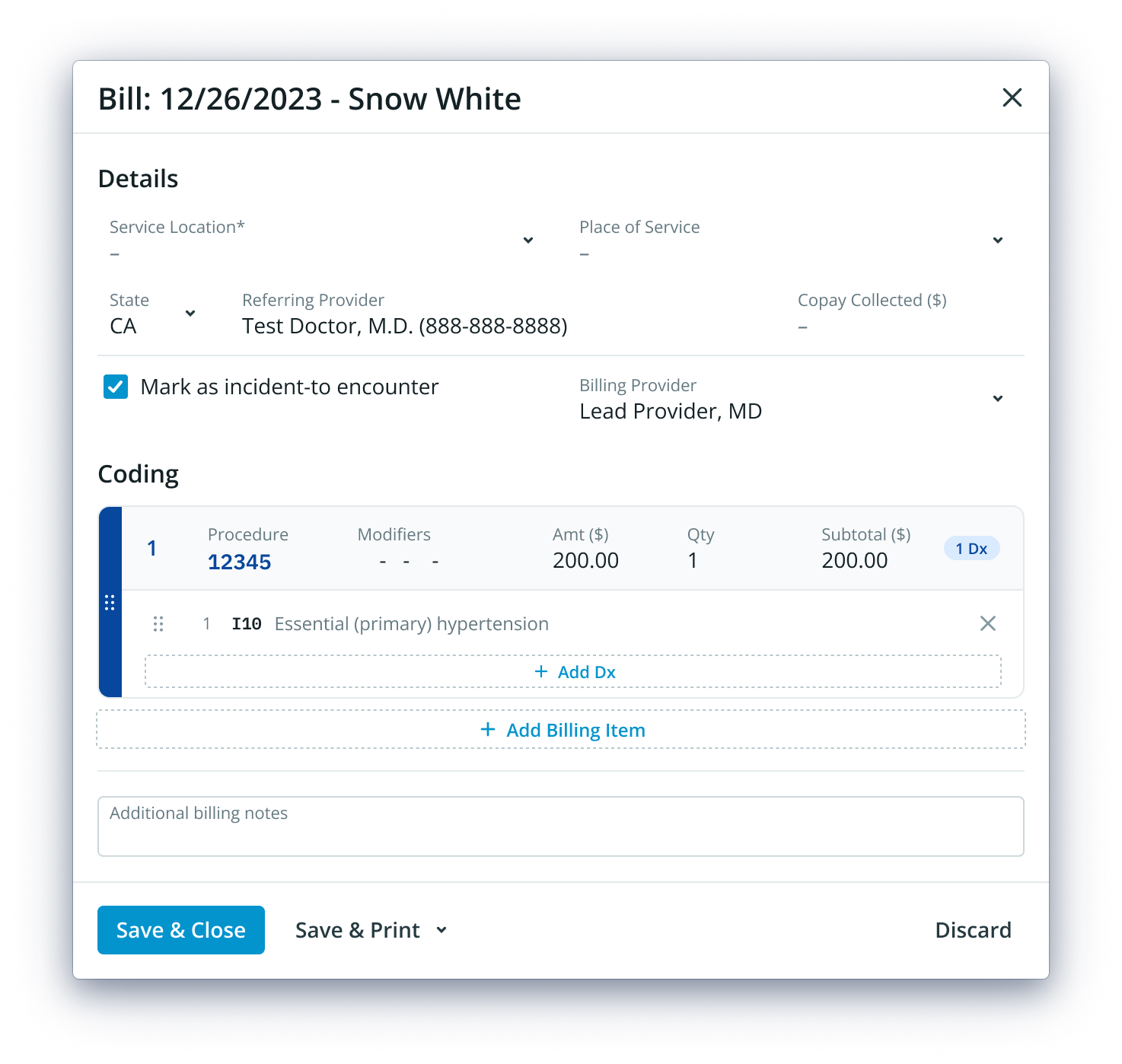
Enabling Billing Provider will allow a Visit Note's bill to be marked as an Incident-To encounter, allowing the Billing Provider to be listed:
#### Billing Provider / Incident To
Enabling Billing Provider will allow a Visit Note's bill to be marked as an Incident-To encounter, allowing the Billing Provider to be listed:
 #### Ordering Provider
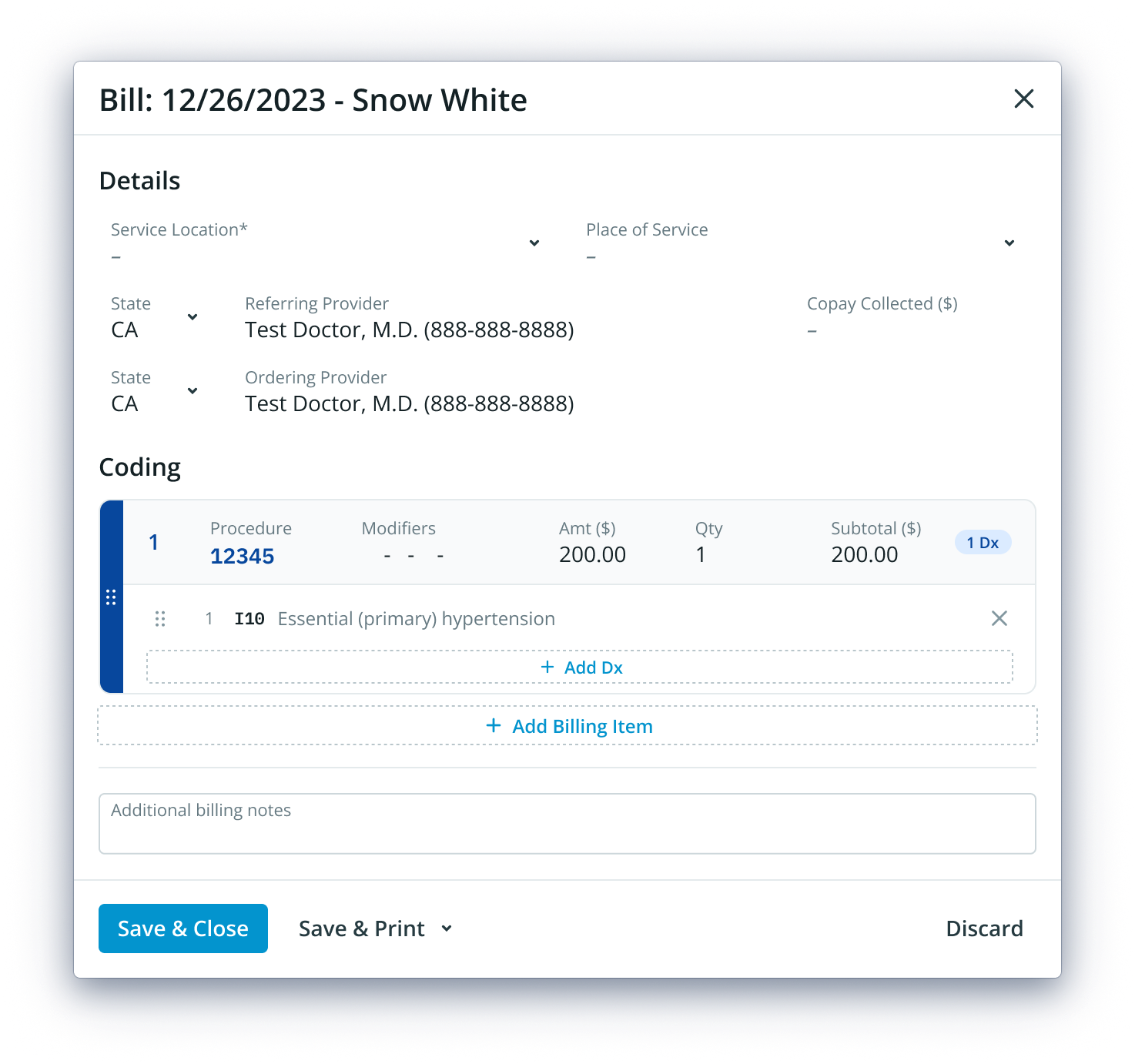
Enabling Ordering Provider will display this field in the Billing Information of the Visit Note:
#### Ordering Provider
Enabling Ordering Provider will display this field in the Billing Information of the Visit Note:
 #### Prior Authorization
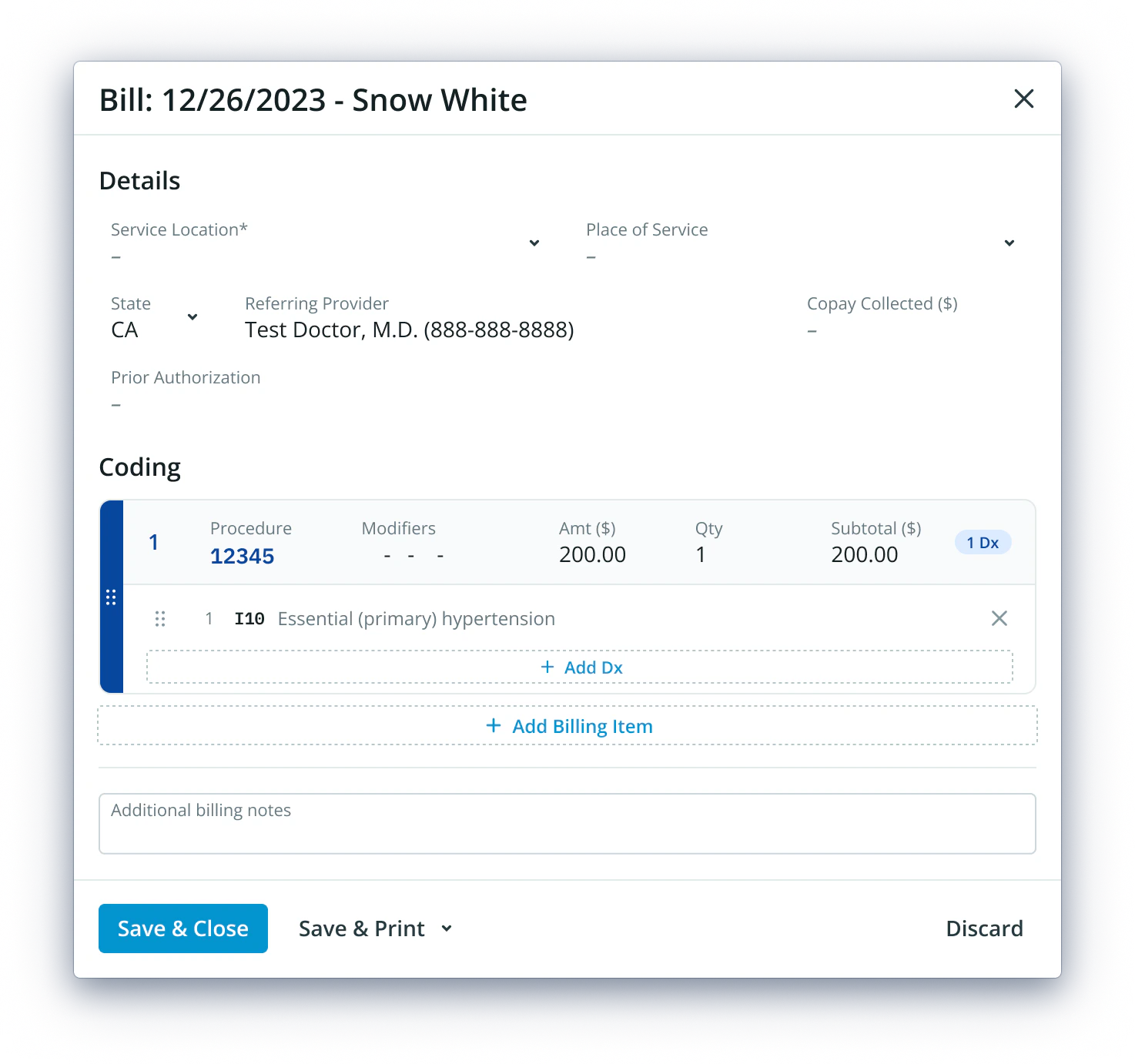
Enabling Prior Authorization will display this field in the Billing Information of the Visit Note:
#### Prior Authorization
Enabling Prior Authorization will display this field in the Billing Information of the Visit Note:
 ## Related Articles
* [Practice Settings Setup and Overview](/articles/practice-settings-setup-and-overview)
* [Add New Provider](/articles/add-new-provider)
* [Add or Edit Authorizations/Referrals](/articles/add-or-edit-authorizations-referrals)
## Related Articles
* [Practice Settings Setup and Overview](/articles/practice-settings-setup-and-overview)
* [Add New Provider](/articles/add-new-provider)
* [Add or Edit Authorizations/Referrals](/articles/add-or-edit-authorizations-referrals)