> ## Documentation Index
> Fetch the complete documentation index at: https://help.elationhealth.com/llms.txt
> Use this file to discover all available pages before exploring further.
# Generating & submitting claim appeals
> Learn how to create and submit claim appeals in Elation Billing
## Overview
### What is a claim appeal?
A claim appeal is a formal request to an insurance payer to reconsider a denied or underpaid claim. Appeals include documentation supporting why the claim should be paid or paid at a higher rate.
### Why are claim appeals important?
Appeals give you the opportunity to recover revenue from claims that were incorrectly denied or underpaid. Including supporting documentation and claim history increases the chances of a successful appeal.
## Before you begin
* **Check the payer's filing deadline.** Most payers require appeals to be submitted within a set window after the original denial (commonly 90, 180, or 365 days). Confirm the deadline on the payer's EOB or contract before starting.
* **Gather supporting documentation.** This may include the original claim, EOB/ERA, medical records, chart notes, proof of timely filing, or a letter of medical necessity. This information can be included on the appeal when generating an appeal.
* **Review Claim History.** Use [Claim History](/articles/claim-history) to view the full clearinghouse trail for the claim you're appealing. This information can be included on the appeal when generating an appeal.
## Workflow Instructions
### Creating a claim appeal
Locate the claim using one of the following workflows:
* The **Superbill** itself
* Patient record → **Claims** → **Charges**
* **Billing** → **Claims Manager**
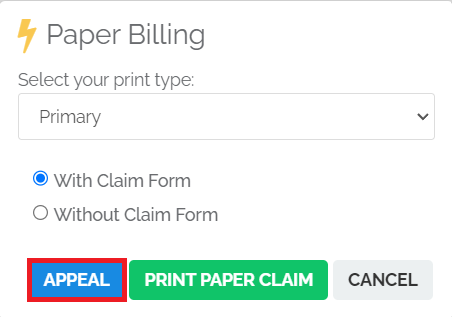
Click the **Print** button on the claim you would like to appeal.
In the window that appears, select whether or not you want the original claim form and then click **Appeal** → **Start**. This will open a new window for you to complete the appeal.
 Review the Appear Options:
1. Select the type of Appeal Form you want to use
2. Specify whether you want any of the following included with the appeal:
* CMS-1500 Claim Form
* Remittance (ERA)
* Claim History
3. Add attachments to the appeal (e.g. visit note, letter of medical necessity, etc.)
Review the Appear Options:
1. Select the type of Appeal Form you want to use
2. Specify whether you want any of the following included with the appeal:
* CMS-1500 Claim Form
* Remittance (ERA)
* Claim History
3. Add attachments to the appeal (e.g. visit note, letter of medical necessity, etc.)
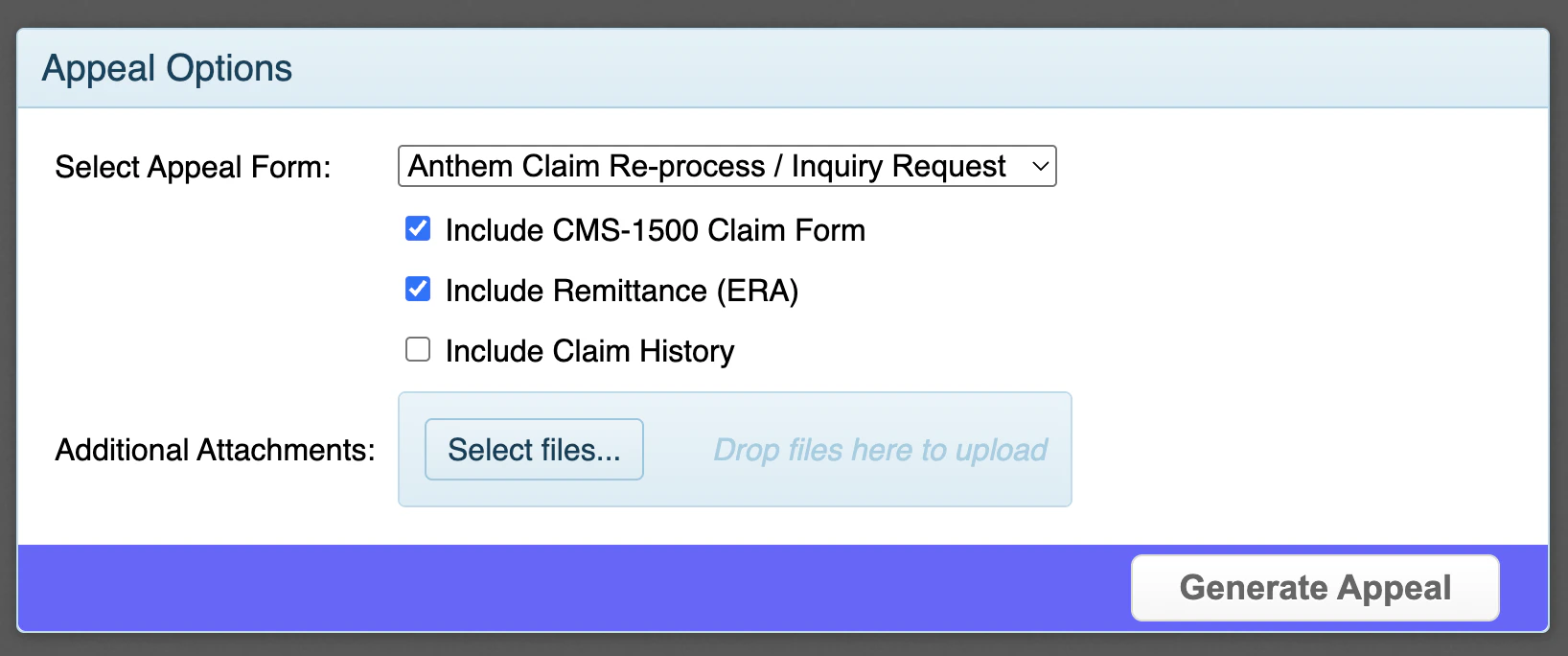 Click **Generate Appeal**.
Review the details of the prefilled form for accuracy.
Make sure the attached documents appear as expected.
Click **Continue**.
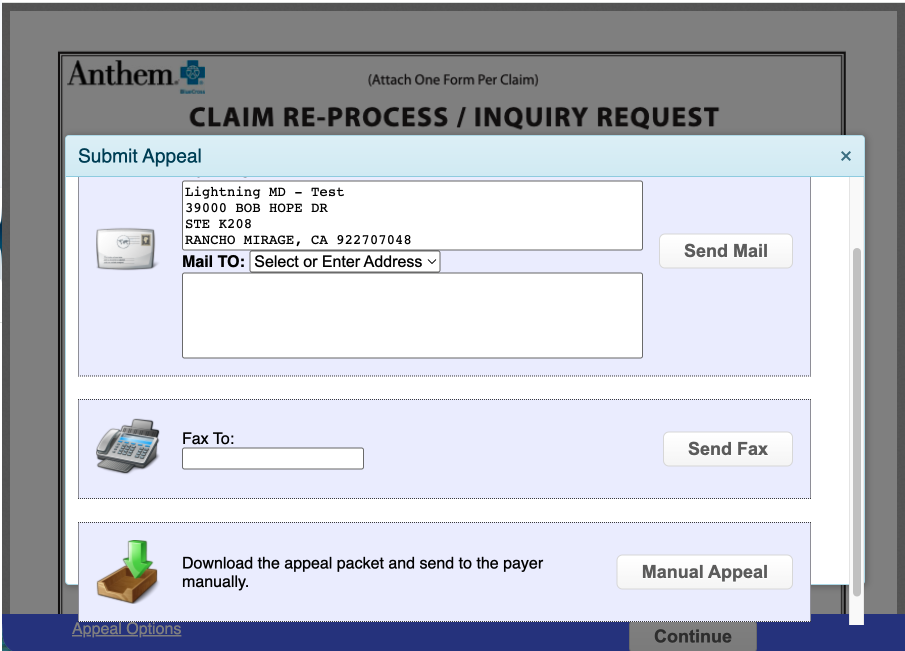
Choose your submission method:
* **Electronic submission** - Only available for some payers.
* **Mailed by clearinghouse** - Mailed on your behalf for an additional fee.
* Specify the mail to address and then click **Send Mail**.
* **Faxed by clearinghouse** - Faxed on your behalf for an additional fee.
* Specify a fax to number and then click **Send Fax**.
* **Download and mail** - Download the appeal packet at no additional cost and mail it yourself.
* Click **Manual Appeal** and then download the the appeal packet.
Click **Generate Appeal**.
Review the details of the prefilled form for accuracy.
Make sure the attached documents appear as expected.
Click **Continue**.
Choose your submission method:
* **Electronic submission** - Only available for some payers.
* **Mailed by clearinghouse** - Mailed on your behalf for an additional fee.
* Specify the mail to address and then click **Send Mail**.
* **Faxed by clearinghouse** - Faxed on your behalf for an additional fee.
* Specify a fax to number and then click **Send Fax**.
* **Download and mail** - Download the appeal packet at no additional cost and mail it yourself.
* Click **Manual Appeal** and then download the the appeal packet.
 For information on additional fees, see [Fees Associated with Elation Billing](/articles/fees-associated-with-elation-billing).
### Tracking the status of an appeal
Once an appeal has been generated, you can update the Tags on the claim to add the claim to an appeals Worklist for easier followup. See [Using the Worklist](/articles/using-the-worklist#appealed) for more information.
For updates on the status of the appeal, contact the payer directly. You can use **Claim Notes** to track each follow-up.
### Acting on a claim after a decision is made on the appeal
* **If the appeal is approved**, the payer issues payment and a new ERA. You can post the payment to the claim like any other payment. The claim status updates accordingly in the Worklist.
* **If the appeal is denied**, review the payer's response for the denial reason. Depending on the payer, you may be able to file a second-level appeal or escalate through the payer's grievance process.
## FAQ
Once an appeal is generated, you can start a new appeal on the same claim by repeating the steps above. Contact the payer directly if you need assistance with an appeal that was already submitted.
The **Appeal** button appears in the print confirmation window for claims that have been submitted through Elation Billing. If you don't see it, confirm the claim was submitted via Elation Billing and that you have the appropriate billing permissions.
* If the claim was submitted via Elation Billing and you have the appropriate billing permissions, reach out to Contact Elation Support.
## Related Articles
* [Common Code Denials](/articles/common-code-denials)
* [Claim History](/articles/claim-history)
* [Denials Reporting](/articles/denials-reporting)
* [Using the Worklist](/articles/using-the-worklist)
* [Fees Associated with Elation Billing](/articles/fees-associated-with-elation-billing)
For information on additional fees, see [Fees Associated with Elation Billing](/articles/fees-associated-with-elation-billing).
### Tracking the status of an appeal
Once an appeal has been generated, you can update the Tags on the claim to add the claim to an appeals Worklist for easier followup. See [Using the Worklist](/articles/using-the-worklist#appealed) for more information.
For updates on the status of the appeal, contact the payer directly. You can use **Claim Notes** to track each follow-up.
### Acting on a claim after a decision is made on the appeal
* **If the appeal is approved**, the payer issues payment and a new ERA. You can post the payment to the claim like any other payment. The claim status updates accordingly in the Worklist.
* **If the appeal is denied**, review the payer's response for the denial reason. Depending on the payer, you may be able to file a second-level appeal or escalate through the payer's grievance process.
## FAQ
Once an appeal is generated, you can start a new appeal on the same claim by repeating the steps above. Contact the payer directly if you need assistance with an appeal that was already submitted.
The **Appeal** button appears in the print confirmation window for claims that have been submitted through Elation Billing. If you don't see it, confirm the claim was submitted via Elation Billing and that you have the appropriate billing permissions.
* If the claim was submitted via Elation Billing and you have the appropriate billing permissions, reach out to Contact Elation Support.
## Related Articles
* [Common Code Denials](/articles/common-code-denials)
* [Claim History](/articles/claim-history)
* [Denials Reporting](/articles/denials-reporting)
* [Using the Worklist](/articles/using-the-worklist)
* [Fees Associated with Elation Billing](/articles/fees-associated-with-elation-billing)