> ## Documentation Index
> Fetch the complete documentation index at: https://help.elationhealth.com/llms.txt
> Use this file to discover all available pages before exploring further.
# Add or Edit a Service Location
> Learn how to add and edit service locations in Elation Billing
This article provides step-by-step instructions on how to add and edit service locations in Elation Billing.
## Overview
### What is a Service Location?
A service location is a physical address where healthcare services are provided. Service locations are used on claims to indicate where the patient was seen.
### Why is Adding or Editing a Service Location important?
Accurate service location information is required for proper claim submission. Claims must include the correct Place of Service (POS) code and address to avoid denials.
## Workflow Instructions
### Elation All-in-One Integration
If you are an Elation AiO (All-in-One) customer, updating your Service Locations in Elation Billing will also update your locations in the EHR.
***
### Adding a Service Location
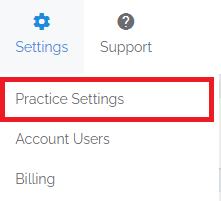
1. **Navigate** - Select the **Practice Settings** option from the **Settings** drop-down menu, then select the **Locations** tab.
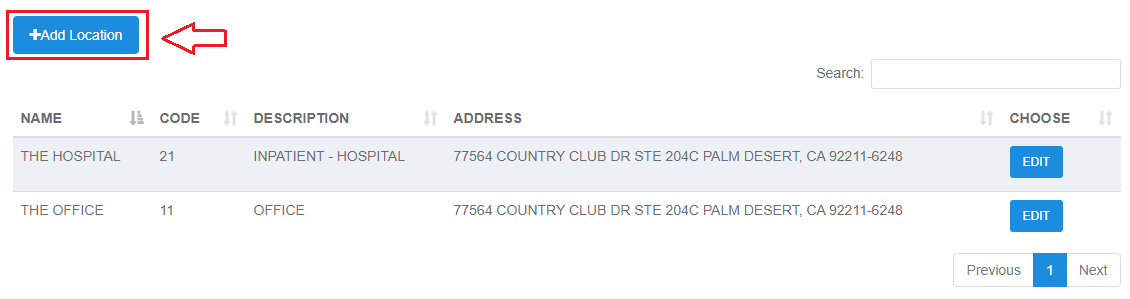
 2. **Add Location** - Click the **Add Location** button.
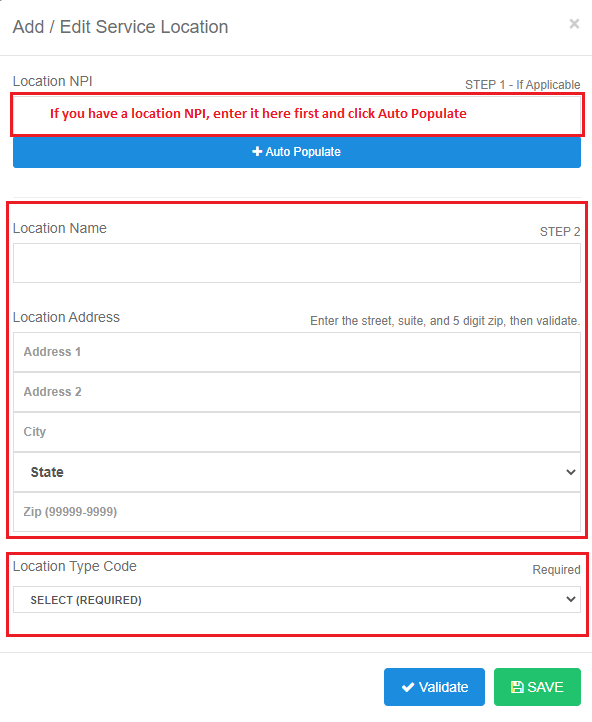
 Complete all the location fields and click **SAVE**.
If you have the NPI, enter it first to auto-populate the location details.
Click the **VALIDATE** button to confirm the address with USPS.
Complete all the location fields and click **SAVE**.
If you have the NPI, enter it first to auto-populate the location details.
Click the **VALIDATE** button to confirm the address with USPS.
 3. **Verify Completion** - Verify that you can see your location on the list as well as in the drop-down options when creating or editing claims on a superbill.
## Related Articles
* [Practice Settings Setup and Overview](/articles/practice-settings-setup-and-overview)
* [Add New Provider](/articles/add-new-provider)
* [Filing a Claim](/articles/filing-a-claim)
3. **Verify Completion** - Verify that you can see your location on the list as well as in the drop-down options when creating or editing claims on a superbill.
## Related Articles
* [Practice Settings Setup and Overview](/articles/practice-settings-setup-and-overview)
* [Add New Provider](/articles/add-new-provider)
* [Filing a Claim](/articles/filing-a-claim)