> ## Documentation Index
> Fetch the complete documentation index at: https://help.elationhealth.com/llms.txt
> Use this file to discover all available pages before exploring further.
# Add Notes to Patient, Claim, or Statements
> Learn how to add patient notes, claim notes, and statement notes in Elation Billing
This article provides step-by-step instructions on how to add patient notes, claim notes, and statement notes in Elation Billing.
## Overview
### What are Notes?
Notes are text records attached to patients, claims, or statements. They help track important billing information and can optionally appear on patient statements.
### Why are Notes important?
Notes help billing staff communicate important information about patients and claims. Statement notes allow you to include custom messages on patient billing statements.
## Workflow Instructions
### Patient-Specific Notes
#### Adding a Patient Note
1. **Navigate** - Click on the **Notes** box at the bottom of a patient profile page.
 #### Adding a Claim Note
1. **Navigate** - Click on the **Notes** button on either the top left of the Superbill near the patient name, or in the middle of the Superbill page. You will only see the notes button after a claim is created. You can also access notes by clicking the comment bubble in the claims manager.
#### Adding a Claim Note
1. **Navigate** - Click on the **Notes** button on either the top left of the Superbill near the patient name, or in the middle of the Superbill page. You will only see the notes button after a claim is created. You can also access notes by clicking the comment bubble in the claims manager.
 ***
### Entering a Note
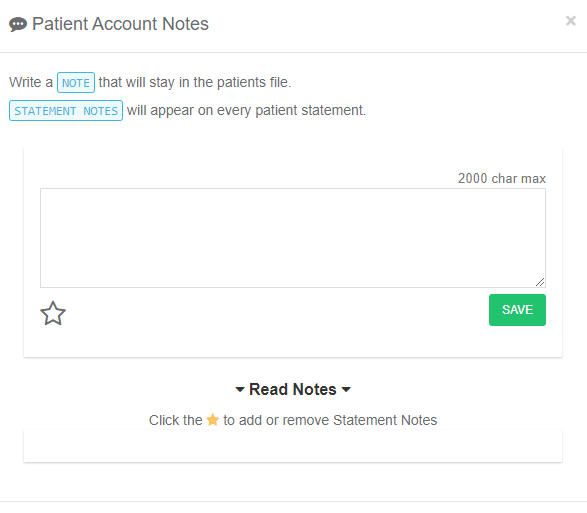
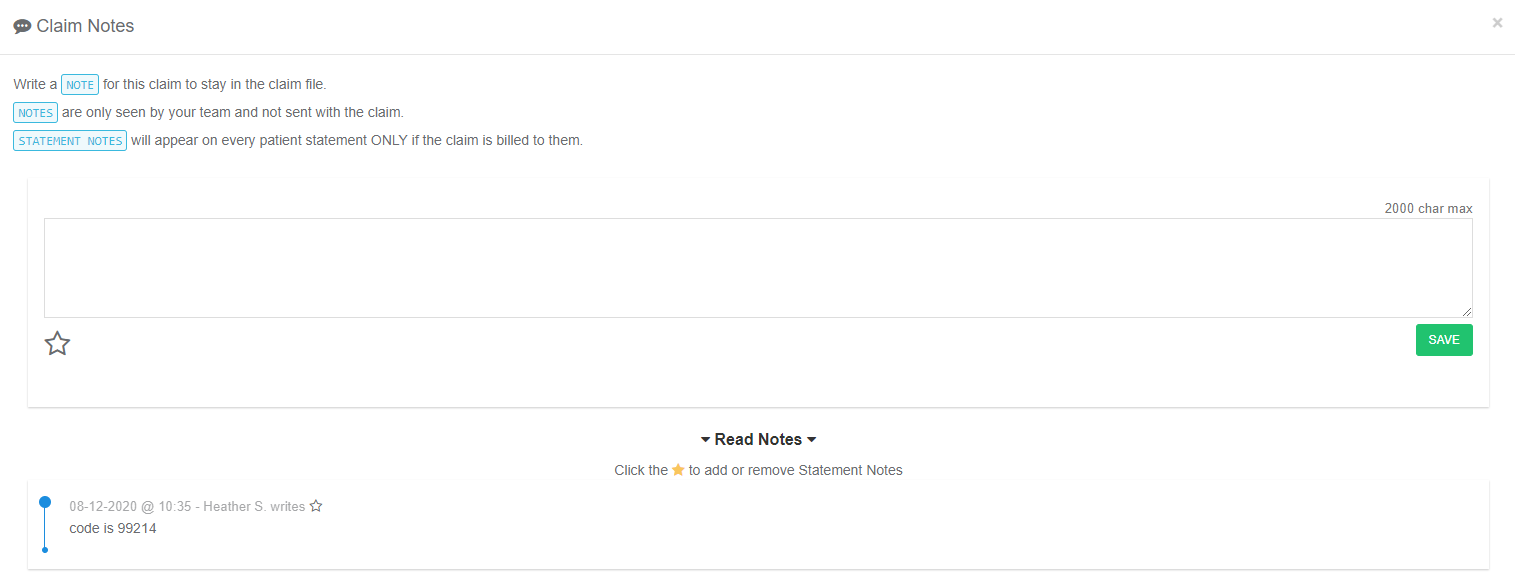
2. **Enter Note** - Enter the text for the note and click **SAVE**.
***
### Entering a Note
2. **Enter Note** - Enter the text for the note and click **SAVE**.
 ***
### Sending a Statement Note
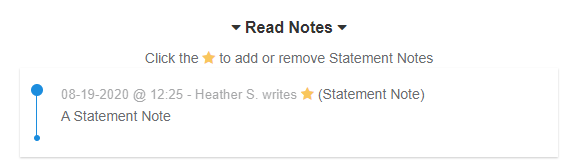
Click on the ☆ when entering a note, or later after you've saved it, to toggle it as a **STATEMENT NOTE**.
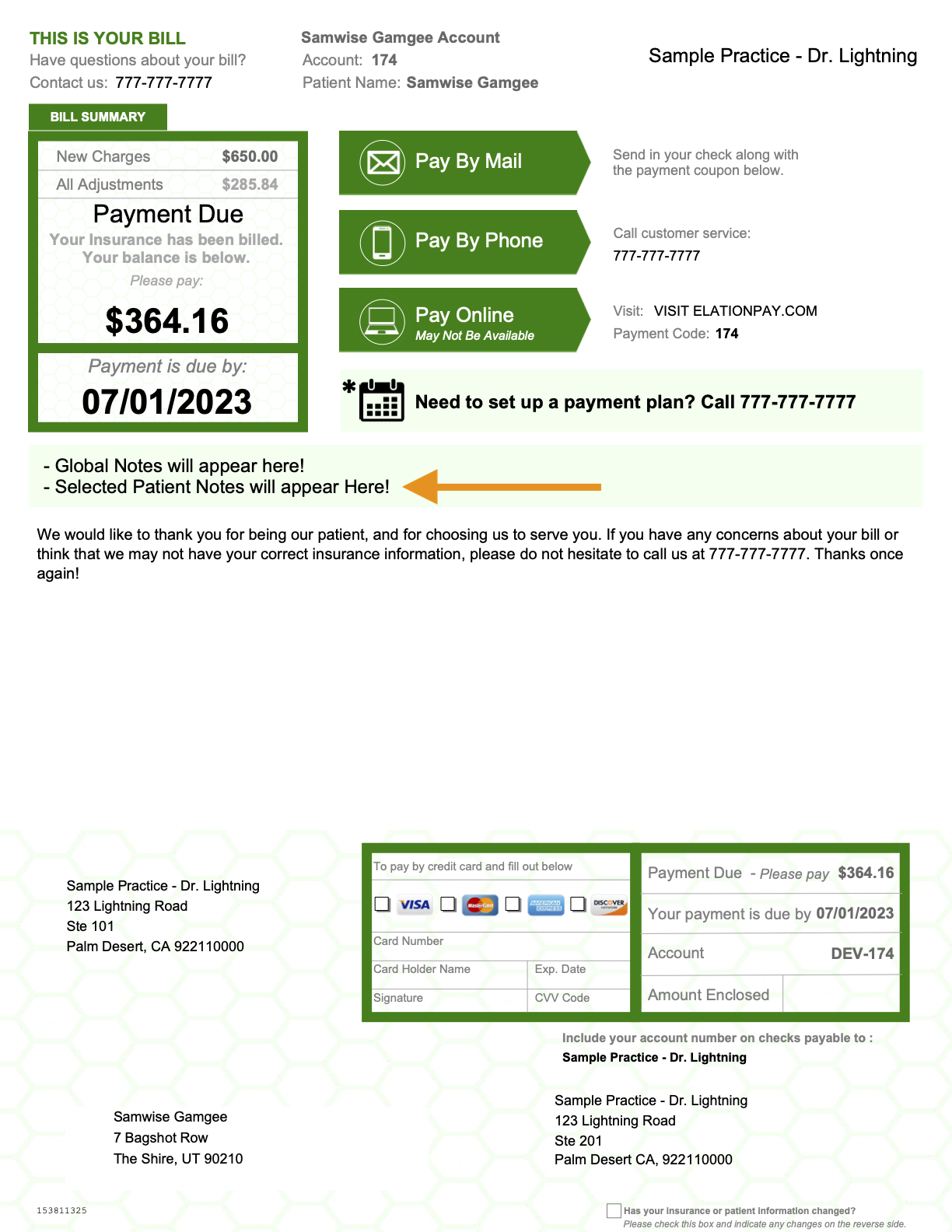
* **Patient Statement Notes** will display on the top of EVERY statement for that patient
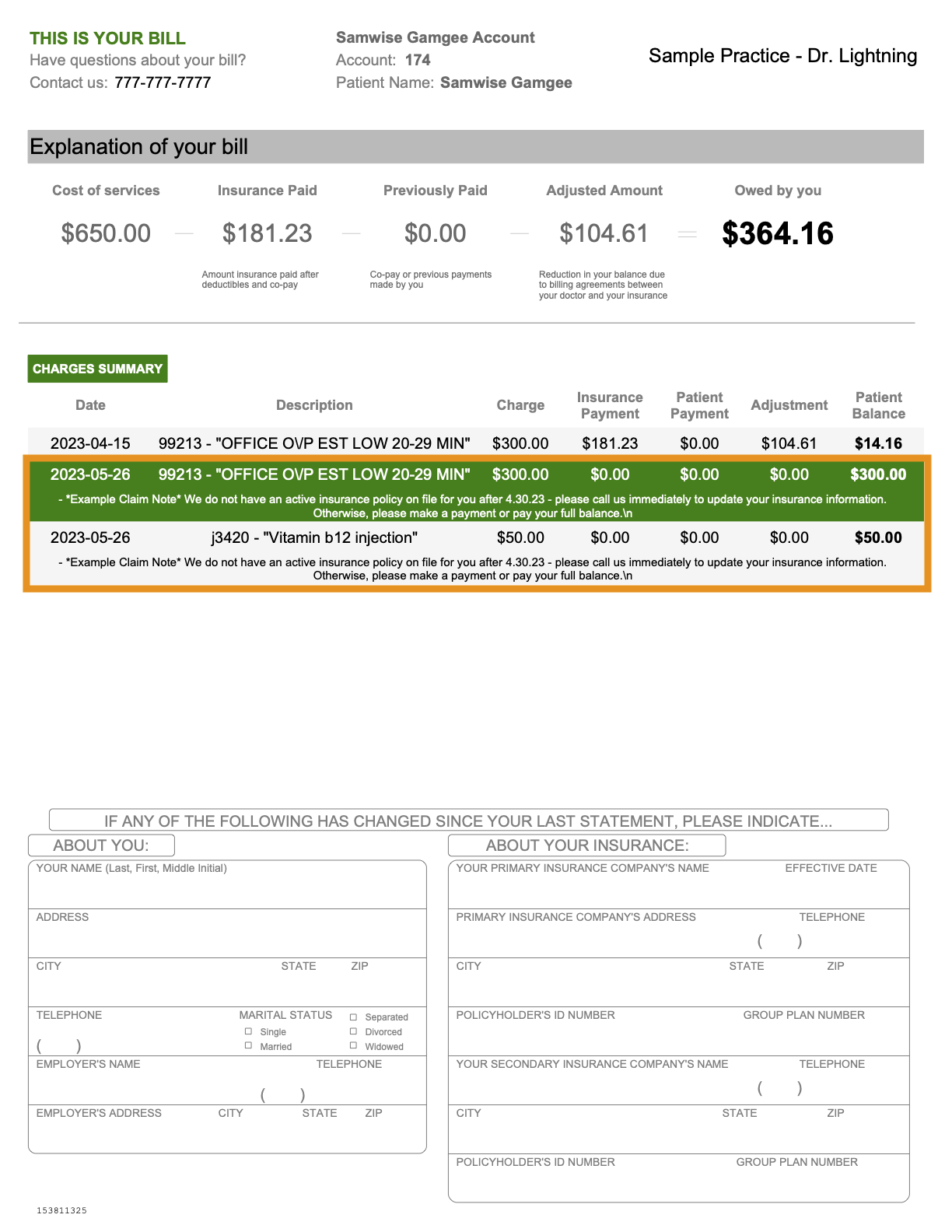
* **Claim Statement Notes** will display under the charge lines of statements and appear on ONLY statements where this balance is displayed. Once the claim is paid and not on the statement, the note will not be displayed either.
***
### Sending a Statement Note
Click on the ☆ when entering a note, or later after you've saved it, to toggle it as a **STATEMENT NOTE**.
* **Patient Statement Notes** will display on the top of EVERY statement for that patient
* **Claim Statement Notes** will display under the charge lines of statements and appear on ONLY statements where this balance is displayed. Once the claim is paid and not on the statement, the note will not be displayed either.
 ***
### Global Statement Notes (Every Patient's Statement)
To create a **Global Note** that appears on every statement:
1. **Navigate** - Go to **Billing** → **Send Statements**.
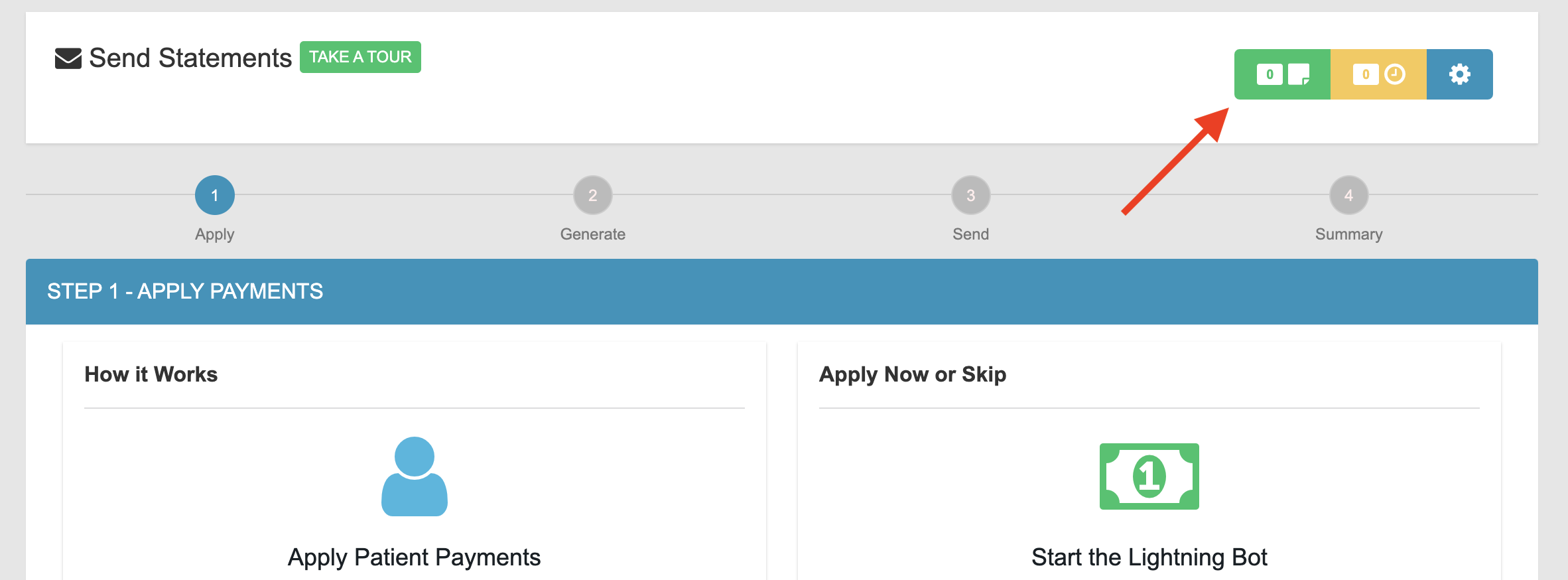
2. **Open Notes** - In the upper-right, select the green Note icon.
***
### Global Statement Notes (Every Patient's Statement)
To create a **Global Note** that appears on every statement:
1. **Navigate** - Go to **Billing** → **Send Statements**.
2. **Open Notes** - In the upper-right, select the green Note icon.
 3. **Write and Save** - Write and Save the note.
***
### How Notes Appear on the Statement
#### Patient Statement Notes
3. **Write and Save** - Write and Save the note.
***
### How Notes Appear on the Statement
#### Patient Statement Notes
 #### Claim Statement Notes
 ## Related Articles
* [Sending Statements](/articles/sending-statements)
* [Add an Alert](/articles/add-an-alert)
* [Add a New Patient](/articles/add-a-new-patient)
## Related Articles
* [Sending Statements](/articles/sending-statements)
* [Add an Alert](/articles/add-an-alert)
* [Add a New Patient](/articles/add-a-new-patient)