> ## Documentation Index
> Fetch the complete documentation index at: https://help.elationhealth.com/llms.txt
> Use this file to discover all available pages before exploring further.
# Add New User - Legacy Practices
> Learn how to add new users in Elation Billing for legacy practices
This article provides step-by-step instructions on how to add new Practice Users and Billing Company Users in Elation Billing.
## Overview
### What is Adding a New User?
Adding a new user creates login credentials for staff members to access Elation Billing. There are two types of users: Practice Users (access to one practice) and Billing Company Users (access to multiple practices).
### Why is Adding a New User important?
Proper user management ensures staff have appropriate access to billing functions while maintaining security. Different user roles provide different levels of access and permissions.
## Workflow Instructions
### Adding Practice Users
Practice Users only have access to one practice.
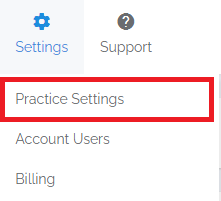
> 1. **Navigate** - Click on the **Practice Settings** option under the **Settings** drop-down menu.
>
>  >
> Click on the **Users** Tab.
>
>
>
> Click on the **Users** Tab.
>
>  >
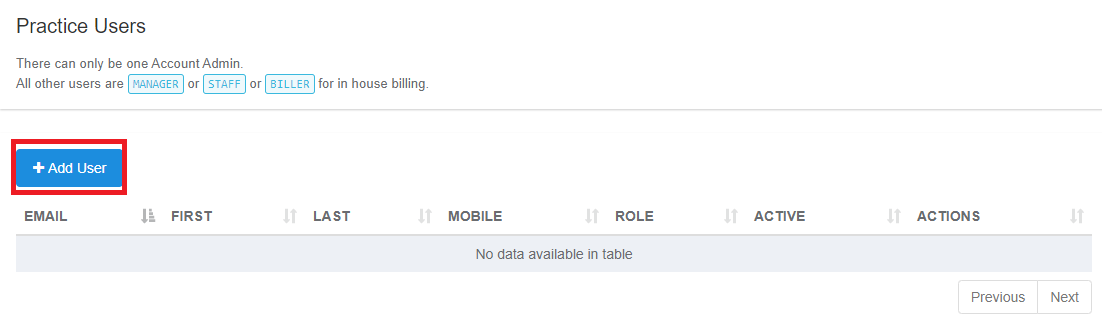
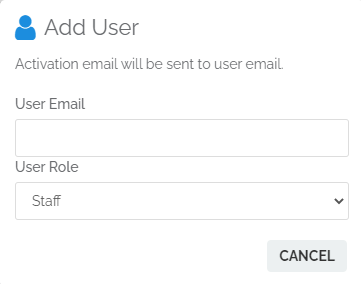
> 2. **Add User** - Click on the **Add User** button, then enter the email and select the role. The user will receive an email to activate their account and create their password.
>
>
>
> 2. **Add User** - Click on the **Add User** button, then enter the email and select the role. The user will receive an email to activate their account and create their password.
>
>  >
>
>
>  >
> ***
>
> ## Adding Billing Company Users
Bill Co Users can have access to multiple practices.
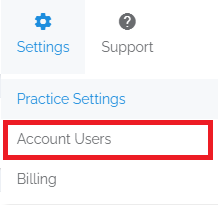
1. **Navigate** - Start in a Practice you want the invitee to be able to access. By default, an added user will be provisioned access to the Practice from which the invite is sent. This access can be edited in Account Users.
Click on the **Practice Settings** option under the **Settings** drop-down menu.
>
> ***
>
> ## Adding Billing Company Users
Bill Co Users can have access to multiple practices.
1. **Navigate** - Start in a Practice you want the invitee to be able to access. By default, an added user will be provisioned access to the Practice from which the invite is sent. This access can be edited in Account Users.
Click on the **Practice Settings** option under the **Settings** drop-down menu.
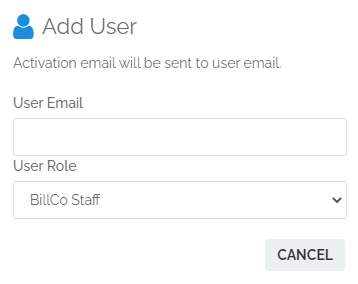
 2. **Add User** - Click on the **Add User** button, then enter the email and select the role. The user will receive an email to activate their account and create their password.
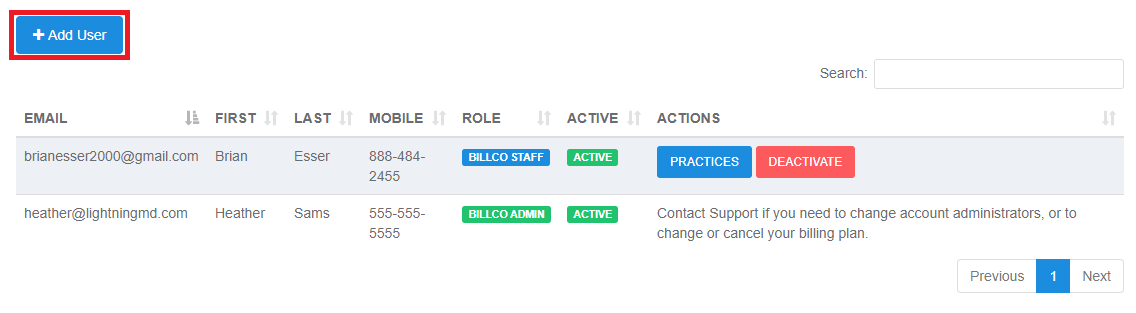
 3. **Edit User Practice Permissions** - Click on the **Practices** button to add or remove access to practice(s) for a user. The changes will take effect after they log off and log in again.
 ## Related Articles
* [User Roles and Permissions](/articles/user-roles)
* [Practice Settings Setup and Overview](/articles/practice-settings-setup-and-overview)
## Related Articles
* [User Roles and Permissions](/articles/user-roles)
* [Practice Settings Setup and Overview](/articles/practice-settings-setup-and-overview)