> ## Documentation Index
> Fetch the complete documentation index at: https://help.elationhealth.com/llms.txt
> Use this file to discover all available pages before exploring further.
# Add an Alert
> Learn how to add patient and claim alerts in Elation Billing
This article provides step-by-step instructions on how to add patient alerts and claim alerts in Elation Billing.
## Overview
### What is an Alert?
Alerts are visual notifications that display important information about a patient or claim. Patient Alerts appear across the patient's pages and superbills, while Claim Alerts appear only on the specific superbill.
### Why are Alerts important?
Alerts help ensure critical billing information is visible to all staff working with a patient or claim. They can highlight special billing requirements, payment arrangements, or other important notes.
## Workflow Instructions
### Adding a Patient Alert
1. **Navigate** - Click on the **Alerts** box at the bottom of a patient profile page.
 **Patient Alerts will appear in Elation Billing:**
* On the patient's Elation Billing page
* On any of the patient's Superbills
* On any Payments that have the patient's Superbills added
**For Elation EHR + Billing users, alerts will also appear in the EHR:**
* When scheduling Patient Appointments
**Patient Alerts will appear in Elation Billing:**
* On the patient's Elation Billing page
* On any of the patient's Superbills
* On any Payments that have the patient's Superbills added
**For Elation EHR + Billing users, alerts will also appear in the EHR:**
* When scheduling Patient Appointments
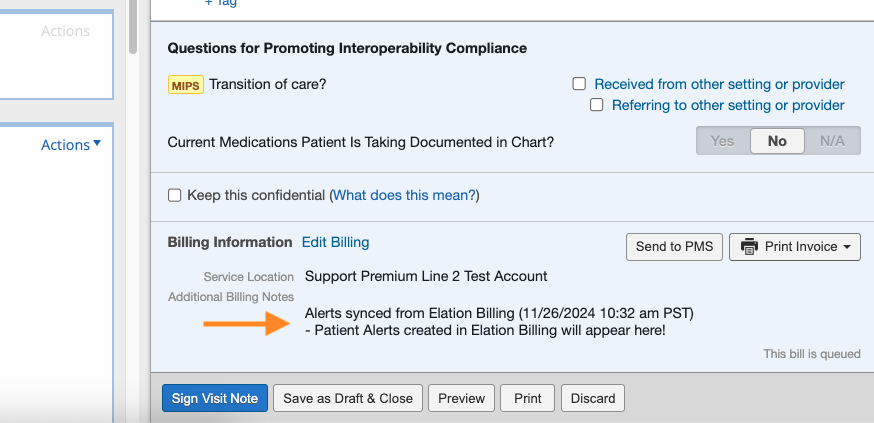
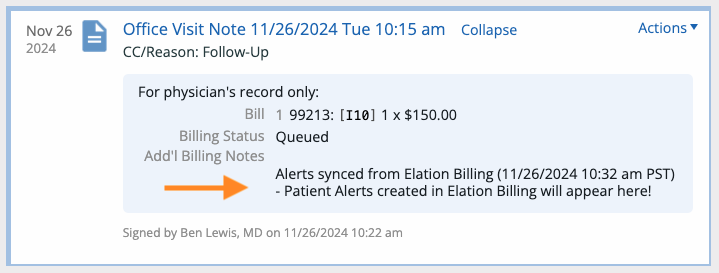
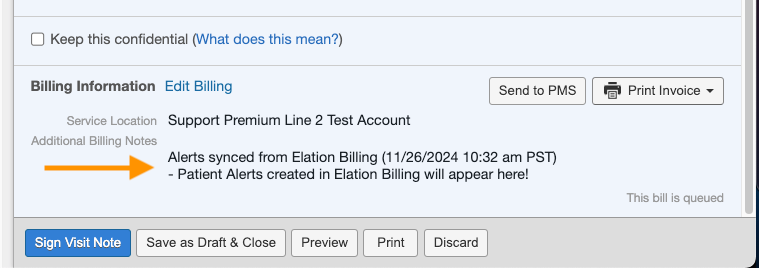
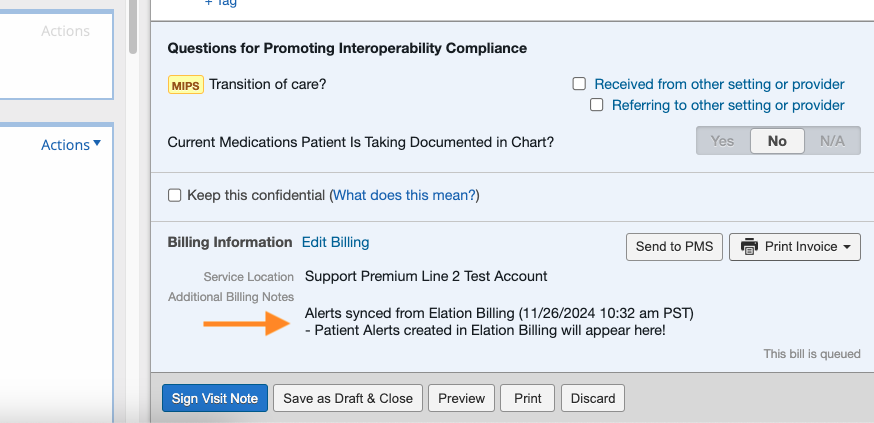
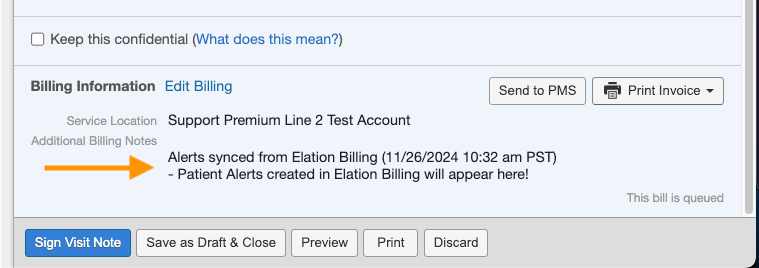 * In a Visit Note's Billing Information → Additional Billing Notes
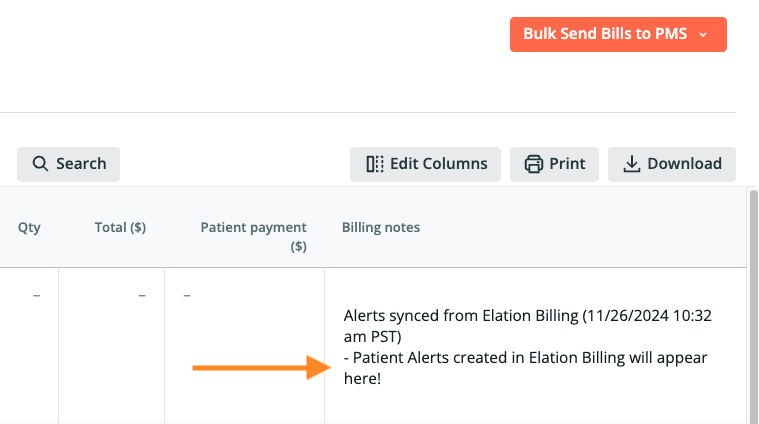
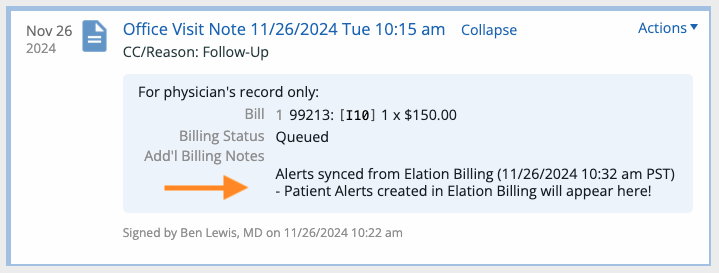
 * In the Billing Home → Billing Notes
 ***
### Adding a Claim Alert
Claim Alerts will appear:
* On the Superbill
* On any Payments that have the Superbill added
1. **Navigate** - Click on the **Alerts** button on the top right of the Superbill.
***
### Adding a Claim Alert
Claim Alerts will appear:
* On the Superbill
* On any Payments that have the Superbill added
1. **Navigate** - Click on the **Alerts** button on the top right of the Superbill.
 ***
### Creating the Alert
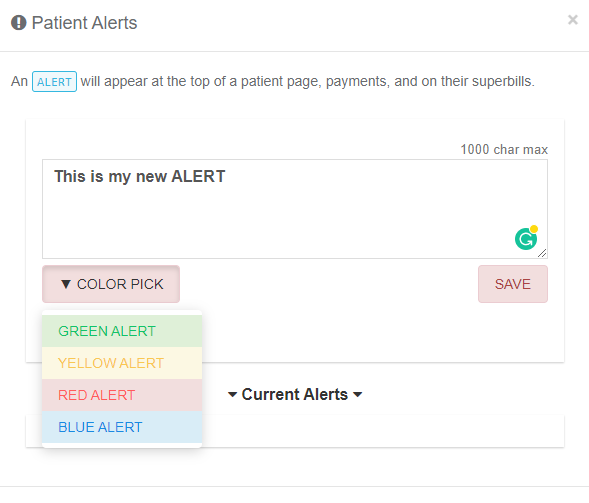
2. **Enter Alert** - Enter the text for the alert, choose a color, and click **SAVE**.
***
### Creating the Alert
2. **Enter Alert** - Enter the text for the alert, choose a color, and click **SAVE**.
 ***
### Viewing Alerts
#### In Elation Billing
* Patient Alerts display on the patient page, claims, and payments posted
* Claim Alerts display on Superbills
#### In the EHR (Elation EHR + Billing only)
Patient Alerts will also appear in the EHR, while Claim Alerts remain only in Elation Billing. You can review Patient Alerts in the EHR:
* When scheduling Patient Appointments
***
### Viewing Alerts
#### In Elation Billing
* Patient Alerts display on the patient page, claims, and payments posted
* Claim Alerts display on Superbills
#### In the EHR (Elation EHR + Billing only)
Patient Alerts will also appear in the EHR, while Claim Alerts remain only in Elation Billing. You can review Patient Alerts in the EHR:
* When scheduling Patient Appointments
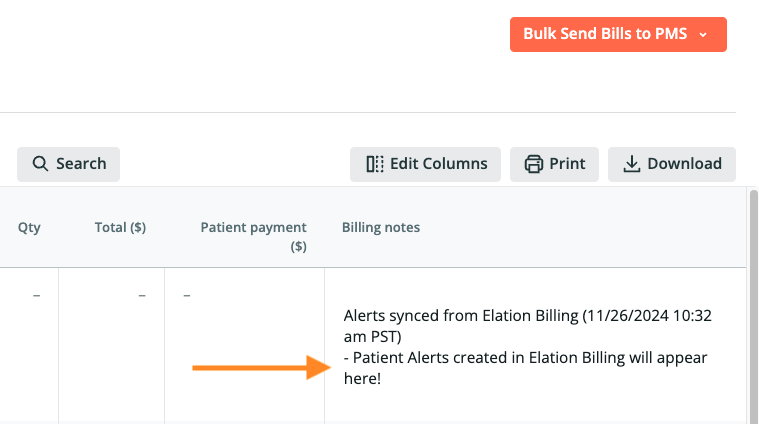
 * In a Visit Note's Billing Information → Additional Billing Notes
 * In the Billing Home → Billing Notes
 ## Related Articles
* [Add Notes to Patient, Claim, or Statements](/articles/add-notes-to-patient-claim-or-statements)
* [Add a New Patient](/articles/add-a-new-patient)
## Related Articles
* [Add Notes to Patient, Claim, or Statements](/articles/add-notes-to-patient-claim-or-statements)
* [Add a New Patient](/articles/add-a-new-patient)