> ## Documentation Index
> Fetch the complete documentation index at: https://help.elationhealth.com/llms.txt
> Use this file to discover all available pages before exploring further.
# Add a New Patient
> Learn how to add new patients in Elation Billing
This article provides step-by-step instructions on how to add a new patient in Elation Billing, including integrated AiO patient creation and manual patient entry.
## Overview
### What is Adding a New Patient?
Adding a new patient is the process of creating a patient record in Elation Billing with demographic and insurance information. This enables you to create claims and manage billing for the patient.
### Why is Adding a New Patient important?
Accurate patient records are essential for proper claim filing, insurance verification, and maintaining billing records. Patient demographic information is required to submit claims to insurance payers.
## Workflow Instructions
### Integrated/AiO Patient Creation
Generally speaking, AiO Patients will be created in the EHR, which will then create a linked Patient file within the billing software. All changes to Patient Demographics will be made in the EHR, which will then update the demographics within the billing software.
### Adding a New Patient Manually
You can also add a new patient directly from the superbill screen when creating a new claim. The process is almost identical and you never have to leave the claim screen.
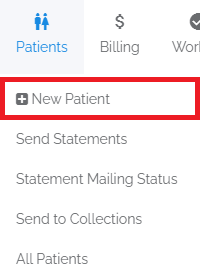
> 1. **Navigate** - Click on the **New Patient** option under the **Patients** drop-down menu.
>
>  >
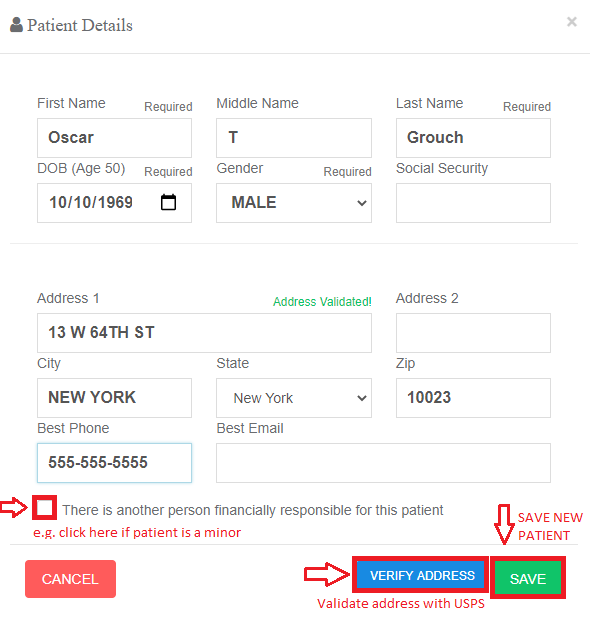
> 2. **Enter the Patient Demographics** - Fill in the demographic fields and click **SAVE**. You will need to have some kind of address in the system to file a claim.
You can enter just the street address and zip code, then click **Validate Address** to auto-fill the rest.
>
> 2. **Enter the Patient Demographics** - Fill in the demographic fields and click **SAVE**. You will need to have some kind of address in the system to file a claim.
You can enter just the street address and zip code, then click **Validate Address** to auto-fill the rest.
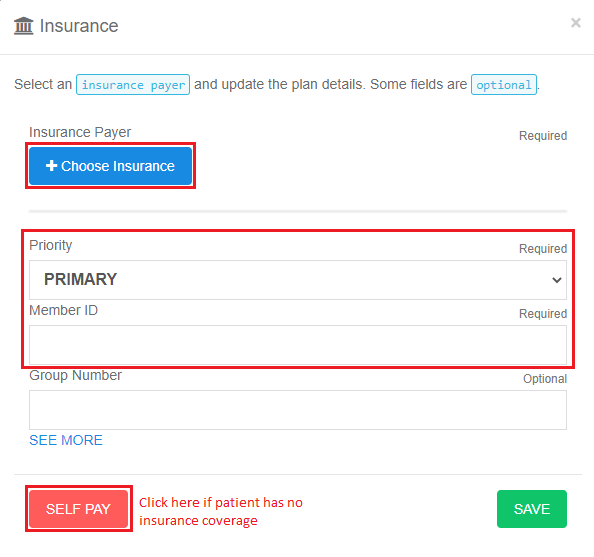
 3. **Enter Insurance Info** - If there is no insurance, just click **SELF PAY**. Otherwise, you must choose insurance, Primary or Secondary, enter the member id, and then click **SAVE**.
 4. **Add Additional Insurance Policies** - If the patient has additional insurance policies, you can add them after saving the initial patient record.
## Related Articles
* [Add or Edit Patient Insurance](/articles/add-or-edit-patient-insurance)
* [Filing a Claim](/articles/filing-a-claim)
* [Running Eligibility](/articles/running-eligibility)
4. **Add Additional Insurance Policies** - If the patient has additional insurance policies, you can add them after saving the initial patient record.
## Related Articles
* [Add or Edit Patient Insurance](/articles/add-or-edit-patient-insurance)
* [Filing a Claim](/articles/filing-a-claim)
* [Running Eligibility](/articles/running-eligibility)