> ## Documentation Index
> Fetch the complete documentation index at: https://help.elationhealth.com/llms.txt
> Use this file to discover all available pages before exploring further.
# Activate Online Payments
> Learn how to activate online payments using Stripe in Elation Billing
This article provides step-by-step instructions on how to activate online payments in Elation Billing using Stripe integration.
## Overview
### What is Activate Online Payments?
Activating online payments enables your practice to accept credit card payments from patients through Stripe integration. This allows for convenient payment collection via the Collect Now button and through the online patient payment portal at ElationPay.com.
### Why is Activating Online Payments important?
Online payments streamline the collection process, reduce manual payment handling, and provide patients with convenient payment options. Payments can be collected in person, via email statements, or through the online portal.
## Workflow Instructions
### Elation EHR + Billing Practices
If your practice is an Elation EHR + Billing user, you will activate Stripe through the EHR instead. This process takes about 10 minutes and you can skip Step 2 below. See [EHR Stripe Instructions](/articles/using-elation-to-securely-collect-patient-payments) for details.
***
### Elation Billing Legacy Practices
#### Before You Start
Visit [Stripe.com](https://dashboard.stripe.com/register) and create and activate an account for your practice. We partner with Stripe to simplify payment processing.
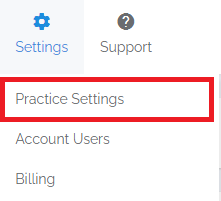
1. **Navigate** - Click on the **Practice Settings** option under the **Settings** drop-down menu.
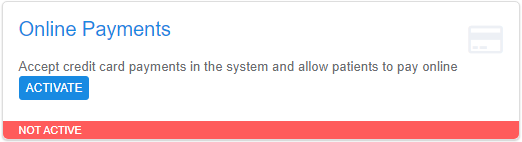
 Click on the **ACTIVATE** button for online payments.
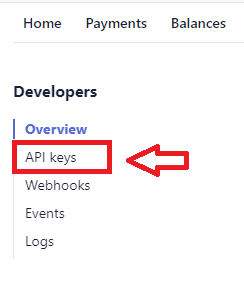
 2. **Get Your API Keys** - Log into Stripe.com and click on **Developers** in the upper right, then on **API Keys**.
 You will find 2 keys: a **publishable** and **secret** LIVE key. You will need both to activate the integration.
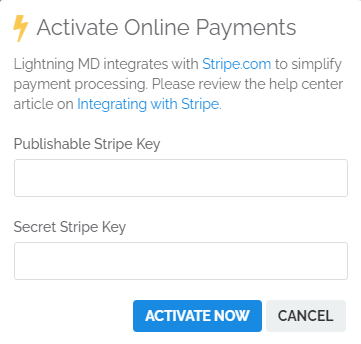
 3. **Enter Your API Keys** - Enter your API Keys into the billing software and click **ACTIVATE NOW**. The billing software will verify the keys and activate online payment processing for your account.
 4. **Use Online Payments** - Once activated:
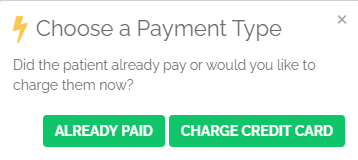
* When you click the **COLLECT NOW** button on a patient profile, you will have the choice of charging a credit card
4. **Use Online Payments** - Once activated:
* When you click the **COLLECT NOW** button on a patient profile, you will have the choice of charging a credit card

 * Patient statements will reference the online payment portal at **ELATIONPAY.COM**
* You can view payments processed in the billing software when you log into your Stripe account
At this time, patient refunds are processed directly in Stripe. See [Stripe refund instructions](https://support.stripe.com/questions/refund-a-customer) for details.
## Frequently Asked Questions
### Does Elation support other payment processors?
At this time, Stripe is the only payment processor directly integrated with Elation. Other processors, such as Clover, are not supported as a direct integration. If you choose to use a different processor, payments would need to be collected and processed outside of Elation and then recorded manually in the EHR.
## Related Articles
* [Sending Statements](/articles/sending-statements)
* [Posting a Payment in Elation Billing](/articles/posting-a-payment-in-elation-billing)
* [Using Elation to Securely Collect Patient Payments](/articles/using-elation-to-securely-collect-patient-payments)
* Patient statements will reference the online payment portal at **ELATIONPAY.COM**
* You can view payments processed in the billing software when you log into your Stripe account
At this time, patient refunds are processed directly in Stripe. See [Stripe refund instructions](https://support.stripe.com/questions/refund-a-customer) for details.
## Frequently Asked Questions
### Does Elation support other payment processors?
At this time, Stripe is the only payment processor directly integrated with Elation. Other processors, such as Clover, are not supported as a direct integration. If you choose to use a different processor, payments would need to be collected and processed outside of Elation and then recorded manually in the EHR.
## Related Articles
* [Sending Statements](/articles/sending-statements)
* [Posting a Payment in Elation Billing](/articles/posting-a-payment-in-elation-billing)
* [Using Elation to Securely Collect Patient Payments](/articles/using-elation-to-securely-collect-patient-payments)