> ## Documentation Index
> Fetch the complete documentation index at: https://help.elationhealth.com/llms.txt
> Use this file to discover all available pages before exploring further.
# Letter & Referral Guide - Accessing patient information sent by an Elation EHR user
> This article describes how recipients of a secure online fax or email (from Elation) can access the interactive chart using the information provided in the fax or email.
## Overview
### What is Elation Connect?
Elation Connect is a secure portal that lets you view messages and health records shared by Providers using Elation Health's EHR. You can also download these records if you need to transfer them to another system, like your own EHR.
### Why were you asked to log in to Elation Connect?
You have been invited to log in to Elation Connect because:
* The Elation Provider wants to share Protected Health Information (PHI) with you securely. Since email is not HIPAA compliant, you’ll need to log in to view the information.
* The Elation Provider wants you to benefit from the features of an Elation Connect account, as outlined below.
### What are the benefits of setting up your Elation Connect account?
With an Elation Connect account, you can:
* View all correspondences from Elation Providers in one place.
* Download correspondences to transfer to your own EHR.
* Communicate back to Elation Providers directly through the portal - they’ll receive it in their EHR.
* Access correspondences anytime, even on the go.
## Workflow Instructions
### Setting up your Elation Connect account for the first time
#### You received an email
If you received an email with the subject line **Shared clinical information about our mutual patient…**, an Elation Provider is trying to share PHI with you. This is what the email may look like:
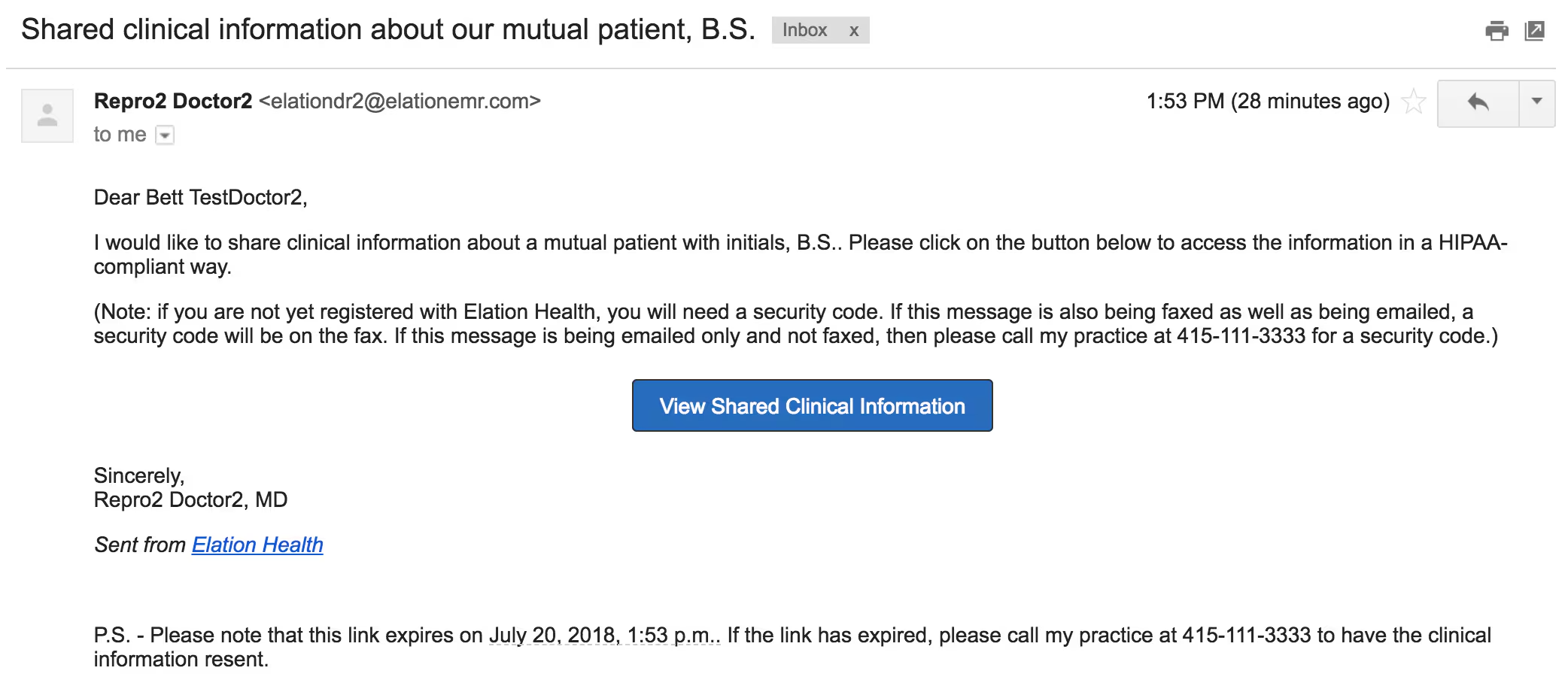 To register for your Elation Connect account to access the PHI:
| **1** | Open the email and click **View Shared Clinical Information** . |
| ----- | --------------------------------------------------------------------------------------------------------------------------------------------------------------------------------------------------------------------------------------------------- |
| **2** | Create a password. |
| **3** | Call the sending Provider’s office to have them provide you with the 6 digit **Provider Security Code** as needed. The number to their practice is provided at the bottom of the box if needed. Then enter the 6 digit **Provider Security Code** . |
| **4** | Click **I agree, Create My Account** to create your account. |
| **5** | You can now log in to your Elation Connect account using your email and chosen password via [app.elationemr.com](http://app.elationemr.com) . |
#### You received a fax
If you received a fax that looks like one of the following images, an Elation Provider is trying to share PHI with you.
To register for your Elation Connect account to access the PHI:
| **1** | Open the email and click **View Shared Clinical Information** . |
| ----- | --------------------------------------------------------------------------------------------------------------------------------------------------------------------------------------------------------------------------------------------------- |
| **2** | Create a password. |
| **3** | Call the sending Provider’s office to have them provide you with the 6 digit **Provider Security Code** as needed. The number to their practice is provided at the bottom of the box if needed. Then enter the 6 digit **Provider Security Code** . |
| **4** | Click **I agree, Create My Account** to create your account. |
| **5** | You can now log in to your Elation Connect account using your email and chosen password via [app.elationemr.com](http://app.elationemr.com) . |
#### You received a fax
If you received a fax that looks like one of the following images, an Elation Provider is trying to share PHI with you.
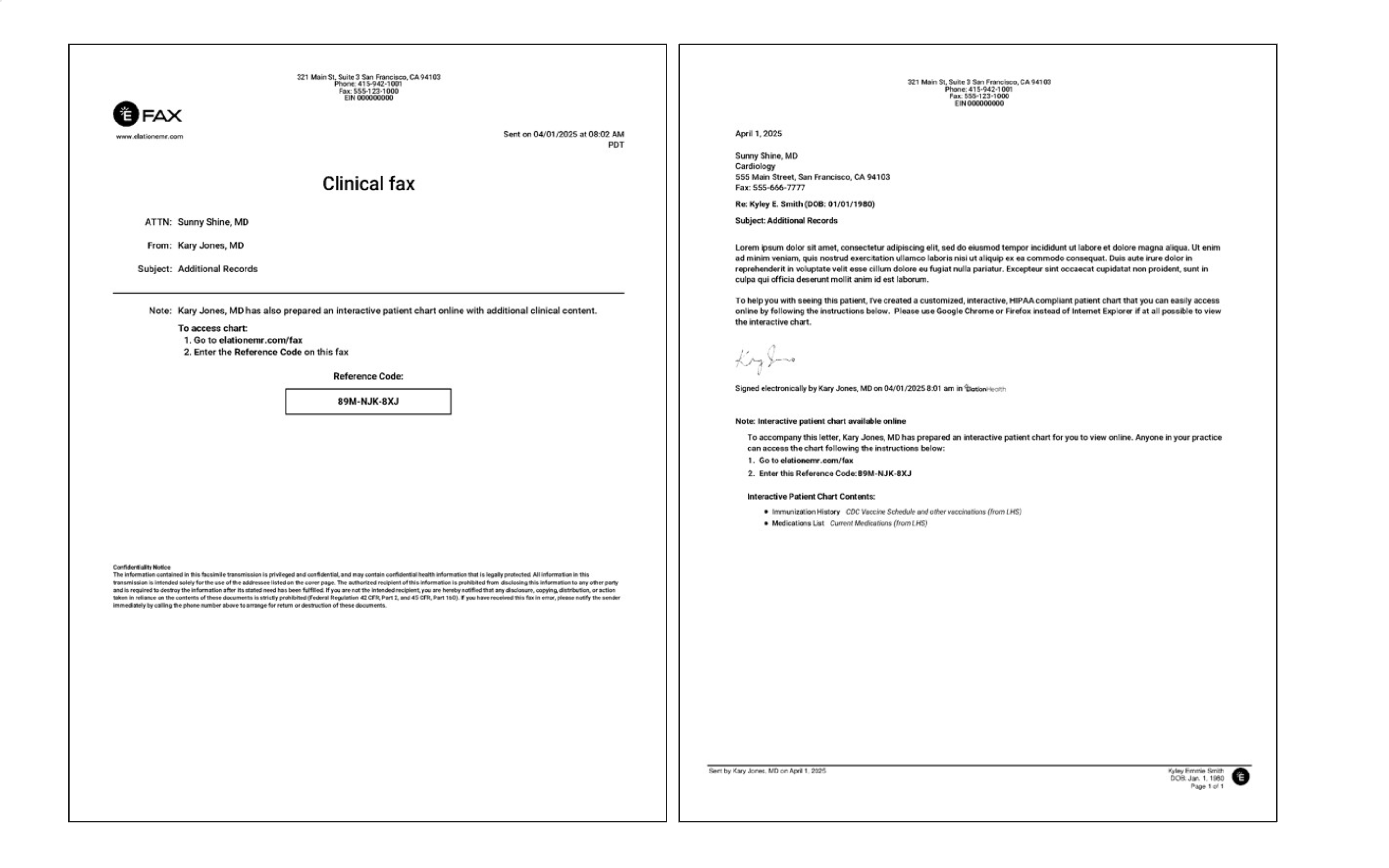 To register for your Elation Connect account to access the PHI:
| **1** | Go to [app.elationemr.com/efax](http://app.elationemr.com/efax) . |
| ----- | ----------------------------------------------------------------------------------------------------------------------------------------------------------------------------------------------------------------------------------------------------------------------------------------------------------------------------------------------------------------------------------------------------------------------------------------------------------------------------------------------------------------------------------------------------------------------------------------------------------------------------------------------------------------------------------------------------------------------------------------------------------------------------------------- |
| **2** | Enter the **Reference Code** listed on the fax. The **Reference Code** is listed on the fax in the areas circled above. |
| **3** | Fill out the following: **My role in the practice is** - Select the option that best matches your role in your practice. • **My name is** - Select your name from the list or select **Other** if your name is not on the list. • **Create a password**- Enter a password of your choice. • **Enter password again** - Enter the password again. • **Choose a security question** - Select the security question you would like us to use when you need assistance retrieving your account. • **Answer to security question** - Enter the answer to your chosen security question. This will be used to retrieve your account. |
| **4** | Click **Agree and Go to Chart** . |
| **5** | Click **Go to my charts** in the welcome window. |
| **6** | Link your email to your Elation Connect account for easy access in the future by following these steps: Click on the email at the top right of the account. It likely ends in [elationemr.com](http://elationemr.com). • Click **Settings**. • Click **Edit profile**. • Update the **Email** address to one of your choice. • Fill in other required fields as needed such as **Credentials**, **NPI**, **State**, and **Medical License** #. • Click **Update**. • Check off the **I acknowledge that this is the same individual, and I am only updating their identifying information** box. • Click **Confirm and Update**. • You can now log in to your Elation Connect account using the email address and password you chose via [app.elationemr.com](http://app.elationemr.com). |
### Logging in to your Elation Connect account
#### You received an email
To log in to your Elation Connect account, use one of the methods below:
| **1** | Go to [app.elationemr.com](http://app.elationemr.com) and login with your Connect credentials. |
| ----- | --------------------------------------------------------------------------------------------------- |
| **2** | Open the email notification you received and click the **View Shared Clinical Information** button. |
#### You received a fax
To log in to your Elation Connect account, use one of the methods below:
| **1** | Use the **Reference Code** you received from the latest fax. Go to app.elationemr.com/efax and enter the **Reference Code** on the fax • Select your name from the list if you already have an account • Enter your password and click **Go to Chart** to access all old and new records. |
| ----- | ------------------------------------------------------------------------------------------------------------------------------------------------------------------------------------------------------------------------------------------------------------------------------------------------------------------------------------------------------------------------------------------------------------ |
| **2** | Locate your account via [https://app.elationemr.com/efax/locate-account/](https://app.elationemr.com/efax/locate-account/). Go to [https://app.elationemr.com/efax/locate-account/](https://app.elationemr.com/efax/locate-account/). • Enter your last name and office fax number to locate your account. • Enter the password for your account. • Click **Go to Chart** to access all old and new records. |
#### Resetting your password
##### Resetting your password for an email account
| **1** | Go to [app.elationemr.com](http://app.elationemr.com) . |
| ------ | --------------------------------------------------------------------------------- |
| **2** | Enter in the email address for your account. |
| **3** | Click **Forgot password** . |
| **4** | Enter in the email address for your account. |
| **5** | Click **Submit Request** . |
| **6** | Look for an email from Elation with the Subject line **Elation Password Reset** . |
| **7** | Click on the link in the email to open the password reset page. |
| **8** | Enter a new password twice. |
| **9** | Click **Update Password** . |
| **10** | Click **Back to Login Page** . |
| **11** | Login with your email and new password. |
##### Resetting your password for a fax account
| **1** | Go to [app.elationemr.com/efax](http://app.elationemr.com/efax) and enter the **Reference Code** on the fax. |
| ----- | ------------------------------------------------------------------------------------------------------------------------------------------------------------------------------------------------------------------------------------------------------------------------------------------ |
| **2** | Select your name from the list if you already have an account. If you do not see your name in the list it means you do not have an account associated with this correspondence. Click **My name is not listed here** to enter your name and view only the contents of this particular fax. |
| **3** | Click **I forgot my password** . |
| **4** | Enter the answer to the security question you chose during registration. If you forgot your security question answer, click **I don't know the answer**. • Click **View Documents** to only view the most recent record sent to you. |
| **5** | Click **Submit** . |
| **6** | Enter a new password twice. |
| **7** | Click **Set new password and go to chart** . |
### Navigating Elation Connect
#### Viewing sent records
When you sign in, you’ll land on your Practice Home page. Check the **Provider Letter** inbox for new messages or replies from Elation Providers.
To register for your Elation Connect account to access the PHI:
| **1** | Go to [app.elationemr.com/efax](http://app.elationemr.com/efax) . |
| ----- | ----------------------------------------------------------------------------------------------------------------------------------------------------------------------------------------------------------------------------------------------------------------------------------------------------------------------------------------------------------------------------------------------------------------------------------------------------------------------------------------------------------------------------------------------------------------------------------------------------------------------------------------------------------------------------------------------------------------------------------------------------------------------------------------- |
| **2** | Enter the **Reference Code** listed on the fax. The **Reference Code** is listed on the fax in the areas circled above. |
| **3** | Fill out the following: **My role in the practice is** - Select the option that best matches your role in your practice. • **My name is** - Select your name from the list or select **Other** if your name is not on the list. • **Create a password**- Enter a password of your choice. • **Enter password again** - Enter the password again. • **Choose a security question** - Select the security question you would like us to use when you need assistance retrieving your account. • **Answer to security question** - Enter the answer to your chosen security question. This will be used to retrieve your account. |
| **4** | Click **Agree and Go to Chart** . |
| **5** | Click **Go to my charts** in the welcome window. |
| **6** | Link your email to your Elation Connect account for easy access in the future by following these steps: Click on the email at the top right of the account. It likely ends in [elationemr.com](http://elationemr.com). • Click **Settings**. • Click **Edit profile**. • Update the **Email** address to one of your choice. • Fill in other required fields as needed such as **Credentials**, **NPI**, **State**, and **Medical License** #. • Click **Update**. • Check off the **I acknowledge that this is the same individual, and I am only updating their identifying information** box. • Click **Confirm and Update**. • You can now log in to your Elation Connect account using the email address and password you chose via [app.elationemr.com](http://app.elationemr.com). |
### Logging in to your Elation Connect account
#### You received an email
To log in to your Elation Connect account, use one of the methods below:
| **1** | Go to [app.elationemr.com](http://app.elationemr.com) and login with your Connect credentials. |
| ----- | --------------------------------------------------------------------------------------------------- |
| **2** | Open the email notification you received and click the **View Shared Clinical Information** button. |
#### You received a fax
To log in to your Elation Connect account, use one of the methods below:
| **1** | Use the **Reference Code** you received from the latest fax. Go to app.elationemr.com/efax and enter the **Reference Code** on the fax • Select your name from the list if you already have an account • Enter your password and click **Go to Chart** to access all old and new records. |
| ----- | ------------------------------------------------------------------------------------------------------------------------------------------------------------------------------------------------------------------------------------------------------------------------------------------------------------------------------------------------------------------------------------------------------------ |
| **2** | Locate your account via [https://app.elationemr.com/efax/locate-account/](https://app.elationemr.com/efax/locate-account/). Go to [https://app.elationemr.com/efax/locate-account/](https://app.elationemr.com/efax/locate-account/). • Enter your last name and office fax number to locate your account. • Enter the password for your account. • Click **Go to Chart** to access all old and new records. |
#### Resetting your password
##### Resetting your password for an email account
| **1** | Go to [app.elationemr.com](http://app.elationemr.com) . |
| ------ | --------------------------------------------------------------------------------- |
| **2** | Enter in the email address for your account. |
| **3** | Click **Forgot password** . |
| **4** | Enter in the email address for your account. |
| **5** | Click **Submit Request** . |
| **6** | Look for an email from Elation with the Subject line **Elation Password Reset** . |
| **7** | Click on the link in the email to open the password reset page. |
| **8** | Enter a new password twice. |
| **9** | Click **Update Password** . |
| **10** | Click **Back to Login Page** . |
| **11** | Login with your email and new password. |
##### Resetting your password for a fax account
| **1** | Go to [app.elationemr.com/efax](http://app.elationemr.com/efax) and enter the **Reference Code** on the fax. |
| ----- | ------------------------------------------------------------------------------------------------------------------------------------------------------------------------------------------------------------------------------------------------------------------------------------------ |
| **2** | Select your name from the list if you already have an account. If you do not see your name in the list it means you do not have an account associated with this correspondence. Click **My name is not listed here** to enter your name and view only the contents of this particular fax. |
| **3** | Click **I forgot my password** . |
| **4** | Enter the answer to the security question you chose during registration. If you forgot your security question answer, click **I don't know the answer**. • Click **View Documents** to only view the most recent record sent to you. |
| **5** | Click **Submit** . |
| **6** | Enter a new password twice. |
| **7** | Click **Set new password and go to chart** . |
### Navigating Elation Connect
#### Viewing sent records
When you sign in, you’ll land on your Practice Home page. Check the **Provider Letter** inbox for new messages or replies from Elation Providers.
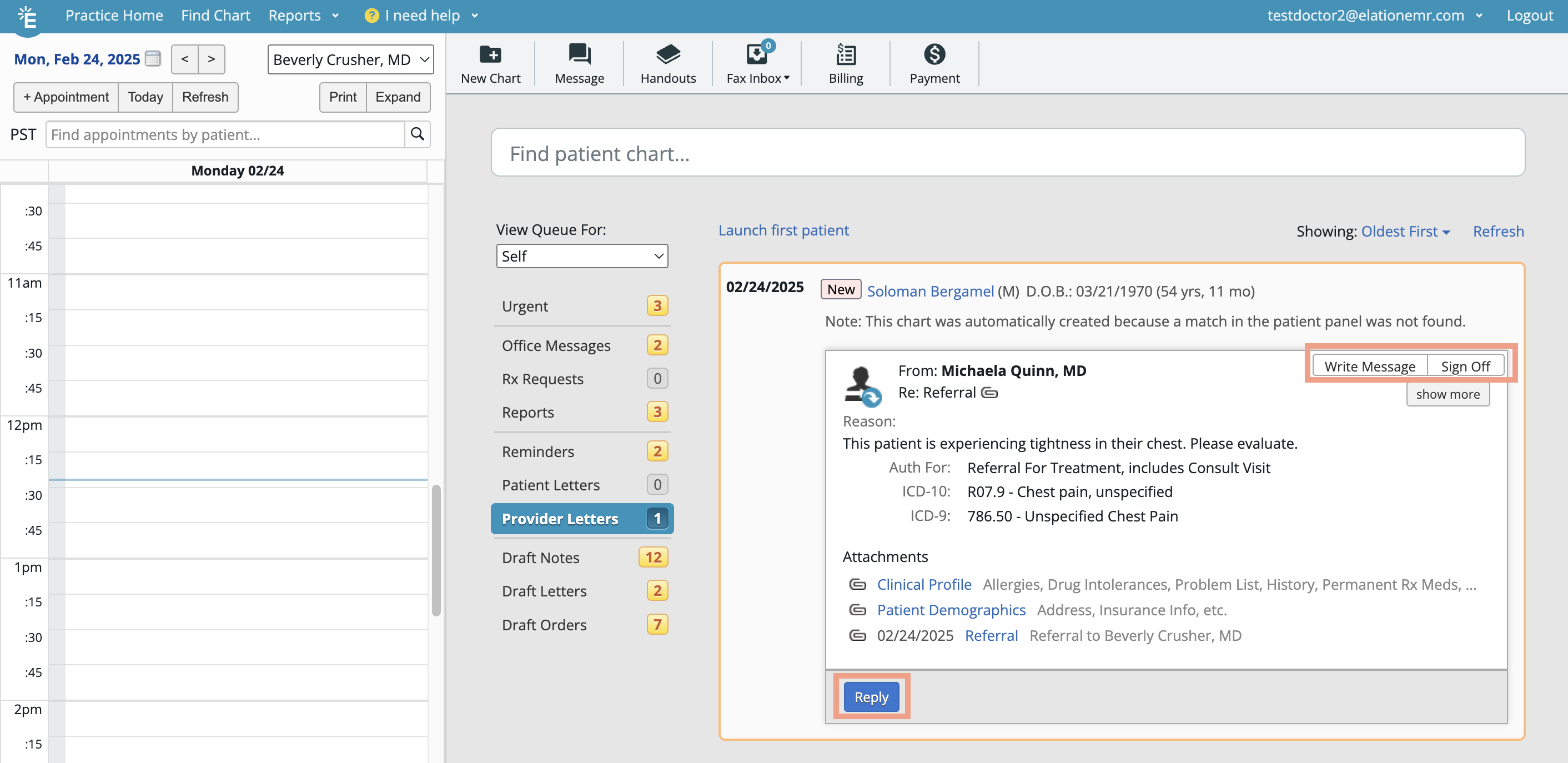 Actions you can take:
* Click on the patient’s name to view the correspondence in the patient’s chart.
* **Reply**: Write a message back to the sender.
* **Sign Off**: Sign off on the correspondence and keep it in the patient’s chart.
* If the correspondence includes attachments, select which attachments (if any) to file as a Report in your version of the patient’s chart when prompted.
* Click **Actions** -> **Print** to print or save any records as a PDF as needed.
* (Conditional) **Acknowledge**:
* Appears once anyone starts a conversation.
* Dismiss the correspondence from your Practice Home inbox and keep it in the patient’s chart for records.
The patient’s chart contains the correspondence and its attachments. If the patient’s Clinical Profile was shared with you, you will see information pre-populated in the Clinical Profile (left hand side) of the patient’s chart.
From the chart,
* Click **Actions** -> **Print** to print or save any records as a PDF as needed.
* [Upload documents to the patient’s chart](/articles/filing-documents-to-a-patient-chart)and then attach them to a Provider Letter to share with the Elation Provider as needed. To send a letter:
1. Click **Letter** -> **to Provider**.
2. Enter the name of the Elation Provider in the **To** field.
3. Fill out the **Subject** and **Body** fields.
4. Add attachments as needed.
5. Options for attaching records:
6. **Select Chart Items to Attach**: Use this option to pick and choose individual patient records to attach to the letter or referral.
7. **Attach Everything in Chart**: Use this option to attach all attachable records.
8. Click **Sign & Send** to send the correspondence.
## Frequently Asked Questions
##### Am I able to access my Elation Connect account at any time?
Yes, you can access your Elation Connect account at any time via [app.elationemr.com](http://app.elationemr.com) using your login email and password.
However, if you are accessing records using only a Reference Code (without creating a full account), those records expire after 7 days of being sent. If you need to reference records for longer than 7 days, download the records to your computer before they expire.
##### I don’t want to create an account, can they just email or fax all the records to me?
Email is not a HIPAA compliant means of sharing Protected Health Information therefore it is not supported. Fax may not be possible if the correspondence is larger than a certain size, therefore you are receiving the information through Connect.
##### I am receiving an error when I click on the 'View Shared Clinical Information' button from my email. Why is this happening?
If you click on the **View Shared Clinical Information** button from your email and run into an error, it can be one of two reasons:
1. The invitation expired - Contact the sender and ask them to resend the information.
2. Your email is already associated with an Elation account (this can include Elation Patient Passport). - Contact the sender, provide them with a different email and ask them to resend the information.
##### I received a referral link but cannot access the chart. What should I do?
If you received a fax or email with a link to view patient information but are unable to access the chart, try the following steps:
**Check if the link has expired**
Records accessed via a Reference Code expire after 7 days of being sent. If more than 7 days have passed since the referral was sent, the link will no longer work.
**Verify you are using the correct access method**
* If you received a fax: Go to [app.elationemr.com/efax](http://app.elationemr.com/efax) and enter the Reference Code listed on the fax.
* If you received an email: Open the email and click **View Shared Clinical Information**.
**If you already have an Elation Connect account**
* Go to [app.elationemr.com](http://app.elationemr.com) and log in with your Connect credentials.
* If you forgot your password, use the password reset option or go to [app.elationemr.com/efax/locate-account/](https://app.elationemr.com/efax/locate-account/) to locate your account using your last name and office fax number.
**If your name is not listed when entering the Reference Code**
If you do not see your name in the list, it means you do not have an account associated with this correspondence. Click **My name is not listed here** to enter your name and view only the contents of this particular fax.
**If the link has expired or you still cannot access the records**
Contact the sending practice directly and ask them to resend the referral. The practice's contact information is typically included on the fax cover page or in the email notification you received.
##### I received an error that my email is already associated with an Elation account. What should I do?
If you see this error when trying to register for Elation Connect, your email address may already be linked to another Elation account (such as an Elation Patient Passport account or another provider account).
To resolve this:
| **1** | Contact the sending practice directly. |
| ----- | ---------------------------------------------------------- |
| **2** | Provide them with a different email address. |
| **3** | Ask them to resend the referral to your new email address. |
Actions you can take:
* Click on the patient’s name to view the correspondence in the patient’s chart.
* **Reply**: Write a message back to the sender.
* **Sign Off**: Sign off on the correspondence and keep it in the patient’s chart.
* If the correspondence includes attachments, select which attachments (if any) to file as a Report in your version of the patient’s chart when prompted.
* Click **Actions** -> **Print** to print or save any records as a PDF as needed.
* (Conditional) **Acknowledge**:
* Appears once anyone starts a conversation.
* Dismiss the correspondence from your Practice Home inbox and keep it in the patient’s chart for records.
The patient’s chart contains the correspondence and its attachments. If the patient’s Clinical Profile was shared with you, you will see information pre-populated in the Clinical Profile (left hand side) of the patient’s chart.
From the chart,
* Click **Actions** -> **Print** to print or save any records as a PDF as needed.
* [Upload documents to the patient’s chart](/articles/filing-documents-to-a-patient-chart)and then attach them to a Provider Letter to share with the Elation Provider as needed. To send a letter:
1. Click **Letter** -> **to Provider**.
2. Enter the name of the Elation Provider in the **To** field.
3. Fill out the **Subject** and **Body** fields.
4. Add attachments as needed.
5. Options for attaching records:
6. **Select Chart Items to Attach**: Use this option to pick and choose individual patient records to attach to the letter or referral.
7. **Attach Everything in Chart**: Use this option to attach all attachable records.
8. Click **Sign & Send** to send the correspondence.
## Frequently Asked Questions
##### Am I able to access my Elation Connect account at any time?
Yes, you can access your Elation Connect account at any time via [app.elationemr.com](http://app.elationemr.com) using your login email and password.
However, if you are accessing records using only a Reference Code (without creating a full account), those records expire after 7 days of being sent. If you need to reference records for longer than 7 days, download the records to your computer before they expire.
##### I don’t want to create an account, can they just email or fax all the records to me?
Email is not a HIPAA compliant means of sharing Protected Health Information therefore it is not supported. Fax may not be possible if the correspondence is larger than a certain size, therefore you are receiving the information through Connect.
##### I am receiving an error when I click on the 'View Shared Clinical Information' button from my email. Why is this happening?
If you click on the **View Shared Clinical Information** button from your email and run into an error, it can be one of two reasons:
1. The invitation expired - Contact the sender and ask them to resend the information.
2. Your email is already associated with an Elation account (this can include Elation Patient Passport). - Contact the sender, provide them with a different email and ask them to resend the information.
##### I received a referral link but cannot access the chart. What should I do?
If you received a fax or email with a link to view patient information but are unable to access the chart, try the following steps:
**Check if the link has expired**
Records accessed via a Reference Code expire after 7 days of being sent. If more than 7 days have passed since the referral was sent, the link will no longer work.
**Verify you are using the correct access method**
* If you received a fax: Go to [app.elationemr.com/efax](http://app.elationemr.com/efax) and enter the Reference Code listed on the fax.
* If you received an email: Open the email and click **View Shared Clinical Information**.
**If you already have an Elation Connect account**
* Go to [app.elationemr.com](http://app.elationemr.com) and log in with your Connect credentials.
* If you forgot your password, use the password reset option or go to [app.elationemr.com/efax/locate-account/](https://app.elationemr.com/efax/locate-account/) to locate your account using your last name and office fax number.
**If your name is not listed when entering the Reference Code**
If you do not see your name in the list, it means you do not have an account associated with this correspondence. Click **My name is not listed here** to enter your name and view only the contents of this particular fax.
**If the link has expired or you still cannot access the records**
Contact the sending practice directly and ask them to resend the referral. The practice's contact information is typically included on the fax cover page or in the email notification you received.
##### I received an error that my email is already associated with an Elation account. What should I do?
If you see this error when trying to register for Elation Connect, your email address may already be linked to another Elation account (such as an Elation Patient Passport account or another provider account).
To resolve this:
| **1** | Contact the sending practice directly. |
| ----- | ---------------------------------------------------------- |
| **2** | Provide them with a different email address. |
| **3** | Ask them to resend the referral to your new email address. |