> ## Documentation Index
> Fetch the complete documentation index at: https://help.elationhealth.com/llms.txt
> Use this file to discover all available pages before exploring further.
# Reporting Guide- Built-in appointment and visit note productivity reporting (Premium)
> This article describes the following productivity reports and dashboards available to Premium EHR users: Appointment Dashboard, Appointment List, Visit Notes Dashboard and Visit Notes List.
## What is built-in productivity reporting in the EHR?
Premium EHR users have access to built-in reporting around appointments and visit notes in Elation EHR. With four new dashboards and reports, you will be able to see the performance metrics for patient appointments and visit notes for certain periods of time. The new reporting options are as follows:
* Appointment Dashboard
* Appointment List
* Visit Notes Dashboard
* Visit Notes List
## What are the benefits of built-in productivity reporting?
The built-in reporting options around your appointments and visit notes data allows you to
* Track the performance and productivity of your practice.
* Easily scan your data to assist with administrative workflows such as ensuring data is complete for appointments and patient demographics.
* Visualize your performance and measure efficiency.
## How to access built-in productivity reports
Premium EHR users can access the Appointment Dashboard, Appointment List, Visit Note Dashboard and Visit Note List by clicking the **Reports** button in the blue navigation bar at the top of any page in Elation EHR and then clicking on the name of the dashboard or report to open it in a new tab in your browser.
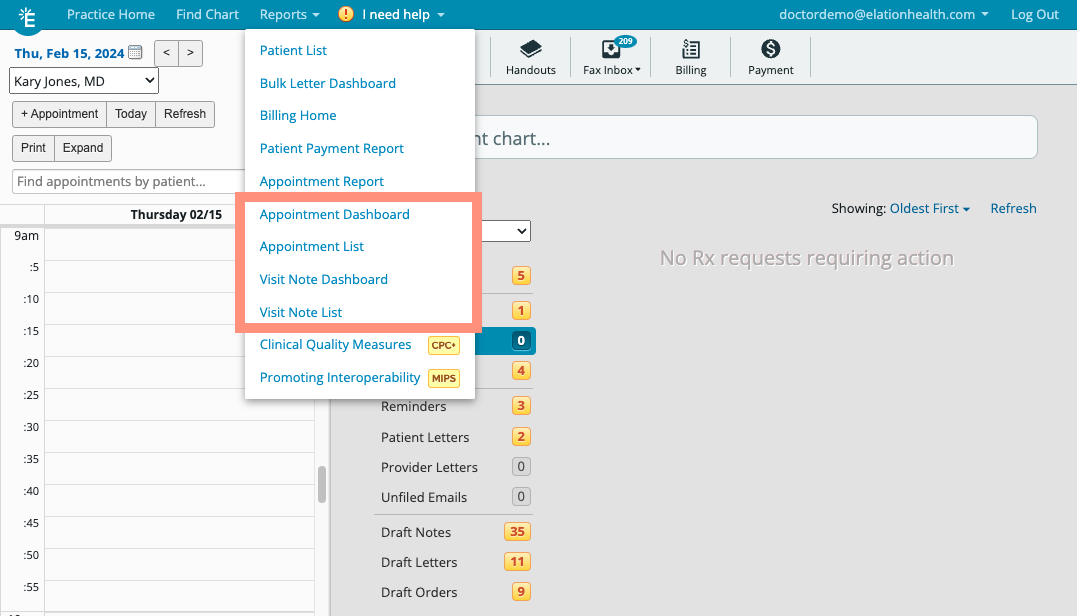 If you are interested in upgrading to the Premium EHR subscription to use this feature, click the **I need help** button to notify Elation and a member of the Elation Team will reach out to assist you.
## Appointment Dashboard
### Appointment Dashboard Overview
The Appointment Dashboard is divided into 3 main sections:
* (Top) A graph of ‘Total Appointments by Type’ (Appointment Type)
* (Center) A graph of **Appointments by Status** along with a quick view count of
* Total Appointments
* Canceled Appointments
* No Show Appointments
* Canceled Ratio
* No-Show Ratio
* (Bottom) Quick-view tables that show:
* Scheduled Appointments by Patient Status
* Scheduled Appointments by Note Type
* Past Appointment Statuses
The **time to sign** calculation begins when the visit note is created.
### How to use the Appointment Dashboard
If you are interested in upgrading to the Premium EHR subscription to use this feature, click the **I need help** button to notify Elation and a member of the Elation Team will reach out to assist you.
## Appointment Dashboard
### Appointment Dashboard Overview
The Appointment Dashboard is divided into 3 main sections:
* (Top) A graph of ‘Total Appointments by Type’ (Appointment Type)
* (Center) A graph of **Appointments by Status** along with a quick view count of
* Total Appointments
* Canceled Appointments
* No Show Appointments
* Canceled Ratio
* No-Show Ratio
* (Bottom) Quick-view tables that show:
* Scheduled Appointments by Patient Status
* Scheduled Appointments by Note Type
* Past Appointment Statuses
The **time to sign** calculation begins when the visit note is created.
### How to use the Appointment Dashboard
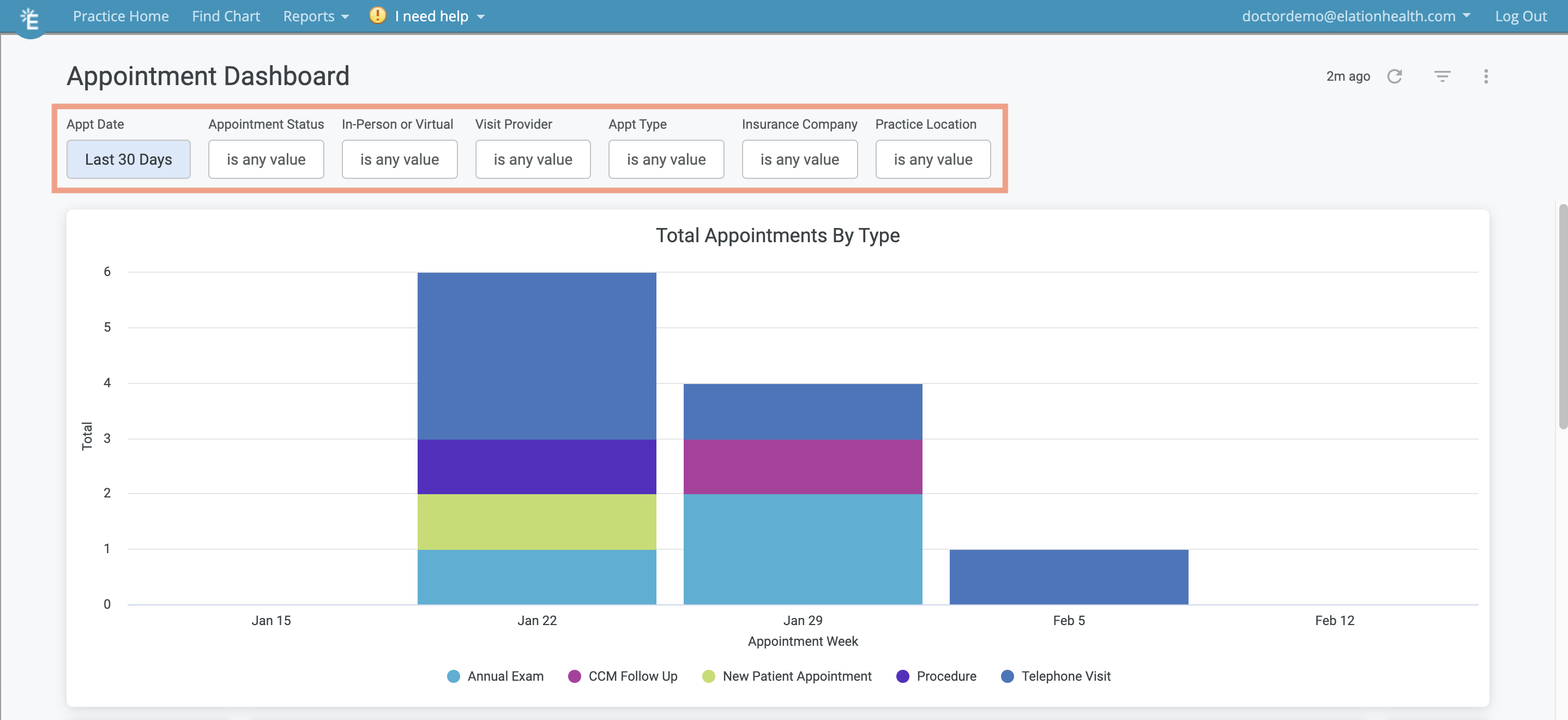 The Appointment Dashboard shows you visuals and graphs around the following details of the Appointment data, if available. You can apply these filters to the Dashboard to customize your view of the Dashboard. After applying filters, click the
 **Refresh** button to see the results based on your selections.
* **Appointment Date**
* Filter by the date of the appointment. By default, the Dashboard will show you Appointment data for the last 30 calendar days.
* **Appointment Status**
* **In-person or Virtual**
* **Visit Provider**
* **Appointment Type**
* **Insurance Company**
* **Practice Location**
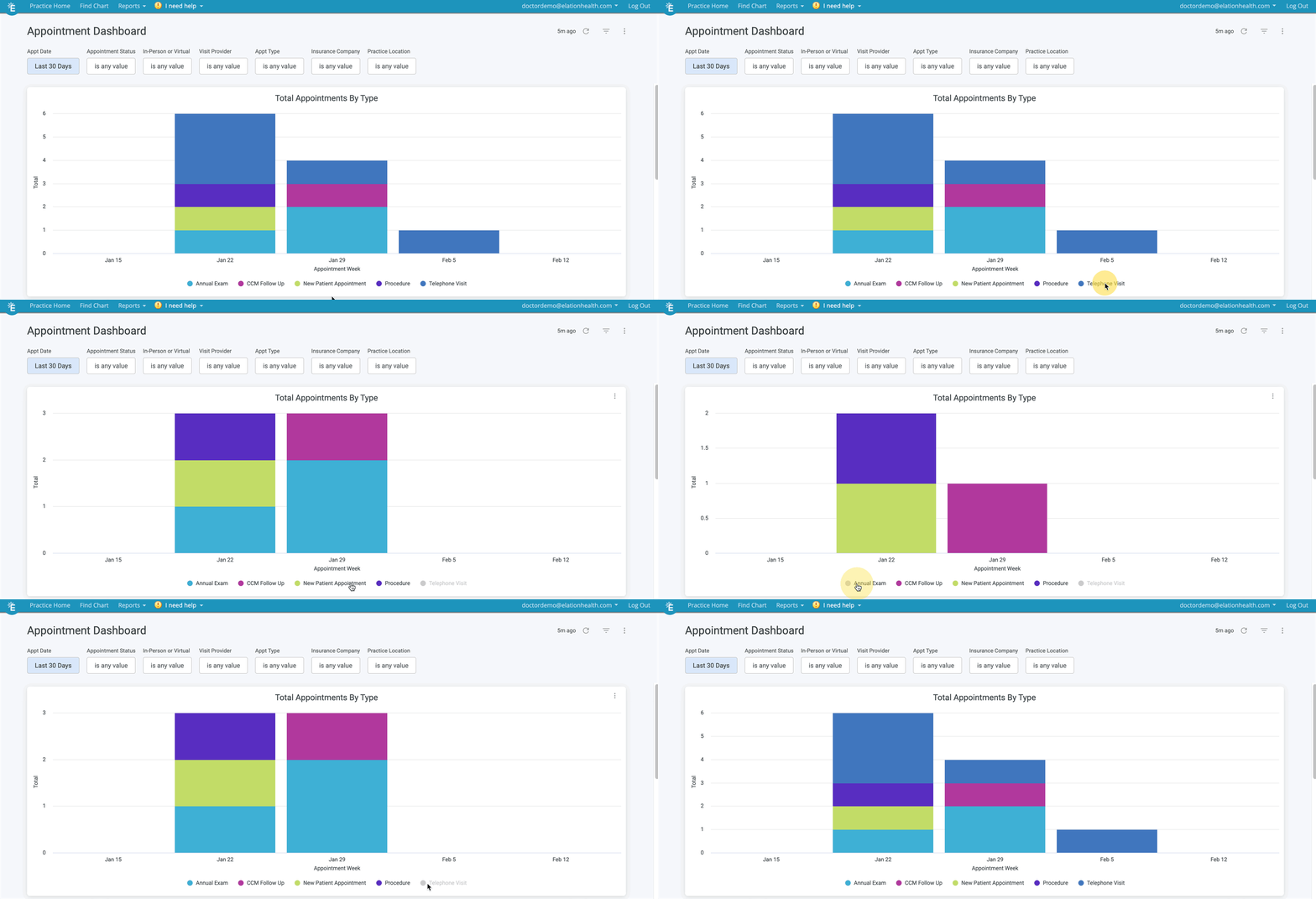
You can also click on any Appointment Type label at the bottom of the **Total Appointments by Type** graph to hide that Appointment Type from the graph.
**Refresh** button to see the results based on your selections.
* **Appointment Date**
* Filter by the date of the appointment. By default, the Dashboard will show you Appointment data for the last 30 calendar days.
* **Appointment Status**
* **In-person or Virtual**
* **Visit Provider**
* **Appointment Type**
* **Insurance Company**
* **Practice Location**
You can also click on any Appointment Type label at the bottom of the **Total Appointments by Type** graph to hide that Appointment Type from the graph.
 To download or print a copy of the entire dashboard, click on the
 **Actions** button as shown in the image below and then click **Download** to save a PDF copy of the dashboard to your computer for records or for printing.
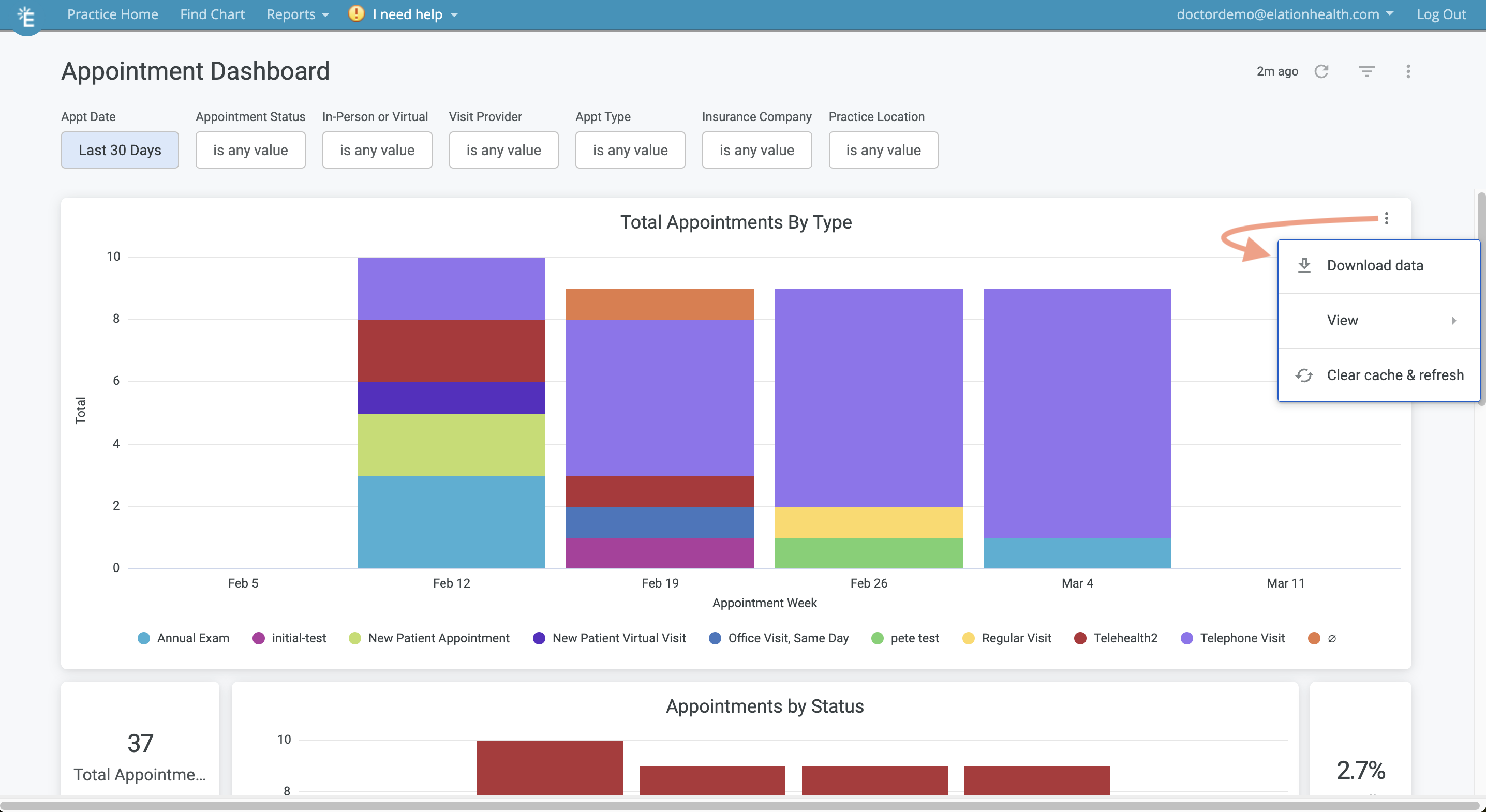
 Click on the
**Actions** button within individual visuals (as shown below) to:
* Download the data
* Expand the visuals
* Refresh the data
Click on the
**Actions** button within individual visuals (as shown below) to:
* Download the data
* Expand the visuals
* Refresh the data
 ## Appointment List
### Appointment List Overview
## Appointment List
### Appointment List Overview
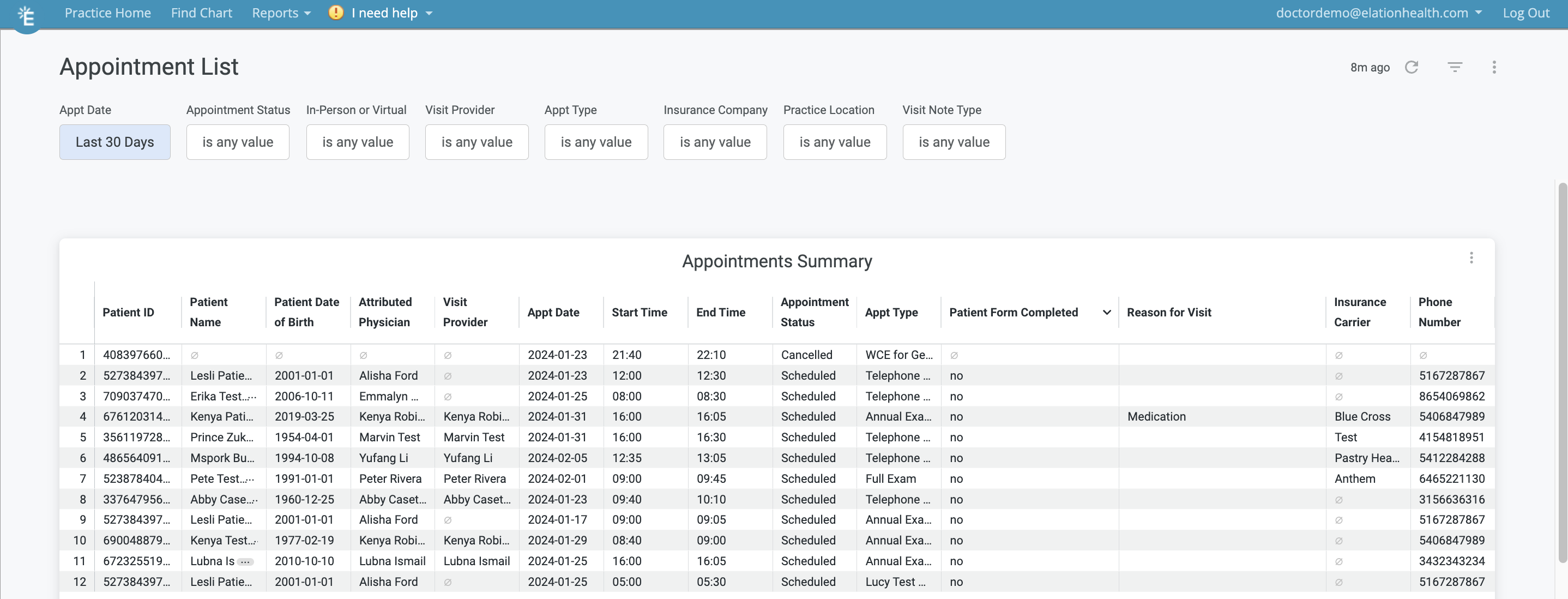 The Appointment List allows you to see a tabular view of the appointment data in the Appointment Dashboard with extra granularity. The following columns are available in the Appointment List. You can hover your cursor over each column name to see additional column options or the sort option.
* **Patient ID**
* **Patient Name**
* **Patient Date of Birth**
* **Attribute Physician (Provider Assigned in Practice)**
* **Visit Provider**
* **Appointment Date**
* **Appointment Start Time**
* **Appointment End Time**
* **Appointment Status**
* **Appointment Type**
* **Patient Form Completed**
* **Reason for Visit (Description- Chief Complaint)**
* **Insurance Carrier (Primary Insurance)**
* **Phone Number (Phone number in the first phone field)**
### How to use the Appointment List
The following filters are available in the Appointment List. After applying filters, click the
**Refresh** button to see the results based on your selections.
* **Appointment Date**
* Filter by the date of the appointment. By default the Dashboard will show you Appointment data for the last 30 calendar days.
* **Appointment Status**
* **In-person or Virtual**
* **Visit Provider**
* **Appointment Type**
* **Insurance Company**
* **Practice Location**
* **Visit Note Type**
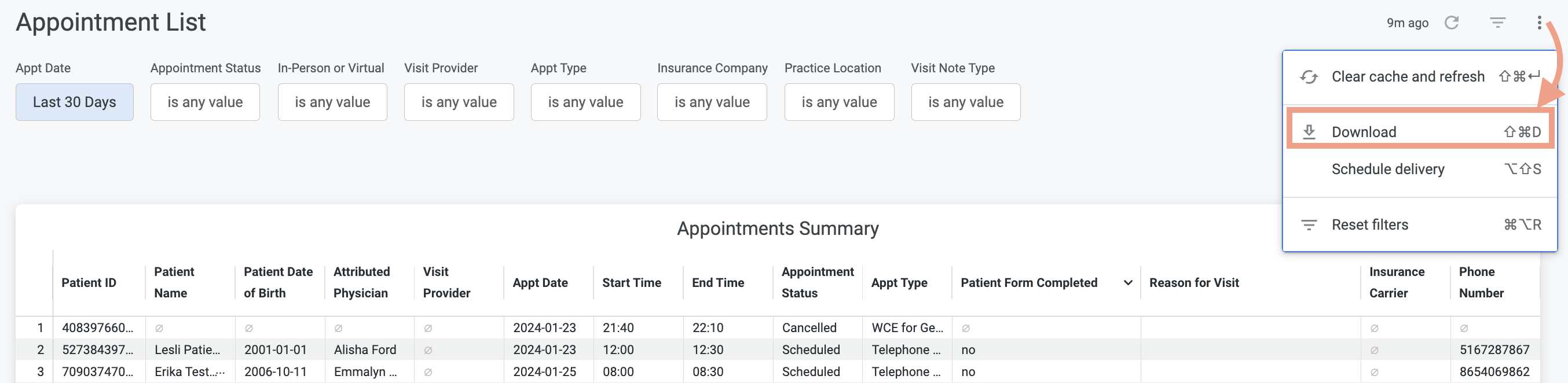
To download or print a copy of the Appointment List, click on the
**Actions** button (as shown in the image below) and then click **Download**. You can view the downloaded report in any spreadsheet software on your computer/laptop such as Microsoft Excel.
The Appointment List allows you to see a tabular view of the appointment data in the Appointment Dashboard with extra granularity. The following columns are available in the Appointment List. You can hover your cursor over each column name to see additional column options or the sort option.
* **Patient ID**
* **Patient Name**
* **Patient Date of Birth**
* **Attribute Physician (Provider Assigned in Practice)**
* **Visit Provider**
* **Appointment Date**
* **Appointment Start Time**
* **Appointment End Time**
* **Appointment Status**
* **Appointment Type**
* **Patient Form Completed**
* **Reason for Visit (Description- Chief Complaint)**
* **Insurance Carrier (Primary Insurance)**
* **Phone Number (Phone number in the first phone field)**
### How to use the Appointment List
The following filters are available in the Appointment List. After applying filters, click the
**Refresh** button to see the results based on your selections.
* **Appointment Date**
* Filter by the date of the appointment. By default the Dashboard will show you Appointment data for the last 30 calendar days.
* **Appointment Status**
* **In-person or Virtual**
* **Visit Provider**
* **Appointment Type**
* **Insurance Company**
* **Practice Location**
* **Visit Note Type**
To download or print a copy of the Appointment List, click on the
**Actions** button (as shown in the image below) and then click **Download**. You can view the downloaded report in any spreadsheet software on your computer/laptop such as Microsoft Excel.
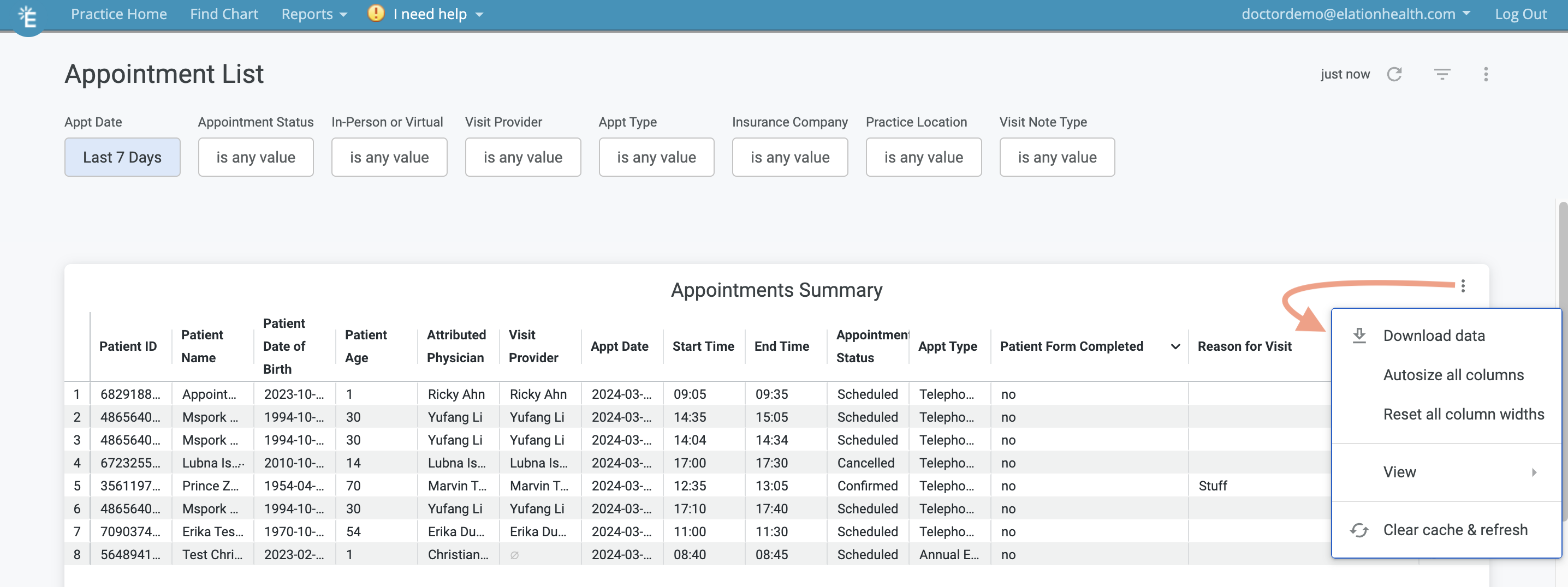
 Click on the
**Actions** button within the table (as shown below) to:
* Download the data
* Adjust column widths
* Expand the table
* Refresh the data
Click on the
**Actions** button within the table (as shown below) to:
* Download the data
* Adjust column widths
* Expand the table
* Refresh the data
 ## Visit Note Dashboard
### Visit Note Dashboard Overview
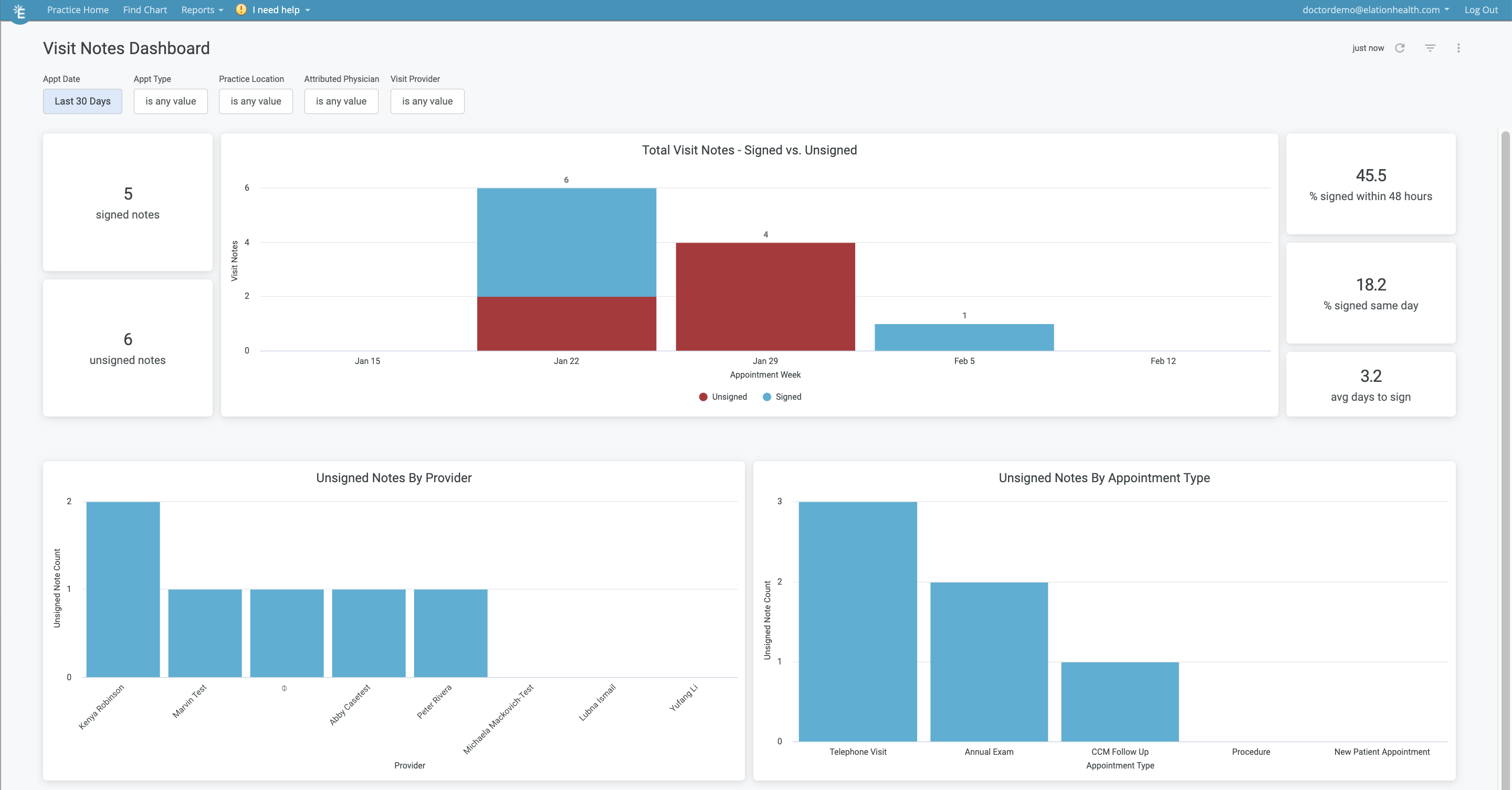
The Visit Note Dashboard is divided into 3 main sections:
* (Top) A graph of **Total Visit Notes - Signed vs Unsigned** along with a quick view count of
* % signed within 48 hours
* % signed same day
* Avg days to sign
* (Bottom Left) A graph of ‘Unsigned Notes by Provider’
* (Bottom Right) A graph of ‘Unsigned Notes by Appointment Type’
### How to use the Visit Note Dashboard
## Visit Note Dashboard
### Visit Note Dashboard Overview
The Visit Note Dashboard is divided into 3 main sections:
* (Top) A graph of **Total Visit Notes - Signed vs Unsigned** along with a quick view count of
* % signed within 48 hours
* % signed same day
* Avg days to sign
* (Bottom Left) A graph of ‘Unsigned Notes by Provider’
* (Bottom Right) A graph of ‘Unsigned Notes by Appointment Type’
### How to use the Visit Note Dashboard
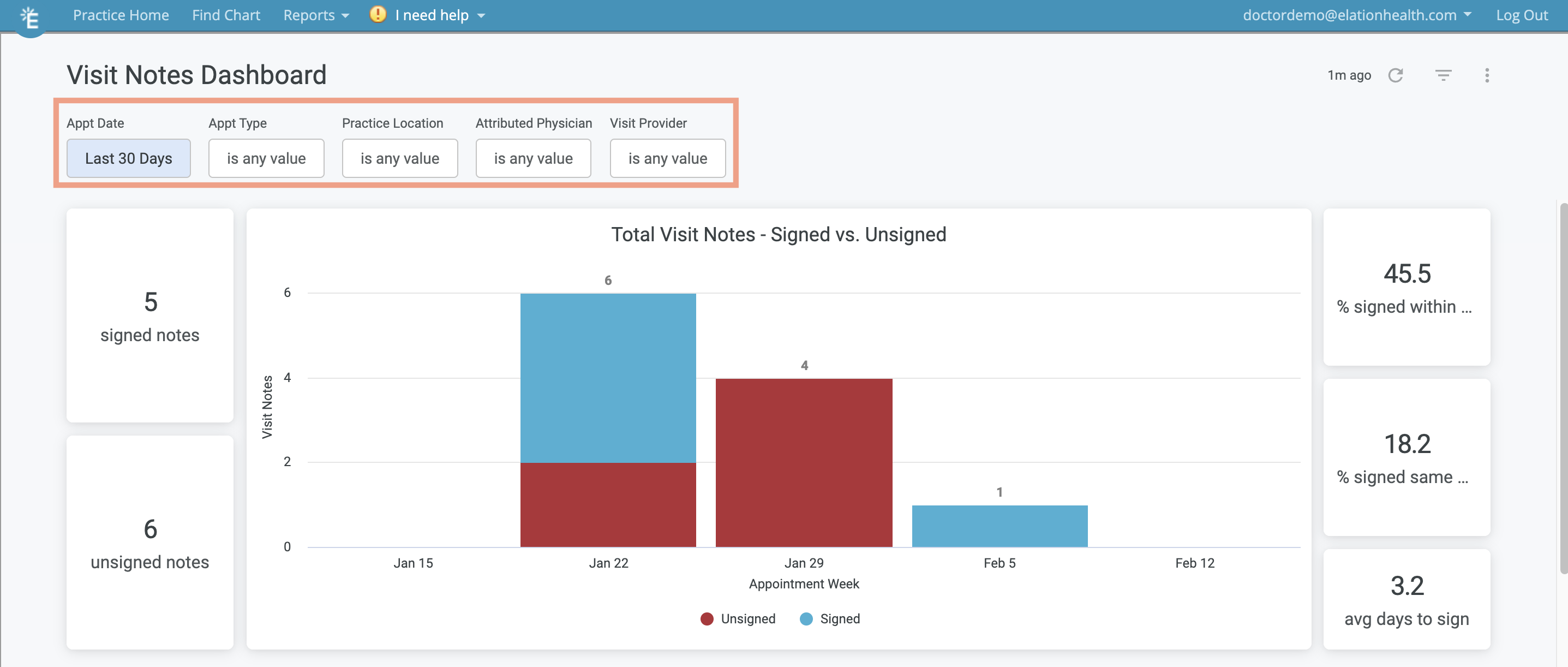 The Visit Note Dashboard shows you visuals and graphs around the following visit note data. You can apply these filters to the Dashboard to customize your view. After applying filters, click the
**Refresh** button to see the results based on your selections.
* **Appointment Date**
* **Appointment Type**
* **Practice Location**
* **Attributed Physician**(Provider Assigned in Practice)
* **Visit Provider**
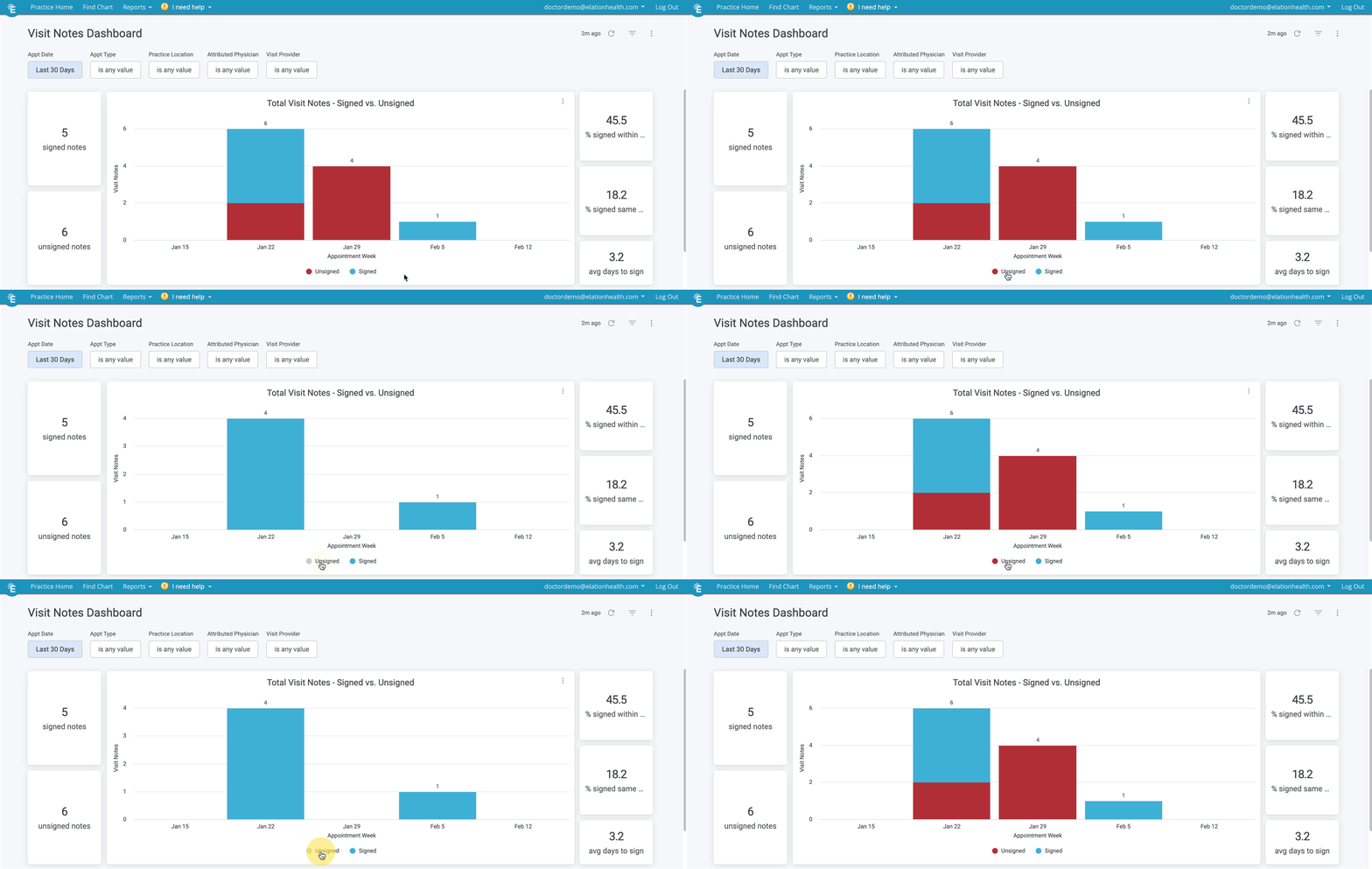
You can also click on the **Unsigned** or **Signed** label at the bottom of the graph to hide visit notes with that status from the graph.
The Visit Note Dashboard shows you visuals and graphs around the following visit note data. You can apply these filters to the Dashboard to customize your view. After applying filters, click the
**Refresh** button to see the results based on your selections.
* **Appointment Date**
* **Appointment Type**
* **Practice Location**
* **Attributed Physician**(Provider Assigned in Practice)
* **Visit Provider**
You can also click on the **Unsigned** or **Signed** label at the bottom of the graph to hide visit notes with that status from the graph.
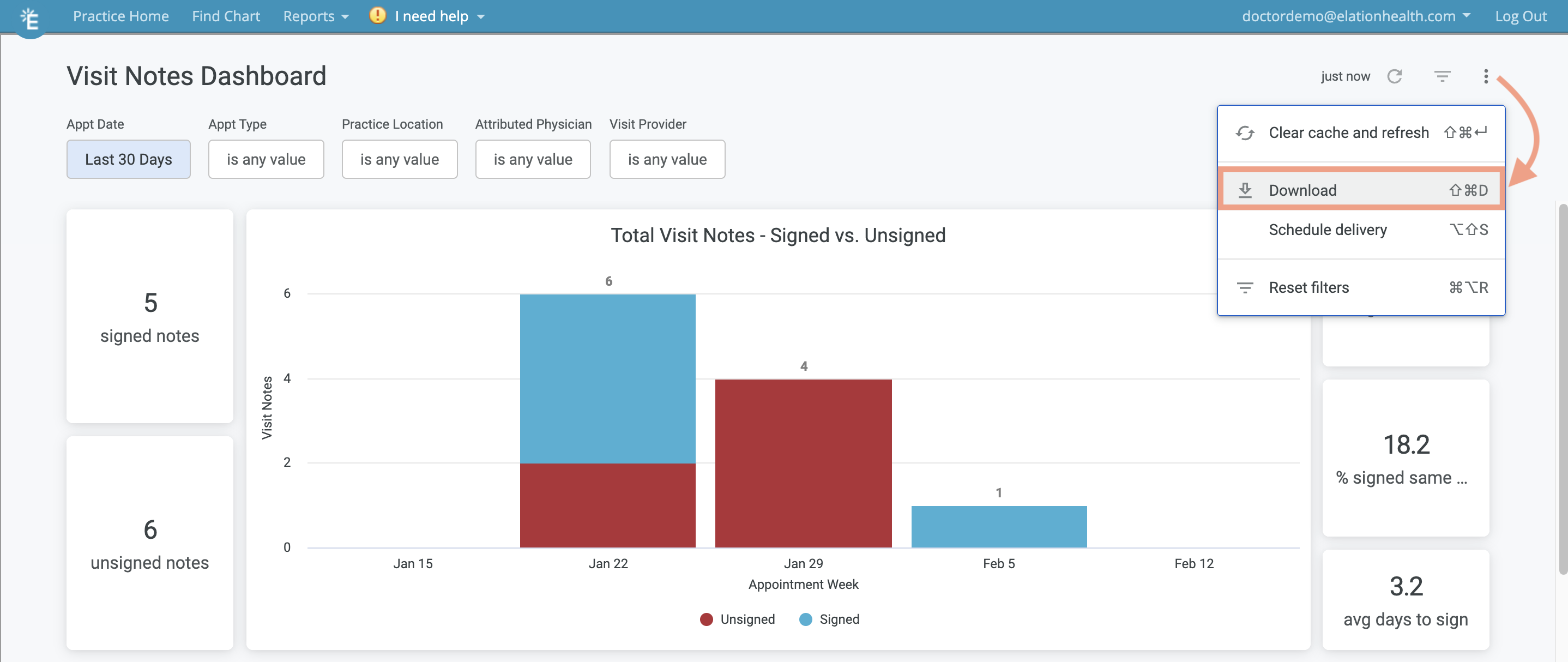
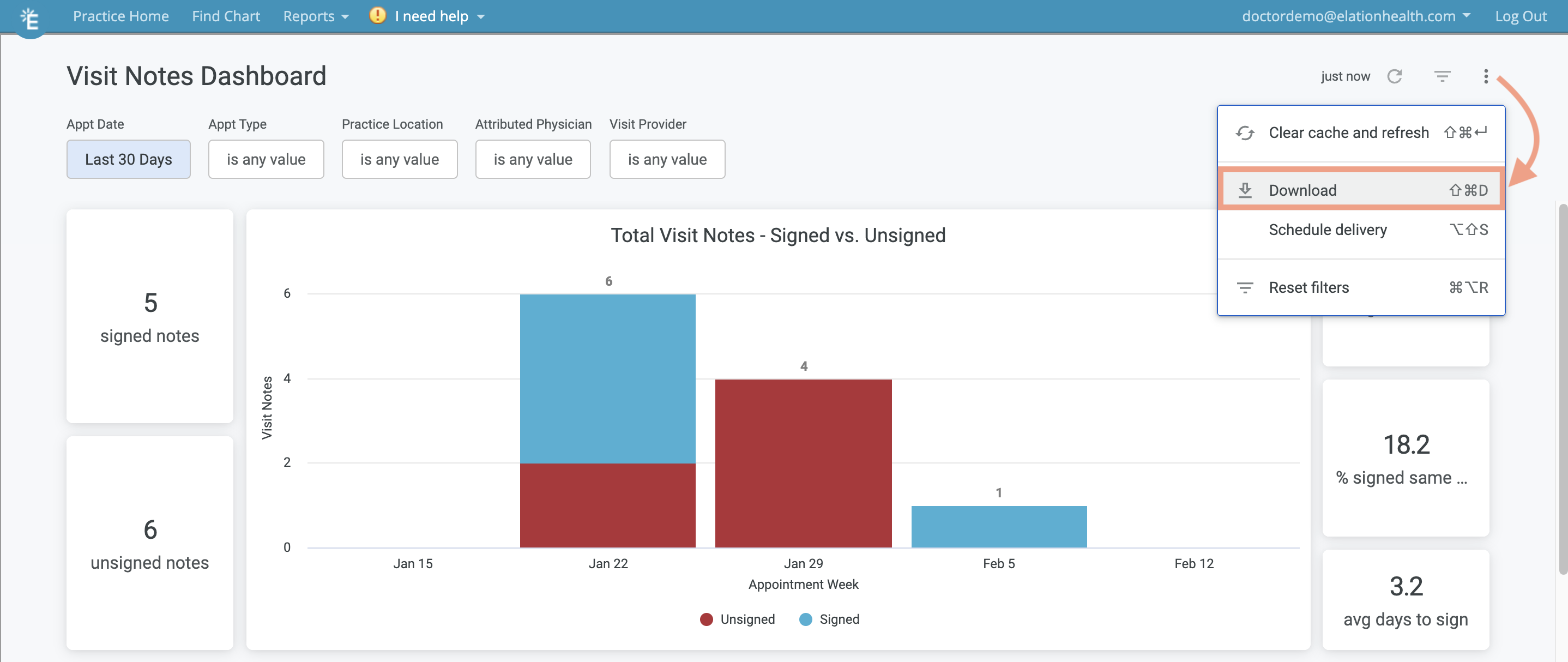
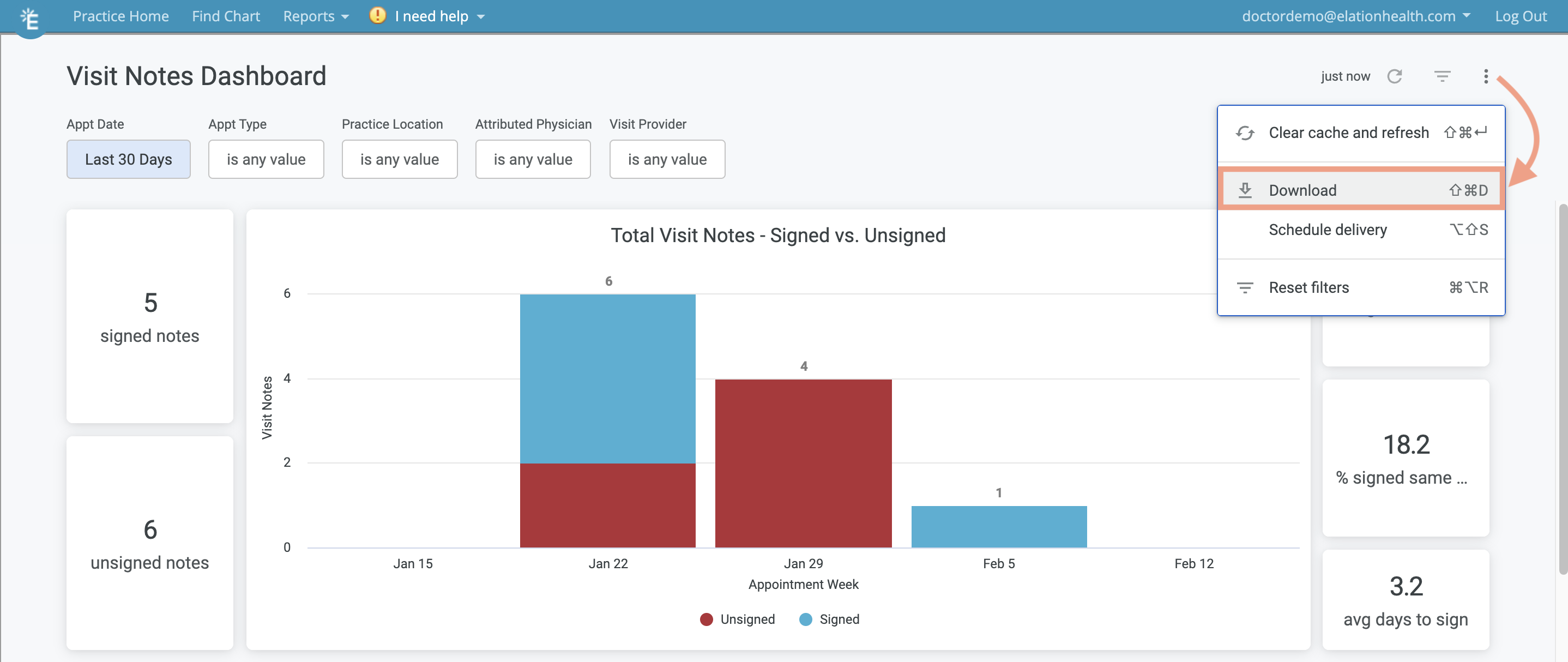
 To download or print a copy of the entire dashboard, click on the
**Actions** button (as shown in the image below) and then click **Download** to save a PDF copy of the dashboard to your computer for records or for printing.
To download or print a copy of the entire dashboard, click on the
**Actions** button (as shown in the image below) and then click **Download** to save a PDF copy of the dashboard to your computer for records or for printing.
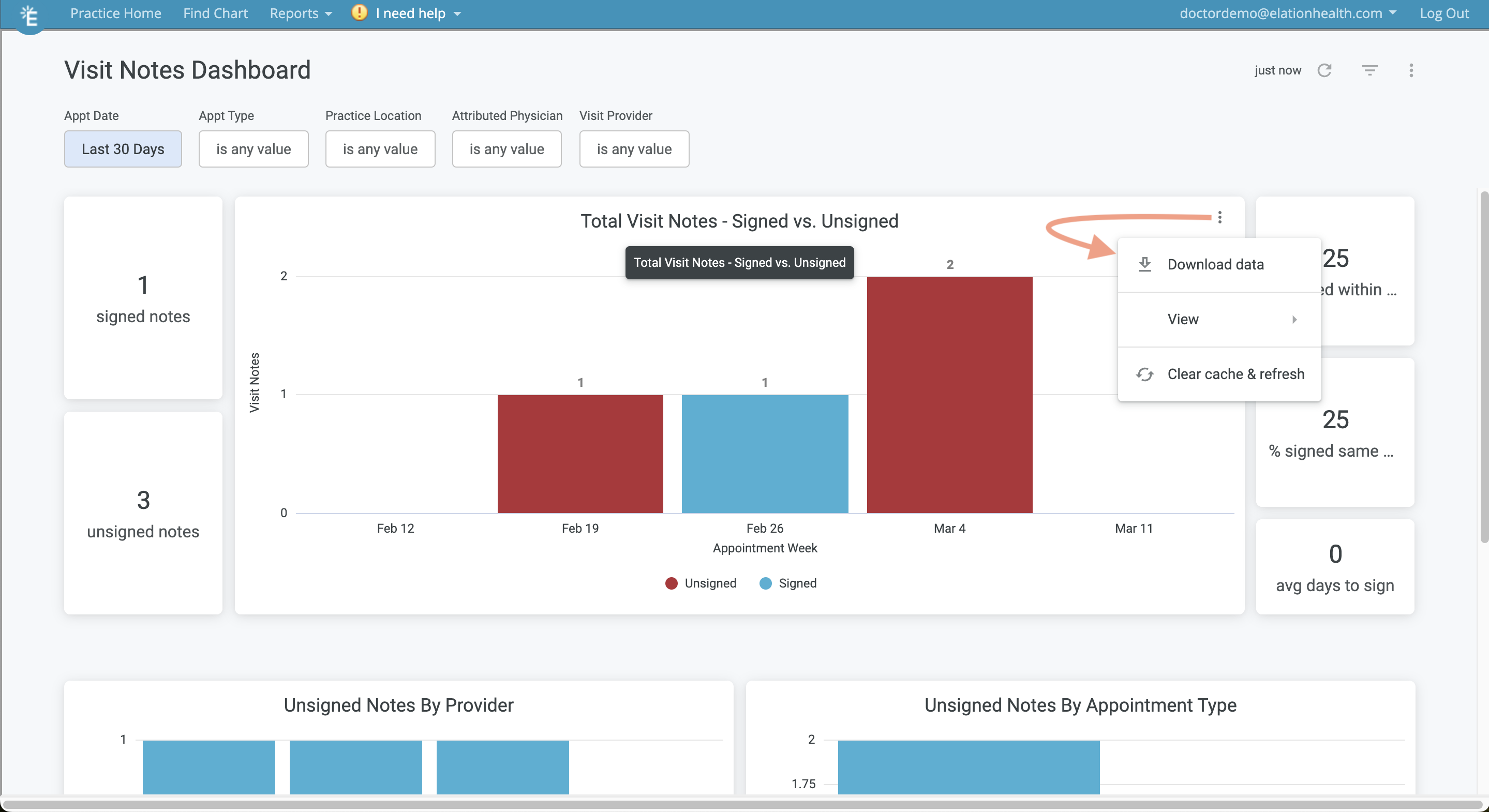
 Click on the
**Actions** button within visuals (as shown below) to:
* Download the data
* Expand the visual
* Refresh the data
Click on the
**Actions** button within visuals (as shown below) to:
* Download the data
* Expand the visual
* Refresh the data
 ## Visit Note List
### Visit Note List Overview
The Visit Notes List allows you to see a tabular view of the visit note data in the Visit Notes Dashboard with extra granularity. The following columns are available in the Visit Notes List. You can hover your cursor over each column name to see additional column options or the sort option.
* **Patient Name**
* **Patient Date of Birth**
* **Attribute Physician**(Provider Assigned in Practice)
* **Visit Provider**
* **Appointment Date**
* **Appointment Type**
* **Visit Note Template**
* **Is Signed (Yes/No)**
* **Signed Date**
* **Days to Sign**
* **Billing Status**
* **Appointment Status**
### How to use the Visit Note List
The following filters are available in the Visit Notes List. After applying filters, click the
**Refresh** button to see the results based on your filters.
* **Appointment Date**
* Filter by the date of the appointment. By default the Dashboard will show you Appointment data for the last 30 calendar days.
* **Appointment Type**
* **Practice Location**
* **Is Signed (Yes/No)**
* **Attributed Physician (Provider Assigned in Practice)**
* **Visit Provider**
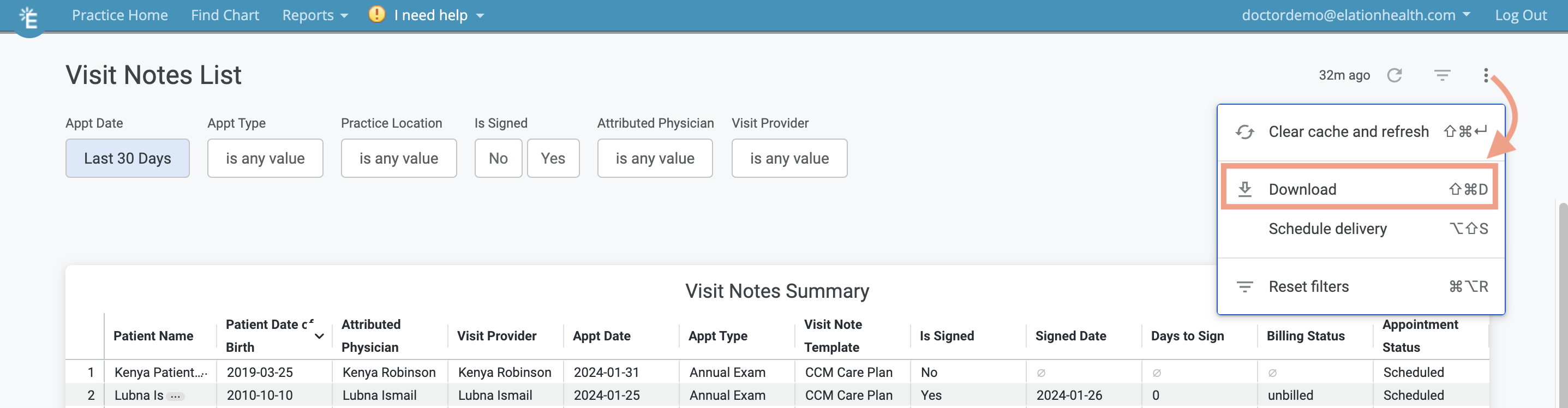
To download or print a copy of the Visit Notes List, click on the
**Actions** button (as shown in the image below) and then click **Download**. You can view the downloaded report in any spreadsheet software on your computer/laptop, such as Microsoft Excel.
## Visit Note List
### Visit Note List Overview
The Visit Notes List allows you to see a tabular view of the visit note data in the Visit Notes Dashboard with extra granularity. The following columns are available in the Visit Notes List. You can hover your cursor over each column name to see additional column options or the sort option.
* **Patient Name**
* **Patient Date of Birth**
* **Attribute Physician**(Provider Assigned in Practice)
* **Visit Provider**
* **Appointment Date**
* **Appointment Type**
* **Visit Note Template**
* **Is Signed (Yes/No)**
* **Signed Date**
* **Days to Sign**
* **Billing Status**
* **Appointment Status**
### How to use the Visit Note List
The following filters are available in the Visit Notes List. After applying filters, click the
**Refresh** button to see the results based on your filters.
* **Appointment Date**
* Filter by the date of the appointment. By default the Dashboard will show you Appointment data for the last 30 calendar days.
* **Appointment Type**
* **Practice Location**
* **Is Signed (Yes/No)**
* **Attributed Physician (Provider Assigned in Practice)**
* **Visit Provider**
To download or print a copy of the Visit Notes List, click on the
**Actions** button (as shown in the image below) and then click **Download**. You can view the downloaded report in any spreadsheet software on your computer/laptop, such as Microsoft Excel.
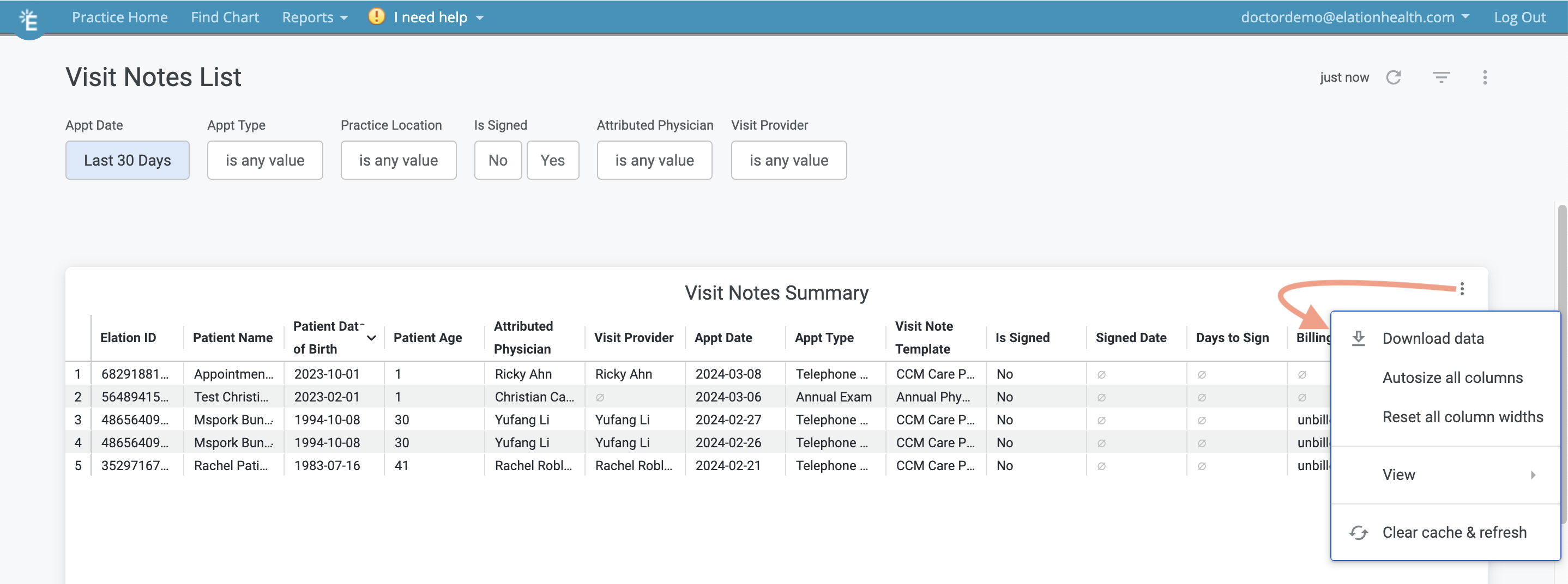
 Click on the
**Actions** button within the table itself (as shown below) to:
* Download the data
* Adjust column widths
* Expand the table
* Refresh the data
Click on the
**Actions** button within the table itself (as shown below) to:
* Download the data
* Adjust column widths
* Expand the table
* Refresh the data
 ## Frequently Asked Questions
### How often is data refreshed?
Data in the reports and dashboards are refreshed every hour.
### What is the difference between the Appointment Report and the Appointment List?
The Appointment Report will continue to show you appointment data during a select period of time with pre-defined data fields. The new Appointment List provides more detailed appointment data and enhanced filtering options.
The Appointment Report will be deprecated once all customers are accustomed to the new Appointment List.
### Can I save my filter preferences?
Filters cannot be saved at this time. We will update you if this feature becomes available.
### Can I add or remove columns in the reports?
Data columns cannot be adjusted at this time. We will update you if this feature becomes available.
### Can I add or request additional automatic calculations in the dashboards?
We do not offer any additional automatic calculation options in the dashboards at this time. We will update you if this option becomes available.
### Can I print the dashboards?
Yes, you can print the dashboards by clicking on the **Actions** button in the dashboards, and then clicking **Download** to save a PDF copy of the dashboard to your computer. Afterwards open the PDF and then print the PDF to print a copy of the dashboard.
### Can I download the graphs or tables?
Yes, you can download all of the visuals, graphs and tables in the dashboards and reports.
To download a PDF version of the entire dashboard, Click on the
**Actions** button (as shown in the image below) and then click **Download** to save a PDF copy of the dashboard to your computer.
## Frequently Asked Questions
### How often is data refreshed?
Data in the reports and dashboards are refreshed every hour.
### What is the difference between the Appointment Report and the Appointment List?
The Appointment Report will continue to show you appointment data during a select period of time with pre-defined data fields. The new Appointment List provides more detailed appointment data and enhanced filtering options.
The Appointment Report will be deprecated once all customers are accustomed to the new Appointment List.
### Can I save my filter preferences?
Filters cannot be saved at this time. We will update you if this feature becomes available.
### Can I add or remove columns in the reports?
Data columns cannot be adjusted at this time. We will update you if this feature becomes available.
### Can I add or request additional automatic calculations in the dashboards?
We do not offer any additional automatic calculation options in the dashboards at this time. We will update you if this option becomes available.
### Can I print the dashboards?
Yes, you can print the dashboards by clicking on the **Actions** button in the dashboards, and then clicking **Download** to save a PDF copy of the dashboard to your computer. Afterwards open the PDF and then print the PDF to print a copy of the dashboard.
### Can I download the graphs or tables?
Yes, you can download all of the visuals, graphs and tables in the dashboards and reports.
To download a PDF version of the entire dashboard, Click on the
**Actions** button (as shown in the image below) and then click **Download** to save a PDF copy of the dashboard to your computer.
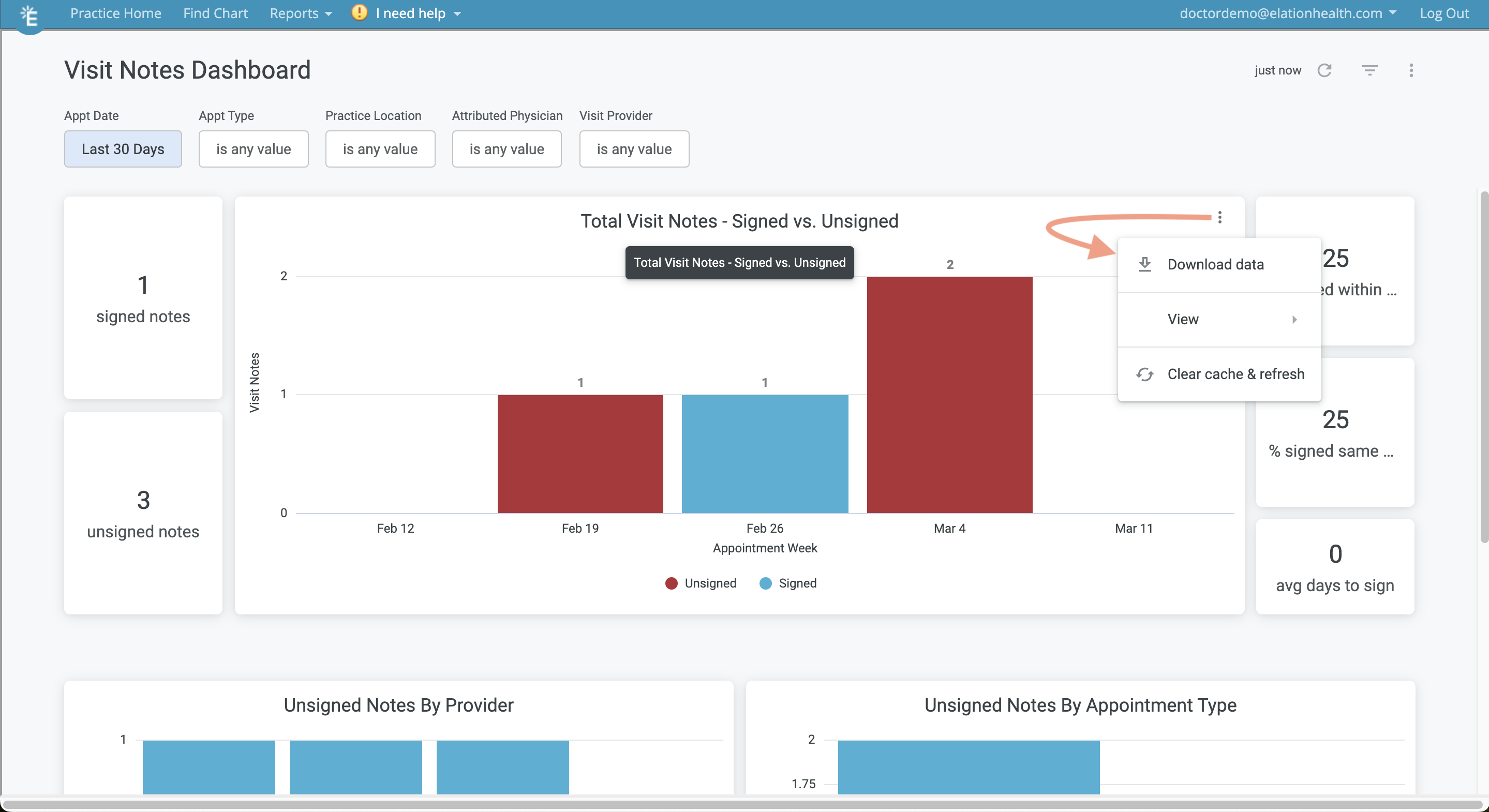
 To download a copy of a specific graph or visual, click on the
**Actions** button within the graph or visual (as shown below) and then click **Download data**.
To download a copy of a specific graph or visual, click on the
**Actions** button within the graph or visual (as shown below) and then click **Download data**.
 ### What data is available within the Appointment List?
The following data is available in the Appointment List:
| Column Header | Description | Notes |
| ---------------------- | ------------------------------------------------------ | --------------------------------------------------------------------------------------------------------------------------------- |
| Patient ID | The Elation Patient ID | Links to the Patient Chart |
| Patient Name | The name of the patient | |
| Patient Date of Birth | The DOB for the patient | |
| Patient Age | The current age of the patient | |
| Attributed Physician | The primary provider attributed to the patient | |
| Visit Provider | The provider the patient was scheduled to see | |
| Appt Date | The date of the appointment | |
| Start Time | The start time of the appointment | |
| End Time | The end time of the appointment | |
| Appointment Status | The current status of the appointment | Statuses: Billed, Canceled, Checked In, Checked Out, Confirmed, In Room, Not Seen, Scheduled, Vitals Taken |
| Appt Type | The type of appointment | Any existing or custom created Appointment Types such as: Follow-Up, Office Visit, Physical Exam, Walk-In, New Patient, Procedure |
| Patient Form Completed | Whether the patient has already filled out their forms | Yes / No |
| Reason for Visit | The stated reason for the appointment | |
| Insurance Carrier | The insurance carrier listed for the appointment | |
| Phone Number | The patient's phone number | |
### What data is available within the Visit Note List?
The following data is available in the Visit Note List:
| Column Header | Description | Notes |
| --------------------- | --------------------------------------------------------------- | --------------------------------------------------------------------------------------------------------------------------------- |
| Patient ID | The Elation Patient ID | Links to the Patient Chart |
| Patient Name | The name of the patient | |
| Patient Date of Birth | The DOB for the patient | |
| Patient Age | The current age of the patient | |
| Attributed Physician | The primary provider attributed to the patient | |
| Visit Provider | The provider the patient was scheduled to see | |
| Appt Date | The date of the appointment | |
| Appt Type | The type of appointment | Any existing or custom created Appointment Types such as: Follow-Up, Office Visit, Physical Exam, Walk-In, New Patient, Procedure |
| Visit Note Template | Which of the selected templates was used for the visit note | |
| Is Signed | Whether or not the note has been signed | Yes / No |
| Signed Date | The date the visit note was signed | |
| Days to sign | The number of days that it took the user to sign the visit note | |
| Billing Status | The current status of billing (where applicable) | |
| Appointment Status | The current status of the appointment | Statuses: Billed, Canceled, Checked In, Checked Out, Confirmed, In Room, Not Seen, Scheduled, Vitals Taken |
## Related Articles
* [Blue Navigation Bar Guide](/articles/Blue-Navigation-Bar)
* [Calendar Guide- Using the Calendar for appointments & events](/articles/how-to-use-elation-calendar)
* [Visit Note Documentation Introduction](/articles/Visit-Note-Documentation-Introduction)
### What data is available within the Appointment List?
The following data is available in the Appointment List:
| Column Header | Description | Notes |
| ---------------------- | ------------------------------------------------------ | --------------------------------------------------------------------------------------------------------------------------------- |
| Patient ID | The Elation Patient ID | Links to the Patient Chart |
| Patient Name | The name of the patient | |
| Patient Date of Birth | The DOB for the patient | |
| Patient Age | The current age of the patient | |
| Attributed Physician | The primary provider attributed to the patient | |
| Visit Provider | The provider the patient was scheduled to see | |
| Appt Date | The date of the appointment | |
| Start Time | The start time of the appointment | |
| End Time | The end time of the appointment | |
| Appointment Status | The current status of the appointment | Statuses: Billed, Canceled, Checked In, Checked Out, Confirmed, In Room, Not Seen, Scheduled, Vitals Taken |
| Appt Type | The type of appointment | Any existing or custom created Appointment Types such as: Follow-Up, Office Visit, Physical Exam, Walk-In, New Patient, Procedure |
| Patient Form Completed | Whether the patient has already filled out their forms | Yes / No |
| Reason for Visit | The stated reason for the appointment | |
| Insurance Carrier | The insurance carrier listed for the appointment | |
| Phone Number | The patient's phone number | |
### What data is available within the Visit Note List?
The following data is available in the Visit Note List:
| Column Header | Description | Notes |
| --------------------- | --------------------------------------------------------------- | --------------------------------------------------------------------------------------------------------------------------------- |
| Patient ID | The Elation Patient ID | Links to the Patient Chart |
| Patient Name | The name of the patient | |
| Patient Date of Birth | The DOB for the patient | |
| Patient Age | The current age of the patient | |
| Attributed Physician | The primary provider attributed to the patient | |
| Visit Provider | The provider the patient was scheduled to see | |
| Appt Date | The date of the appointment | |
| Appt Type | The type of appointment | Any existing or custom created Appointment Types such as: Follow-Up, Office Visit, Physical Exam, Walk-In, New Patient, Procedure |
| Visit Note Template | Which of the selected templates was used for the visit note | |
| Is Signed | Whether or not the note has been signed | Yes / No |
| Signed Date | The date the visit note was signed | |
| Days to sign | The number of days that it took the user to sign the visit note | |
| Billing Status | The current status of billing (where applicable) | |
| Appointment Status | The current status of the appointment | Statuses: Billed, Canceled, Checked In, Checked Out, Confirmed, In Room, Not Seen, Scheduled, Vitals Taken |
## Related Articles
* [Blue Navigation Bar Guide](/articles/Blue-Navigation-Bar)
* [Calendar Guide- Using the Calendar for appointments & events](/articles/how-to-use-elation-calendar)
* [Visit Note Documentation Introduction](/articles/Visit-Note-Documentation-Introduction)