> ## Documentation Index
> Fetch the complete documentation index at: https://help.elationhealth.com/llms.txt
> Use this file to discover all available pages before exploring further.
# Prescription Form Guide - ePrescribing and ordering medications
## Overview
### What is the Prescription Form?
The Prescription Form is used to prescribe all medication types: over-the-counter and both non-controlled and controlled substance medications. You can
* Add various medication types to a single form (e,g. 1 non-controlled medication, 1 over-the-counter medication, and 2 controlled substance medications).
* See the packaging and NDC information for each medication to select the appropriate one for your order.
* Designate a pharmacy for each prescription.
* Initiate an [Electronic Prior Authorization](/articles/Managing-electronic-prior-authorizations) request.
* [Monitor for drug interactions.](/articles/drug-decision-support)
* Reference [prescription insurance coverage, formulary and cost estimate](/articles/Prescription-Form-Guide-patient-prescription-benefits) information.
## Setup
### Setting prescribing locations
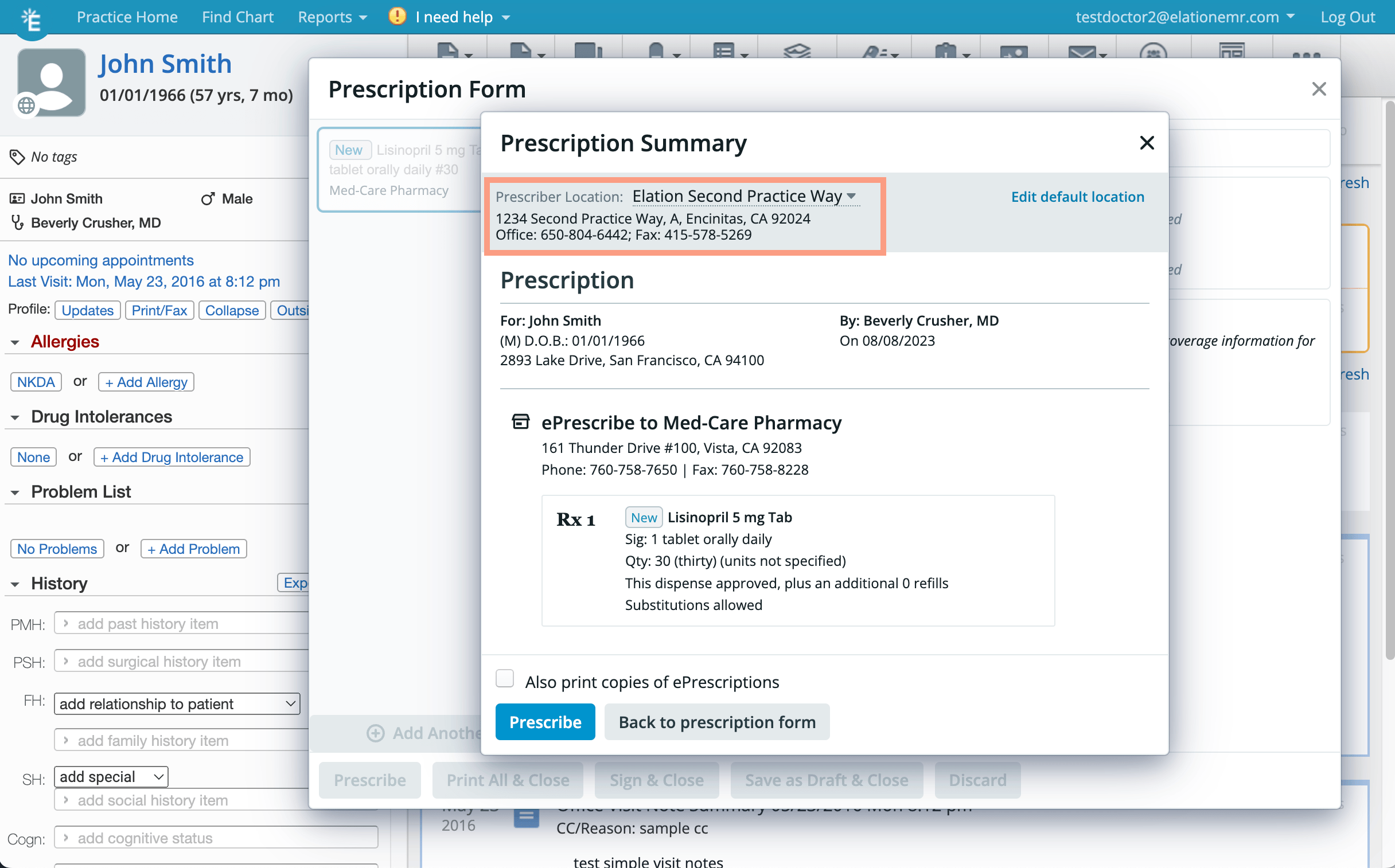
Review the [Practice Locations Settings](/articles/adding-a-second-practice-location) and make sure each prescribing location is stored. Providers can select which location they are prescribing from at the top of the Prescription Summary window before electronically sending their prescriptions to pharmacies.
For ePrescribing purposes, each Practice Location must have a 10-digit phone number and fax number. Elation will prompt you to update your Practice Location if any of these details are missing.
 ## Workflow Instructions
**CONTROLLED SUBSTANCES ONLY** The ePrescribing workflow is different for controlled substance medications. [Click here for step by step instructions for ePrescribing controlled substance medications](/articles/how-to-e-prescribe-controlled-substances) .
### 1. Starting a new prescription
To start a new prescription, use one of the following options:
* Click **Rx** -> **Prescription Form (Rx/OTC/CS)** at the top of any patient’s chart.
* Click the **Rx/OTC/CS** button in a legacy visit note or non-visit note draft.
* Click on the **Prescription** Standard Block in the [Elation Note](/articles/Elation-Note-Guide-Using-visit-note-blocks).
### 2. Filling out the prescription details
For each prescription, fill out as much detail as needed to effectively prescribe. Required fields have an asterisk
(\*). Here is a list of all the different prescription fields:
Prescription Field
Details
**Medication name and strength**\*
If you are unable to find a prescription or over-the-counter medication you wish to prescribe, you can [manually add it to your database](#add_med_to_database) .
Search for the medication name and strength in Elation’s medication database.
**Sig**\*
Add as much detail as needed for your directions to the patient. You can select a **Sig** from Elation’s database or you can [create your own Custom Rx Sig](#custom_sig) .
**Weight-based Calculator**
**(Only available for patients aged 12 or younger (unless they're over 50kg) OR aged 17 or younger who weigh 50kg or less)** Calculate the dosage based on the patient’s weight. The calculated dosage will be rounded down to the nearest whole number.
1. Enter the **Dosage**, patient’s **Weight** in kilograms, and **Concentration**.
* The patient’s most recently documented weight will be autopopulated if you’ve previously recorded their weight in their chart and will be displayed in the **Juvenile Weight** section of the prescription form.
* The **Concentration** will be autopopulated if you select a medication with a concentration.
* In the case of medications with multiple component ingredients, such as *Amoxicillin-Potassium Clavulanate 400/57 mg/5mL Suspension*, the concentration of the medication will be displayed but the first component ingredient (400mg of Amoxicillin) will be used for calculations.
2. Update the **Frequency** of the dosage as needed. The default is **QD - 1x per day**.
* **Frequency** options can only be one of the following:
* QD (quaque die) - 1x per day
* BID (bis in die) - 2x per day
* TID (ter in die) - 3x per day
* QID (quater in die) - 4x per day
* QHS (quaque hora somni) - at bedtime
* PRN (pro re nata) - as needed
* If the frequency you’d like to prescribe is unavailable, you must manually calculate the dosage.
3. Click **Update Sig…** to update the **Sig** field based on the calculations.
**Qty**\*
Specify how much of a medication you want to give the patient for each order.
**Unit**
Specify the quantity unit.
**Refills**\*
Specify how many refills you allow the pharmacy to dispense to the patient before another order is required.
**Check PMP**
Query the [Prescription Monitoring Program Integration](/articles/Integrating-with-your-state-s-Prescription-Monitoring-Program-PMP-PDMP) .
**Days Supply**
Specify how many days supply your order is for. This field is not automatically calculated and does not replace the **Sig** or **Qty** fields. The value entered factors into cost estimate calculations.
**NDC with Packaging**
Verify the packing information as needed. By default, Elation will select the NDC & packaging as defaulted by our database. You can click to select a more appropriate package type as needed.
**Diagnosis (ICD-10)**
Enter all supporting diagnosis for the prescription as needed. Up to two diagnoses can be sent with an ePrescription.
**Instructions to Pharmacy**
Store any instructions to the pharmacy as needed.
**Do not fill before …**
Enter the earliest date a patient can receive the prescription if the prescription is a planned for a future date.
**□ Dispense as Written**
Check this box off if you want the pharmacy to dispense the prescription as specified by your order and to not allow substitutions.
Specify whether this prescription should appear in the Permanent Medication List or Temporary Medication List in the patient’s Medication History. Medications will default to 'Permanent' unless specified as a 'Temporary' medication in the Prescription Form.
**Pharmacy**
If you do not want to send the prescription to the pharmacy or you are not ePrescribing controlled substances, click **Manual printout only** in the pharmacy search to print the prescription.
If you want to the most recently used pharmacy (for each patient) to populate in the Pharmacy field automatically, have an Admin Level User in the practice use the **I need help** -> **Contact Elation Support** button to send a request to our Support Team and a member of the Support Team will turn this feature on for you.
Specify the pharmacy destination if ePrescribing. If the patient has preferred pharmacies, you will see their preferred pharmacies immediately after clicking into the **Pharmacy** field. The pharmacy database is provided by Surescripts and Surescripts has 85% of the pharmacies in the country. To quickly find the desired pharmacy, be sure to type one of the following along with the Pharmacy Name: Elation is unable to add new pharmacies to the pharmacy directory as it is maintained by the Surescripts. You must notify the pharmacy to reach out to Surescripts directly to be part of the Surescripts network.
* City (e.g. 'CVS Short Hills' or 'CVS, Short Hills')
* Street name or Zip code (e.g.. 'CVS 07026' or 'CVS Brooklyn')
* Phone Number
* Store Number
**Save as Rx template**
Click this button if you want to save the **Medication** , **Sig** , **Qty** , **Units** , **Refills** , **Days Supply** , & **Packaging (NDC)** as a [Rx Template](#prescription_templates) for other prescriptions.
**Text patient at ...**
Send a [prescription reminder](/articles/prescription-reminders-for-patients) to the patient.
**Electronic Prior Authorization**
Initiate an [Electronic Prior Authorization](/articles/Managing-electronic-prior-authorizations) request.
**3. Viewing medication coverage, formulary, and cost estimate information**
[Click here for instructions on how to view a patient's medication coverage, formulary and cost estimate information](/articles/Prescription-Form-Guide-patient-prescription-benefits).
**4. Adding another medication to the same prescription order**
If you are prescribing more than one medication, click **+ Add Another Rx** to add as many prescriptions to the form as needed and fill out all necessary [details](#fill_out_details) for each prescription. This feature allows you to:
* add non-controlled medications, over-the-counter medications, AND controlled substance medications to the same form.
* add multiple controlled substance medications to the same form.
ℹ️**CAUTION**
The pharmacy selected for the first prescription in the form will be the default pharmacy selected for all prescriptions that can be sent electronically. Choose a different pharmacy if you need to for specific prescriptions.
**5. Completing the prescription(s)**
Once you are ready to complete the prescription(s), click one of the following buttons as appropriate. Certain options will bring you to a confirmation screen to continue your prescription.
* **Prescribe**
* Sends all prescriptions that have a pharmacy selected to the pharmacy **AND** prints all prescriptions that do not have a pharmacy selected and prescriptions that cannot be sent electronically.
* If a Staff Rx Delegate selects **Prescribe** and controlled substance prescriptions with a pharmacy destination are in the queue, the controlled substance prescriptions and their pharmacy destinations will be saved as a draft.
* **Print All & Close**
* Prints all prescriptions, even if any of the prescriptions in the queue has a selected pharmacy destination, and closes the form.
* **Sign & Clos** e
* Signs all prescriptions and closes the form.
* **Save as Draft & Close**
* Saves all the information entered as a draft in the Requiring Actions section of the patient's chart, including all medications in the form.
* **Discard**
* Discards the selected prescription in the form.
ℹ️**CAUTION**
Delete with caution as discarded prescription drafts cannot be recovered.
**5a. Sending the prescription(s) to the pharmacy**
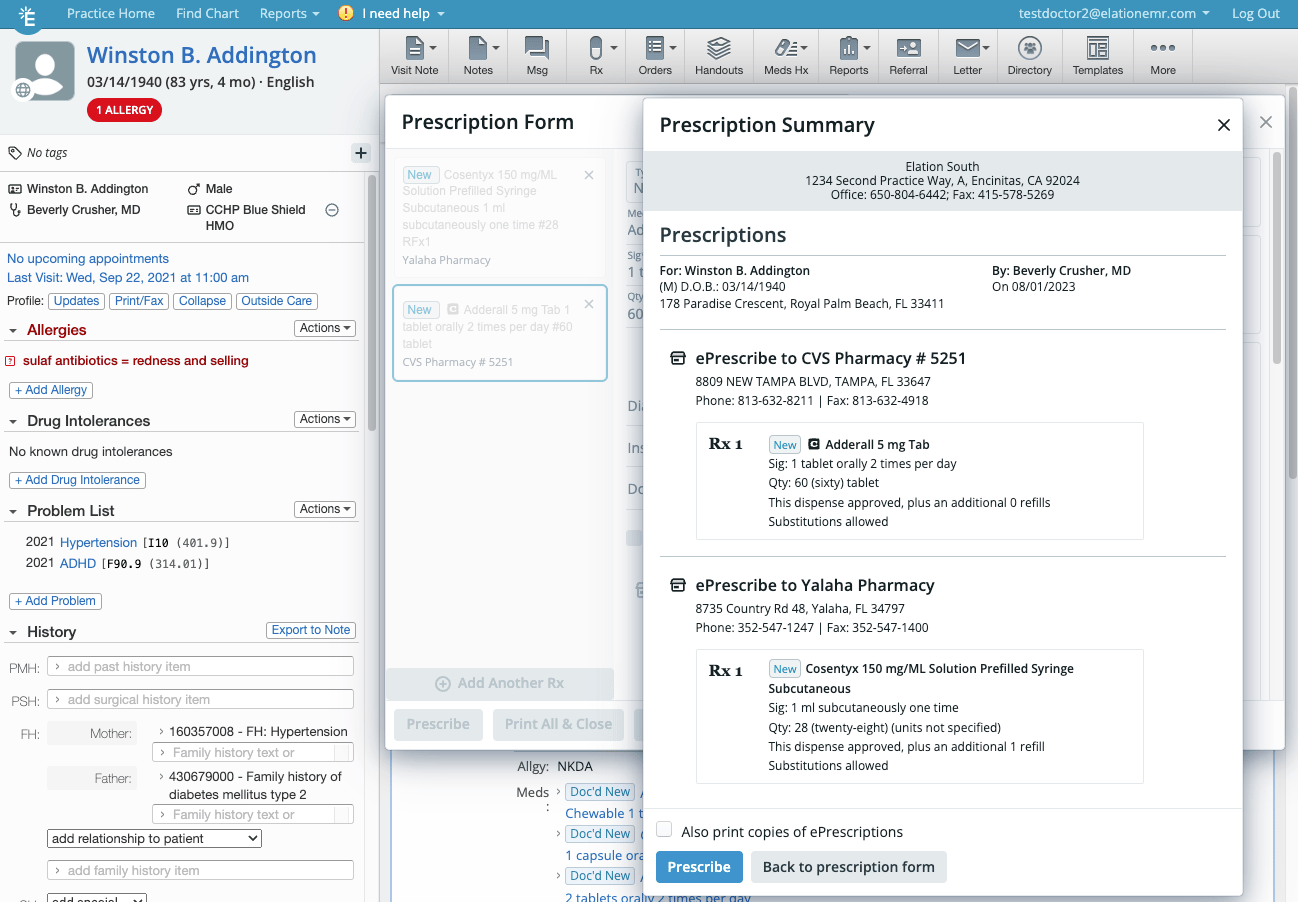
If you choose to electronically prescribe the prescription, you will see a Prescription Summary that details all the information tied to the script(s) along with each pharmacy destination. Review the details and click **Prescribe** to send all the prescriptions to the pharmacy.
If any of the prescriptions are for controlled substance medications, you will need to enter your EPCS password and security code one time before the prescriptions are sent to the pharmacy.
## Workflow Instructions
**CONTROLLED SUBSTANCES ONLY** The ePrescribing workflow is different for controlled substance medications. [Click here for step by step instructions for ePrescribing controlled substance medications](/articles/how-to-e-prescribe-controlled-substances) .
### 1. Starting a new prescription
To start a new prescription, use one of the following options:
* Click **Rx** -> **Prescription Form (Rx/OTC/CS)** at the top of any patient’s chart.
* Click the **Rx/OTC/CS** button in a legacy visit note or non-visit note draft.
* Click on the **Prescription** Standard Block in the [Elation Note](/articles/Elation-Note-Guide-Using-visit-note-blocks).
### 2. Filling out the prescription details
For each prescription, fill out as much detail as needed to effectively prescribe. Required fields have an asterisk
(\*). Here is a list of all the different prescription fields:
Prescription Field
Details
**Medication name and strength**\*
If you are unable to find a prescription or over-the-counter medication you wish to prescribe, you can [manually add it to your database](#add_med_to_database) .
Search for the medication name and strength in Elation’s medication database.
**Sig**\*
Add as much detail as needed for your directions to the patient. You can select a **Sig** from Elation’s database or you can [create your own Custom Rx Sig](#custom_sig) .
**Weight-based Calculator**
**(Only available for patients aged 12 or younger (unless they're over 50kg) OR aged 17 or younger who weigh 50kg or less)** Calculate the dosage based on the patient’s weight. The calculated dosage will be rounded down to the nearest whole number.
1. Enter the **Dosage**, patient’s **Weight** in kilograms, and **Concentration**.
* The patient’s most recently documented weight will be autopopulated if you’ve previously recorded their weight in their chart and will be displayed in the **Juvenile Weight** section of the prescription form.
* The **Concentration** will be autopopulated if you select a medication with a concentration.
* In the case of medications with multiple component ingredients, such as *Amoxicillin-Potassium Clavulanate 400/57 mg/5mL Suspension*, the concentration of the medication will be displayed but the first component ingredient (400mg of Amoxicillin) will be used for calculations.
2. Update the **Frequency** of the dosage as needed. The default is **QD - 1x per day**.
* **Frequency** options can only be one of the following:
* QD (quaque die) - 1x per day
* BID (bis in die) - 2x per day
* TID (ter in die) - 3x per day
* QID (quater in die) - 4x per day
* QHS (quaque hora somni) - at bedtime
* PRN (pro re nata) - as needed
* If the frequency you’d like to prescribe is unavailable, you must manually calculate the dosage.
3. Click **Update Sig…** to update the **Sig** field based on the calculations.
**Qty**\*
Specify how much of a medication you want to give the patient for each order.
**Unit**
Specify the quantity unit.
**Refills**\*
Specify how many refills you allow the pharmacy to dispense to the patient before another order is required.
**Check PMP**
Query the [Prescription Monitoring Program Integration](/articles/Integrating-with-your-state-s-Prescription-Monitoring-Program-PMP-PDMP) .
**Days Supply**
Specify how many days supply your order is for. This field is not automatically calculated and does not replace the **Sig** or **Qty** fields. The value entered factors into cost estimate calculations.
**NDC with Packaging**
Verify the packing information as needed. By default, Elation will select the NDC & packaging as defaulted by our database. You can click to select a more appropriate package type as needed.
**Diagnosis (ICD-10)**
Enter all supporting diagnosis for the prescription as needed. Up to two diagnoses can be sent with an ePrescription.
**Instructions to Pharmacy**
Store any instructions to the pharmacy as needed.
**Do not fill before …**
Enter the earliest date a patient can receive the prescription if the prescription is a planned for a future date.
**□ Dispense as Written**
Check this box off if you want the pharmacy to dispense the prescription as specified by your order and to not allow substitutions.
Specify whether this prescription should appear in the Permanent Medication List or Temporary Medication List in the patient’s Medication History. Medications will default to 'Permanent' unless specified as a 'Temporary' medication in the Prescription Form.
**Pharmacy**
If you do not want to send the prescription to the pharmacy or you are not ePrescribing controlled substances, click **Manual printout only** in the pharmacy search to print the prescription.
If you want to the most recently used pharmacy (for each patient) to populate in the Pharmacy field automatically, have an Admin Level User in the practice use the **I need help** -> **Contact Elation Support** button to send a request to our Support Team and a member of the Support Team will turn this feature on for you.
Specify the pharmacy destination if ePrescribing. If the patient has preferred pharmacies, you will see their preferred pharmacies immediately after clicking into the **Pharmacy** field. The pharmacy database is provided by Surescripts and Surescripts has 85% of the pharmacies in the country. To quickly find the desired pharmacy, be sure to type one of the following along with the Pharmacy Name: Elation is unable to add new pharmacies to the pharmacy directory as it is maintained by the Surescripts. You must notify the pharmacy to reach out to Surescripts directly to be part of the Surescripts network.
* City (e.g. 'CVS Short Hills' or 'CVS, Short Hills')
* Street name or Zip code (e.g.. 'CVS 07026' or 'CVS Brooklyn')
* Phone Number
* Store Number
**Save as Rx template**
Click this button if you want to save the **Medication** , **Sig** , **Qty** , **Units** , **Refills** , **Days Supply** , & **Packaging (NDC)** as a [Rx Template](#prescription_templates) for other prescriptions.
**Text patient at ...**
Send a [prescription reminder](/articles/prescription-reminders-for-patients) to the patient.
**Electronic Prior Authorization**
Initiate an [Electronic Prior Authorization](/articles/Managing-electronic-prior-authorizations) request.
**3. Viewing medication coverage, formulary, and cost estimate information**
[Click here for instructions on how to view a patient's medication coverage, formulary and cost estimate information](/articles/Prescription-Form-Guide-patient-prescription-benefits).
**4. Adding another medication to the same prescription order**
If you are prescribing more than one medication, click **+ Add Another Rx** to add as many prescriptions to the form as needed and fill out all necessary [details](#fill_out_details) for each prescription. This feature allows you to:
* add non-controlled medications, over-the-counter medications, AND controlled substance medications to the same form.
* add multiple controlled substance medications to the same form.
ℹ️**CAUTION**
The pharmacy selected for the first prescription in the form will be the default pharmacy selected for all prescriptions that can be sent electronically. Choose a different pharmacy if you need to for specific prescriptions.
**5. Completing the prescription(s)**
Once you are ready to complete the prescription(s), click one of the following buttons as appropriate. Certain options will bring you to a confirmation screen to continue your prescription.
* **Prescribe**
* Sends all prescriptions that have a pharmacy selected to the pharmacy **AND** prints all prescriptions that do not have a pharmacy selected and prescriptions that cannot be sent electronically.
* If a Staff Rx Delegate selects **Prescribe** and controlled substance prescriptions with a pharmacy destination are in the queue, the controlled substance prescriptions and their pharmacy destinations will be saved as a draft.
* **Print All & Close**
* Prints all prescriptions, even if any of the prescriptions in the queue has a selected pharmacy destination, and closes the form.
* **Sign & Clos** e
* Signs all prescriptions and closes the form.
* **Save as Draft & Close**
* Saves all the information entered as a draft in the Requiring Actions section of the patient's chart, including all medications in the form.
* **Discard**
* Discards the selected prescription in the form.
ℹ️**CAUTION**
Delete with caution as discarded prescription drafts cannot be recovered.
**5a. Sending the prescription(s) to the pharmacy**
If you choose to electronically prescribe the prescription, you will see a Prescription Summary that details all the information tied to the script(s) along with each pharmacy destination. Review the details and click **Prescribe** to send all the prescriptions to the pharmacy.
If any of the prescriptions are for controlled substance medications, you will need to enter your EPCS password and security code one time before the prescriptions are sent to the pharmacy.
 **5b. Printing prescription(s) for your patient**
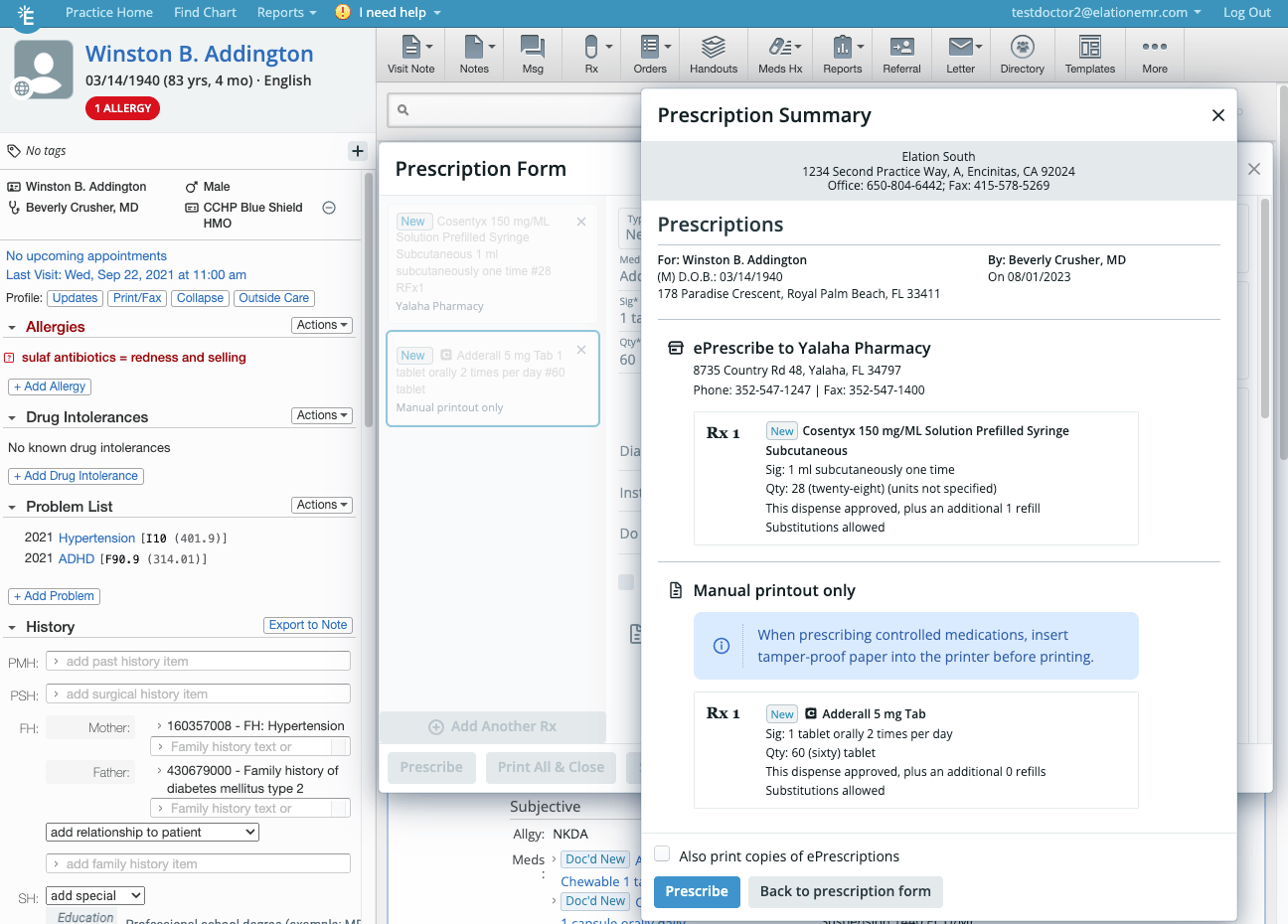
If you choose to print certain or all prescriptions for your patient, or if you do not use the electronic prescribing controlled substance ([EPCS](/articles/introduction-to-electronic-prescribing-of-controlled-substances-epcs)) feature and you need to print your controlled substance prescriptions, the Prescription Summary will show which prescriptions will be printed. Click **Prescribe** in the Prescription Summary window to electronically send eligible prescriptions to the pharmacy and then print the prescription that must be printed.
**5b. Printing prescription(s) for your patient**
If you choose to print certain or all prescriptions for your patient, or if you do not use the electronic prescribing controlled substance ([EPCS](/articles/introduction-to-electronic-prescribing-of-controlled-substances-epcs)) feature and you need to print your controlled substance prescriptions, the Prescription Summary will show which prescriptions will be printed. Click **Prescribe** in the Prescription Summary window to electronically send eligible prescriptions to the pharmacy and then print the prescription that must be printed.
 **Additional Workflow Tips**
**Manually adding a medication to the medication database**
If you are unable to find the medication you wish to prescribe, you can manually add it to your database by following these steps:
| **1** | Type the name of the medication in the field and click out of the field. |
| ----- | ------------------------------------------------------------------------ |
| **2** | Click **Add a new med** under the name. |
| **3** | Edit the **Name**, **Strength**, and **Medication Type** as needed. |
| **4** | Click **Create Medication & Continue**. |
ℹ️**CAUTION**
Medications that are manually added to the medication database will not be associated with a National Drug Code (NDC). This means Elation will not be able to provide any details around allergy interactions, drug interactions or intolerances, formulary information, or prescription cost estimates.
**Using Custom Rx Sigs**
You can store a custom sig in your sig database for any medication you prescribe. To create a custom sig for any medication:
| **1** | Select a medication in the Prescription Form. |
| ----- | --------------------------------------------- |
| **2** | Type your custom sig in the **Sig** field. |
| **3** | Click **Create a custom sig for this med…**. |
| **4** | Confirm the sig you want to save is accurate. |
| **5** | Click **Save**. |
You can only edit or delete custom sigs from your Prescriptions Settings. To do so:
| **1** | Click on your email at the top of your Elation account. |
| ----- | ------------------------------------------------------- |
| **2** | Click **Settings**. |
| **3** | Go to the **Prescriptions** section. |
| **4** | Go to the **Custom Rx Sigs** section. |
| **5** | Find the custom Rx sig you want to edit or delete. |
| **6** | Click the **Edit** or **Delete** button to proceed. |
**Using Rx (Prescription) Templates**
You can store commonly prescribed medications along with their **Sig**, **Qty**, **Units**, **Refills**, **Days Supply**, & **Packaging (NDC)** as an Rx Template to be used for any patient at any time. [Click here to learn more about Rx Templates](/articles/create-and-use-custom-rx-templates).
**Using Drug Decision Support**
Elation’s Drug Decision Support feature displays drug to drug interactions or drug to allergy interactions directly in the right hand side of the Prescription Form when you are drafting a prescription. [Click here to learn more about the Drug Decision Support features](/articles/drug-decision-support).
**Initiating an Electronic Prior Authorization request**
[Click here for instructions on how to submit an Electronic Prior Authorization request](/articles/Managing-electronic-prior-authorizations).
**Storing preferred pharmacies for your patients**
If patients have one or two preferred pharmacies they commonly use to retrieve medications, you can store their pharmacy preferences in the **Pharmacies** section of their [Patient Demographics](/articles/Patient-Demographics-Guide). When prescribing medications, the patient’s preferred pharmacies will appear first when selecting a pharmacy.
**Refilling a single medication**
If you need to refill a medication for a patient, click **Actions** -> **Refill** next to the medication in the patient’s medication history to begin a new prescription draft with the same details as the last prescription sent for that medication. You can edit the prescription as needed. Any available coverage, formulary, and cost estimate information will be readily visible on the right hand side of the prescription form. The last pharmacy the script was sent will be automatically selected.
**Refilling multiple medications in bulk**
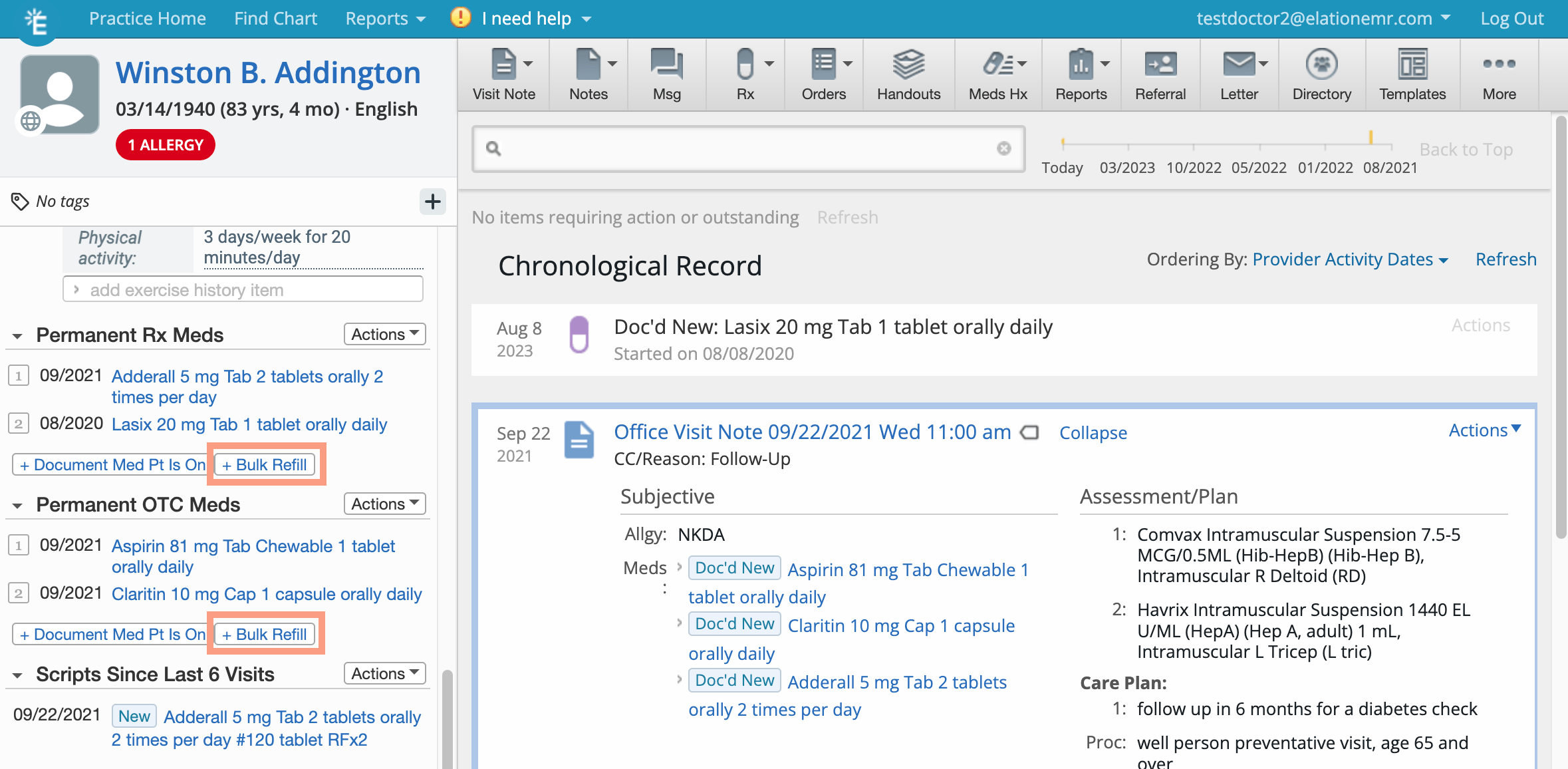
Click **+Bulk Refill** at the bottom of the **Permanent Rx Meds** or **Permanent OTC Meds** sections of the Clinical Profile to begin refilling multiple medications in bulk. All the details from the last prescription sent for each medication will automatically be populated in the Prescription Form. You can edit the prescriptions or specify different pharmacies for different medications as needed. Any available coverage, formulary, and cost estimate information for each prescription will be readily visible on the right hand side of the prescription form. The scripts will default to the pharmacy of the first medication on the list if pharmacy information is available.
**Additional Workflow Tips**
**Manually adding a medication to the medication database**
If you are unable to find the medication you wish to prescribe, you can manually add it to your database by following these steps:
| **1** | Type the name of the medication in the field and click out of the field. |
| ----- | ------------------------------------------------------------------------ |
| **2** | Click **Add a new med** under the name. |
| **3** | Edit the **Name**, **Strength**, and **Medication Type** as needed. |
| **4** | Click **Create Medication & Continue**. |
ℹ️**CAUTION**
Medications that are manually added to the medication database will not be associated with a National Drug Code (NDC). This means Elation will not be able to provide any details around allergy interactions, drug interactions or intolerances, formulary information, or prescription cost estimates.
**Using Custom Rx Sigs**
You can store a custom sig in your sig database for any medication you prescribe. To create a custom sig for any medication:
| **1** | Select a medication in the Prescription Form. |
| ----- | --------------------------------------------- |
| **2** | Type your custom sig in the **Sig** field. |
| **3** | Click **Create a custom sig for this med…**. |
| **4** | Confirm the sig you want to save is accurate. |
| **5** | Click **Save**. |
You can only edit or delete custom sigs from your Prescriptions Settings. To do so:
| **1** | Click on your email at the top of your Elation account. |
| ----- | ------------------------------------------------------- |
| **2** | Click **Settings**. |
| **3** | Go to the **Prescriptions** section. |
| **4** | Go to the **Custom Rx Sigs** section. |
| **5** | Find the custom Rx sig you want to edit or delete. |
| **6** | Click the **Edit** or **Delete** button to proceed. |
**Using Rx (Prescription) Templates**
You can store commonly prescribed medications along with their **Sig**, **Qty**, **Units**, **Refills**, **Days Supply**, & **Packaging (NDC)** as an Rx Template to be used for any patient at any time. [Click here to learn more about Rx Templates](/articles/create-and-use-custom-rx-templates).
**Using Drug Decision Support**
Elation’s Drug Decision Support feature displays drug to drug interactions or drug to allergy interactions directly in the right hand side of the Prescription Form when you are drafting a prescription. [Click here to learn more about the Drug Decision Support features](/articles/drug-decision-support).
**Initiating an Electronic Prior Authorization request**
[Click here for instructions on how to submit an Electronic Prior Authorization request](/articles/Managing-electronic-prior-authorizations).
**Storing preferred pharmacies for your patients**
If patients have one or two preferred pharmacies they commonly use to retrieve medications, you can store their pharmacy preferences in the **Pharmacies** section of their [Patient Demographics](/articles/Patient-Demographics-Guide). When prescribing medications, the patient’s preferred pharmacies will appear first when selecting a pharmacy.
**Refilling a single medication**
If you need to refill a medication for a patient, click **Actions** -> **Refill** next to the medication in the patient’s medication history to begin a new prescription draft with the same details as the last prescription sent for that medication. You can edit the prescription as needed. Any available coverage, formulary, and cost estimate information will be readily visible on the right hand side of the prescription form. The last pharmacy the script was sent will be automatically selected.
**Refilling multiple medications in bulk**
Click **+Bulk Refill** at the bottom of the **Permanent Rx Meds** or **Permanent OTC Meds** sections of the Clinical Profile to begin refilling multiple medications in bulk. All the details from the last prescription sent for each medication will automatically be populated in the Prescription Form. You can edit the prescriptions or specify different pharmacies for different medications as needed. Any available coverage, formulary, and cost estimate information for each prescription will be readily visible on the right hand side of the prescription form. The scripts will default to the pharmacy of the first medication on the list if pharmacy information is available.
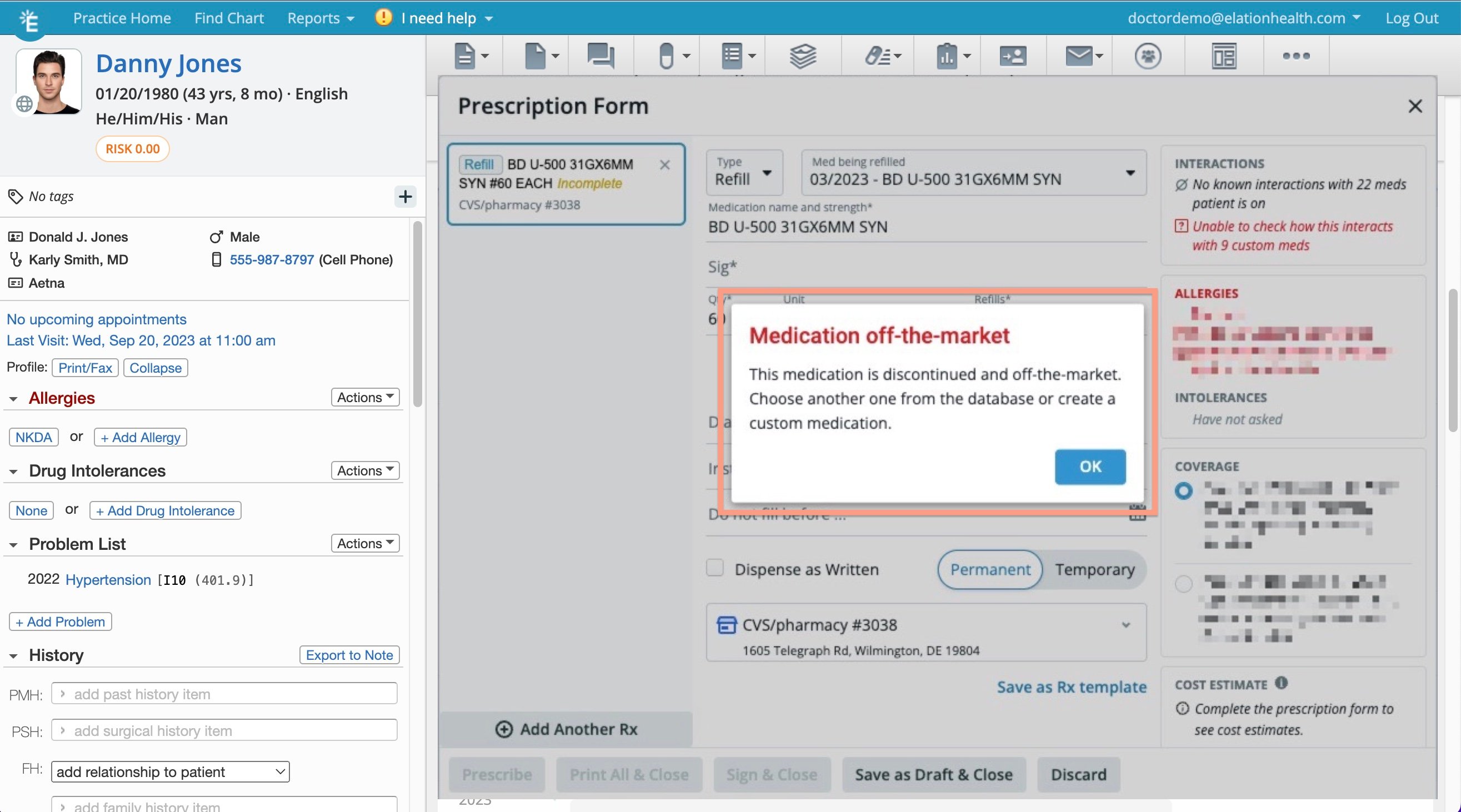
 **Prescribing discontinued and/or off-the-market medications**
When a medication is discontinued by the manufacturer and/or taken off the market, its NDC code will be made obsolete and you will not be able to prescribe the medication or retrieve formulary or coverage information for that medication.
If you attempt to prescribe or refill a medication that is discontinued or off-the-market, you will be prompted to choose another active medication. If you'd like to continue prescribing the discontinued or off-the-market medication then you must [create a custom medication](/articles/Prescriptions-Forms-Guide-ePrescribing-and-ordering-meds#add_med_to_database).
You may run into this situation when a medication in one of your Prescription Templates is discontinued by the manufacturer and/or taken off the market. Update or delete that template in your [Prescriptions Settings](/articles/create-and-use-custom-rx-templates#managing_templates) to avoid running into this error.
**Prescribing discontinued and/or off-the-market medications**
When a medication is discontinued by the manufacturer and/or taken off the market, its NDC code will be made obsolete and you will not be able to prescribe the medication or retrieve formulary or coverage information for that medication.
If you attempt to prescribe or refill a medication that is discontinued or off-the-market, you will be prompted to choose another active medication. If you'd like to continue prescribing the discontinued or off-the-market medication then you must [create a custom medication](/articles/Prescriptions-Forms-Guide-ePrescribing-and-ordering-meds#add_med_to_database).
You may run into this situation when a medication in one of your Prescription Templates is discontinued by the manufacturer and/or taken off the market. Update or delete that template in your [Prescriptions Settings](/articles/create-and-use-custom-rx-templates#managing_templates) to avoid running into this error.
 **Frequently Asked Questions**
* [If I queue 3 medications and then click **Save as Draft & Close**, will the medications remain in one queue when I open the draft?](#save_as_draft_and_close)
* [Can I default certain medications for certain pharmacies?](#default_pharmacy)
* [Can I enter a relative date (e.g. ‘2 months’) in the Date field of the Prescription Form?](#date_field)
* [I am a Workspaces user. What do I need to know about the Prescription Form?](#workspaces)
* [Will I be able to ePrescribe from the Elation Go mobile application?](#Elation_Go)
* [How do I e-prescribe controlled substances?](#controlled_substance)
* [How do I prescribe custom or compound medications?](#custom_medications)
* [Will I be able to associate an NDC code with custom or compound medications?](#NDC_custom)
* [How do I check by Drug-Decision-Support settings?](#drug_decision_support_settings)
* [I am trying to send a prescription to the pharmacy for a patient but the patient does not have an address. What should I do?](#no_address)
* [I am unable to find the unit I want to use to order a medication. What should I do?](#no_unit)
* [How do I fax a prescription or order to another provider?](#fax_prescription_or_order)
* [Can I allow my staff to sign off on prescriptions on my behalf?](#delegate)
* [Where can I find more information about EPCS setup and troubleshooting?](#EPCS_info)
**If I queue 3 medications and then click \*\* Save as Draft & Close**, will the medications remain in one queue when I open the draft?\*\*
If you queue 3 medications and then click **Save as Draft & Close**, opening any medication draft will open all 3 medications in a single queue again.
**Can I default certain medications for certain pharmacies?**
You cannot default certain medications to certain pharmacies. Elation will only default to the last pharmacy used for the last prescription that was sent electronically from the patient's chart.
Optionally, if you want to the most recently used pharmacy (for each patient) to populate in the Pharmacy field automatically, have an Admin Level User in the practice use the **I need help** -> **Contact Elation Support** button to send a request to our Support Team and a member of the Support Team will turn this feature on for you.
**Can I enter a relative date (e.g. **2 months**) in the Date field of the Prescription Form?**
The Prescription Form does not support relative dates in the **Date** field. You must enter an exact date or select a date from the calendar.
**I am a Workspaces user. What do I need to know about the Prescription Form?**
As a [Workspaces](/articles/workspaces-guide) user, you will only see the Practice Locations specific to your Workspace when sending prescriptions to the pharmacy. The first Practice Location listed in the Workspace will always be the default location. Workspace users will not be able to select a default prescribing location for ePrescribing.
**Will I be able to ePrescribe from the Elation Go mobile application?**
Yes, you will be able to [ePrescribe non-controlled substance medications from the Elation Go mobile application](/articles/elation-go-the-mobile-app-for-practices#send_non_controlled_erx). Please note that the following features are currently not available in the Elation Go mobile application:
* Packing (NDC) field
* Days Supply field
* Prescription insurance benefits details
**How do I Prescribe controlled substances?**
To prescribe controlled substance medications, simply select a controlled substance medication in the Prescription Form and then [follow the necessary steps to complete the prescription](#how_to_use).
* If your practicedoes not have the [EPCS (Electronic Prescribing of Controlled Substances)](/articles/introduction-to-electronic-prescribing-of-controlled-substances-epcs) feature turned on, providers will need to print out the controlled substance prescription on tamper proof paper
* If your practice would be interested in e-Prescribing Controlled Substance (EPCS) please[contact Elation](https://help.elationemr.com/s/contactsupport) to learn more.
**How do I prescribe custom or compound medications?**
You can [follow the instructions about adding a medication to the medication database](#add_med_to_database) to add custom or compound medications to the Prescription Form to prescribe them.
ℹ️**EXCEPTIONS**
Custom or compound controlled substance medications cannot be prescribed electronically via Elation. You will need to prescribe these medications via other means such as printing the prescription or calling them into the pharmacy.
**Will I be able to associate an NDC code with custom or compound medications?** You will not be able to associate an NDC code with custom or compound medications. Custom or compound controlled substance medications cannot be prescribed electronically via Elation. You will need to prescribe these medications via other means such as printing the prescription or calling them into the pharmacy.
\*\*How do I check my Drug-Decision-Support settings?
ℹ️ **Provider Level Users Only**
Drug Decision Support Settings are provider specific. This means only Provider Level Users can adjust their Drug Decision Support settings in their own Elation EHR account.
1. Go to **Settings** -> **Preferences**-> **Drug Decision Support**.
2. Adjust your Drug-to-Drug alerts as needed. You have the following options
* Major alerts only
* Major and Moderate alerts only
* All alerts
3. Turn on or off your Drug-to-Allergy alerts as needed.
4. Changes will be saved automatically on this page.
[Click here to learn more about the Drug-Decision-Support feature](/articles/drug-decision-support).
**I am trying to send a prescription to the pharmacy for a patient but the patient does not have an address. What should I do?**
Patient addresses are now required for both non-controlled and controlled substances. If the patient is experiencing homelessness, store the word **HOMELESS** in the\*\* Address\*\* field and enter the **City**, **State**, and **Zip** for your local area. If the address of the patient is unable to be obtained, store the word **UNKNOWN** in the\*\* Address\*\* field and enter the **City**, **State**, and **Zip** for your local area.
**I am unable to find the unit I want to use to order a medication. What should I do?**
In an effort to provide more accurate and precise quantity and dosing information to pharmacies to dispense medications to patients, the National Council for Prescription Drug Monitoring Programs (NCPDP) has specified which quantity units are acceptable for prescribing. Below is a list of all the accepted prescription units and their recommended alternatives. When **each** is one of the recommended alternatives for a deprecated unit but other recommended alternatives are available, the NCPDP suggests that you choose one of the other more appropriate terms (e.g. choose 'mL' for ampule instead of 'each').
| **Deprecated Unit** | **Recommended Alternative** |
| ---------------------- | ---------------------------- |
| Ampul | mL or each |
| Applicator | grams or mL |
| Bag | grams or mL |
| Bar | each |
| Bead | grams |
| Block | each |
| Bolus | mL |
| Bottle | mL |
| Can | grams, mL, or each |
| Canister | grams or mL |
| Carton | grams, mL, or each |
| Cartridge | mL |
| Case | grams, mL, or each |
| Cassette | grams, mL, or each |
| Container | grams, mL, or each |
| Cylinder | grams, mL, or each |
| Device | each |
| Disk | each |
| Dose pack | grams, mL, or each |
| Dual pack | grams, mL, or each |
| Fluid ounce | mL |
| French | each |
| Gallon | mL |
| Inhalation | grams, mL, or each |
| Inhaler | grams, inhaler, mL, or each |
| Inhaler refill | grams, mL, or each |
| International units | iu |
| Intravenous bag | mL |
| Kilogram | grams |
| Liter | mL |
| Microgram | microgram |
| Milliequivalent | grams or mL |
| Milligram | grams or milligram |
| Nebule | mL or nebule |
| Needle free injection | mL |
| Ocular system | each |
| Ounce | grams |
| Package | grams, mL, or each |
| Paper | each |
| Pint | mL |
| Pouch | grams, mL, or each |
| Pound | grams |
| Pre-filled pen syringe | mL or pre-filled pen syringe |
| Puff | grams or mL |
| Pump | grams or mL |
| Quart | mL |
| Sachet | each |
| Scoopful | grams, mL, or each |
| Spray | grams or mL |
| Syringe | mL, syringe or each |
| Tablespoon | mL |
| Tabminder | each |
| Tampon | each |
| Teaspoon | mL |
| Tray | grams, mL, or each |
| Tube | grams, mL, or each |
| Vial | mL, vial or each |
ℹ️**CAUTION**
The unit **unspecified** should only be used when the correct unit is not available. Inappropriate use of unspecified may trigger an auditing flag by our prescribing partner.
**How do I fax a prescription or order to another provider?**
Prescriptions are typically sent electronically to a pharmacy or printed for your patient. To fax supporting clinical information (such as a signed prescription or visit note) to another provider, use the **Letters & Referrals** feature:
| **1** | Ensure the prescription or visit note is signed. |
| ----- | ------------------------------------------------------------------------------------------------------------------------------------------------------------------------------------------------------------------------------------------------------------------------------------------------------------------------------------------------------------------------------------------------------------ |
| **2** | Open **Letters & Referrals** in the patient chart by clicking **Letter** → **to Provider** or the **Referral** button in the gray navigation bar. |
| **3** | Create a **Provider Letter** or **Referral**. |
| **4** | In the **To** field, enter the recipient's name or fax number. If a search result appears, select an existing contact. If no results are found, press **Tab** to save the fax number to a new contact. Alternatively, you can simply enter the fax number and click out; this will automatically send any attachments (up to 40 pages) and remove the instructions for online viewing from the cover letter. |
| **5** | To send by **Fax**, ensure the recipient has a fax number on file. |
| **6** | Click **Select Chart Items to Attach** and attach the signed visit note, prescription, or other clinical documentation. |
| **7** | Check the box for **Also fax copies of attachments** if you want to include the attached records in the fax. The system will automatically fax the attachments if a fax number is entered in the **To** field, eliminating the checkbox. |
| **8** | Click **Sign & Send** to fax the correspondence. |
| **9** | Monitor the status of your fax in the **Chronological Record** of the patient's chart. Statuses include Fax Pending, Fax Sent, or Fax Failed. |
For more on sending faxes and interpreting statuses, see the [Letter & Referral Guide - Sending a fax](/articles/how-to-send-a-fax) article.
**Can staff sign off on prescriptions on a provider's behalf?**
Yes, Provider Level Users can allow Staff Level Users to execute prescription orders on their behalf by assigning individuals as Authorized Rx Delegates. Authorized Rx Delegates can perform the duties listed below. Learn more about how to assign Authorized Rx Delegates in the [User Accounts Guide- Utilizing authorized staff delegates](/articles/staff-permissions--staff-delegates) article.
* Transcribe prescription orders in the EMR and send a new prescription electronically to the pharmacy on provider's behalf.
* Transcribe verbal approval or denial of a prescription refill or change request received from a pharmacy and send that approval or denial electronically to the pharmacy on provider's behalf.
* Transcribe provider's order to discontinue a medication in the EMR for documentation purposes
* Transcribe provider's order to cancel a medication sent to a pharmacy
ℹ️**EXCEPTIONS**
Authorized Rx Delegates **will not** be allowed to ePrescribe controlled substance medications or address controlled substance medication refill requests on a provider's behalf due to DEA regulations.
**Where can I find more information about EPCS setup and troubleshooting?**
For complete information about electronic prescribing of controlled substances, see the following articles:
* [EPCS (Electronic Prescribing of Controlled Substances) Introduction](/articles/introduction-to-electronic-prescribing-of-controlled-substances-epcs)
* [EPCS Guide - ePrescribing controlled substance medications & troubleshooting](/articles/how-to-e-prescribe-controlled-substances)
* [EPCS Guide - Signing up for EPCS](/articles/how-to-complete-the-epcs-sign-up-process)
* [EPCS Guide - Managing EPCS Access Controls](/articles/how-to-set-up-epcs-access-controls)
* [EPCS Guide - Updating your EPCS Token or password](/articles/how-to-update-your-epcs-token)
**Related Articles**
* [Prescription Form Guide- Viewing patient prescription benefits](/articles/Prescription-Form-Guide-patient-prescription-benefits)
* [Prescriptions Guide - Managing electronic prior authorizations](/articles/Managing-electronic-prior-authorizations)
* [Prescriptions Guide - Delivering prescription reminders to patients through RxInform](/articles/prescription-reminders-for-patients)
* [Prescription (Rx) Templates Guide](/articles/create-and-use-custom-rx-templates)
* [Drug Decision Support Guide- Monitoring drug interactions](/articles/drug-decision-support)
* [EPCS (Electronic Prescribing of Controlled Substances) Introduction](/articles/introduction-to-electronic-prescribing-of-controlled-substances-epcs)
* [Letter & Referral Guide - Sending a fax](/articles/how-to-send-a-fax)
* [Prescription Monitoring Program (PMP/PDMP) Integration Introduction](/articles/Integrating-with-your-state-s-Prescription-Monitoring-Program-PMP-PDMP)
* [User Accounts Guide- Utilizing authorized staff delegates](/articles/staff-permissions--staff-delegates)
* [Pediatric Features Guide](/articles/Pediatric-Features)
**Frequently Asked Questions**
* [If I queue 3 medications and then click **Save as Draft & Close**, will the medications remain in one queue when I open the draft?](#save_as_draft_and_close)
* [Can I default certain medications for certain pharmacies?](#default_pharmacy)
* [Can I enter a relative date (e.g. ‘2 months’) in the Date field of the Prescription Form?](#date_field)
* [I am a Workspaces user. What do I need to know about the Prescription Form?](#workspaces)
* [Will I be able to ePrescribe from the Elation Go mobile application?](#Elation_Go)
* [How do I e-prescribe controlled substances?](#controlled_substance)
* [How do I prescribe custom or compound medications?](#custom_medications)
* [Will I be able to associate an NDC code with custom or compound medications?](#NDC_custom)
* [How do I check by Drug-Decision-Support settings?](#drug_decision_support_settings)
* [I am trying to send a prescription to the pharmacy for a patient but the patient does not have an address. What should I do?](#no_address)
* [I am unable to find the unit I want to use to order a medication. What should I do?](#no_unit)
* [How do I fax a prescription or order to another provider?](#fax_prescription_or_order)
* [Can I allow my staff to sign off on prescriptions on my behalf?](#delegate)
* [Where can I find more information about EPCS setup and troubleshooting?](#EPCS_info)
**If I queue 3 medications and then click \*\* Save as Draft & Close**, will the medications remain in one queue when I open the draft?\*\*
If you queue 3 medications and then click **Save as Draft & Close**, opening any medication draft will open all 3 medications in a single queue again.
**Can I default certain medications for certain pharmacies?**
You cannot default certain medications to certain pharmacies. Elation will only default to the last pharmacy used for the last prescription that was sent electronically from the patient's chart.
Optionally, if you want to the most recently used pharmacy (for each patient) to populate in the Pharmacy field automatically, have an Admin Level User in the practice use the **I need help** -> **Contact Elation Support** button to send a request to our Support Team and a member of the Support Team will turn this feature on for you.
**Can I enter a relative date (e.g. **2 months**) in the Date field of the Prescription Form?**
The Prescription Form does not support relative dates in the **Date** field. You must enter an exact date or select a date from the calendar.
**I am a Workspaces user. What do I need to know about the Prescription Form?**
As a [Workspaces](/articles/workspaces-guide) user, you will only see the Practice Locations specific to your Workspace when sending prescriptions to the pharmacy. The first Practice Location listed in the Workspace will always be the default location. Workspace users will not be able to select a default prescribing location for ePrescribing.
**Will I be able to ePrescribe from the Elation Go mobile application?**
Yes, you will be able to [ePrescribe non-controlled substance medications from the Elation Go mobile application](/articles/elation-go-the-mobile-app-for-practices#send_non_controlled_erx). Please note that the following features are currently not available in the Elation Go mobile application:
* Packing (NDC) field
* Days Supply field
* Prescription insurance benefits details
**How do I Prescribe controlled substances?**
To prescribe controlled substance medications, simply select a controlled substance medication in the Prescription Form and then [follow the necessary steps to complete the prescription](#how_to_use).
* If your practicedoes not have the [EPCS (Electronic Prescribing of Controlled Substances)](/articles/introduction-to-electronic-prescribing-of-controlled-substances-epcs) feature turned on, providers will need to print out the controlled substance prescription on tamper proof paper
* If your practice would be interested in e-Prescribing Controlled Substance (EPCS) please[contact Elation](https://help.elationemr.com/s/contactsupport) to learn more.
**How do I prescribe custom or compound medications?**
You can [follow the instructions about adding a medication to the medication database](#add_med_to_database) to add custom or compound medications to the Prescription Form to prescribe them.
ℹ️**EXCEPTIONS**
Custom or compound controlled substance medications cannot be prescribed electronically via Elation. You will need to prescribe these medications via other means such as printing the prescription or calling them into the pharmacy.
**Will I be able to associate an NDC code with custom or compound medications?** You will not be able to associate an NDC code with custom or compound medications. Custom or compound controlled substance medications cannot be prescribed electronically via Elation. You will need to prescribe these medications via other means such as printing the prescription or calling them into the pharmacy.
\*\*How do I check my Drug-Decision-Support settings?
ℹ️ **Provider Level Users Only**
Drug Decision Support Settings are provider specific. This means only Provider Level Users can adjust their Drug Decision Support settings in their own Elation EHR account.
1. Go to **Settings** -> **Preferences**-> **Drug Decision Support**.
2. Adjust your Drug-to-Drug alerts as needed. You have the following options
* Major alerts only
* Major and Moderate alerts only
* All alerts
3. Turn on or off your Drug-to-Allergy alerts as needed.
4. Changes will be saved automatically on this page.
[Click here to learn more about the Drug-Decision-Support feature](/articles/drug-decision-support).
**I am trying to send a prescription to the pharmacy for a patient but the patient does not have an address. What should I do?**
Patient addresses are now required for both non-controlled and controlled substances. If the patient is experiencing homelessness, store the word **HOMELESS** in the\*\* Address\*\* field and enter the **City**, **State**, and **Zip** for your local area. If the address of the patient is unable to be obtained, store the word **UNKNOWN** in the\*\* Address\*\* field and enter the **City**, **State**, and **Zip** for your local area.
**I am unable to find the unit I want to use to order a medication. What should I do?**
In an effort to provide more accurate and precise quantity and dosing information to pharmacies to dispense medications to patients, the National Council for Prescription Drug Monitoring Programs (NCPDP) has specified which quantity units are acceptable for prescribing. Below is a list of all the accepted prescription units and their recommended alternatives. When **each** is one of the recommended alternatives for a deprecated unit but other recommended alternatives are available, the NCPDP suggests that you choose one of the other more appropriate terms (e.g. choose 'mL' for ampule instead of 'each').
| **Deprecated Unit** | **Recommended Alternative** |
| ---------------------- | ---------------------------- |
| Ampul | mL or each |
| Applicator | grams or mL |
| Bag | grams or mL |
| Bar | each |
| Bead | grams |
| Block | each |
| Bolus | mL |
| Bottle | mL |
| Can | grams, mL, or each |
| Canister | grams or mL |
| Carton | grams, mL, or each |
| Cartridge | mL |
| Case | grams, mL, or each |
| Cassette | grams, mL, or each |
| Container | grams, mL, or each |
| Cylinder | grams, mL, or each |
| Device | each |
| Disk | each |
| Dose pack | grams, mL, or each |
| Dual pack | grams, mL, or each |
| Fluid ounce | mL |
| French | each |
| Gallon | mL |
| Inhalation | grams, mL, or each |
| Inhaler | grams, inhaler, mL, or each |
| Inhaler refill | grams, mL, or each |
| International units | iu |
| Intravenous bag | mL |
| Kilogram | grams |
| Liter | mL |
| Microgram | microgram |
| Milliequivalent | grams or mL |
| Milligram | grams or milligram |
| Nebule | mL or nebule |
| Needle free injection | mL |
| Ocular system | each |
| Ounce | grams |
| Package | grams, mL, or each |
| Paper | each |
| Pint | mL |
| Pouch | grams, mL, or each |
| Pound | grams |
| Pre-filled pen syringe | mL or pre-filled pen syringe |
| Puff | grams or mL |
| Pump | grams or mL |
| Quart | mL |
| Sachet | each |
| Scoopful | grams, mL, or each |
| Spray | grams or mL |
| Syringe | mL, syringe or each |
| Tablespoon | mL |
| Tabminder | each |
| Tampon | each |
| Teaspoon | mL |
| Tray | grams, mL, or each |
| Tube | grams, mL, or each |
| Vial | mL, vial or each |
ℹ️**CAUTION**
The unit **unspecified** should only be used when the correct unit is not available. Inappropriate use of unspecified may trigger an auditing flag by our prescribing partner.
**How do I fax a prescription or order to another provider?**
Prescriptions are typically sent electronically to a pharmacy or printed for your patient. To fax supporting clinical information (such as a signed prescription or visit note) to another provider, use the **Letters & Referrals** feature:
| **1** | Ensure the prescription or visit note is signed. |
| ----- | ------------------------------------------------------------------------------------------------------------------------------------------------------------------------------------------------------------------------------------------------------------------------------------------------------------------------------------------------------------------------------------------------------------ |
| **2** | Open **Letters & Referrals** in the patient chart by clicking **Letter** → **to Provider** or the **Referral** button in the gray navigation bar. |
| **3** | Create a **Provider Letter** or **Referral**. |
| **4** | In the **To** field, enter the recipient's name or fax number. If a search result appears, select an existing contact. If no results are found, press **Tab** to save the fax number to a new contact. Alternatively, you can simply enter the fax number and click out; this will automatically send any attachments (up to 40 pages) and remove the instructions for online viewing from the cover letter. |
| **5** | To send by **Fax**, ensure the recipient has a fax number on file. |
| **6** | Click **Select Chart Items to Attach** and attach the signed visit note, prescription, or other clinical documentation. |
| **7** | Check the box for **Also fax copies of attachments** if you want to include the attached records in the fax. The system will automatically fax the attachments if a fax number is entered in the **To** field, eliminating the checkbox. |
| **8** | Click **Sign & Send** to fax the correspondence. |
| **9** | Monitor the status of your fax in the **Chronological Record** of the patient's chart. Statuses include Fax Pending, Fax Sent, or Fax Failed. |
For more on sending faxes and interpreting statuses, see the [Letter & Referral Guide - Sending a fax](/articles/how-to-send-a-fax) article.
**Can staff sign off on prescriptions on a provider's behalf?**
Yes, Provider Level Users can allow Staff Level Users to execute prescription orders on their behalf by assigning individuals as Authorized Rx Delegates. Authorized Rx Delegates can perform the duties listed below. Learn more about how to assign Authorized Rx Delegates in the [User Accounts Guide- Utilizing authorized staff delegates](/articles/staff-permissions--staff-delegates) article.
* Transcribe prescription orders in the EMR and send a new prescription electronically to the pharmacy on provider's behalf.
* Transcribe verbal approval or denial of a prescription refill or change request received from a pharmacy and send that approval or denial electronically to the pharmacy on provider's behalf.
* Transcribe provider's order to discontinue a medication in the EMR for documentation purposes
* Transcribe provider's order to cancel a medication sent to a pharmacy
ℹ️**EXCEPTIONS**
Authorized Rx Delegates **will not** be allowed to ePrescribe controlled substance medications or address controlled substance medication refill requests on a provider's behalf due to DEA regulations.
**Where can I find more information about EPCS setup and troubleshooting?**
For complete information about electronic prescribing of controlled substances, see the following articles:
* [EPCS (Electronic Prescribing of Controlled Substances) Introduction](/articles/introduction-to-electronic-prescribing-of-controlled-substances-epcs)
* [EPCS Guide - ePrescribing controlled substance medications & troubleshooting](/articles/how-to-e-prescribe-controlled-substances)
* [EPCS Guide - Signing up for EPCS](/articles/how-to-complete-the-epcs-sign-up-process)
* [EPCS Guide - Managing EPCS Access Controls](/articles/how-to-set-up-epcs-access-controls)
* [EPCS Guide - Updating your EPCS Token or password](/articles/how-to-update-your-epcs-token)
**Related Articles**
* [Prescription Form Guide- Viewing patient prescription benefits](/articles/Prescription-Form-Guide-patient-prescription-benefits)
* [Prescriptions Guide - Managing electronic prior authorizations](/articles/Managing-electronic-prior-authorizations)
* [Prescriptions Guide - Delivering prescription reminders to patients through RxInform](/articles/prescription-reminders-for-patients)
* [Prescription (Rx) Templates Guide](/articles/create-and-use-custom-rx-templates)
* [Drug Decision Support Guide- Monitoring drug interactions](/articles/drug-decision-support)
* [EPCS (Electronic Prescribing of Controlled Substances) Introduction](/articles/introduction-to-electronic-prescribing-of-controlled-substances-epcs)
* [Letter & Referral Guide - Sending a fax](/articles/how-to-send-a-fax)
* [Prescription Monitoring Program (PMP/PDMP) Integration Introduction](/articles/Integrating-with-your-state-s-Prescription-Monitoring-Program-PMP-PDMP)
* [User Accounts Guide- Utilizing authorized staff delegates](/articles/staff-permissions--staff-delegates)
* [Pediatric Features Guide](/articles/Pediatric-Features)