> ## Documentation Index
> Fetch the complete documentation index at: https://help.elationhealth.com/llms.txt
> Use this file to discover all available pages before exploring further.
# Patient Chart Guide- Audit Logs
> This guide will describe how users at your practice can access information about actions taken within a patient chart through the Audit Logs feature.
## What is the Audit Logs feature?
The Audit Logs feature within a patient chart is available for Admin Level Users at your practice to track actions taken in a specific chart and track who at your practice has viewed the chart. These logs display the following information for your reference:
* What type of action was taken on what type of chart item
* Shows specific information detailing if items were deleted, edited, and [more](#action-definitions)
* Which user took the action
* Displays the user’s name from your practice
* ## The date & time the action occurred
the Record Date (time and date column) will display in PDT
## Why are Audit Logs useful?
The Audit Logs feature is a useful and valuable tool for your practice to track actions and access within a specific patient chart. Some common actions to track within the chart are deletion/creation of specific items within a record, deletion/creation of records, and access. Reference the
[recommended use cases](#tips-and-recommended-use-cases)
for more information on how to best utilize this feature.
## Using Audit Logs
The Audit Logs feature is available within a patient chart for Admin Level users at your practice. Please follow these steps below to access this feature.
1. Start in a patient chart and click **More** in the top grey navigation bar of the chart
2. Click **Data Exchange**
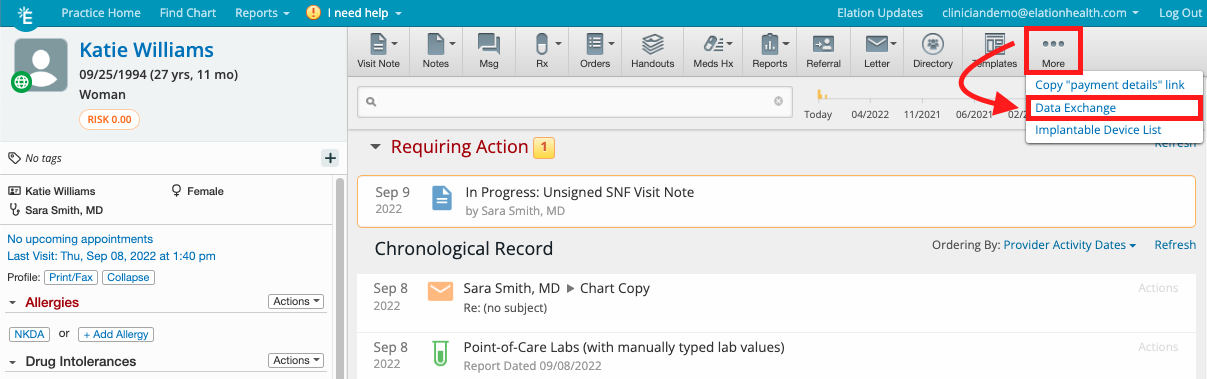 3. Click **Audit Logs** from the window that appears
4. A new tab will open on your browser and will bring you to the Audit Log page.
*
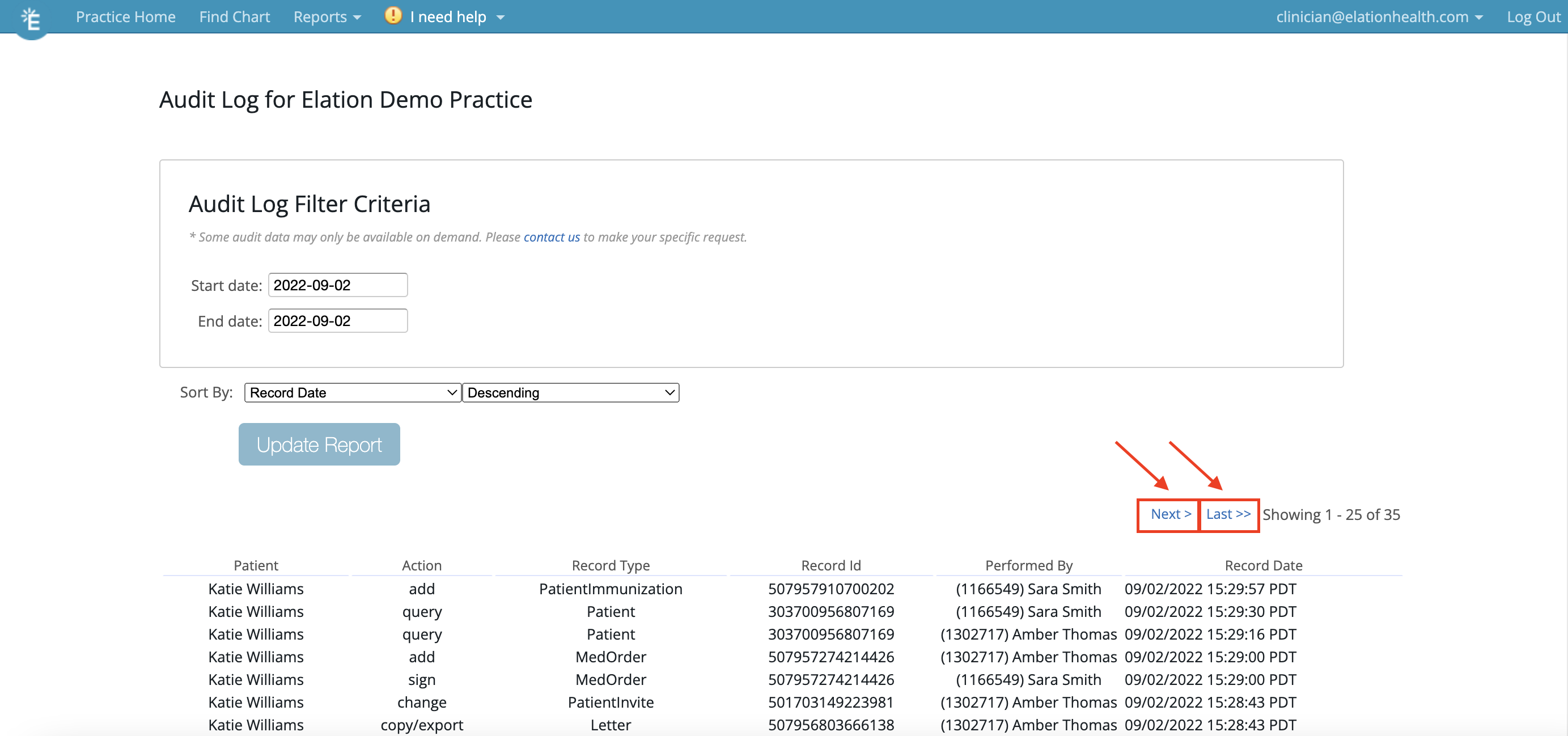
This page will automatically show actions taken for the given day you opened the page. You will be able to adjust the date range and filters to customize how the information is displayed for you.
5. Each Audit Log page will show up to 25 actions. If your date range includes more than 25 actions, you can navigate to the other pages by using the **Next>** and **Last>>** buttons, as shown below.
3. Click **Audit Logs** from the window that appears
4. A new tab will open on your browser and will bring you to the Audit Log page.
*
This page will automatically show actions taken for the given day you opened the page. You will be able to adjust the date range and filters to customize how the information is displayed for you.
5. Each Audit Log page will show up to 25 actions. If your date range includes more than 25 actions, you can navigate to the other pages by using the **Next>** and **Last>>** buttons, as shown below.
 ### Audit Log page guide
You can use the various Audit Log filters below to customize your search (match the number to the image below):
1. You can filter the date range here by typing in your preferred date range
*
accepted formats for this field include (YYYY-MM-DD) and (MM/DD/YYYY)
2. You can sort the information by the following categories
* Patient
* Action
* Record Type
* Record ID
* Performed By
* Record Date
3. You can sort the information in either Descending or Ascending order
### Action Definitions
| **Action** | **Description** |
| ------------ | ------------------------------------------------------------------- |
| Add | Information was added |
| Change | Information was changed in a chart item |
| Copy/export | Chart information was exported |
| Delete | Information within a chart item or an entire chart item was deleted |
| Print | Chart item was printed |
| PrintPtInstr | Patient instructions printed |
| Query | Accessing/opening the patient chart |
| Sign | Chart item was signed off |
### Tips and recommended use cases
Below are a few examples of recommended use cases for how your practice can best utilize this feature:
**Scenario 1**
Your practice is looking to track down who deleted a lab order from the chart in the last 3 days. To find this information in Audit Logs, please take the following steps:
1. Access Audit Logs using the steps detailed in the [Using Audit Logs](#using-audit-logs) section
2. Set the date range for the past 3 days
*
the Record Date (time and date column) will display in PDT
3. Sort the information by action and locate the **Delete** logs under the **Action** column
*
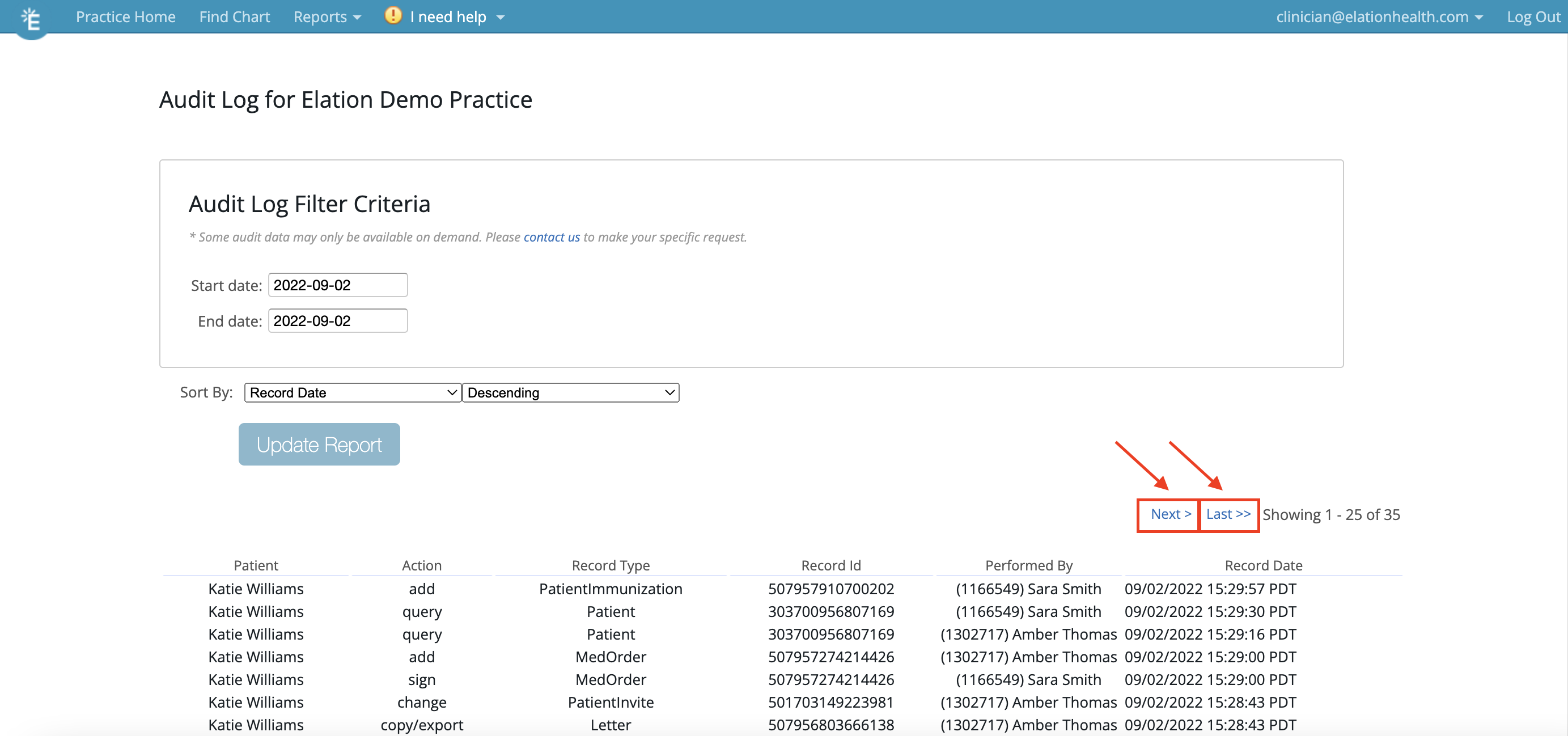
You may have to click through multiple pages if there were many actions taken in the chart by using the **Next>** and **Last>>** buttons, as shown below.
### Audit Log page guide
You can use the various Audit Log filters below to customize your search (match the number to the image below):
1. You can filter the date range here by typing in your preferred date range
*
accepted formats for this field include (YYYY-MM-DD) and (MM/DD/YYYY)
2. You can sort the information by the following categories
* Patient
* Action
* Record Type
* Record ID
* Performed By
* Record Date
3. You can sort the information in either Descending or Ascending order
### Action Definitions
| **Action** | **Description** |
| ------------ | ------------------------------------------------------------------- |
| Add | Information was added |
| Change | Information was changed in a chart item |
| Copy/export | Chart information was exported |
| Delete | Information within a chart item or an entire chart item was deleted |
| Print | Chart item was printed |
| PrintPtInstr | Patient instructions printed |
| Query | Accessing/opening the patient chart |
| Sign | Chart item was signed off |
### Tips and recommended use cases
Below are a few examples of recommended use cases for how your practice can best utilize this feature:
**Scenario 1**
Your practice is looking to track down who deleted a lab order from the chart in the last 3 days. To find this information in Audit Logs, please take the following steps:
1. Access Audit Logs using the steps detailed in the [Using Audit Logs](#using-audit-logs) section
2. Set the date range for the past 3 days
*
the Record Date (time and date column) will display in PDT
3. Sort the information by action and locate the **Delete** logs under the **Action** column
*
You may have to click through multiple pages if there were many actions taken in the chart by using the **Next>** and **Last>>** buttons, as shown below.
 **Scenario 2**
Your practice wants to see who recorded the vitals on the visit note from today. To find this information in Audit Logs, please take the following steps:
1. Access Audit Logs using the steps detailed in the [Using Audit Logs](#using-audit-logs) section
2. Sort the information by **Record Type** and locate **VitalsCollection** in the **Record Type** column.
Here you can see which users from your practice recorded this information by viewing the names under the **Performed by** column that correspond with the **VitalsCollection** row.
**Scenario 3**
Your practice wants to track which staff members accessed a specific patient chart today. To find this information in Audit Logs, please take the following steps:
1. Access Audit Logs using the steps detailed in the [Using Audit Logs](#using-audit-logs) section
2. Sort the information by Action and locate **Query** under the **Action** column
Here you can see which staff members accessed the patient chart on this day by viewing the names under the **Performed by** column that correspond with the **Query** row.
## Gathering additional details
Need more information regarding a specific action from the Audit Log? Please contact our Support Team using the **I need help** -> **Contact Elation Support** button and include the following information in your request:
1. Description/context for what information you are looking for
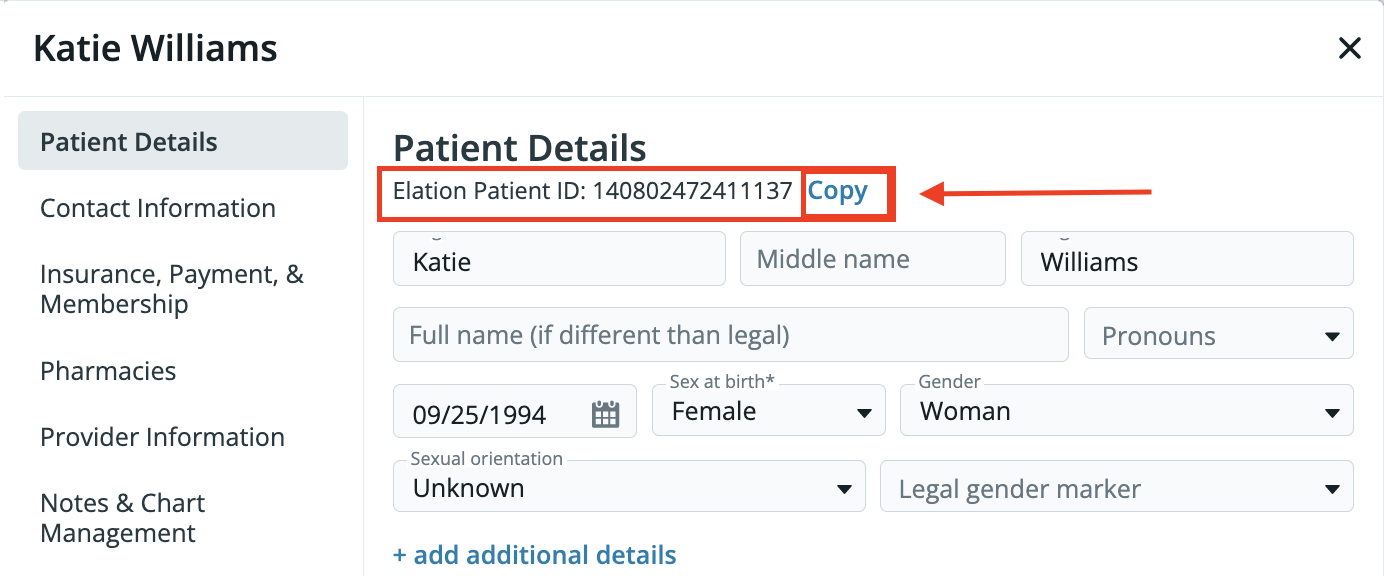
2. Patient chart ID (located in the patient’s demographic window)
**Scenario 2**
Your practice wants to see who recorded the vitals on the visit note from today. To find this information in Audit Logs, please take the following steps:
1. Access Audit Logs using the steps detailed in the [Using Audit Logs](#using-audit-logs) section
2. Sort the information by **Record Type** and locate **VitalsCollection** in the **Record Type** column.
Here you can see which users from your practice recorded this information by viewing the names under the **Performed by** column that correspond with the **VitalsCollection** row.
**Scenario 3**
Your practice wants to track which staff members accessed a specific patient chart today. To find this information in Audit Logs, please take the following steps:
1. Access Audit Logs using the steps detailed in the [Using Audit Logs](#using-audit-logs) section
2. Sort the information by Action and locate **Query** under the **Action** column
Here you can see which staff members accessed the patient chart on this day by viewing the names under the **Performed by** column that correspond with the **Query** row.
## Gathering additional details
Need more information regarding a specific action from the Audit Log? Please contact our Support Team using the **I need help** -> **Contact Elation Support** button and include the following information in your request:
1. Description/context for what information you are looking for
2. Patient chart ID (located in the patient’s demographic window)
 3. Date of the action and time of the action
4. Record ID
5. Relevant Users involved
## Related Articles
* [Chronological Record Guide- Searching for records in the patient's chart](/articles/using-the-search-tool-in-your-patient-chart)
* [Patient Chart Guide- Managing confidential records](/articles/confidential-items-in-your-patient-chart)
3. Date of the action and time of the action
4. Record ID
5. Relevant Users involved
## Related Articles
* [Chronological Record Guide- Searching for records in the patient's chart](/articles/using-the-search-tool-in-your-patient-chart)
* [Patient Chart Guide- Managing confidential records](/articles/confidential-items-in-your-patient-chart)