> ## Documentation Index
> Fetch the complete documentation index at: https://help.elationhealth.com/llms.txt
> Use this file to discover all available pages before exploring further.
# Order Forms Guide - Putting lab orders on hold for specimen collection
> Do you need to put a lab order on hold while you wait to collect the specimen from a patient?
## Overview
For in-house drawn labs, there may be situations where you need to sign off on a lab order but cannot document specimen collection because the specimens have not yet been collected from the patient. The lab order holding workflow allows you to sign off on the Lab Order and place it on hold until the specimens are collected and a specimen collection is documented.
## Workflow Instructions
### Placing signed Lab Orders on hold
#### Placing signed Lab Orders on hold when specimen collection date is not yet known
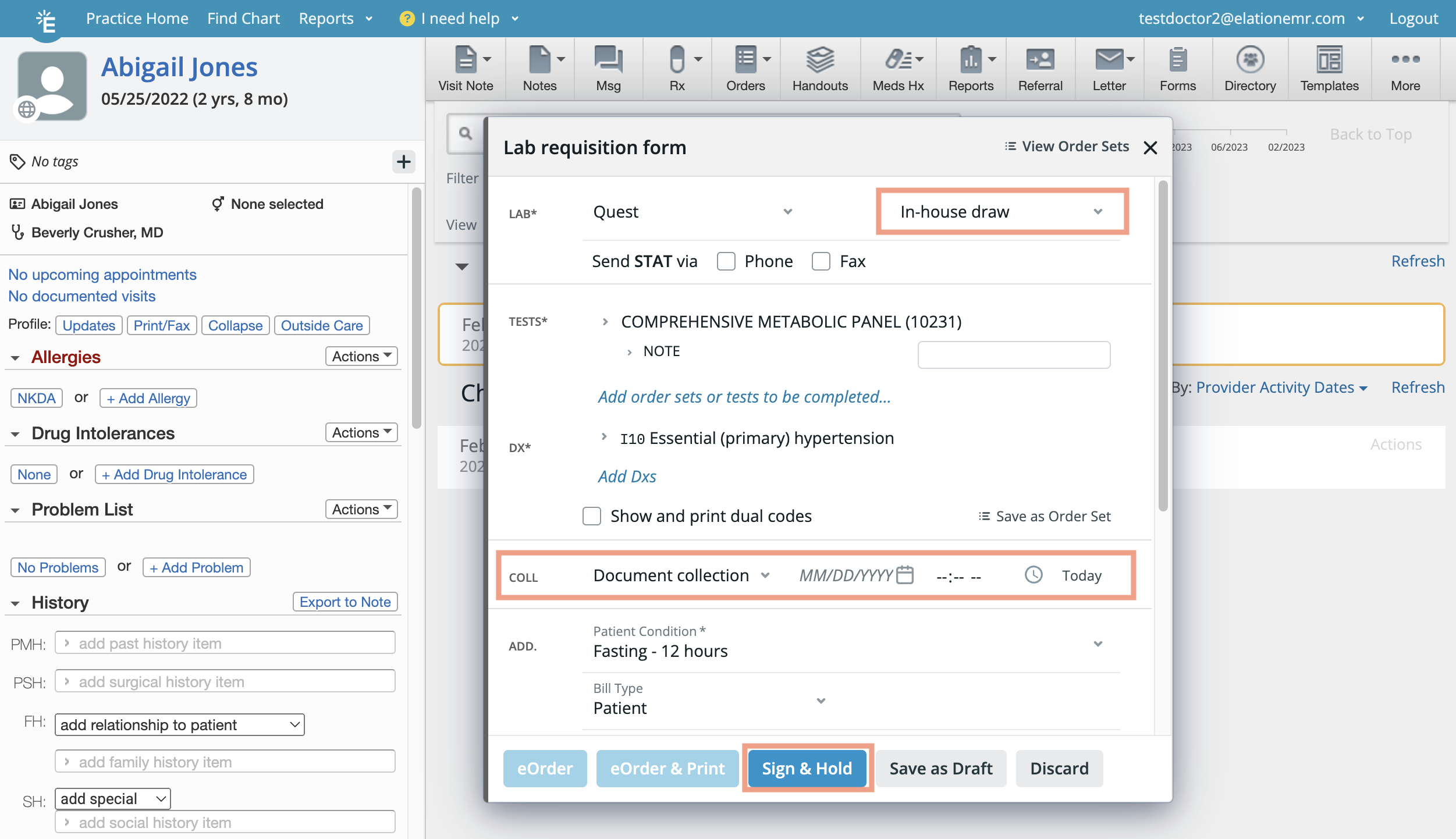 To place a Lab Order on hold while you wait for specimens to be collected on an unknown date:
1. Create a new [Lab Order](/articles/ordering-lab-tests-enhanced).
2. Select **In-house draw** under the **Site** field.
3. Complete the remainder of the Lab Order while leaving the collection (**COLL**) fields empty.
4. Click **Sign & Hold**.
5. Find the held Lab Order in the **Outstanding Items**, **Chronological Record**, or **Lab Reports** section of the patient’s chart when you are ready to input the specimen collection date. The Lab Order will have an **On hold** label in the title.
* The Lab Order will remain on hold until either one of the following actions are taken:
1. A [specimen collection date is documented](#document_specimen_collection_date).
2. The Lab Order is [canceled](#cancel_held_order).
To place a Lab Order on hold while you wait for specimens to be collected on an unknown date:
1. Create a new [Lab Order](/articles/ordering-lab-tests-enhanced).
2. Select **In-house draw** under the **Site** field.
3. Complete the remainder of the Lab Order while leaving the collection (**COLL**) fields empty.
4. Click **Sign & Hold**.
5. Find the held Lab Order in the **Outstanding Items**, **Chronological Record**, or **Lab Reports** section of the patient’s chart when you are ready to input the specimen collection date. The Lab Order will have an **On hold** label in the title.
* The Lab Order will remain on hold until either one of the following actions are taken:
1. A [specimen collection date is documented](#document_specimen_collection_date).
2. The Lab Order is [canceled](#cancel_held_order).
 #### Placing signed Lab Orders on hold with a specified specimen collection date
To place a Lab Order on hold while you wait for specimens to be collected on a specified date:
1. Create a new [Lab Order](/articles/ordering-lab-tests-enhanced).
2. Select **In-house draw** under the **Site** field.
3. Select **Schedule collection** and then enter a date in the subsequent field.
#### Placing signed Lab Orders on hold with a specified specimen collection date
To place a Lab Order on hold while you wait for specimens to be collected on a specified date:
1. Create a new [Lab Order](/articles/ordering-lab-tests-enhanced).
2. Select **In-house draw** under the **Site** field.
3. Select **Schedule collection** and then enter a date in the subsequent field.
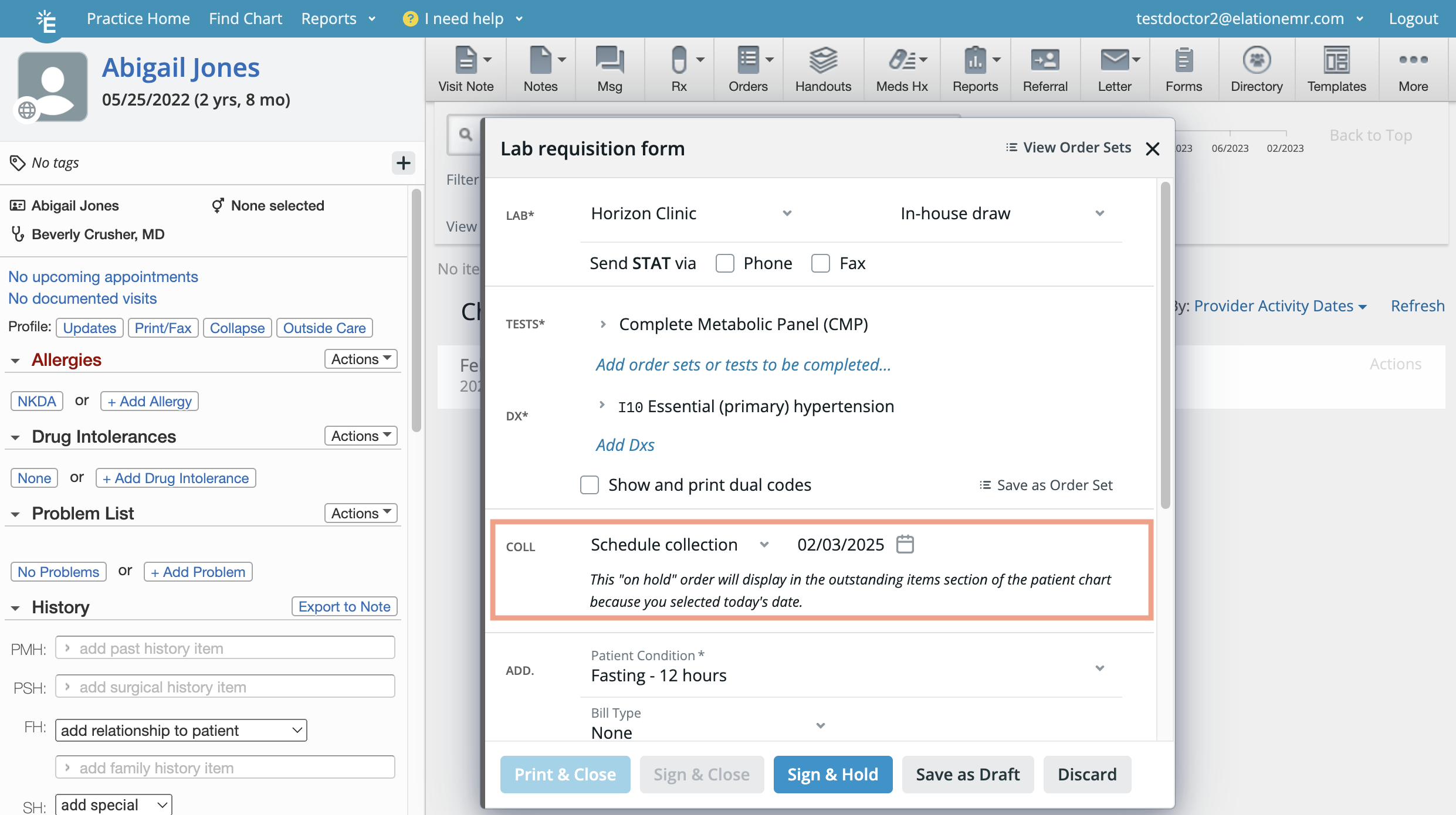 1. Complete the remainder of the Lab Order.
2. Click **Sign & Hold**.
* The scheduled collection is **Today** or prior to ‘Today’ - Find the held Lab Order in the **Outstanding Items** or **Lab Reports** section of the patient’s chart. The Lab Order will have an **On hold for specimen collection due** label in the title.
* The scheduled collection is after **Today** - Find the held Lab Order in the **Chronological Record** or **Reports** sections of the patient’s chart. The Lab Order will have an **On hold** label in the title.
* Once the scheduled collection date arrives, the Lab Order will appear in the **Outstanding Items** section of the patient’s chart. The Lab Order will have an **On hold for specimen collection due** label in the title.
* **Electronic Orders**: Electronic Orders will be held in the patients chart and NOT be sent to the lab until a specimen collection date is entered in the held order.
### Managing specimen collection dates of held Lab Orders
#### Documenting specimen collection for a held Lab Order
1. Complete the remainder of the Lab Order.
2. Click **Sign & Hold**.
* The scheduled collection is **Today** or prior to ‘Today’ - Find the held Lab Order in the **Outstanding Items** or **Lab Reports** section of the patient’s chart. The Lab Order will have an **On hold for specimen collection due** label in the title.
* The scheduled collection is after **Today** - Find the held Lab Order in the **Chronological Record** or **Reports** sections of the patient’s chart. The Lab Order will have an **On hold** label in the title.
* Once the scheduled collection date arrives, the Lab Order will appear in the **Outstanding Items** section of the patient’s chart. The Lab Order will have an **On hold for specimen collection due** label in the title.
* **Electronic Orders**: Electronic Orders will be held in the patients chart and NOT be sent to the lab until a specimen collection date is entered in the held order.
### Managing specimen collection dates of held Lab Orders
#### Documenting specimen collection for a held Lab Order
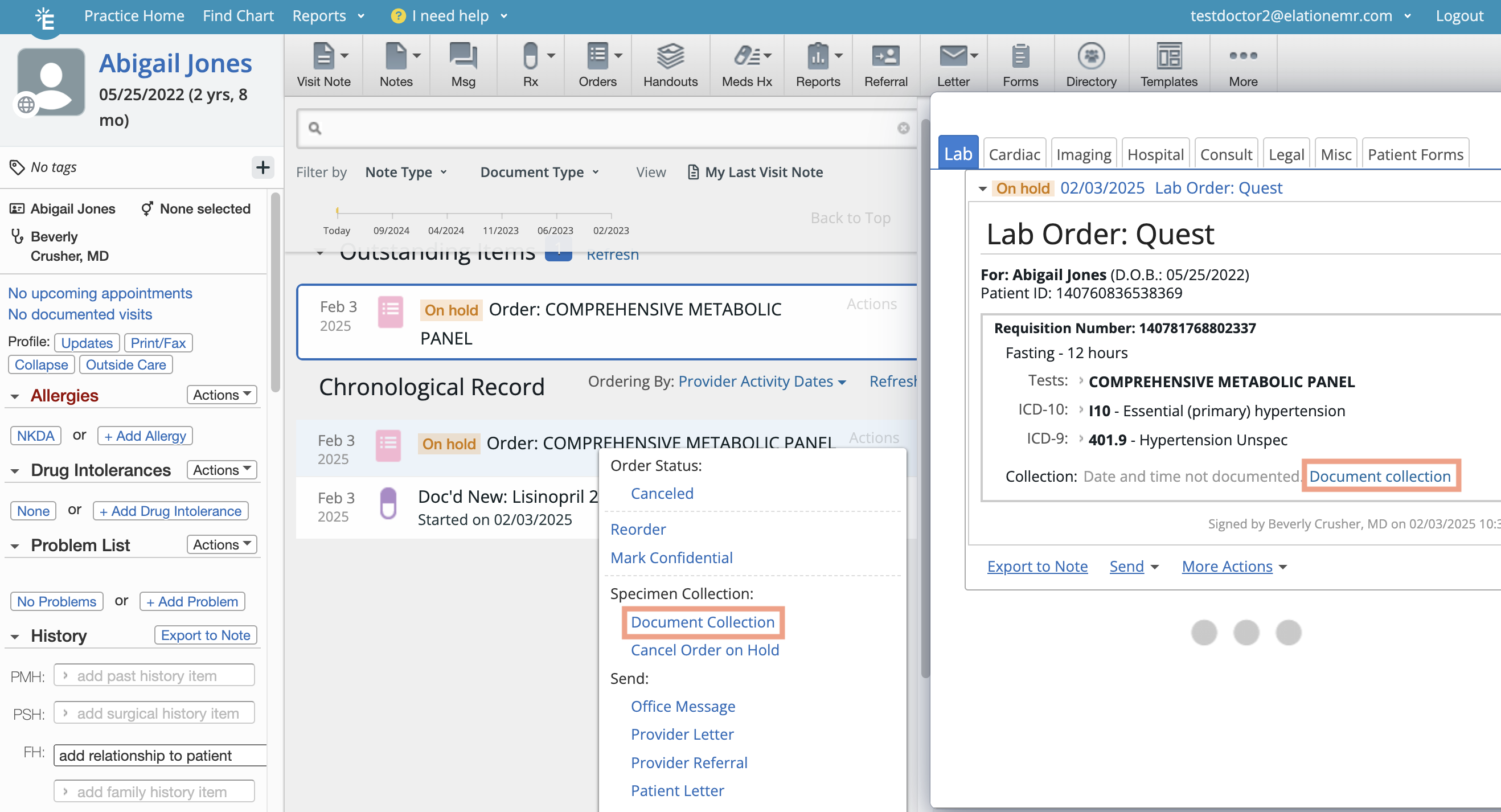 To document specimen collection in a held Lab Order:
1. Click **Document collection** in one of the following areas:
2. The **Report** view of the Lab Order.
3. Under **Actions** from the lab order in the **Reports** view, **Outstanding Items** section, or **Chronological Record**.
4. Enter in the document collection **Date** and **Time** in the Document Collection dialog.
5. Click **Document Collection**.
6. Electronic orders will be sent to the lab immediately. Non-electronic orders can be printed.
#### Editing the specimen collection date of a held, non-electronic Lab Order
To edit the specimen collection date of a non-electronic Lab Order that was previously put on hold:
* Locate the non-electronic Lab Order with the specimen collection date you want to edit.
* Click **Actions** -> **Edit Collection**.
* Edit the document collection **Date** and **Time** in the Document Collection dialog.
* Click **Save Edits**.
The collection date cannot be edited under the following circumstances: The collection date belongs to a held electronic Lab Order that was immediately sent to the lab once the collection date was entered.
The collection date was stored in the Lab Order when the Lab Order was signed off (the Lab Order was never placed on hold).
#### Removing the specimen collection date from a held, non-electronic Lab Order
To remove the specimen collection date from a non-electronic Lab Order that was previously put on hold:
1. Locate the non-electronic Lab Order with the specimen collection date you want to remove.
2. Click **Actions** -> **Remove Collection**.
3. Click **Remove** to remove the collection date and time tied to the order.
The collection date cannot be edited under the following circumstances: The collection date belongs to a held electronic Lab Order that was immediately sent to the lab once the collection date was entered.
The collection date was stored in the Lab Order when the Lab Order was signed off (the Lab Order was never placed on hold).
### Canceling a held Lab Order
To document specimen collection in a held Lab Order:
1. Click **Document collection** in one of the following areas:
2. The **Report** view of the Lab Order.
3. Under **Actions** from the lab order in the **Reports** view, **Outstanding Items** section, or **Chronological Record**.
4. Enter in the document collection **Date** and **Time** in the Document Collection dialog.
5. Click **Document Collection**.
6. Electronic orders will be sent to the lab immediately. Non-electronic orders can be printed.
#### Editing the specimen collection date of a held, non-electronic Lab Order
To edit the specimen collection date of a non-electronic Lab Order that was previously put on hold:
* Locate the non-electronic Lab Order with the specimen collection date you want to edit.
* Click **Actions** -> **Edit Collection**.
* Edit the document collection **Date** and **Time** in the Document Collection dialog.
* Click **Save Edits**.
The collection date cannot be edited under the following circumstances: The collection date belongs to a held electronic Lab Order that was immediately sent to the lab once the collection date was entered.
The collection date was stored in the Lab Order when the Lab Order was signed off (the Lab Order was never placed on hold).
#### Removing the specimen collection date from a held, non-electronic Lab Order
To remove the specimen collection date from a non-electronic Lab Order that was previously put on hold:
1. Locate the non-electronic Lab Order with the specimen collection date you want to remove.
2. Click **Actions** -> **Remove Collection**.
3. Click **Remove** to remove the collection date and time tied to the order.
The collection date cannot be edited under the following circumstances: The collection date belongs to a held electronic Lab Order that was immediately sent to the lab once the collection date was entered.
The collection date was stored in the Lab Order when the Lab Order was signed off (the Lab Order was never placed on hold).
### Canceling a held Lab Order
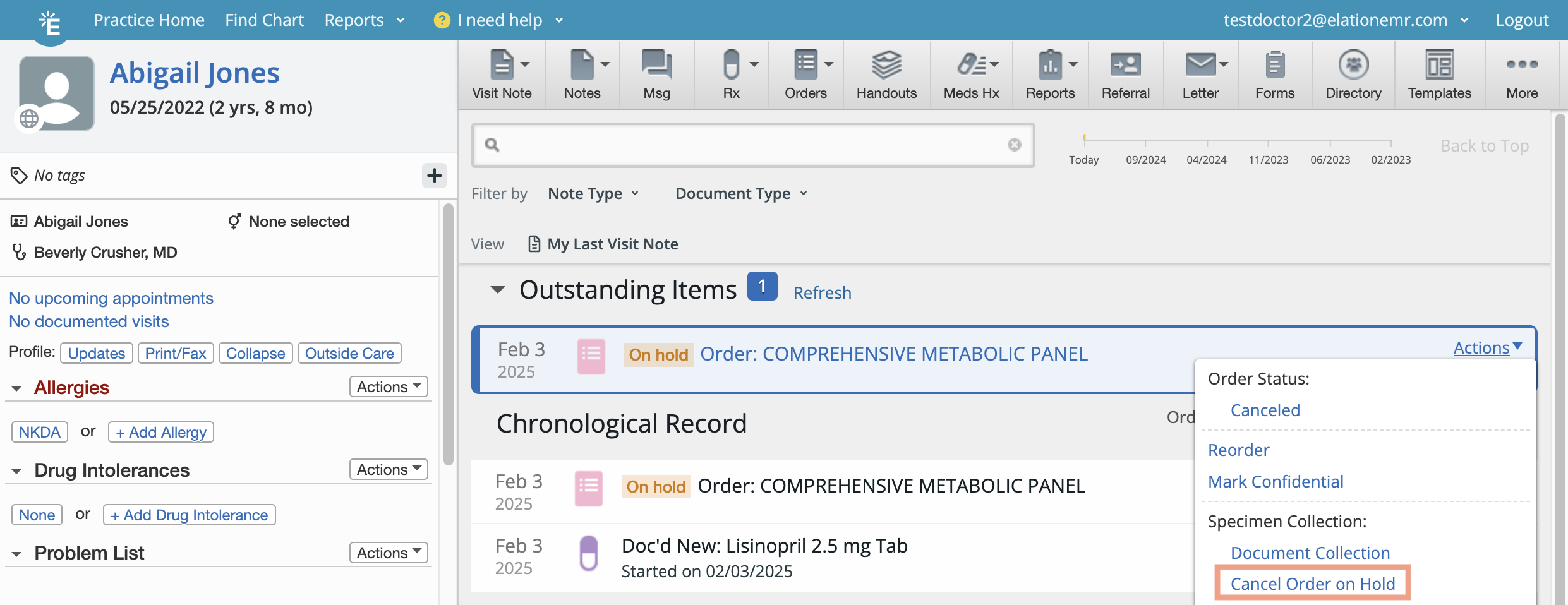 To cancel a held Lab Order:
1. Find the held Lab Order in the **Outstanding Items** or **Lab Reports** section of the patient’s chart.
2. Click **Actions** -> **Cancel Order on Hold**.
3. (Optional) Specify a cancellation reason as needed.
4. Click **Cancel Order**.
5. The cancellation date and reason will display in the **Reports** and **Chronological Record** view of the canceled Lab Order.
## Frequently Asked Questions
### Is this feature still relevant to me if I don't use eOrdering?
Yes, you can still take advantage of this feature even if you do not use eOrdering. The lab order holding feature enables you to sign a lab order without having to wait to enter a specimen collection date. You no longer need to keep your lab orders in draft mode while waiting for specimen collection to take place.
## Related Articles
* [Order Forms Guide- Ordering lab tests with the Lab Order Form](/articles/ordering-lab-tests-enhanced)
To cancel a held Lab Order:
1. Find the held Lab Order in the **Outstanding Items** or **Lab Reports** section of the patient’s chart.
2. Click **Actions** -> **Cancel Order on Hold**.
3. (Optional) Specify a cancellation reason as needed.
4. Click **Cancel Order**.
5. The cancellation date and reason will display in the **Reports** and **Chronological Record** view of the canceled Lab Order.
## Frequently Asked Questions
### Is this feature still relevant to me if I don't use eOrdering?
Yes, you can still take advantage of this feature even if you do not use eOrdering. The lab order holding feature enables you to sign a lab order without having to wait to enter a specimen collection date. You no longer need to keep your lab orders in draft mode while waiting for specimen collection to take place.
## Related Articles
* [Order Forms Guide- Ordering lab tests with the Lab Order Form](/articles/ordering-lab-tests-enhanced)