> ## Documentation Index
> Fetch the complete documentation index at: https://help.elationhealth.com/llms.txt
> Use this file to discover all available pages before exploring further.
# Prescriptions Guide - Managing electronic prior authorizations
## Overview
### What is electronic prior authorization (ePA) for prescriptions?
The electronic prior authorization (ePA) feature lets prescribers and their Prescription Delegates initiate prior authorization requests with the patient’s Pharmacy Benefits Manager (PBM) right from the [Prescription Form](/articles/Prescriptions-Forms-Guide-ePrescribing-and-ordering-meds), then manage and track these requests in the **ePA Worklist**.
### What are the benefits of electronic prior authorization for prescriptions?
Electronic prior authorization (ePA) significantly reduces the traditional dependence on pharmacy-initiated prior authorization processes and third-party ePA portals like CoverMyMeds.
ePA lets you:
* Initiate a prior authorization request before sending the ePrescription to the pharmacy.
* Avoid delays caused by waiting for pharmacy-initiated requests.
* Track and complete prior authorization tasks via a new **ePA Worklist** report.
### Which patients qualify for electronic prior authorizations for prescriptions?
ePAs are supported for patients with active prescription benefits coverage with a PBM that supports ePA through Surescripts, Elation’s ePrescribing partner.
## Workflow Instructions
### Initiating an electronic prior authorization request
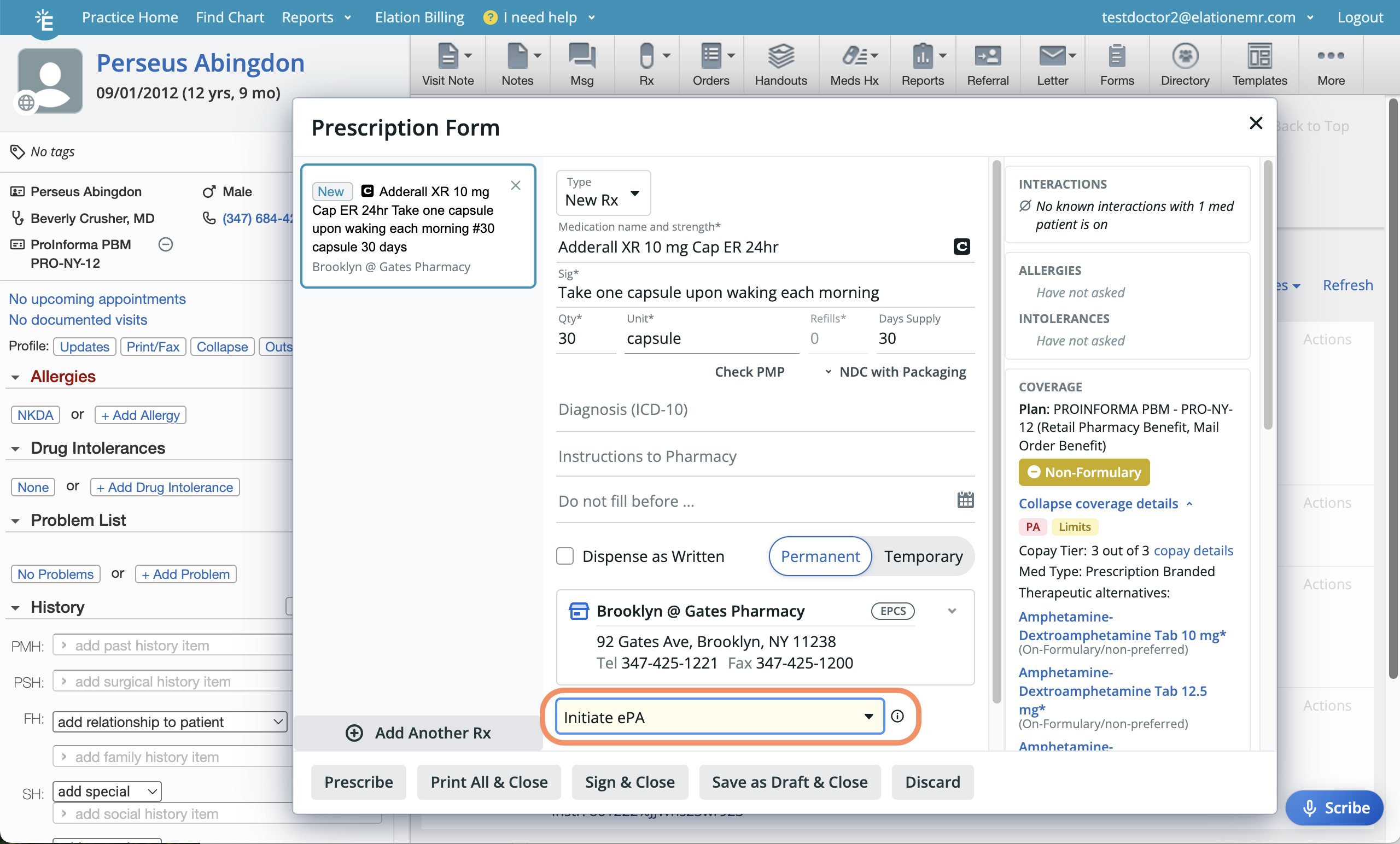
Electronic prior authorization (ePA) requests are initiated directly from Elation’s Prescription Form.
A patient’s prescription coverage status is determined by their Pharmacy Benefits Manager (PBM), and the coverage information displayed reflects what the PBM provides. If you believe the patient has active coverage but it’s not showing, review their **Legal First Name**, **Legal Last Name**, **Date of birth**, **Sex at birth**, full **Address**, and **Primary Phone Number** to ensure the details in Elation match what the PBM uses to identify the patient.
If the patient’s PBM doesn’t support electronic prior authorizations, hovering over the Electronic Prior Authorization field will show the message: *“Electronic prior authorization is not supported by the patient’s insurance provider.”*
 | **1** | Open a [Prescription Form](/articles/Prescriptions-Forms-Guide-ePrescribing-and-ordering-meds) . |
| ----- | ------------------------------------------------------------------------------------------------------------------------------------------------------------------------------------------------------------------------------------------------------------------------------------------------------------------------------------------------------------------------------------------------------------------------------------------------------------------ |
| **2** | Check the right-hand side of the Prescription Form to verify if the patient has active [prescription coverage](/articles/Prescription-Form-Guide-patient-prescription-benefits), which is required to submit an ePA request. If the patient is covered by multiple PBMs, select which coverage you want to use for the ePA. If you need to send ePA requests to more than one PBM, then you will need to create separate prescription drafts for each ePA request. |
| **3** | Enter the following details for the ePA: **Medication name** • **Sig** • **Qty** • **Pharmacy** |
| **4** | Specify if an electronic prior authorization should be initiated in the **Electronic Prior Authorization** field. The options are: **Do not initiate ePA** • **Initiate ePA / Initiate ePA for selected coverage** • **Initiate urgent ePA / Initiate urgent ePA for selected coverage** |
| **5** | Click one of the following to initiate the ePA request: To wait for ePA approval before sending the prescription, click **Save as Draft & Close**. • To send the prescription to the pharmacy without waiting for ePA approval, click **Prescribe**. |
After the ePA is initiated, the **Electronic Prior Authorization** field becomes locked and displays **ePA initiated**. This status is also recorded in the **Chronological Record**, but it will not update as the ePA request progresses.
If an ePrescription has already been sent, create a new prescription draft for the same medication to initiate the ePA request, and then delete the draft once the request has been submitted.
### Managing electronic prior authorization requests
#### Viewing the ePA Worklist Report
Third-party cookies must be enabled on your web browser to view the **ePA Worklist** . [Click here for step-by-step instructions](/articles/Managing-third-party-cookies) .
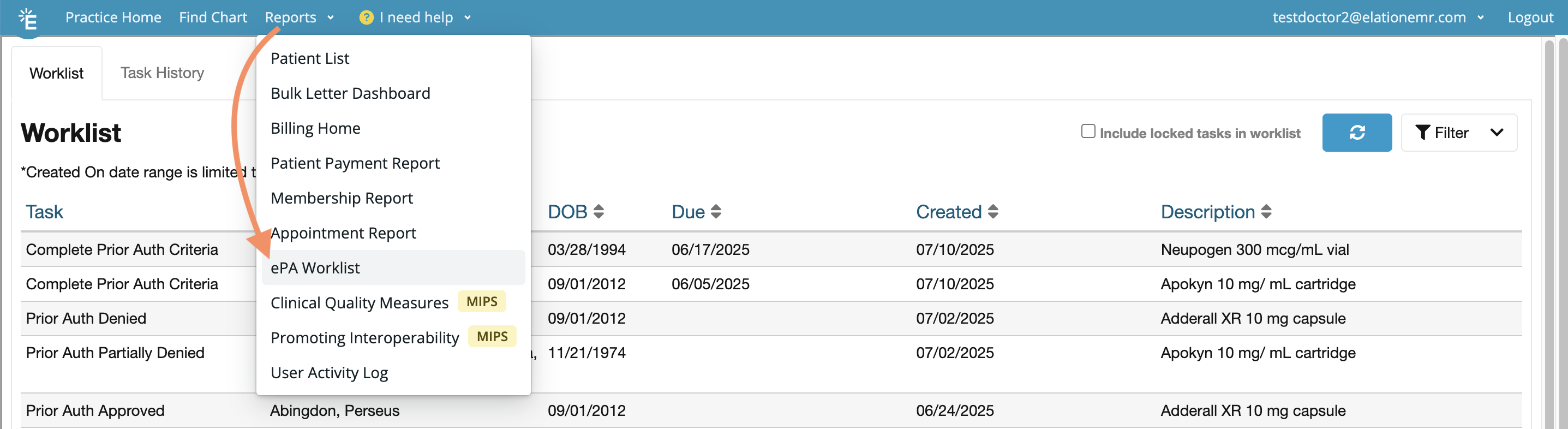
To view all ePA requests, go to **Reports** -> **ePA Worklist**. The report will automatically time out after 15 minutes of inactivity. If this happens, click the **Refresh** in your browser to load the report again.
| **1** | Open a [Prescription Form](/articles/Prescriptions-Forms-Guide-ePrescribing-and-ordering-meds) . |
| ----- | ------------------------------------------------------------------------------------------------------------------------------------------------------------------------------------------------------------------------------------------------------------------------------------------------------------------------------------------------------------------------------------------------------------------------------------------------------------------ |
| **2** | Check the right-hand side of the Prescription Form to verify if the patient has active [prescription coverage](/articles/Prescription-Form-Guide-patient-prescription-benefits), which is required to submit an ePA request. If the patient is covered by multiple PBMs, select which coverage you want to use for the ePA. If you need to send ePA requests to more than one PBM, then you will need to create separate prescription drafts for each ePA request. |
| **3** | Enter the following details for the ePA: **Medication name** • **Sig** • **Qty** • **Pharmacy** |
| **4** | Specify if an electronic prior authorization should be initiated in the **Electronic Prior Authorization** field. The options are: **Do not initiate ePA** • **Initiate ePA / Initiate ePA for selected coverage** • **Initiate urgent ePA / Initiate urgent ePA for selected coverage** |
| **5** | Click one of the following to initiate the ePA request: To wait for ePA approval before sending the prescription, click **Save as Draft & Close**. • To send the prescription to the pharmacy without waiting for ePA approval, click **Prescribe**. |
After the ePA is initiated, the **Electronic Prior Authorization** field becomes locked and displays **ePA initiated**. This status is also recorded in the **Chronological Record**, but it will not update as the ePA request progresses.
If an ePrescription has already been sent, create a new prescription draft for the same medication to initiate the ePA request, and then delete the draft once the request has been submitted.
### Managing electronic prior authorization requests
#### Viewing the ePA Worklist Report
Third-party cookies must be enabled on your web browser to view the **ePA Worklist** . [Click here for step-by-step instructions](/articles/Managing-third-party-cookies) .
To view all ePA requests, go to **Reports** -> **ePA Worklist**. The report will automatically time out after 15 minutes of inactivity. If this happens, click the **Refresh** in your browser to load the report again.
 ##### Viewing the worklist
The **Worklist** section shows all requests that need your attention. You can view and sort requests by the following criteria:
* * [Task required](#tasks)
* Patient’s name
* Patient’s date of birth
* PA due date
* PA created dates
* Medication description details
In addition, you can
* Use the **Filter** to narrow results by any of the worklist criteria.
* Click **Clear All** to remove any filters.
* Sort any column by clicking the **sort** icon.
* Refresh the worklist to see the updates using the **refresh** icon.
##### Viewing task history
The **Task History** section shows all in progress requests as well as completed or closed requests that you’ve acknowledged.
* View requests based on any of the following criteria:
* Status
* Provider
* Patient’s name
* Patient’s date of birth
* PA created date
* Medication description details
* Sort any column by clicking the sort icon.
* Refresh the worklist to see the updates using the **refresh** icon.
* Use the **Filter** to narrow results by any of the worklist criteria.
* Click **Clear All** to remove any filters.
#### Managing prior authorization tasks
| **Task Status** | **Reason** | **Next Steps** |
| ---------------------------- | -------------------------------------------------------------------------------------------------------------------------------------------------------------------------------- | ----------------------------------------------------------------------------------------------------------------------------------------------------------------------------------------------------------------------------------------------------------------------------------------------------------------------------------------------------------------------------------------------------------------------------------------------------- |
| Complete Prior Auth Criteria | The PBM requires additional information or supporting documentation before processing the prior authorization request. | Fill out the remainder of the prior authorization. [Click here for instructions](#complete_ePA). |
| Prior Auth Denied | The PBM denied the prior authorization or appeal. | To acknowledge and dismiss a denied request, open the task & click **Acknowledge Denied PA**. • To acknowledge and dismiss a denied appeal, open the task & click **Acknowledge Denied Appeal**. • To submit an appeal for a PBM that supports electronic appeals, click **Appeal**. Otherwise, reach out to the PBM directly to appeal a decision. [Click here for step by step instructions on how to submit an electronic appeal](#appeal_denial). |
| Prior Auth Partially Denied | The PBM denied a portion of the prescribed quantity due to quantity or duration limits for the medication. | To acknowledge and dismiss a partially denied request, open the task & click **Acknowledge Partially Denied PA**. • To submit an appeal for a PBM that supports electronic appeals, click **Appeal**. Otherwise, reach out to the PBM directly to appeal a decision. [Click here for step by step instructions on how to submit an electronic appeal](#appeal_denial). |
| Prior Auth Approved | The PBM approved the prior authorization or appeal. | To accept and download the response attachment (if any), click **Accept and Download**. • To acknowledge and dismiss the approved request, click **Acknowledge Approved PA**. |
| Prior Auth Cancelled | The PBM accepted your request to cancel the PA. | To acknowledge and dismiss the approved cancellation, click **Acknowledge Approved Cancel**. |
| Prior Auth Closed | The PBM closed the PA request. A PA request may be closed if • A PA may also be temporarily closed and then reopened if the PA request needs to be routed to a different vendor. | To acknowledge and dismiss the closed request, click **Acknowledge Closed PA**. |
#### Completing prior authorization criteria
##### Viewing the worklist
The **Worklist** section shows all requests that need your attention. You can view and sort requests by the following criteria:
* * [Task required](#tasks)
* Patient’s name
* Patient’s date of birth
* PA due date
* PA created dates
* Medication description details
In addition, you can
* Use the **Filter** to narrow results by any of the worklist criteria.
* Click **Clear All** to remove any filters.
* Sort any column by clicking the **sort** icon.
* Refresh the worklist to see the updates using the **refresh** icon.
##### Viewing task history
The **Task History** section shows all in progress requests as well as completed or closed requests that you’ve acknowledged.
* View requests based on any of the following criteria:
* Status
* Provider
* Patient’s name
* Patient’s date of birth
* PA created date
* Medication description details
* Sort any column by clicking the sort icon.
* Refresh the worklist to see the updates using the **refresh** icon.
* Use the **Filter** to narrow results by any of the worklist criteria.
* Click **Clear All** to remove any filters.
#### Managing prior authorization tasks
| **Task Status** | **Reason** | **Next Steps** |
| ---------------------------- | -------------------------------------------------------------------------------------------------------------------------------------------------------------------------------- | ----------------------------------------------------------------------------------------------------------------------------------------------------------------------------------------------------------------------------------------------------------------------------------------------------------------------------------------------------------------------------------------------------------------------------------------------------- |
| Complete Prior Auth Criteria | The PBM requires additional information or supporting documentation before processing the prior authorization request. | Fill out the remainder of the prior authorization. [Click here for instructions](#complete_ePA). |
| Prior Auth Denied | The PBM denied the prior authorization or appeal. | To acknowledge and dismiss a denied request, open the task & click **Acknowledge Denied PA**. • To acknowledge and dismiss a denied appeal, open the task & click **Acknowledge Denied Appeal**. • To submit an appeal for a PBM that supports electronic appeals, click **Appeal**. Otherwise, reach out to the PBM directly to appeal a decision. [Click here for step by step instructions on how to submit an electronic appeal](#appeal_denial). |
| Prior Auth Partially Denied | The PBM denied a portion of the prescribed quantity due to quantity or duration limits for the medication. | To acknowledge and dismiss a partially denied request, open the task & click **Acknowledge Partially Denied PA**. • To submit an appeal for a PBM that supports electronic appeals, click **Appeal**. Otherwise, reach out to the PBM directly to appeal a decision. [Click here for step by step instructions on how to submit an electronic appeal](#appeal_denial). |
| Prior Auth Approved | The PBM approved the prior authorization or appeal. | To accept and download the response attachment (if any), click **Accept and Download**. • To acknowledge and dismiss the approved request, click **Acknowledge Approved PA**. |
| Prior Auth Cancelled | The PBM accepted your request to cancel the PA. | To acknowledge and dismiss the approved cancellation, click **Acknowledge Approved Cancel**. |
| Prior Auth Closed | The PBM closed the PA request. A PA request may be closed if • A PA may also be temporarily closed and then reopened if the PA request needs to be routed to a different vendor. | To acknowledge and dismiss the closed request, click **Acknowledge Closed PA**. |
#### Completing prior authorization criteria
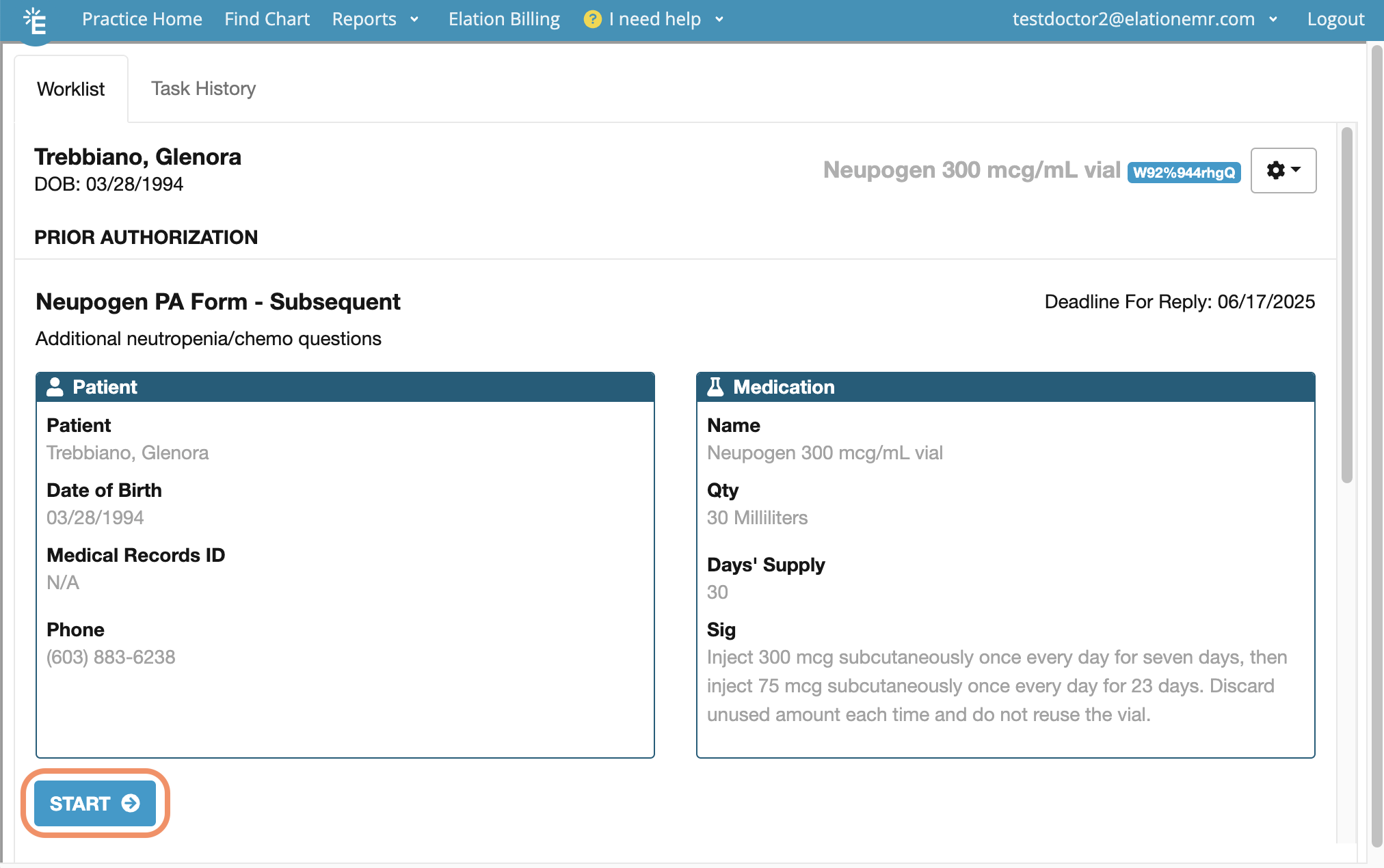 After an ePA request is initiated, seeing **Complete Prior Auth Criteria** in the worklist means you need to take further action or provide more information for the request to move forward.
**1**
Click on the ePA request that says **Complete Prior Auth Criteria** .
**2**
Click **Start** .
**3**
The PBM may not approve your request if you do not answer all related questions.
Fill in any questions that appear for the request.
1. Click **Next** to proceed to the next question.
2. Click **Back** to return to a previous question.
3. Click **Skip to Submit** to go straight to the summary screen.
The PBM may not approve your request if you do not answer all related questions.
4. Click **Options** -> **Start Questionnaire Over** to clear your progress and return to the first question.
5. Click **Options** -> **Go to Worklist** to return to the worklist without submitting your answers.
6. Click **Options** -> **Go to Task History** to go to the **Task History** section without submitting your answers.
7. Click **Options** -> **Cancel Prior Authorization** to cancel your request.
**4**
Review the summary page at the end of the questionnaire to confirm all your answers are accurate.
**5**
Click **Upload File** under **Attachments** to include any supporting documentation as needed.
* [Click here for instructions on how to attach patient records to a prior authorization request](#attach_records).
**6**
Additional comments and/or attachments may result in a manual request review which may result in slower response times.
Add additional information in the **Additional comments** box as needed. Up to 2,000 characters are supported.
**7**
Click **Submit** to submit your request.
**8**
Use the **Task History** section to monitor the request's progress as needed. Once a decision is made, it will appear in the worklist.
#### Canceling an ePA request
| **1** | Open the task in the worklist. Only tasks with the **Complete Prior Auth Criteria** status can be canceled. |
| ----- | ----------------------------------------------------------------------------------------------------------- |
| **2** | Click **Options** -> **Cancel Prior Authorization** . |
This marks the task as canceled and moves it to the **Task History** section.
#### Appealing a denied request
Not all PBMs support electronic appeals. If the instructions below aren’t available for a denied request, it means the PBM doesn’t support electronic appeals, and you’ll need to contact them directly to appeal the decision.
To appeal a denied request:
| **1** | Open the denial in the worklist. |
| ----- | -------------------------------------------------------------------------------------------------------------------------------------- |
| **2** | Click **Appeal** . |
| **3** | Click **Upload File** under **Attachments** to include any supporting documentation as needed. |
| **4** | Add additional information in the **Comments** box as needed. Up to 2,000 characters are supported. |
| **5** | Click **Appeal** . |
| **6** | Use the **Task History** section to monitor the request's progress as needed. Once a decision is made, it will appear in the worklist. |
#### Attaching patient chart records to prior authorization requests/appeals
To attach patient chart records to a prior authorization requests/appeals:
| **1** | Use Chrome or Firefox to print the record. |
| ----- | ---------------------------------------------------------------------------------------------------------------------------------------------------------------------------- |
| **2** | Use the browser’s [Print to PDF](https://pdf.wondershare.com/pdf-knowledge/print-to-pdf-firefox-chrome-ie-safari.html) feature to save the document as PDF on your computer. |
| **3** | Upload the PDFs to the request as needed. |
## Frequently Asked Questions
### When I click ePrescribe or Save as Draft & Close I receive a **Prescription failed** message. How should I proceed?
If you see a **Prescription failed** message, discard the prescription draft, refresh the patient’s chart and then create the prescription again. If you continue to see this message, notify Elation using **I need help** -> **Contact Elation Support** and we will investigate this issue.
### When I open the ePA Worklist, I receive a 'Something went wrong. Internal Server Error' message. How should I proceed?
The “Something went wrong. Internal Server Error” error message appears when the **Prior Auth Worklist** can’t load because third-party cookies are disabled by your web browser. Third-party cookies must be enabled on your browser to view the **Prior Auth Worklist**. [Click here for step-by-step instructions](/articles/Managing-third-party-cookies).
### Can electronic prior authorization initiation be restricted to a specific group of users, or made available to all users?
No, not currently. Only Prescribers and their Prescription Delegates can initiate an electronic prior authorization.
### I forgot to initiate the electronic prior authorization before submitting the prescription to the pharmacy. What steps should I take now?
If an ePrescription has already been sent:
| **1** | Create a new prescription draft for the same medication. |
| ----- | --------------------------------------------------------------------------------------------------------------- |
| **2** | Specify how electronic prior authorization should be initiated in the **Electronic Prior Authorization** field. |
| **3** | Click **Save as Draft & Close** to initiate the request. |
| **4** | **Discard** the prescription draft. |
### Is it possible to attach documents from the patient chart—like visit notes and lab results—to the electronic prior authorization without first converting them to PDF?
No. Currently, only PDFs saved to your computer can be uploaded to a prior authorization request.
### Can Elation automatically request a prior authorization if the formulary requires one?
No, not currently. You must manually initiate an electronic prior authorization.
### What happens if I accidentally delete a prescription connected to an electronic prior authorization?
Deleting the associated prescription does not affect the electronic prior authorization request.
### Are ePA requests canceled automatically when the related prescription draft or ePrescribed prescription is deleted from the patient chart?
No, ePAs must be canceled manually or will automatically close if the PBM does not receive a response.
### What happens if the pharmacy also starts a prior authorization for the same medication I already requested?
You should continue managing the prior authorization you initiated in Elation and, if needed, communicate with the pharmacy about your in progress prior authorization.
## Related Articles
* [Prescription Form Guide- ePrescribing and ordering medications](/articles/Prescriptions-Forms-Guide-ePrescribing-and-ordering-meds)
* [User Accounts Guide - Managing third party cookies while using Elation](/articles/Managing-third-party-cookies)
After an ePA request is initiated, seeing **Complete Prior Auth Criteria** in the worklist means you need to take further action or provide more information for the request to move forward.
**1**
Click on the ePA request that says **Complete Prior Auth Criteria** .
**2**
Click **Start** .
**3**
The PBM may not approve your request if you do not answer all related questions.
Fill in any questions that appear for the request.
1. Click **Next** to proceed to the next question.
2. Click **Back** to return to a previous question.
3. Click **Skip to Submit** to go straight to the summary screen.
The PBM may not approve your request if you do not answer all related questions.
4. Click **Options** -> **Start Questionnaire Over** to clear your progress and return to the first question.
5. Click **Options** -> **Go to Worklist** to return to the worklist without submitting your answers.
6. Click **Options** -> **Go to Task History** to go to the **Task History** section without submitting your answers.
7. Click **Options** -> **Cancel Prior Authorization** to cancel your request.
**4**
Review the summary page at the end of the questionnaire to confirm all your answers are accurate.
**5**
Click **Upload File** under **Attachments** to include any supporting documentation as needed.
* [Click here for instructions on how to attach patient records to a prior authorization request](#attach_records).
**6**
Additional comments and/or attachments may result in a manual request review which may result in slower response times.
Add additional information in the **Additional comments** box as needed. Up to 2,000 characters are supported.
**7**
Click **Submit** to submit your request.
**8**
Use the **Task History** section to monitor the request's progress as needed. Once a decision is made, it will appear in the worklist.
#### Canceling an ePA request
| **1** | Open the task in the worklist. Only tasks with the **Complete Prior Auth Criteria** status can be canceled. |
| ----- | ----------------------------------------------------------------------------------------------------------- |
| **2** | Click **Options** -> **Cancel Prior Authorization** . |
This marks the task as canceled and moves it to the **Task History** section.
#### Appealing a denied request
Not all PBMs support electronic appeals. If the instructions below aren’t available for a denied request, it means the PBM doesn’t support electronic appeals, and you’ll need to contact them directly to appeal the decision.
To appeal a denied request:
| **1** | Open the denial in the worklist. |
| ----- | -------------------------------------------------------------------------------------------------------------------------------------- |
| **2** | Click **Appeal** . |
| **3** | Click **Upload File** under **Attachments** to include any supporting documentation as needed. |
| **4** | Add additional information in the **Comments** box as needed. Up to 2,000 characters are supported. |
| **5** | Click **Appeal** . |
| **6** | Use the **Task History** section to monitor the request's progress as needed. Once a decision is made, it will appear in the worklist. |
#### Attaching patient chart records to prior authorization requests/appeals
To attach patient chart records to a prior authorization requests/appeals:
| **1** | Use Chrome or Firefox to print the record. |
| ----- | ---------------------------------------------------------------------------------------------------------------------------------------------------------------------------- |
| **2** | Use the browser’s [Print to PDF](https://pdf.wondershare.com/pdf-knowledge/print-to-pdf-firefox-chrome-ie-safari.html) feature to save the document as PDF on your computer. |
| **3** | Upload the PDFs to the request as needed. |
## Frequently Asked Questions
### When I click ePrescribe or Save as Draft & Close I receive a **Prescription failed** message. How should I proceed?
If you see a **Prescription failed** message, discard the prescription draft, refresh the patient’s chart and then create the prescription again. If you continue to see this message, notify Elation using **I need help** -> **Contact Elation Support** and we will investigate this issue.
### When I open the ePA Worklist, I receive a 'Something went wrong. Internal Server Error' message. How should I proceed?
The “Something went wrong. Internal Server Error” error message appears when the **Prior Auth Worklist** can’t load because third-party cookies are disabled by your web browser. Third-party cookies must be enabled on your browser to view the **Prior Auth Worklist**. [Click here for step-by-step instructions](/articles/Managing-third-party-cookies).
### Can electronic prior authorization initiation be restricted to a specific group of users, or made available to all users?
No, not currently. Only Prescribers and their Prescription Delegates can initiate an electronic prior authorization.
### I forgot to initiate the electronic prior authorization before submitting the prescription to the pharmacy. What steps should I take now?
If an ePrescription has already been sent:
| **1** | Create a new prescription draft for the same medication. |
| ----- | --------------------------------------------------------------------------------------------------------------- |
| **2** | Specify how electronic prior authorization should be initiated in the **Electronic Prior Authorization** field. |
| **3** | Click **Save as Draft & Close** to initiate the request. |
| **4** | **Discard** the prescription draft. |
### Is it possible to attach documents from the patient chart—like visit notes and lab results—to the electronic prior authorization without first converting them to PDF?
No. Currently, only PDFs saved to your computer can be uploaded to a prior authorization request.
### Can Elation automatically request a prior authorization if the formulary requires one?
No, not currently. You must manually initiate an electronic prior authorization.
### What happens if I accidentally delete a prescription connected to an electronic prior authorization?
Deleting the associated prescription does not affect the electronic prior authorization request.
### Are ePA requests canceled automatically when the related prescription draft or ePrescribed prescription is deleted from the patient chart?
No, ePAs must be canceled manually or will automatically close if the PBM does not receive a response.
### What happens if the pharmacy also starts a prior authorization for the same medication I already requested?
You should continue managing the prior authorization you initiated in Elation and, if needed, communicate with the pharmacy about your in progress prior authorization.
## Related Articles
* [Prescription Form Guide- ePrescribing and ordering medications](/articles/Prescriptions-Forms-Guide-ePrescribing-and-ordering-meds)
* [User Accounts Guide - Managing third party cookies while using Elation](/articles/Managing-third-party-cookies)